 TrickExprt Android Apps, Games, Software & Tech Guides
Device Tested: Tested on Galaxy Note 20 Ultra
Is Free Fire MAX stuck on the loading screen or showing a black screen on your Samsung phone? Try these five fixes: clear the cache, update the game, free up storage, reinstall the game, and check Game Booster settings—with screenshots from a Galaxy Note 20 Ultra. Use the official Free Fire MAX Google Play listing to check for updates and confirm the installed publisher.
Quick Answer: Try These Fixes First
- Force stop Free Fire MAX and restart your Samsung phone.
- Clear the game’s cache (not its data) in Settings > Apps > Free Fire MAX > Storage.
- Check Google Play for an official game update.
- Check available storage and close unnecessary background apps.
- If the problem continues, reinstall from Google Play only after confirming that your game account is linked and recoverable.
If Free Fire MAX opens but cannot log in: test your Wi-Fi or mobile-data connection, turn off any VPN you are using, and check the official game update. Garena’s troubleshooting guidance recommends using a stable connection and avoiding VPNs or third-party programs while diagnosing connection issues.
What Is the Problem?
Some players report that Free Fire MAX gets stuck on the loading screen, displays a black screen, or closes before reaching the game lobby. Sometimes the game shuts down after a few seconds; in other cases, the screen remains black.
This issue has been reported on Samsung Galaxy S, Note, A, and M series phones. Possible causes include:
- Corrupted or outdated game cache
- An outdated version of the game
- Insufficient free storage on the phone
- Game files that did not install correctly
- Battery optimization or Game Booster settings that restrict the game in the background
What Happened on My Phone?
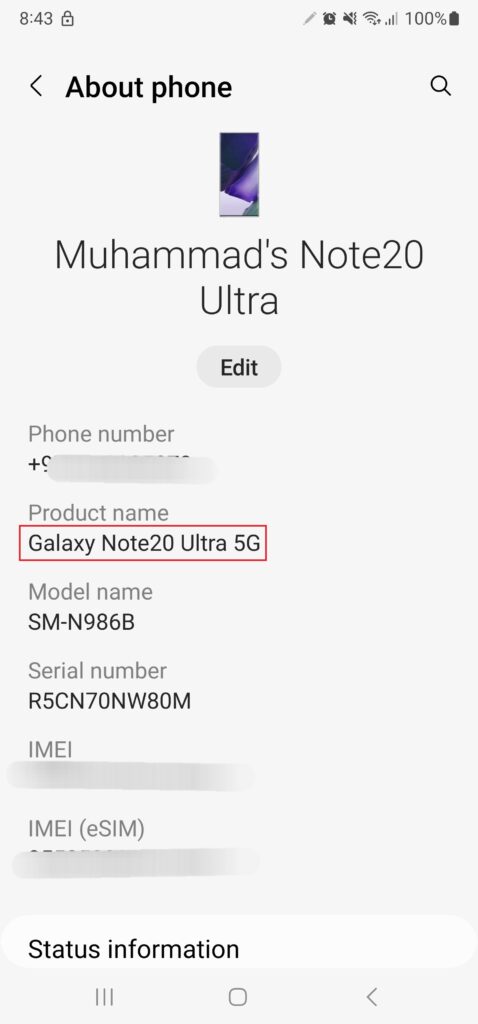
On my Galaxy Note 20 Ultra, Free Fire MAX was getting stuck during loading. Below are the exact device information screenshots used during testing:
Fix 1: Clear the Free Fire MAX Cache
Test status: Tested ✅
A corrupted cache may cause a game to get stuck while loading. Clearing the cache does not delete your account or game progress.
- Open Settings, then go to Apps.
- Select Free Fire MAX from the app list.
- Tap Storage.
- Tap Clear cache.
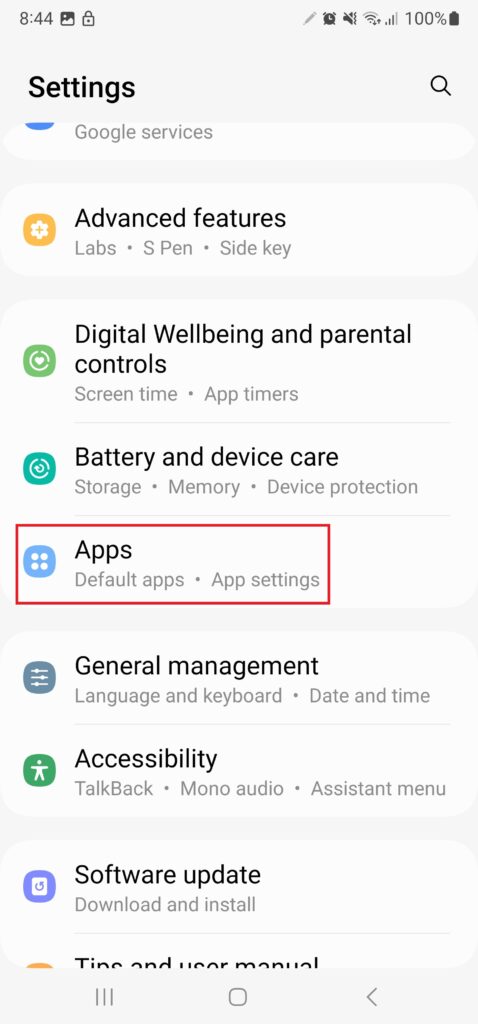
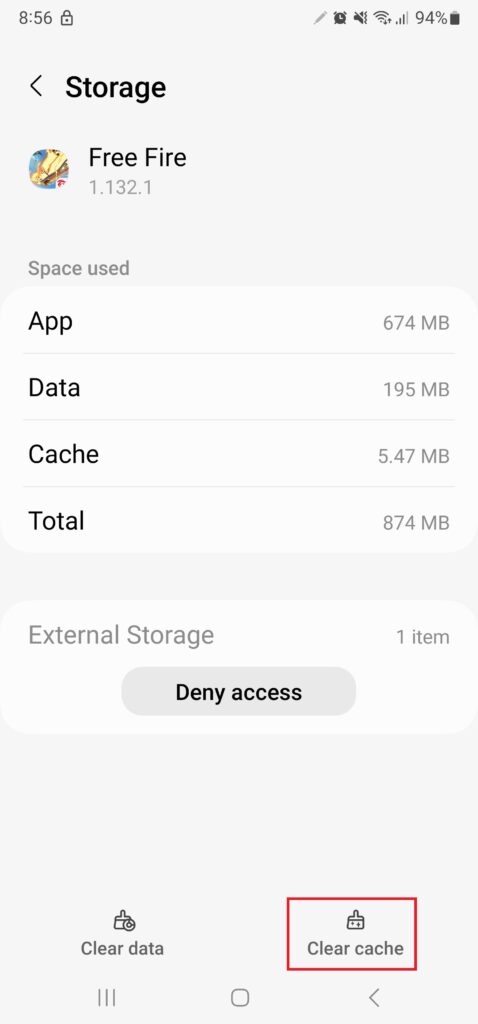
Warning: Do not tap Clear data unless necessary. It removes the app’s local data, and you may need to log in again.
Fix 2: Update the Game
Test status: Tested ✅
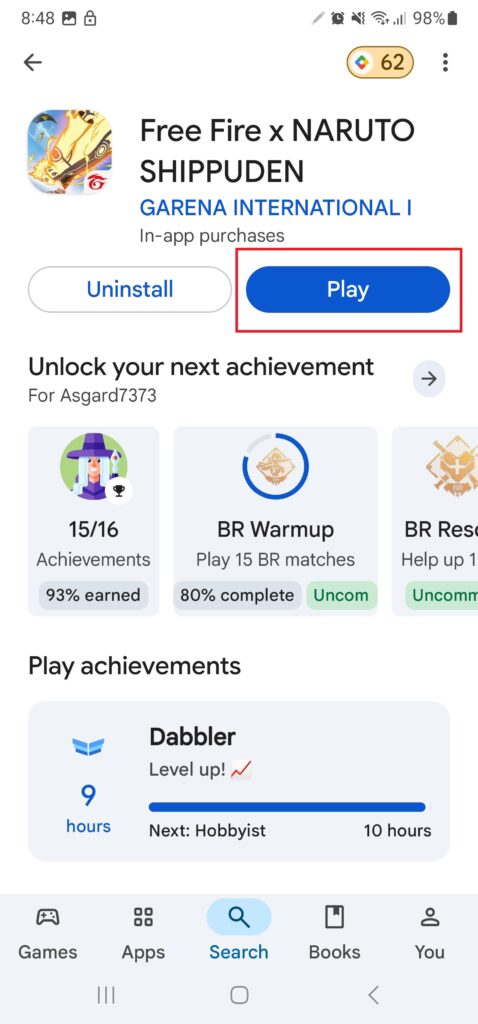
An outdated game version may have trouble connecting to current game services. Check for updates on the official Google Play listing and install an update if one is available. If the Play Store download itself gets stuck, follow our Google Play Download Pending guide.
- Open the Google Play Store.
- Search for Free Fire MAX.
- If you see an Update button, tap it. If you see Open / Play, the game is up to date.
- After updating, restart your phone and open the game again.
Fix 3: Free Up Phone Storage
Test status: Tested ✅
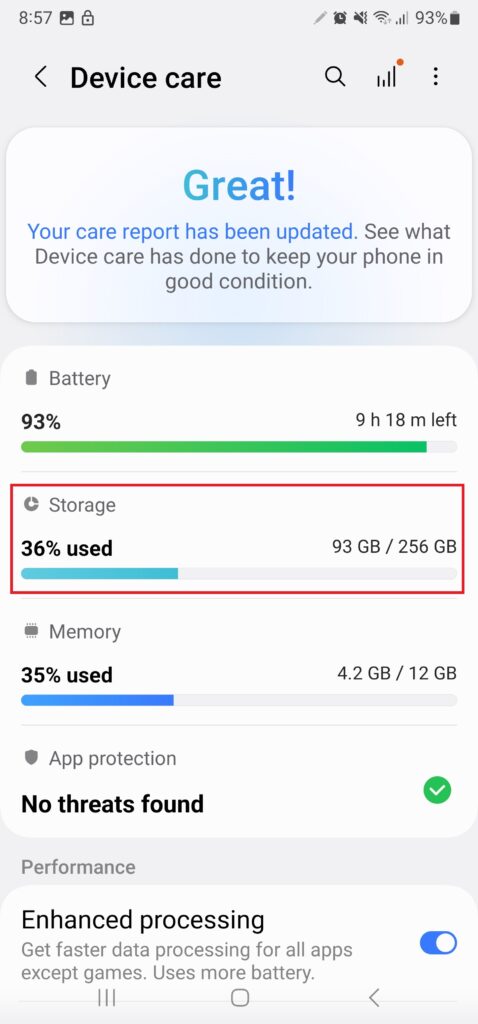
Low available storage can prevent game resources from downloading or updating correctly. There is no single free-space amount that guarantees Free Fire MAX will run without a black screen, so check the space available on your own device. If your Samsung phone is nearly full, see our guide to freeing up Android storage without deleting important files.
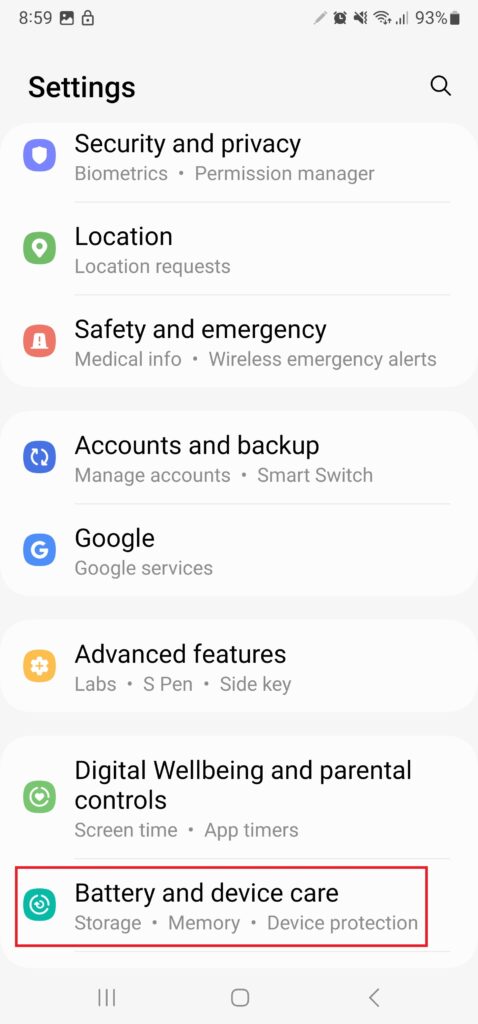
- Go to Settings > Battery and device care > Storage.
- Check how much storage is available.
- Remove unused apps, WhatsApp media, and large videos.
Fix 4: Uninstall and Reinstall the Game
Test status: Tested ✅
If other fixes do not help, reinstalling resolves damaged or incomplete game files.
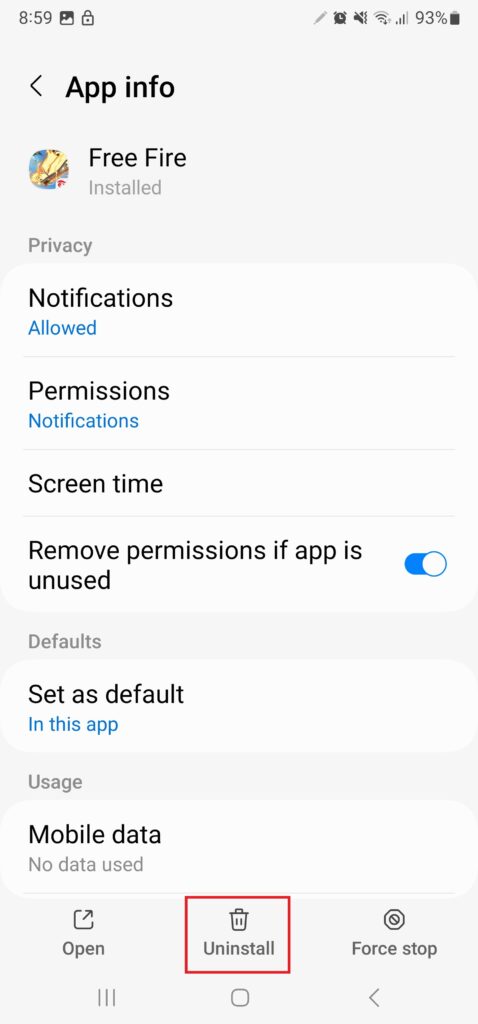
- Go to Settings > Apps > Free Fire MAX and tap Uninstall.
- Restart your phone.
- Reinstall Free Fire MAX from the Play Store.
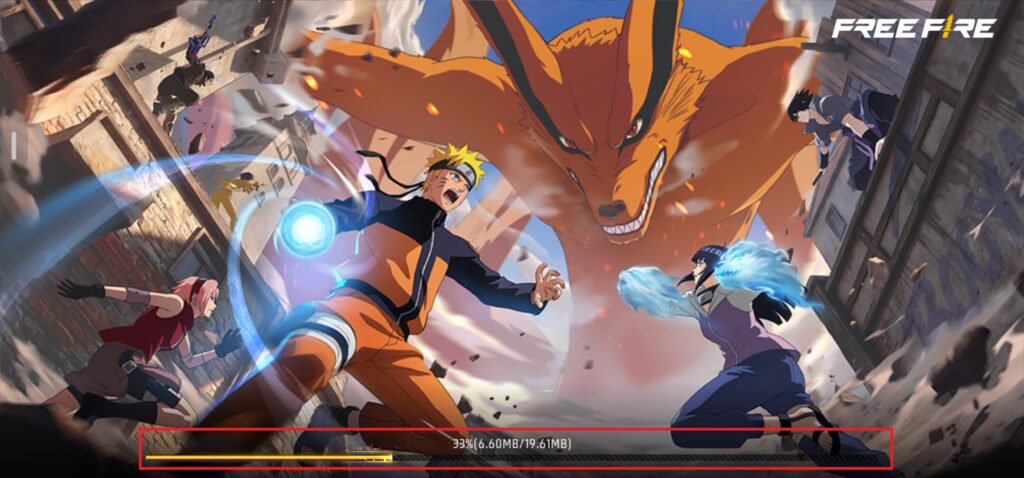
- Open the game, sign in, and allow resource downloads to finish.
- Before uninstalling, confirm that your Free Fire account is linked to a recovery method you can access. If Android shows an installation error after reinstalling, see our App Not Installed troubleshooting guide.
Fix 5: Check Game Booster and Battery Optimization
Test status: Tested ✅
Samsung Game Booster and battery settings vary by One UI version. Check whether a power-saving setting is restricting the game while it loads; do not disable battery protections across the whole phone. For general Samsung and Android power-saving advice, see our Android battery-life guide.
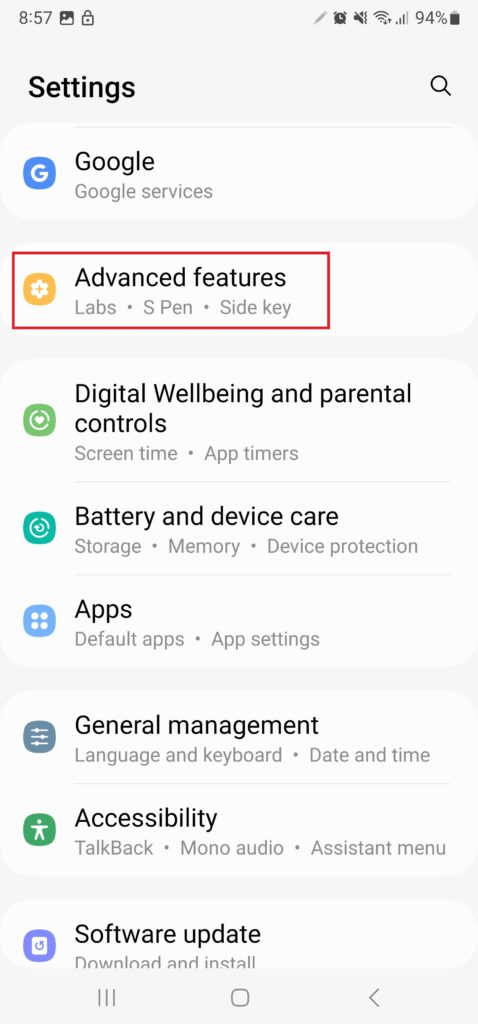
- Open Settings > Advanced features > Game Launcher or Game Booster, if available, and review the settings applied to Free Fire MAX.
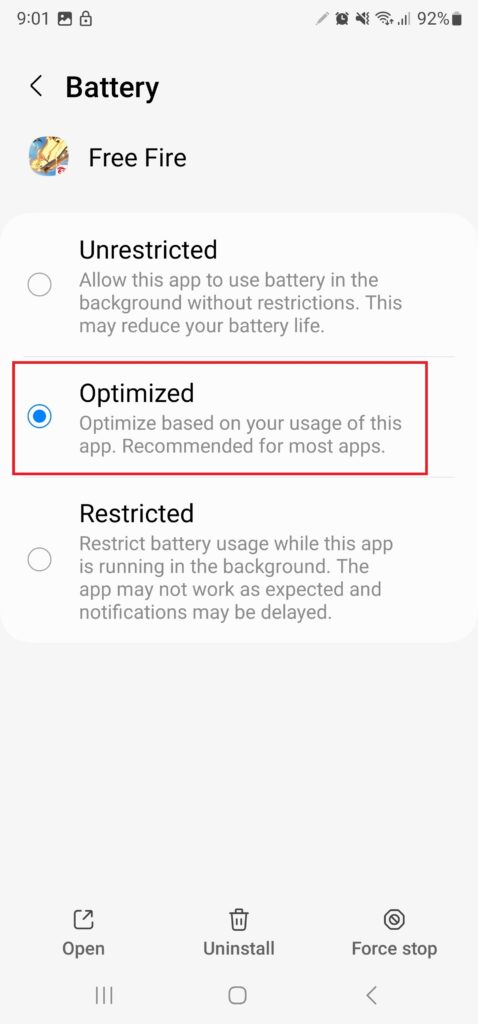
- Open Settings > Apps > Free Fire MAX > Battery. If the phone has placed the game in a restricted state, test the recommended or unrestricted option temporarily and compare the result. Menu names vary by One UI version.
Which Fix Worked?
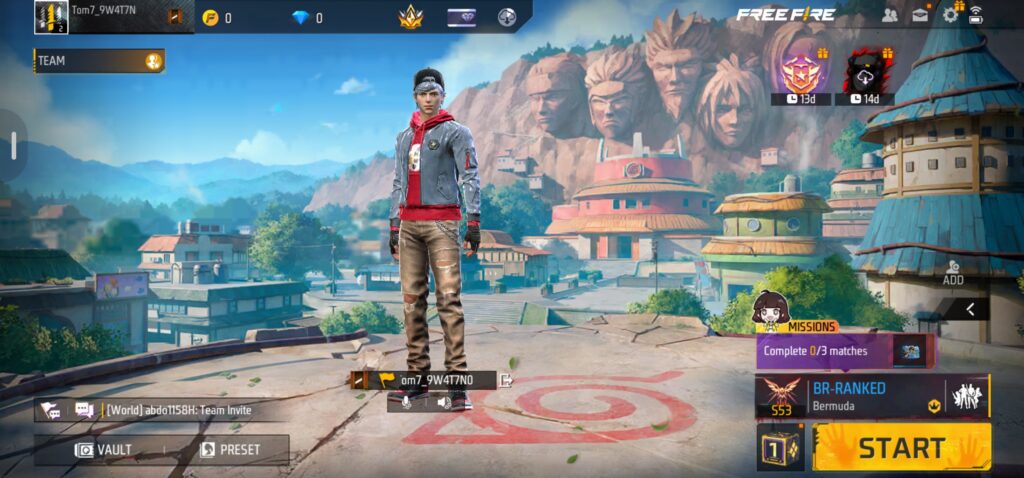
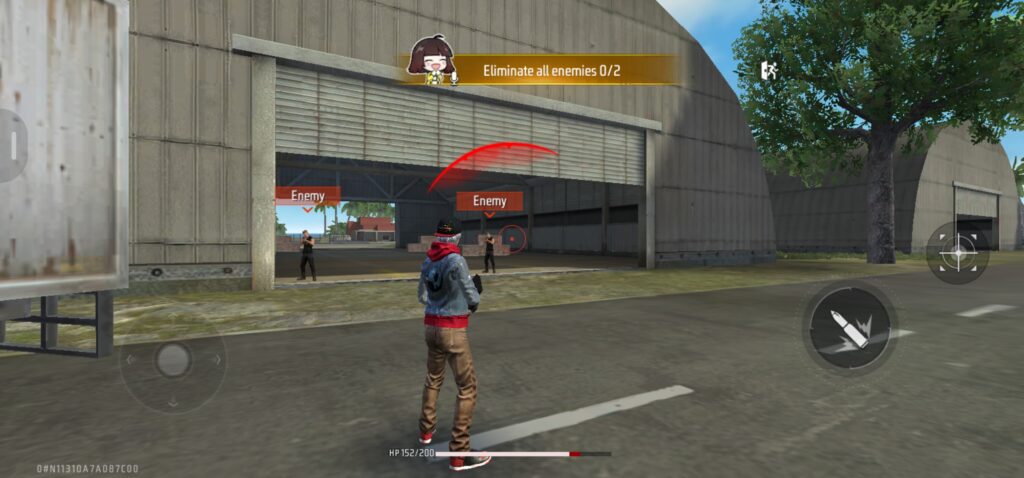
On my Galaxy Note 20 Ultra, clearing game cache and ensuring full Play Store updates resolved the black/loading screen issue completely, allowing entry to the game lobby.
Conclusion
On the Galaxy Note 20 Ultra used for this guide, clearing the game cache and checking for the official update resolved the loading/black-screen issue during testing. Your Samsung model, One UI version and current game build may behave differently, so try one step at a time and note which change resolves the issue. If other Android apps also crash, read our Android app-crash troubleshooting guide. If storage is low, use our Android storage guide.
Official Sources
Use these official resources for the game download and general troubleshooting. Garena’s support articles may cover Free Fire generally and may not describe every Free Fire MAX-specific menu.



One comment
Pingback: How to Increase Battery Life on Android: 12 Easy Tips