 TrickExprt Android Apps, Games, Software & Tech Guides
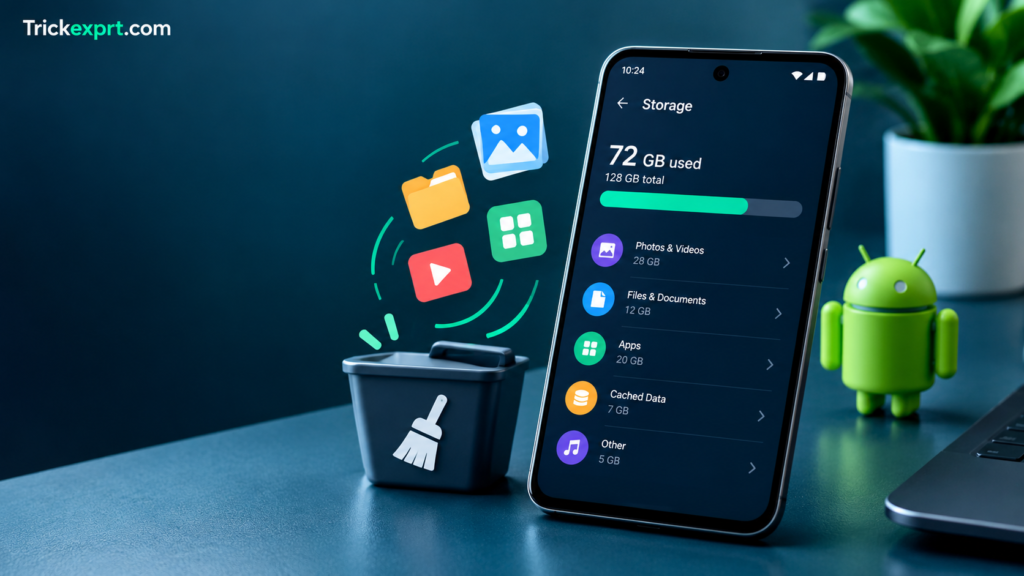
Is your Android phone showing a “Storage space running out” warning? When your phone runs low on storage, you may struggle to install apps, download files, record videos, or update existing applications.
The good news is that you do not always need to delete your personal photos, important documents, or favorite apps to make room. By checking which files use the most space, clearing temporary data, reviewing downloads, and using built-in storage tools, you can often recover useful space safely.
This guide shows how to free up storage on Android without deleting important files, photos or app data. Start by checking what uses the most space, then remove only items you can identify and safely replace or back up.
Why Does Android Storage Fill Up?
Your phone’s storage can fill up for several reasons, including:
- Large photos and videos recorded with your camera.
- Downloaded movies, music, PDFs, and other files.
- Temporary cache files created by apps.
- Messaging apps storing photos, videos, and voice notes.
- Games and apps using large amounts of storage.
- Offline content saved for use without an internet connection.
Before deleting anything, identify what is taking up the most space. This helps you choose the right solution instead of removing files you may need later.
1. Check Which Files Are Using Your Storage
The first step is to review your phone’s storage breakdown. Google’s official Android storage guide also recommends checking Settings > Storage and reviewing categories before choosing what to remove.
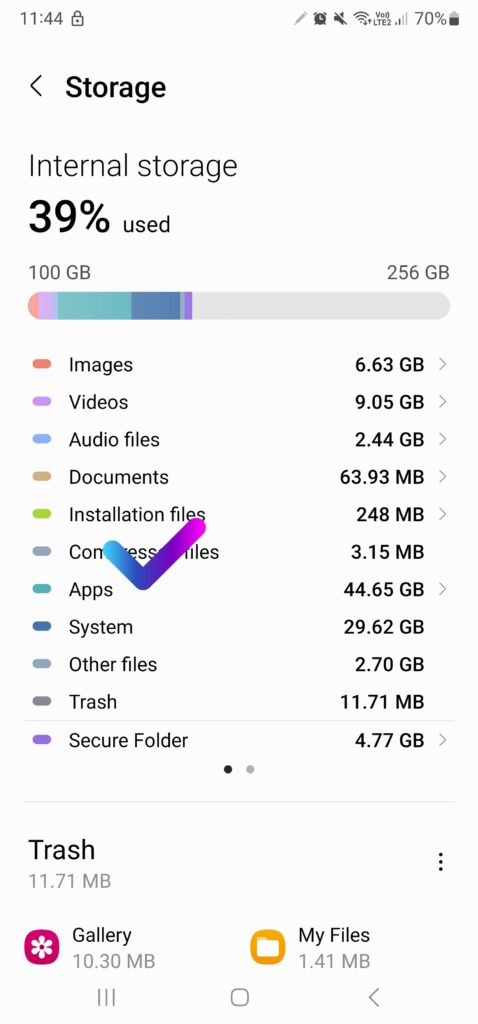
Steps to check Android storage
- Open the Settings app on your phone.
- Look for Storage, Device care, or a similar option.
- Open the storage overview.
- Review the space used by apps, images, videos, documents, and other categories.
- Open the largest category to see which items you can safely remove or move.
The exact menu names depend on your Android version and phone manufacturer. Samsung, Google Pixel, Xiaomi, and other devices may display storage information differently.
Helpful tip: If videos or downloaded files use most of your storage, focus on those categories first. Clearing a small app cache will not make a big difference when large video files are the main problem.
2. Clear App Cache Without Removing Personal Data
Apps store temporary files called cache to help content load more efficiently. Over time, these files may use additional storage.
Clearing an app’s cache is a useful troubleshooting step when an app is behaving unexpectedly or its temporary files have become large. When an app continues to close unexpectedly, see our guide to fixing apps crashing on Android.
How to clear an app’s cache
- Open Settings.
- Tap Apps or Applications.
- Select an app that is using a lot of storage.
- Open Storage or Storage & cache.
- Tap Clear cache.
- Repeat for other apps when necessary.
For example, you might check a browser, a social media app, or another application that stores substantial temporary content.
Clear cache vs. clear data
These two options are not the same.
- Clear cache: Removes temporary files. Some content may load more slowly the next time you use the app.
- Clear storage or Clear data: Can erase local app data, settings, downloaded content, and login sessions.
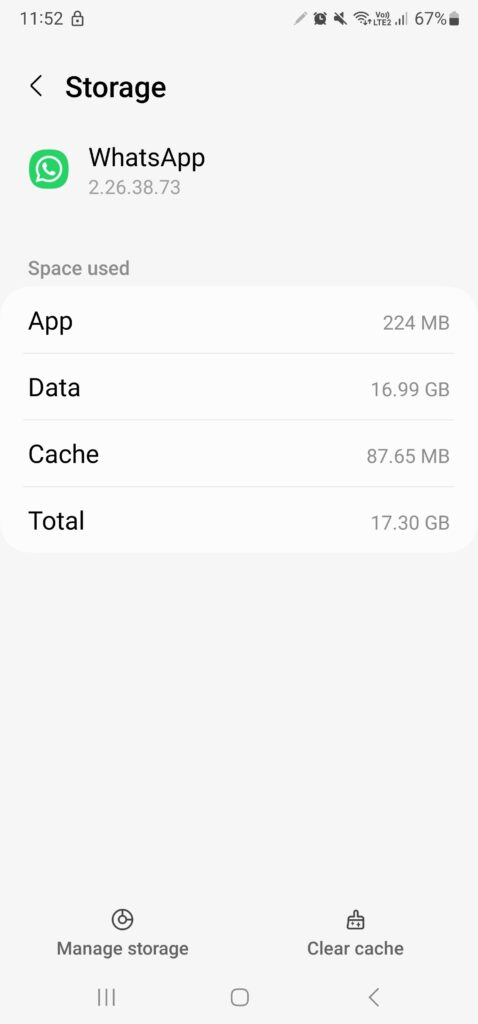
If your goal is to free up space without losing important information, choose Clear cache, not Clear storage.
Always read the confirmation message before proceeding. If your phone is also showing a separate “Google Play services keeps stopping” message, follow the steps in our Google Play Services troubleshooting guide.
3. Remove Unnecessary Downloads
Downloaded files are easy to forget about. Old installation files, duplicate PDFs, documents, and videos can occupy significant storage.
Steps to review your downloads
- Open your phone’s Files or file manager app.
- Find the Downloads folder.
- Sort files by size or date if your file manager supports it.
- Open unfamiliar files before deciding whether to remove them.
- Delete only files you recognize and no longer need.
Check other folders containing downloaded media as well. If Google Play downloads or app updates remain stuck on “Pending”, use our Google Play Store Download Pending troubleshooting guide.
Do not delete documents simply because you do not recognize their filenames. If you are unsure whether a file is important, keep it until you can identify it or make a backup.
4. Find and Remove Duplicate or Unwanted Media
Photos and videos can take up more space than expected, particularly if you record high-resolution videos.
Instead of deleting your entire gallery, review it carefully.
Try these steps:
- Remove accidental screenshots you no longer need.
- Look for duplicate photos and repeated downloads.
- Review long videos that you have already backed up.
- Remove unnecessary offline videos and music downloads.
- Move important files to a computer or another secure storage location.
If you use Google Photos, verify that your photos and videos have successfully backed up before deleting local copies. Simply seeing a photo in your gallery does not prove that it has been backed up. Google’s official Android backup instructions explain how to turn on backup and check its progress.
Important: Deleting a file from a synced cloud service can sometimes remove it from other devices or cloud storage too. Check the service’s deletion and backup behavior first. Before using any “free up space” option, confirm that Google Photos shows Backup complete; Google’s backup-status instructions show where to check.
5. Review WhatsApp and Other Messaging App Media
Messaging apps can accumulate large amounts of forwarded videos, images, documents, and voice messages.
If WhatsApp is using a lot of storage, review its built-in storage management options.
How to manage WhatsApp storage
- Open WhatsApp.
- Open Settings.
- Select Storage and data.
- Tap Manage storage, if available.
- Review large files and chats using the most space.
- Select only the media you no longer need.
Menu names may vary with the app version.
Before deleting anything, check whether a file is important and whether you have another copy. If you need to preserve a conversation, review your chat backup options before changing app data or reinstalling the app.
You can also review other messaging apps individually because each application may store media differently.
6. Uninstall Apps You No Longer Use
Unused applications can occupy storage even when you rarely open them.
To review your apps:
- Open Settings.
- Tap Apps.
- Review installed applications.
- Open an app you no longer need.
- Check its storage usage.
- Uninstall it if you are certain you no longer need it.
Before uninstalling an app, consider whether it stores important information locally. Some applications sync your information online, while others may store files only on your device.
If low storage has already caused an installation to fail with “App Not Installed”, see our Android App Not Installed error guide.
If your phone supports app archiving, you may also be able to remove an app’s installed files while preserving some of its data. Availability depends on the device and app.
7. Move Important Files to Another Storage Location
If your phone contains important photos, videos, or documents, moving selected files can be better than deleting them.
Possible options include:
- Computer: Connect your phone using a compatible USB cable and copy your files.
- Cloud storage: Upload files and verify that the upload is complete.
- External storage: Use a compatible memory card or USB storage device if your phone supports it.
After transferring files, open a few of them from the destination to confirm that they work correctly.
Only remove the original copies once you are confident that the transfer or backup succeeded.
8. Use Android’s Built-In Storage Suggestions
Some Android devices provide built-in tools that suggest files to remove or allow certain unused apps to be archived.
Open Settings and look for Storage or a similar storage management option. On supported devices, you may find recommendations for large files, unused apps, or backed-up media.
Google Play also offers an app archiving feature on supported devices. Archived apps can be removed from the device while retaining their icon and certain app data, and they can be restored when available through Google Play.
The available options depend on your Android version, device manufacturer, and installed applications. Google’s official guide to archiving unused Android apps notes that availability depends on Android version and supported hardware.
9. Restart Your Phone and Check Storage Again
After completing the steps above, restart your phone if needed and return to the storage overview.
Compare the available space with the amount you had before.
Remember that clearing cache or removing a few small files may recover only a small amount of storage. If the phone is still nearly full, review your largest apps, videos, downloads, and messaging media again.
You do not need to clear every app’s cache regularly. Focus on the items that actually use substantial space or are causing a problem.
Common Mistakes to Avoid
When trying to free up storage, avoid these mistakes:
- Do not tap Clear data without checking the consequences. It can remove important local app information.
- Do not delete files from system folders at random. Some files are required by Android or installed apps.
- Do not assume cloud backups are complete. Verify the backup before removing originals.
- Do not install unknown cleaning apps. Some request unnecessary permissions or display misleading warnings.
- Do not expect a cache cleaner to fix every performance problem. Low storage is only one possible cause of a slow phone.
Frequently Asked Questions
How can I free up storage on Android without deleting photos?
Start by checking app storage, clearing selected app caches, removing unnecessary downloads, and reviewing messaging app media. You can also move photos to another storage location after verifying a backup.
Does clearing cache delete my photos or contacts?
Clearing an individual app’s cache generally removes temporary files rather than your personal photos or contacts. However, clearing app storage or data is different and may remove information saved inside that app.
Why is my Android storage full when I have few apps?
Photos, videos, downloaded files, messaging media, offline content, and app data can occupy more storage than the apps themselves. Check the storage breakdown to identify the main cause.
Is it safe to use Android cleaning apps?
You usually can start with the storage tools already provided by Android or your phone manufacturer. If you consider a third-party app, verify its developer, permissions, reputation, and privacy practices before installing it.
How much storage should I free up?
There is no single amount that works for every phone. Try to create enough free space for the apps, downloads, recordings, and updates you need. Check your phone’s available storage again after cleanup.
Will clearing cache make my phone faster?
It may help with a specific app problem or free some storage, but it does not guarantee that your entire phone will become faster. Performance also depends on hardware, available memory, software, battery condition, and other factors.
Final Thoughts
You can often free up Android storage without losing important personal files by starting with a storage check, clearing selected app caches, reviewing downloads, managing messaging media, and moving backed-up files to another location.
The safest approach is to inspect files before deleting them and avoid using the Clear data option unless you understand what will be removed.
Start with the categories using the most space, make a backup of anything important, and check your available storage again when you finish.