 TrickExprt Android Apps, Games, Software & Tech Guides
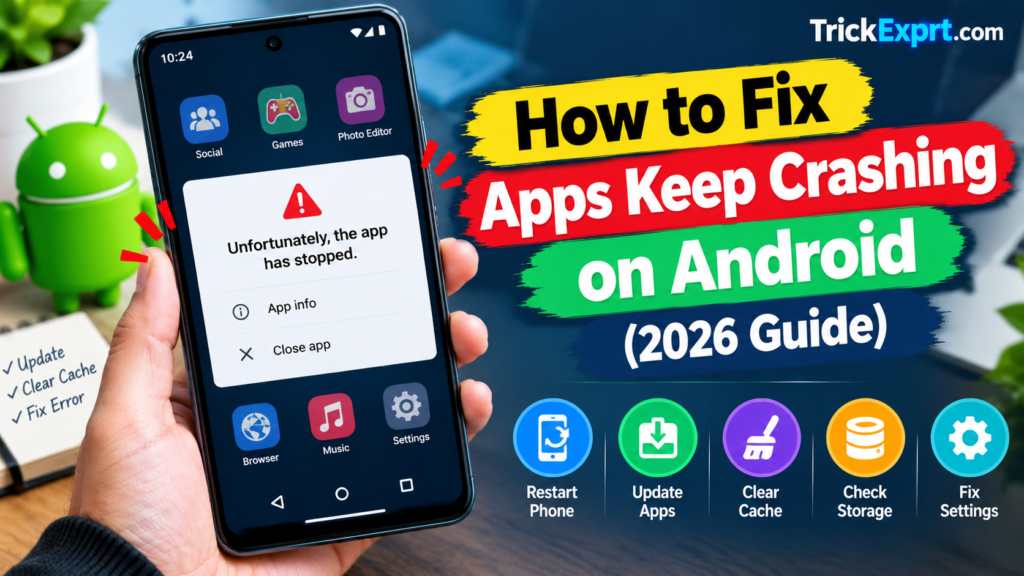
Are your Android apps closing unexpectedly, freezing during use, or showing an error such as “App keeps stopping”? This guide will help you fix apps crashing on Android, whether the problem affects social media apps, games, browsers, or other applications.
The problem may be related to outdated software, temporary app files, low storage, or a bug in the app itself.
If several apps fail alongside a “Google Play services keeps stopping” message, troubleshoot that system component separately with our Google Play Services keeps stopping guide.
This guide explains how to fix apps crashing on Android with practical steps for app updates, cache, storage, connectivity and compatibility—without immediately resetting your phone.
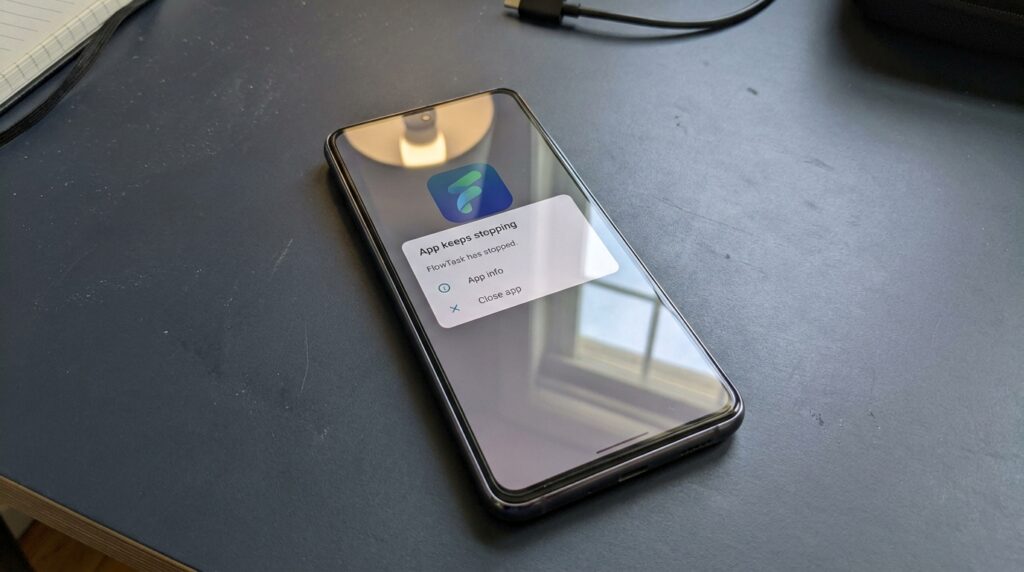
Why Do Android Apps Keep Crashing?
Common causes include:
- An outdated app version.
- Temporary cache problems.
- Insufficient available storage.
- Compatibility issues with your Android version.
- A bug in the app or a recent update.
- Network problems affecting apps that require internet access.
The following solutions to fix apps crashing on Android start with simple steps and progress to more advanced troubleshooting.
1. Restart Your Android Phone
Restarting is a simple first step when an app repeatedly closes. Google’s official Android app troubleshooting guide also recommends restarting, checking updates and force-stopping an affected app.
- Save any open work.
- Restart your Android phone.
- Wait for the phone to start completely.
- Open the affected app again.
- Check whether the problem continues.
If only one app crashes, move on to the next step.
2. Update the App
An outdated app may contain bugs that have already been fixed in a newer release. For the official update procedure, see Google Play Help’s instructions for updating Android apps.
- Open Google Play Store.
- Search for the affected app.
- Open its store listing.
- Tap Update if an update is available.
- Launch the app again after updating.
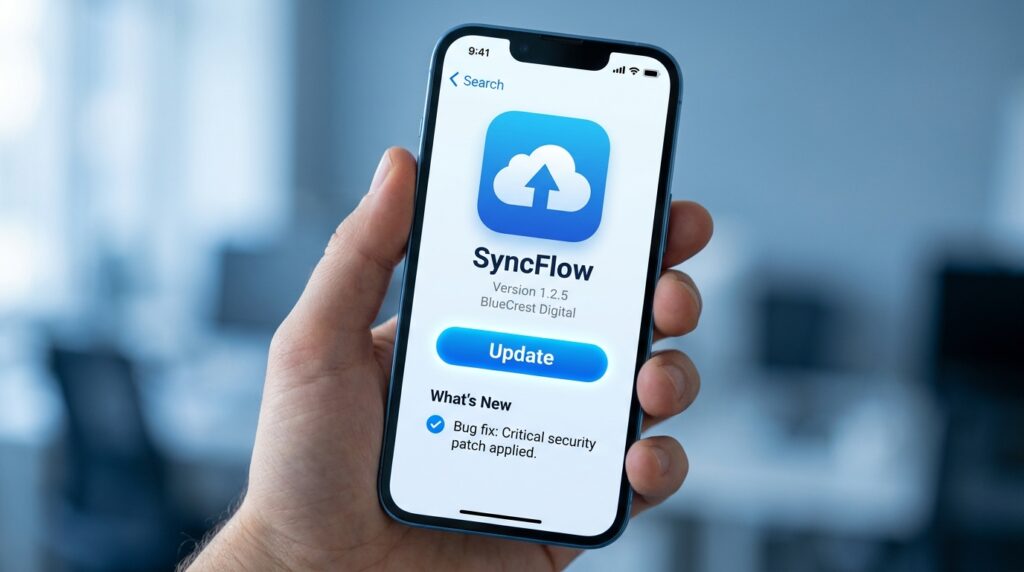
If the crashing began immediately after an update, check the developer’s support information for known issues. If Google Play itself leaves an app update stuck on “Pending”, follow our Google Play Store Download Pending guide.
3. Force Stop the App
Force stopping an app can help fix apps crashing on Android when its current process becomes unresponsive.
- Open Settings.
- Select Apps.
- Find the affected application.
- Tap Force stop.
- Confirm if prompted.
- Open the app again.
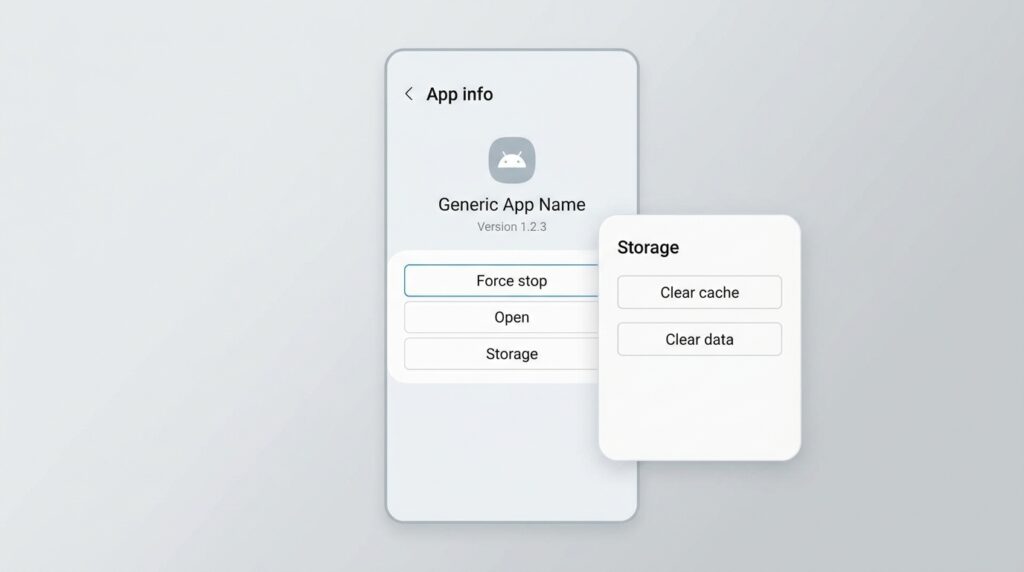
Menu names may vary between Android devices.
4. Clear the App Cache to Fix Apps Crashing on Android
Apps store temporary files to help content load faster. Sometimes those files can become problematic and cause crashes. Clearing them is a simple way to fix apps crashing on Android.
To clear an app’s cache:
- Open Settings.
- Select Apps.
- Choose the affected app.
- Open Storage or Storage & cache.
- Tap Clear cache.
- Restart the app and test it.
Avoid tapping Clear storage or Clear data unless you understand the consequences. These options may remove locally saved information or reset the app.
5. Check Your Phone’s Storage
Low storage can interfere with app operation and updates, so freeing up space can help fix apps crashing on Android.
- Open Settings.
- Select Storage.
- Review available space.
- Remove unnecessary downloads or offline media.
- Restart the app.
Back up important files before deleting them. Google’s official Android storage guide explains how to review and free up device storage.
For a more detailed walkthrough, read our guide to freeing up Android storage without deleting important files.
6. Check Your Internet Connection
If the app crashes or freezes while loading online content, test your connection.
- Open a website in your browser.
- Try a different reliable network if available.
- Check whether the problem affects other online apps.
- Install any available app updates.
An internet issue may cause loading failures even when the app itself is working correctly.
7. Reinstall the App if Necessary
If the previous methods fail, reinstalling may help resolve a damaged installation. For a step-by-step example on a real game, see how to fix Roblox not opening on Android.
Before proceeding, make sure your important data is synced or backed up.
- Confirm that you know your login details.
- Check whether your app data is backed up.
- Uninstall the affected app.
- Install it again from Google Play, if available.
- Sign in and test the app.
Reinstalling may remove local data, so use this step carefully.
8. Check Android Compatibility
Some apps require a particular Android version or device capability.
Open the app’s official store listing or support page and review its requirements. If the problem began after a system update, check for known compatibility issues or contact the developer. A recent example: the Pixel camera black screen after Android 17 update — a camera-app crash caused by a system update.
If the app fails during installation and Android displays “App Not Installed”, see our App Not Installed error troubleshooting guide.
Do not factory-reset your phone for a single crashing app unless there is a separate, well-understood reason to consider that step.
If several apps crash or the phone also freezes, use Google’s Safe Mode troubleshooting instructions to check whether a downloaded app is causing broader problems. Safe Mode temporarily disables downloaded apps, so this check is for isolating third-party interference—not for testing an app that is itself disabled in Safe Mode.
Frequently Asked Questions
Why do apps keep stopping on my Android phone?
Possible causes include software bugs, outdated apps, temporary cache issues, low storage, or compatibility problems.
Will clearing an app’s cache delete my account?
Clearing cache normally removes temporary files rather than account information. However, app behaviour can vary, so avoid clearing app data unless necessary.
Why does only one app keep crashing?
The problem may be specific to that app, its current version, or its compatibility with your device. Update the app and consult its developer if the issue continues.
Should I factory-reset my phone to fix crashing apps?
A factory reset is usually unnecessary for a single crashing app. Try simpler troubleshooting methods first and back up your data before considering any reset.
Conclusion
Apps that keep crashing on Android can often be fixed. To fix apps crashing on Android, start by restarting your phone, updating the app, clearing its cache, and checking storage and compatibility.
Test each method separately. If one particular app continues to crash, report the problem to its developer with your device model and app version.
Explore more Android troubleshooting tutorials on TrickExprt.com.



2 comments
Pingback: Toca Boca World APK Download: Free Play & Android Guide
Pingback: App Not Installed Error on Android: 11 Fixes That Work