 TrickExprt Android Apps, Games, Software & Tech Guides
Last updated: November 18, 2026
You download an APK, tap Install, wait a second, and Android throws a flat “App not installed” message at you. No reason, no error code, nothing to work with. It’s one of the most annoying errors on Android because the same message covers a dozen different problems.
The good news: the cause is almost always one of a handful of things, and you can sort it out without a computer. This guide covers the App Not Installed error on Android phones, Samsung devices and Android TV, in the order I’d actually try the fixes.
Quick fix
Check for an older installed version, confirm that enough storage is available, allow the app that opens the APK to install unknown apps, and make sure the APK is complete and compatible with your phone. If it still fails, use the checks below to narrow down the cause.
Contents
- What does “App not installed” mean?
- What causes App not installed on Android?
- How to solve the App not installed problem on Android: quick checklist
- How to fix App not installed error on Android (Fixes 1 to 5)
- How to fix App not installed APK on Android (Fixes 6 to 9)
- App not installed on Samsung (Fixes 10 and 11)
- Can’t install an app from Google Play Store?
- App not installed error on Android TV
- Find the exact error code with ADB
- FAQ
What Does “App Not Installed” Mean on Android?
It means the Android package installer started installing the app and then stopped. That’s all it tells you. The installer found something it didn’t like, such as not enough space, a conflict with an app that’s already on the phone, or a damaged file, and it gave up without explaining.
You’ll mostly see it when you install an APK from outside the Play Store. Apps from the Play Store go through Google’s checks before they reach you, so mismatches are rare. A file you downloaded from a website skips all of that, so every small problem shows up at the moment you tap Install.
What Causes App Not Installed on Android?
Here are the usual suspects, roughly from most to least common:
- An older version is already installed. If the existing app was signed with a different developer key (say, you installed it from the Play Store and now you’re installing an APK from a website), Android refuses the update.
- Low storage. The installer needs room for the APK and for the unpacked app. A 50 MB file can need several times that.
- A broken or incomplete download. The file stopped downloading halfway, or it was changed by someone.
- The app doesn’t fit your phone. It needs a newer Android version, or it’s built for a different processor type than yours.
- Permission or security blocks. Install permission is off, or Google Play Protect or Samsung Auto Blocker stops the install.
- The file isn’t a plain APK. Bundle formats like .xapk, .apks and .apkm can’t be installed by tapping them.
- A stuck installer. The installer’s cache gets corrupted and keeps failing the same way.
How to Solve the App Not Installed Problem on Android: Quick Fix Checklist
This is the short version of the app not installed fix.
Short on time? Run through this list first. Each item links to the full fix below.
- Restart the phone (Fix 1).
- Check that you have enough free storage (Fix 2).
- Allow your browser or file manager to install unknown apps (Fix 3).
- Uninstall the old version of the app (Fix 4).
- Download the APK again from the official source (Fix 6).
- Check Play Protect, and Auto Blocker if you have a Samsung (Fix 9 and Fix 10).
How to Fix App Not Installed Error on Android (Fixes 1 to 5)
These five fixes need no extra tools and solve most cases.
Fix 1: Restart your phone and try again
It sounds too simple, but a restart clears a stuck installer process and frees a bit of memory. Hold the power button, tap Restart, and open the APK again. It takes half a minute, so it’s worth doing before anything else.
Fix 2: Free up storage space
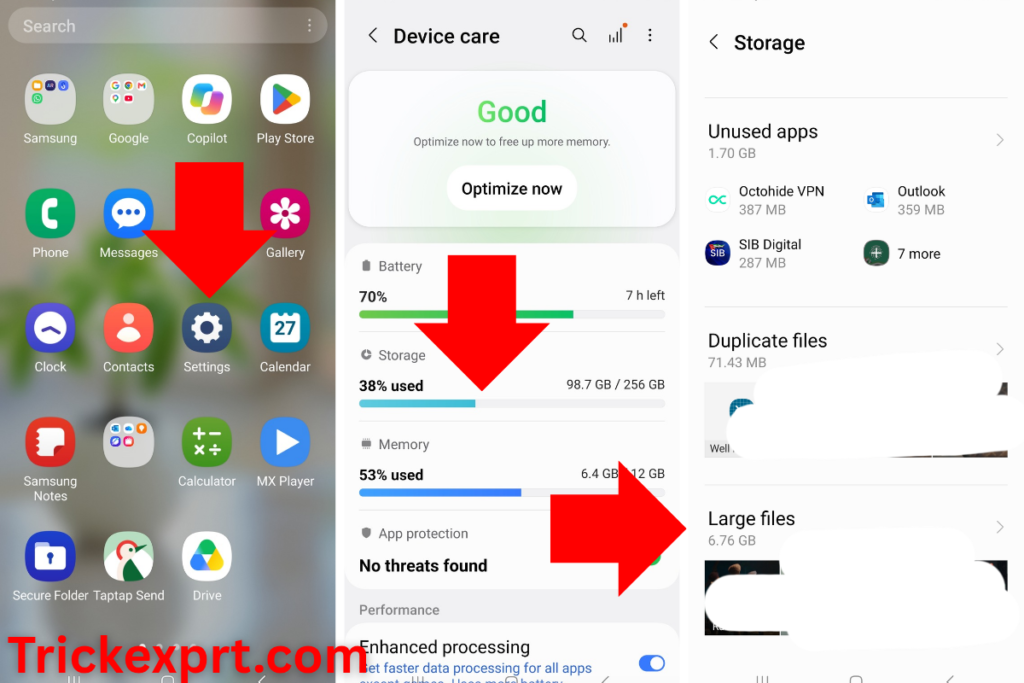
Make sure you have enough free space for both the downloaded APK and the installed app. There is no single 1 GB rule for every app: larger apps and games need more room, while smaller apps may need less. If Android reports low storage, free up space and try again.
- Open Settings > Storage (on Samsung: Settings > Battery and device care > Storage).
- Delete old downloads, big videos and duplicate photos, or move them to a memory card or cloud backup.
- Try the install again.
If your storage is full and you don’t want to remove apps, here’s how to free up space on Android without deleting apps.
Fix 3: Allow your browser or file manager to install unknown apps
Android blocks installs from outside the Play Store unless you give the app that opens the file permission. On Android 8 and newer, you do this per app, not for the whole phone.
- Go to Settings > Apps > Special app access > Install unknown apps. On some phones it’s under Settings > Security or Privacy.
- Tap the app you use to open the APK, for example Chrome or Files.
- Switch on Allow from this source.
- Open the APK again.
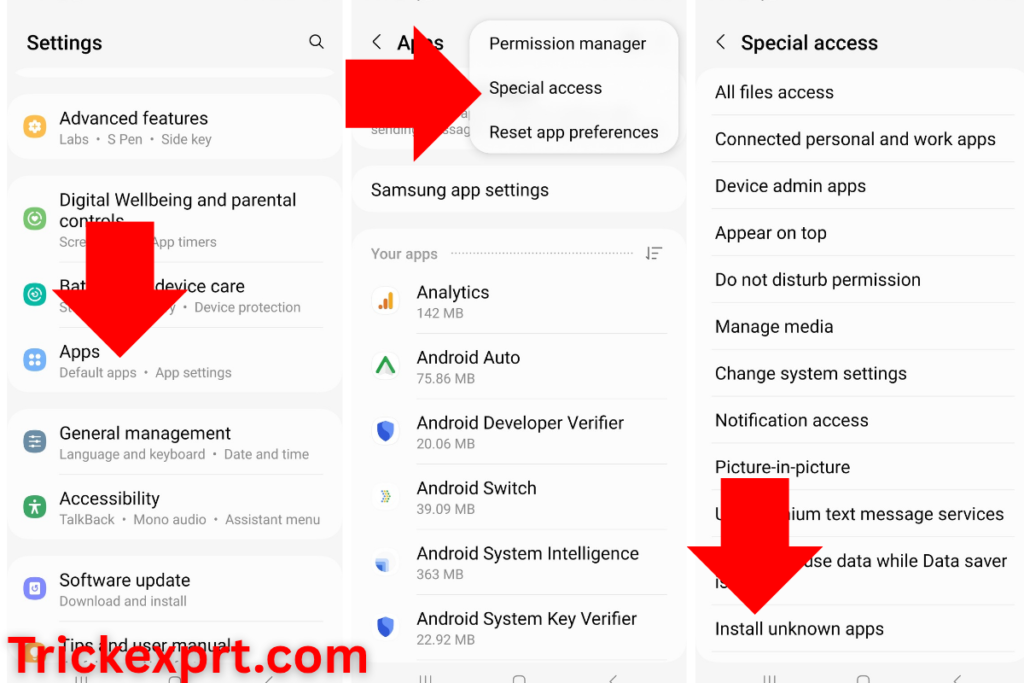
Menu names change between Samsung, Xiaomi, Oppo, Vivo and Pixel phones. If you can’t find it, type “unknown apps” in the Settings search bar.
Fix 4: Uninstall the old version first
This is the fix that works most often when the app is already on your phone. Android won’t replace an app with a version signed by a different key, and it only shows the generic error.
- Back up anything you care about first (chats, game progress, settings).
- Open Settings > Apps, pick the app and tap Uninstall.
- Install the APK again.
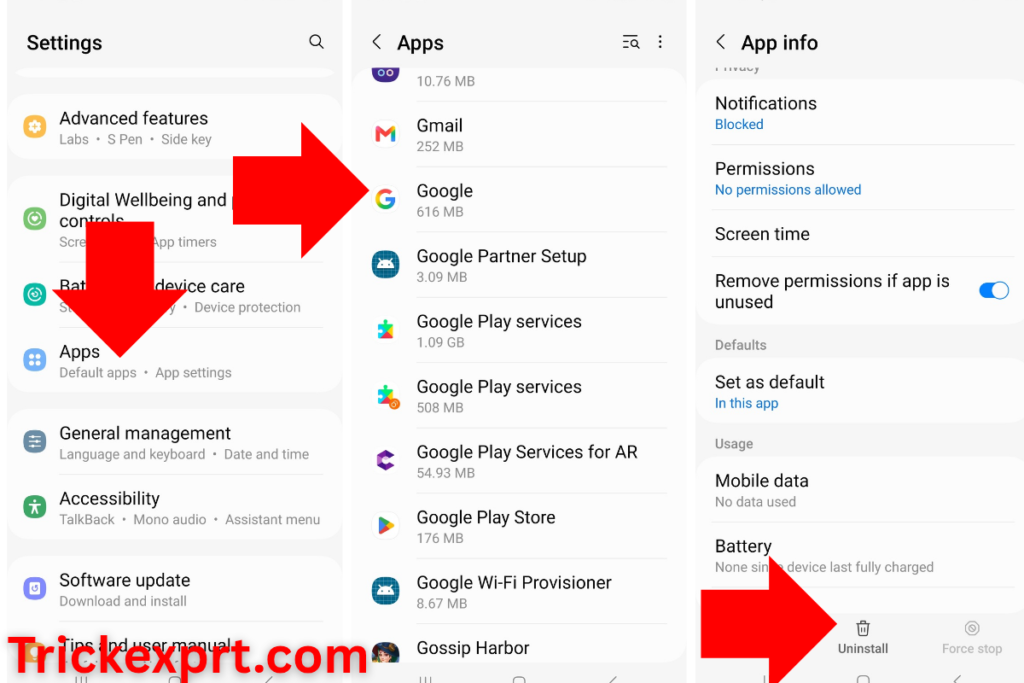
Also check for a second user or a work profile on the phone. If the app is installed there, uninstall it from that profile as well, or the conflict stays.
Fix 5: Clear the Package Installer cache
If you’ve tried several APKs and every one fails, the installer itself may be stuck.
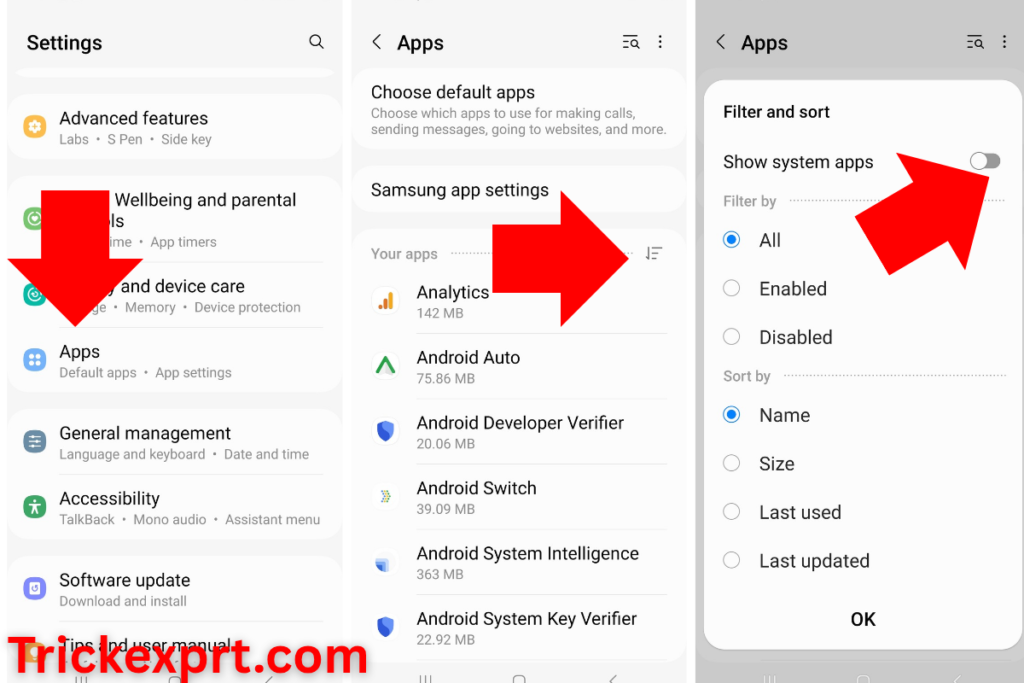
- Open Settings > Apps and tap the filter or menu to show system apps.
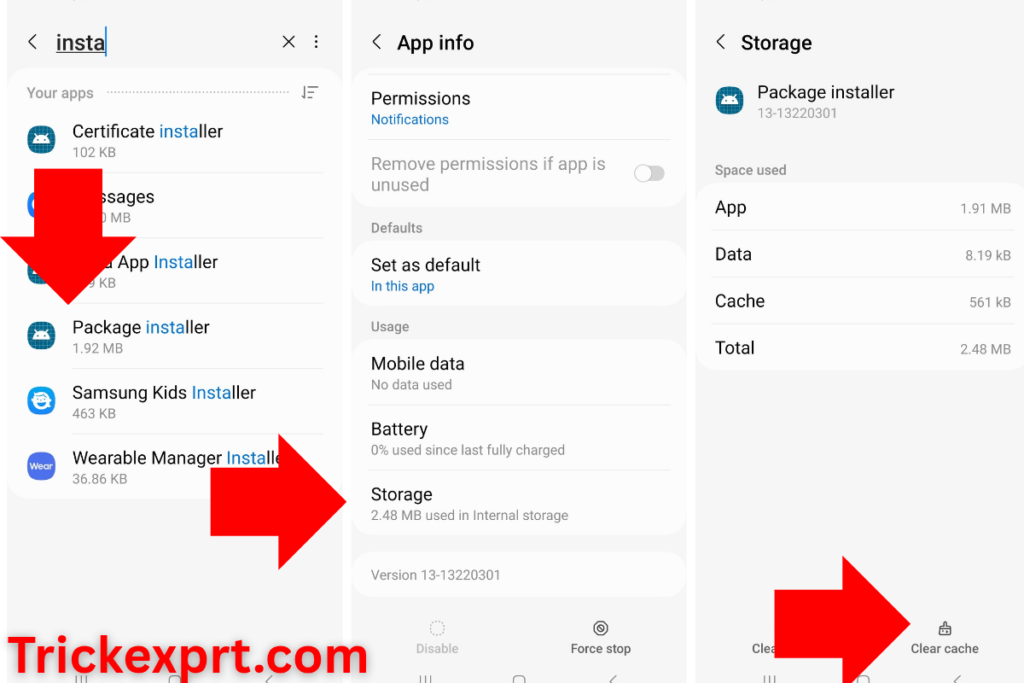
- Find Package installer (it may be called Package Installer or Android Package Installer).
- Tap Storage > Clear cache.
- Restart the phone and try again.
The name and location differ from phone to phone, and a few brands hide it. If you can’t see it, skip this one.
Optional: Reset app preferences
If Android has disabled an app or changed its default-app and permission settings, resetting app preferences may help restore the normal app configuration. This does not erase your installed apps or their stored data, but it can reset default apps, notification settings and some permission restrictions. Use it only after the simpler checks above:
- Open Settings > Apps.
- Tap the three-dot menu.
- Select Reset app preferences and read the confirmation carefully.
- Confirm, then try the install again.
On Samsung Galaxy phones, the menu is usually under Settings > Apps > three-dot menu > Reset app preferences. Menu names can vary by software version. This is a general app-settings reset, not a direct fix for an incompatible APK or a signature mismatch. See Samsung’s explanation of resetting app preferences.
Installing from the Play Store instead, and the download just sits there? Read how to fix Google Play Store download pending. And if Play Store itself throws errors, Google Play Services keeps stopping is a common cause.
How to Fix App Not Installed APK on Android (Fixes 6 to 9)
These fixes are specific to APK files. Most of the time the file itself is the problem.
Fix 6: Download the APK again from the official source
A half-finished download is a hidden cause that people skip. Do this properly:
- Delete the current APK.
- Download it again on a stable Wi-Fi connection.
- Compare the file size with the one on the download page. If your file is smaller, it’s incomplete.
- If you downloaded it on a PC, copy it to your phone’s internal storage, not the SD card.
Stick to the app developer’s official website or a source you really trust. Modified APKs often fail to install, and some carry malware.
Fix 7: Don’t tap bundle files (.xapk, .apks, .apkm)
If the file doesn’t end in plain .apk, Android can’t install it by tapping it. These bundle formats hold several pieces and need an installer app made for them. Check the file extension before you blame your phone.
Fix 8: Check that the app works on your phone
Look at the app’s minimum Android version on its download page, then check yours under Settings > About phone > Android version. An app that needs Android 12 won’t install on Android 9, however many times you try.
Processor type matters too. Some APKs are built for one architecture only, like arm64-v8a. Most phones sold in the last several years are 64-bit, but older or cheaper ones may be 32-bit, and an APK built only for 64-bit will fail on them. If the download page offers several versions, pick the one that matches your phone.
There is another compatibility restriction on newer Android versions: Android 14 blocks apps that target an API level below 23. Android 15 raises that minimum to API level 24. This is about the app’s target SDK, not the minimum Android version listed on its download page. An old app can therefore fail even when its minimum Android version appears compatible. Google’s Android 15 documentation identifies the ADB error as INSTALL_FAILED_DEPRECATED_SDK_VERSION. On Android 16, check the exact installer or ADB error rather than assuming every older app is blocked by the same rule. See the official Android 15 behaviour changes and Android 16 behaviour changes.
Fix 9: Review Google Play Protect before installing
Play Protect checks apps for potentially harmful behaviour and may warn you or block an installation. Do not switch it off just to force an unknown APK to install. First check that the file came directly from the app developer and that you downloaded the correct, unmodified version. If Play Protect identifies the file as harmful, do not bypass the warning. Read Google’s Play Protect guidance before taking any action.
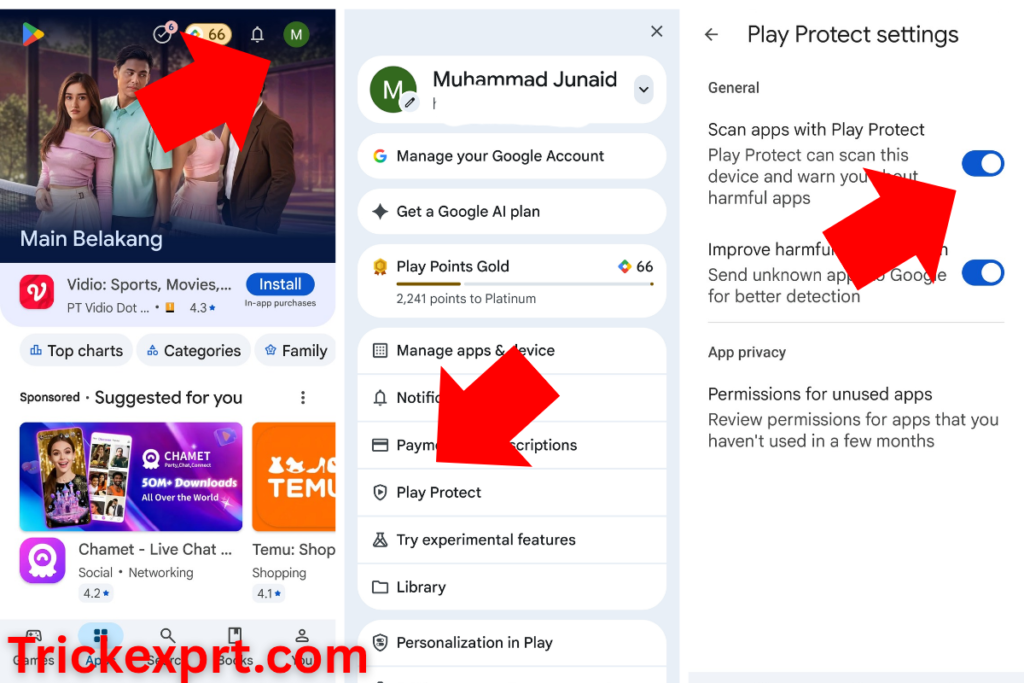
Keep Scan apps with Play Protect turned on. If a trusted developer believes its app has been flagged incorrectly, contact the developer for a verified download or clarification instead of disabling your phone’s protection.
App Not Installed Error on Samsung (Fixes 10 and 11)
Samsung phones have two extras that other brands don’t, and both can cause this error.
Fix 10: Check Samsung Auto Blocker
Auto Blocker is a Samsung security feature that stops apps from being installed from outside the Galaxy Store and Play Store. When it’s on and you try to install an APK, the install is halted. Samsung’s Auto Blocker page gives the path:
- Open Settings > Security and privacy > Auto Blocker.
- Only if you have verified the APK is from the developer’s official source, you can temporarily switch Auto Blocker off for a test.
- Try the installation, then turn Auto Blocker back on immediately. If the file is unfamiliar or untrusted, leave the protection enabled.
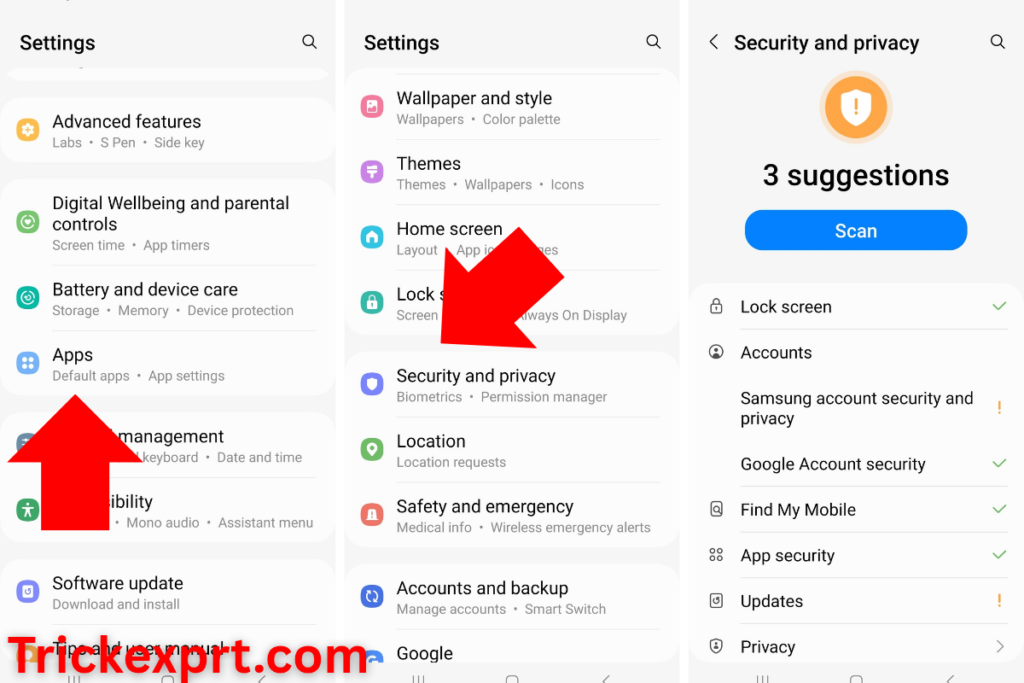
Not every Galaxy phone has it. If you don’t see Auto Blocker in your menu, your phone’s software doesn’t include it and you can move on.
Fix 11: Use Safe mode to catch a troublemaker
Samsung’s own troubleshooting steps suggest booting into Safe mode when apps won’t install. Safe mode switches off third-party apps, so you can tell whether one of them (a cleaner app, a security app or a recently installed tool) is interfering. If the install works in Safe mode, remove the apps you added recently, restart normally and try again.
On a Samsung phone you can also check Settings > Battery and device care > Storage for free space and Software update for a pending update. Both are on Samsung’s list of things to check before a reset.
Can’t Install an App from Google Play Store?
This guide mainly covers APK sideloading. If the install fails inside Google Play Store, use these separate checks first. A Play Store download stuck on Pending is not the same problem as an APK failing in Android Package Installer.
- Check your Wi-Fi or mobile data connection, then try again.
- Open Settings > Storage and make sure the phone has enough free space.
- Check that Date and time are set automatically.
- Restart the phone and reopen Play Store.
- If it still fails, open Settings > Apps > Google Play Store > Storage and tap Clear cache. If needed, clear Play Store storage as a later step; this can reset Play Store settings such as parental controls and password protection.
Google advises trying basic connection, storage and restart checks before advanced steps. Clearing Google Play services data is not a first-line fix: Google warns it can remove information saved to the device and may require you to sign in or re-authenticate payment methods. Follow Google’s basic Play Store download troubleshooting and its advanced Play Store troubleshooting if the problem continues.
App Not Installed Error on Android TV (and How to Fix the Problem)
The App Not Installed problem in Android TV shows up on TV boxes and smart TVs too, and it usually has slightly different causes:
- Tiny storage. Many TVs and boxes ship with 8 GB or less, and the system already uses most of it. Remove apps you don’t use from Settings > Apps.
- Wrong version of the app. A phone-only APK may not install or may not appear on the TV home screen. Download the Android TV version if the developer offers one.
- 32-bit hardware. Many cheap TV boxes use 32-bit processors, so an APK built only for 64-bit fails.
- Unknown sources off. On Android TV, the permission is given to the app that opens the file (often a downloader or file manager), same as on phones. Look under Settings > Device Preferences > Security & restrictions, and allow it when the TV prompts you.
- Play Protect. On Android 11 and newer TVs, open the Play Store, go to Menu > Play Protect > Settings and check Scan apps with Play Protect, as described on Google’s Android TV Play Protect page.
Typing a long download link with a TV remote is painful, so a simple trick is to download the APK on your phone and move it to the TV with a USB drive. Then open it with a file manager app on the TV.
Still Stuck? Find the Exact Error Code with ADB
If nothing above worked, make Android tell you the real reason. You need a computer, a USB cable and USB debugging turned on in Developer options. With Android Debug Bridge (adb) set up, connect your phone and run:
adb install app.apkInstead of “App not installed”, you’ll get a specific code. Match it against this table:
| Error code | What it means | What to do |
|---|---|---|
| INSTALL_FAILED_INSUFFICIENT_STORAGE | Not enough free space | Free up space (Fix 2) |
| INSTALL_FAILED_UPDATE_INCOMPATIBLE | Signature differs from the installed app | Uninstall the old version (Fix 4) |
| INSTALL_FAILED_VERSION_DOWNGRADE | You’re installing an older version than the one on the phone | Uninstall the newer version first |
| INSTALL_FAILED_OLDER_SDK | Your Android version is too old for this app | Get an older app version (Fix 8) |
| INSTALL_FAILED_NO_MATCHING_ABIS | The app doesn’t support your processor type | Download the right variant (Fix 8) |
| INSTALL_FAILED_DEPRECATED_SDK_VERSION | The app targets an Android API level that the phone blocks | Look for a newer version from the developer; an ordinary user setting cannot safely fix an outdated target SDK |
| INSTALL_PARSE_FAILED_NOT_APK | The file is damaged or isn’t an APK | Download it again (Fix 6 and 7) |
Once you know the code, you can skip straight to the right fix instead of guessing.
Is It Safe to Install APK Files?
It can be, but only when you control where the file comes from. Download from the developer’s official site, avoid “modded” or “premium unlocked” versions, and keep Play Protect on after the install. If a site asks you to disable security features permanently, walk away.
Once the app installs but keeps closing on you, this guide to fixing apps that keep crashing on Android covers the next step.
App Not Installed on Android: FAQ
How do I fix the App not installed error on Android without a computer?
Fixes 1 to 11 above all work on the phone alone. Start with uninstalling the old version, freeing storage and allowing install permission. You only need a computer for the ADB method, and that’s optional.
Why does “App not installed” appear only with APK files?
Play Store apps are checked before they reach your phone. APK files skip that step, so any mismatch (signature, Android version, processor type) shows up only when you tap Install.
Will I lose my data if I uninstall the old version?
Usually yes, unless the app has cloud sync or its own backup. Back up your data before you uninstall.
Does a factory reset fix “App not installed”?
Rarely, and it erases everything. Samsung lists it as a last resort too. Try the fixes in this guide and the ADB error code first.
What do Reddit threads say about the App not installed error on Android?
If you search the error on Reddit and other forums, the answers people give tend to repeat: uninstall the old version, free some storage, download the APK again, and check whether the file is compatible with your phone. Use forum advice for ideas, but only download APKs from official sources and keep Play Protect enabled.
Why do I get “App not installed” on my Samsung phone even with enough storage?
On Samsung, Auto Blocker can prevent APK installation. If you are certain the APK comes from the developer’s official source, review the Auto Blocker setting under Settings > Security and privacy > Auto Blocker. Avoid disabling security protections for unknown files, and turn protection back on after any necessary test. Also check for an older version already on the phone (Fix 4).
Is the App not installed problem the same on Android TV?
The message is the same, but the causes lean towards low storage, 32-bit hardware and phone-only APKs. See the Android TV section above.
Final Thoughts
In most cases, “App not installed” comes down to one of three things: an old version in the way, not enough space, or a bad APK file. Start with those, then look at permissions, Play Protect and, on a Samsung, Auto Blocker. If you’re still stuck, the ADB error code will point to the exact fix.
Did one of these fixes work for you? Tell me which one in the comments, and mention your phone model if it didn’t. It helps other readers, and I’ll add it to this guide.




2 comments
Pingback: Drag Bike 201m Sunmori: Features, Modes & Safe Install Guide (2026)
Pingback: How to Increase Battery Life on Android: 12 Easy Tips