 TrickExprt Android Apps, Games, Software & Tech Guides
Why Your Android Battery Drains Faster Than Expected
Does your Android phone drain battery faster than expected? You charge it in the morning, use it for a few hours, and suddenly the battery percentage drops much faster than usual. This can happen because of high screen brightness, apps running in the background, weak network signals, overheating, or an aging battery.
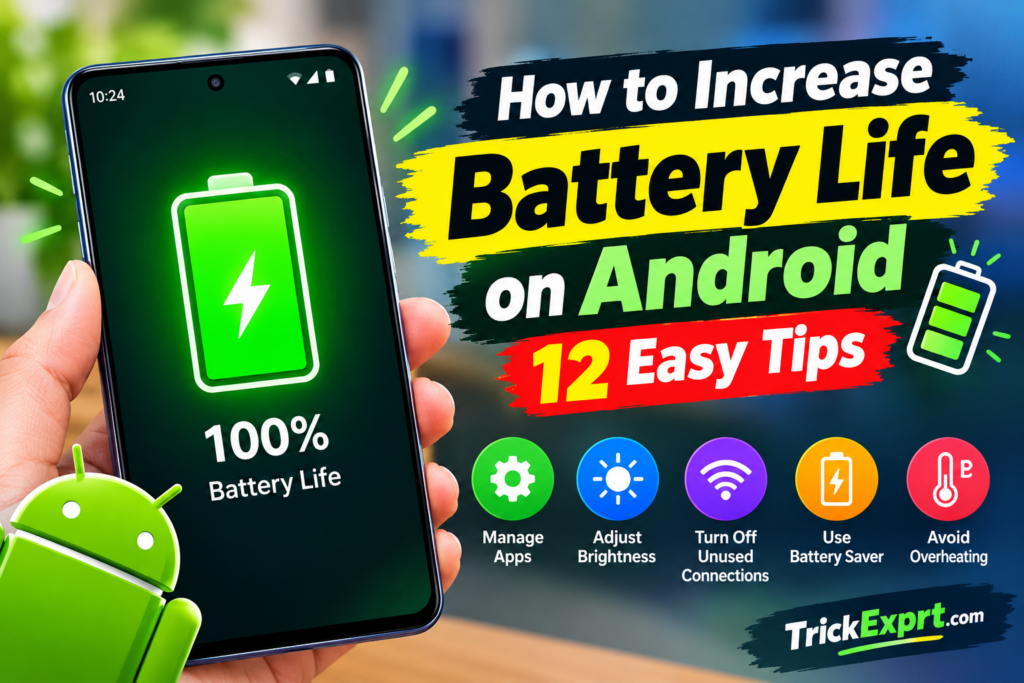
The good news is that you can often improve your phone’s battery life without installing another app or buying a new phone. In this guide, you will learn how to increase battery life on Android with 12 practical tips that you can try at home.
These steps work on many Android phones, including Samsung Galaxy, Google Pixel, Xiaomi, Redmi, OPPO, and Vivo devices. Settings may have different names depending on your phone model and Android version.
Quick Answer: How to Save Battery on Android
If your Android battery is draining quickly, start with these changes:
- Reduce screen brightness or enable Adaptive Brightness.
- Set a shorter screen timeout.
- Check Battery Usage to identify apps consuming too much power.
- Keep your phone cool and avoid direct sunlight.
Try these adjustments first. You do not need to change every setting at once.
1. Adjust Brightness, Screen Timeout, and Refresh Rate
Your display is usually the biggest battery consumer on a phone. Three display settings matter most: brightness, timeout, and refresh rate.
How to reduce display battery drain
- Swipe down from the top of the screen to open Quick Settings and lower the brightness slider. Enable Adaptive Brightness if your phone supports it.
- Open Settings > Display and set the screen timeout to 30 seconds or one minute.
- Lower the refresh rate. Many phones run at 90Hz or 120Hz by default. Switching to 60Hz (often called Standard) can extend battery life, especially during long browsing or reading sessions. Look under Settings > Display for Motion Smoothness, Smooth Display, or Refresh Rate, depending on your brand.
- Turn off Always-On Display if you do not need it. It is usually under Settings > Lock Screen or Display.
Scrolling will feel a little less smooth at 60Hz, so try it for a day and keep it only if the trade-off suits you.
2. Find Apps That Drain Your Android Battery
Sometimes, one app consumes more power than expected even when you are not actively using it.
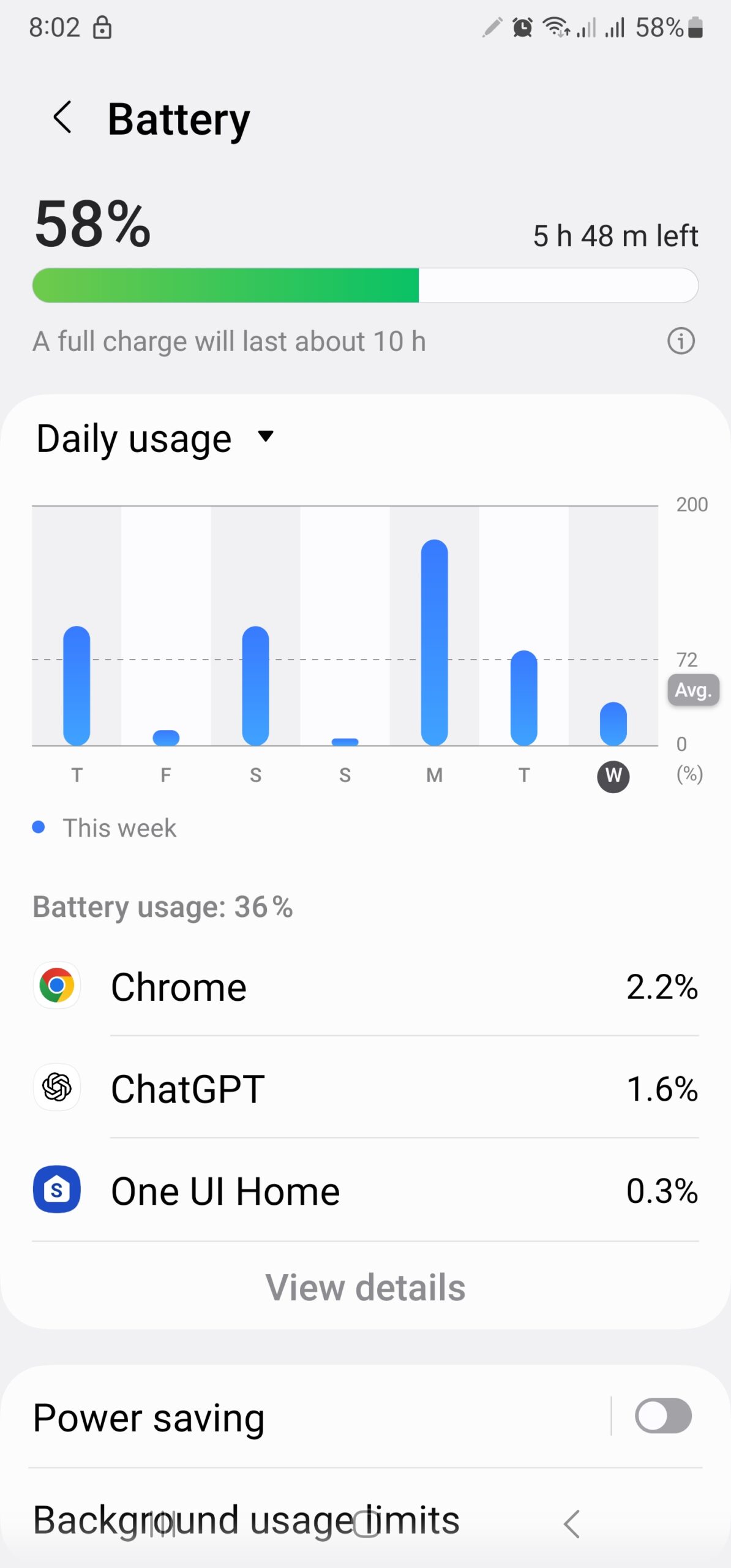
How to check battery usage
- Open Settings.
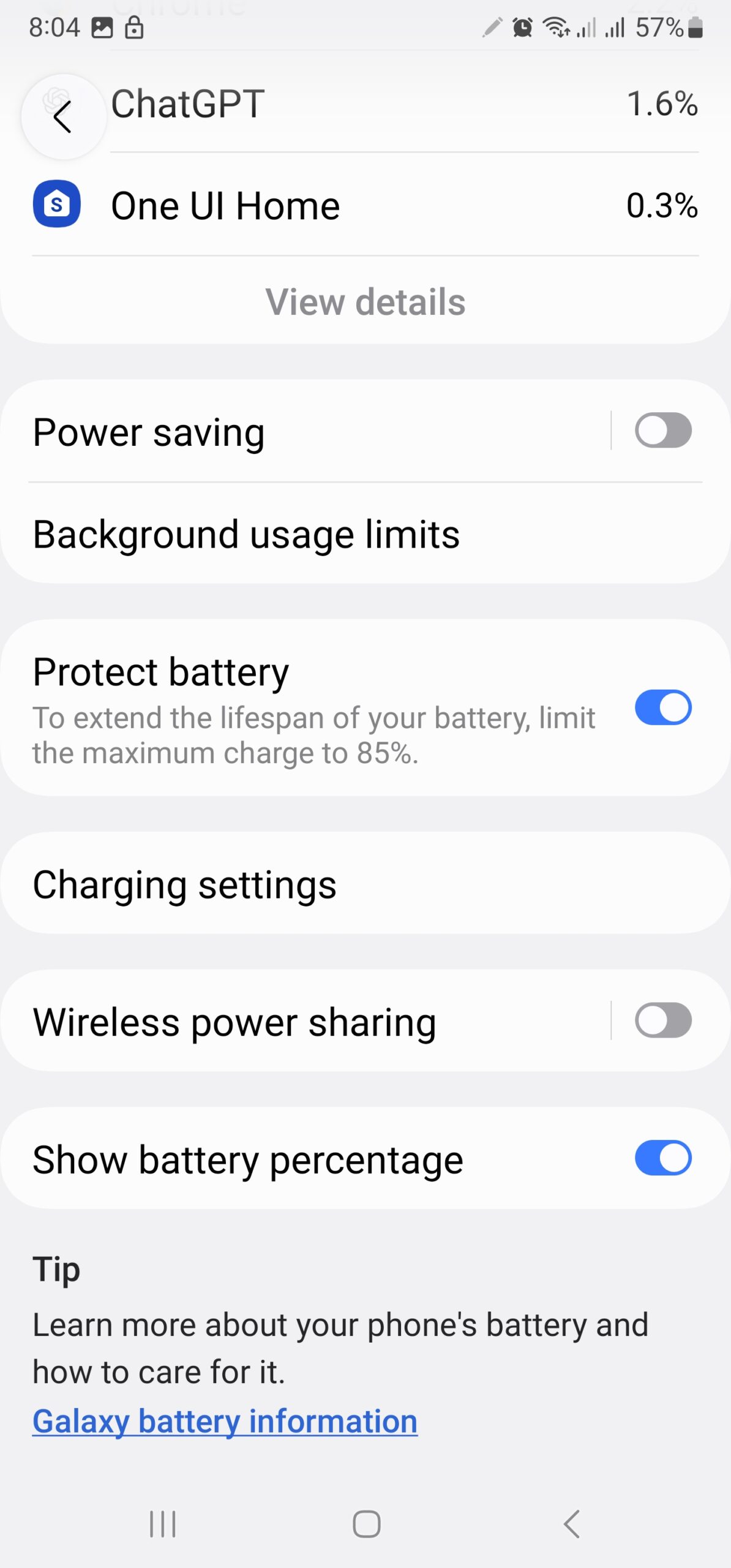
- Tap Battery or Battery Usage.
- Review the apps using the most power.
- Select an unfamiliar or unusually power-hungry app.
- If appropriate, restrict its background battery usage or uninstall it.
Do not automatically restrict every app. Messaging, email, navigation, and security apps may need background access to work correctly.
If an app fails to install after an update, see our guide on fixing the App Not Installed error on Android.
3. Turn On Battery Saver Mode
Battery Saver is useful when your battery is low or you need your phone to last until the end of the day.
How to enable Battery Saver
- Open Settings.
- Select Battery.
- Tap Battery Saver, Power Saving, or the similarly named option.
- Turn it on.
- If available, configure it to activate automatically at a chosen battery percentage.
Battery Saver may limit background activity, visual effects, and some network functions. As a result, certain notifications may arrive later.
4. Enable Adaptive Battery
Adaptive Battery learns which apps you use regularly and can limit resources for apps you rarely open.
How to turn on Adaptive Battery
- Open Settings.
- Go to Battery.
- Look for Adaptive Battery or Battery Optimization.
- Enable the feature if it is available.
Some phones manage this automatically, and the exact menu varies by manufacturer. You may not see a separate Adaptive Battery switch on every Android device.
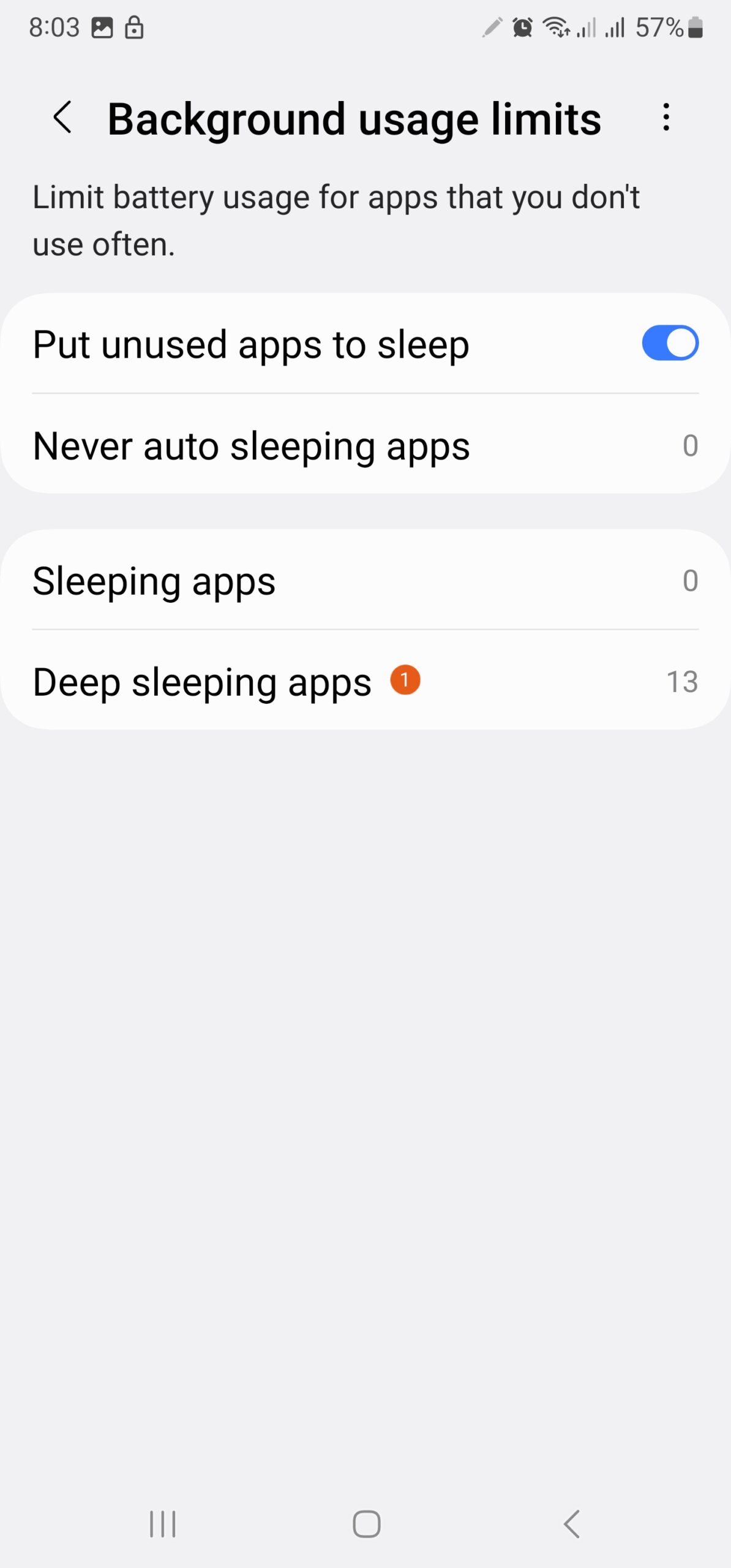
5. Stop Unnecessary Background Activity
Social media, shopping, video, and other apps may refresh content when you are not using them.
Restrict apps you rarely use
- Open Settings > Apps.
- Choose an app that does not need frequent background activity.
- Open its App Battery Usage or Battery settings.
- Choose an optimized or restricted option if available.
Be careful with this setting. Restricting an app may delay notifications or stop certain features from working in the background.
6. Turn Off Features You Are Not Using
Wireless connections and location services can increase battery consumption, depending on how you use them.
- Turn off Bluetooth when you are not using connected devices.
- Disable your mobile hotspot when nobody needs it.
- Limit location permission for apps that do not need your location.
- Use Wi-Fi instead of mobile data when a reliable Wi-Fi network is available.
- Consider Airplane Mode when you do not need calls, texts, or mobile connectivity.
You do not need to turn off every connection all day. Choose the settings that match your needs.
7. Use Dark Mode When It Can Help
Dark Mode changes many menus and supported apps to darker colors. On phones with OLED displays, it can reduce display power consumption when much of the screen is black.
How to enable Dark Mode
- Open Settings.
- Tap Display.
- Select Dark Theme or Dark Mode.
- Enable it.
The battery benefit depends on your display technology, brightness, apps, and usage. Dark Mode is not guaranteed to produce a major improvement on every phone.
8. Keep Your Android Phone Cool
Heat can increase battery drain and contribute to long-term battery deterioration. If your phone gets hot during gaming, video recording, charging, or navigation, give it time to cool.
- Keep your phone out of direct sunlight.
- Avoid leaving it inside a hot car.
- Reduce demanding activities when the device is overheating.
- Use a compatible charger and cable.
- If charging makes the phone unusually hot, disconnect it and investigate the cause.
Do not put your phone in a refrigerator or freezer to cool it down. Sudden temperature changes and condensation can damage the device.
9. Check Your Mobile Signal and 5G Usage
A weak mobile signal can make your phone work harder to maintain a network connection. This may cause additional battery drain, especially in areas with poor reception.
If your phone supports it, consider using a suitable network mode such as 4G/LTE when 5G reception is weak and you do not need 5G speeds. Available options depend on your carrier and device.
When you are in an area without useful mobile coverage and do not need connectivity, Airplane Mode can help reduce unnecessary network searching.
10. Update Android and Your Apps
Software updates may include bug fixes, security improvements, and changes that resolve excessive battery consumption.
How to check for updates
- Open Settings.
- Find System Update or Software Update.
- Check for available Android updates.
- Open Google Play Store.
- Tap your profile icon and select Manage apps & device.
- Install available app updates.
If battery drain started immediately after a major update, allow some time for background setup and optimization to finish. If the problem continues, review your Battery Usage screen and check for further updates. If an update gets stuck or you see a “Google Play services keeps stopping” message, follow our Google Play Services keeps stopping fix guide, or see how to fix the Download Pending error on Google Play.
11. Restart Your Phone and Review Recent Changes
A restart can resolve temporary software problems. It is worth trying if the battery suddenly starts draining faster than usual.
- Restart your phone.
- Check battery usage again after normal use.
- Think about any apps installed or updated shortly before the problem began.
- Update, uninstall, or restrict a suspected app if the evidence points to it.
Avoid installing unknown battery booster or cleaner apps. Many promise unrealistic improvements and may introduce unwanted background activity.
12. Check Battery Health and Charging Habits
Lithium-ion batteries gradually lose capacity as they age. If your phone is several years old, software settings may not restore the battery life it had when it was new.
- Avoid repeated exposure to excessive heat.
- Use a compatible, reputable charger.
- Enable a charging limit or battery protection feature if your device offers one.
- Follow your phone manufacturer’s charging recommendations.
- Check the battery health or diagnostics feature if your phone supports it.
You do not need to regularly drain a lithium-ion battery to zero to calibrate it. If the phone shuts down unexpectedly, the battery percentage behaves erratically, or the battery drains unusually fast despite troubleshooting, consider a professional battery assessment.
How to Save Battery While Gaming on Android
If you play graphics-heavy games on your phone, such as racing or battle royale titles, gaming is likely one of the biggest sources of battery drain. Here is what you can do:
- Lower in-game graphics settings to SD or HD instead of FHD.
- Enable Game Mode if your phone has one (Samsung: Game Launcher; Xiaomi: Game Turbo).
- Close background apps before starting a long gaming session.
- Avoid charging while gaming if possible, as this generates extra heat.
- Take breaks if your phone becomes hot to the touch.
How to Increase Battery Life on Vivo Phones
Vivo’s battery menus can differ between Funtouch OS and OriginOS, and between models, so the names below may vary slightly on your phone.
- Check what is draining the battery. Open Settings > Battery and review which apps use the most power.
- Review background activity. Look for the background power consumption or app management options in the Battery menu, and restrict only apps you rarely use. Do not restrict messaging or banking apps if you rely on their notifications.
- Turn on Power Saving or Super Power Saving when you need to last until evening. Expect delayed notifications and reduced performance.
- Lower the refresh rate and brightness. Switch from high refresh rate to standard in Display settings, and keep Auto Brightness on.
- Disable Always-On Display if your model has it and you rarely use it.
- Turn off auto-start for unneeded apps. Vivo’s i Manager or app permission settings often let you stop apps from launching in the background.
- Keep the phone cool while gaming or charging, since heat speeds up both drain and battery wear.
If the battery still drains fast after these steps, check for a system update, as Vivo regularly ships battery fixes. An old battery may also simply need replacing at an authorized service center. These adjustments can help reduce unnecessary battery use, although results depend on your device and usage habits.
How to Increase Battery Life on Rooted Android Phones
Rooted Android phones may offer additional control over system settings, but rooting does not automatically improve battery life. Some root modules, custom kernels, or background services can actually increase power consumption or cause instability.
If you want to know how to increase battery life on rooted Android, start with basic battery diagnostics before changing system-level settings.
- Check battery usage to identify the source of excessive drain.
- Remove or disable unnecessary modules that you have verified are responsible for unwanted activity.
- Avoid aggressive CPU or kernel tweaks without understanding their effects.
- Back up important data before changing system-level settings.
- Install updates and modules only from sources you trust.
Do not disable essential Android system services or apply random root scripts promising dramatic battery improvements. If your phone becomes hot, unstable, or loses battery rapidly after a modification, revert the change where possible and investigate the cause.
Why Is My Android Battery Draining So Fast?
Several causes can produce similar symptoms. Use this table to choose the next step.
| Problem | What to try |
|---|---|
| Battery drops while using the phone | Lower brightness and review demanding apps (Tip 1 & 2) |
| Battery drops while the screen is off | Check background app usage and mobile signal (Tip 2 & 9) |
| Phone becomes hot | Stop demanding tasks and let it cool (Tip 8) |
| Battery life became worse after installing an app | Review that app’s battery usage (Tip 2) |
| Battery life declined over several years | Check battery health or seek a battery assessment (Tip 12) |
| Battery drains after a software update | Update apps, restart, and review usage over the next few days (Tip 10 & 11) |
Explore these practical guides from TrickExprt to troubleshoot common Android problems:
Frequently Asked Questions
How can I make my Android battery last all day?
Reduce screen brightness, shorten screen timeout, restrict unnecessary background activity, and enable Battery Saver when needed. Check battery usage to find the biggest source of drain.
Does closing all apps save battery?
Not necessarily. Android manages background apps automatically, and repeatedly closing apps can be counterproductive in some cases. Focus on apps that show unusually high battery usage.
Does Dark Mode save battery?
It can save power on OLED displays, especially at higher brightness levels. The benefit may be smaller on LCD screens.
Should I use Battery Saver every day?
You can use it whenever you need extra runtime. However, it may delay notifications or limit background features, so choose the settings that suit your routine.
Why does my phone lose battery overnight?
Possible causes include background apps (like email sync, WhatsApp backup, or Facebook background refresh), weak network coverage, synchronization, or an aging battery. Check Battery Usage before changing multiple settings.
Can an app increase battery life?
Your phone’s built-in battery tools are usually the best place to start. Be cautious with third-party battery booster apps that promise dramatic results — many of them actually run in the background and drain more battery than they save.
Final Thoughts
Learning how to increase battery life on Android does not require complicated tools. Start by reducing screen brightness, checking battery usage, limiting unnecessary background activity, and keeping your phone cool.
Make one or two changes at a time and observe the results during normal use. If the battery still drains rapidly, check for software problems or battery wear rather than relying on booster apps.
Which Android phone do you use, and how quickly does its battery drain? Share your phone model and symptoms in the comments so you can narrow down the most useful next step.
Official Sources (Google & Samsung)
For further reading and verification, refer to these official resources:
- Samsung: How to optimise the battery life on a Galaxy smartphone
- Samsung: Galaxy Battery Life and Performance Optimisation
- Android Developers: Optimize for Doze and App Standby
- Google Pixel Help: Get the most life from your Pixel phone battery
About the Author
Muhammad Junaid is the founder of TrickExprt. He creates practical Android guides, app and game reviews, and technology tutorials to help readers solve everyday tech problems. His goal is to make technology easier to understand through clear, useful instructions.
Visit the TrickExprt Contact page to suggest a topic or share feedback.