 TrickExprt Android Apps, Games, Software & Tech Guides
Last reviewed and updated: November 18, 2026
If your Android phone keeps showing the message “Google Play services keeps stopping”, you are not alone. The error can freeze apps, block downloads and make the whole phone feel broken. This Google Play Services keeps stopping fix guide gives you 10 practical solutions, from a simple restart to a factory reset as a last resort, ordered from easiest to hardest so you only change what you have to.
How we tested this guide: The screenshots in this article were taken on my own Samsung Galaxy Note 20 Ultra (12 GB RAM) running Android 13. Menu names may look slightly different on your phone, but the steps follow the same path.
Quick fix: short on time? Here is the quickest Google Play Services keeps stopping error fix:
- Restart your phone.
- Open Settings > Apps > Google Play services > Storage and tap Clear cache.
- Open the Play Store, search for “Google Play services” and tap Update if the button appears.
If the error is still there, work through the full list below. Menu names change a little between brands, so there are separate sections for tablets, Samsung J7 Prime and Redmi phones.
Google Play Services Keeps Stopping Problem: Why It Happens
Google Play services is a background service that connects your apps to Google services such as Google Sign-In and Maps. It is not the same as the Play Store app, and Google says you cannot force stop or uninstall it. When it crashes, every app that depends on it starts throwing errors, which is why the problem feels so big. The usual causes are:
- Corrupted cache or data. Old temporary files inside Google Play services or the Play Store become damaged and the service crashes while reading them.
- An outdated or faulty update. Either Google Play services itself is old, or a recent update installed badly.
- Wrong date and time. If the phone clock does not match the network time, the connection to Google servers can fail.
- Low storage. A phone that is almost full cannot write the files the service needs.
- An outdated or unsupported Android version. Google says Play services only supports newer Android versions (its help page currently lists Android 7.0 and higher), and old software does not always work well with new Google services.
- A Google account sync problem. A glitch with the signed-in account can make the service restart again and again.
- A buggy app or custom firmware. A badly made app, or unofficial firmware on cheap tablets and phones, can interfere with it.
Because the cause is different on every phone, the fixes below start with the simplest and safest ones. Google’s official Google Play services troubleshooting guide also recommends updating Play services first and reserving its data reset for later.
How to Fix Google Play Services Keeps Stopping on Android
Try these fixes in order and check after each one whether the error has gone. The order goes from simple and safe to heavier steps, so clearing the Play services data comes only near the end, as Google itself advises.
1. Restart Your Phone
A restart clears the temporary memory and restarts every background service, including Google Play services. Hold the power button, tap Restart, and wait until the phone fully boots. If the error comes back within a few minutes, move on to fix 2.
2. Clear the Google Play Services Cache
This fix helps on many phones, and it only removes temporary files.
- Open Settings > Apps (on some phones Apps & notifications > See all apps).
- Find and tap Google Play services. If you do not see it, tap the three dots or the filter icon and turn on Show system apps.
- Tap Storage (or Storage & cache).
- Tap Clear cache, then restart the phone.
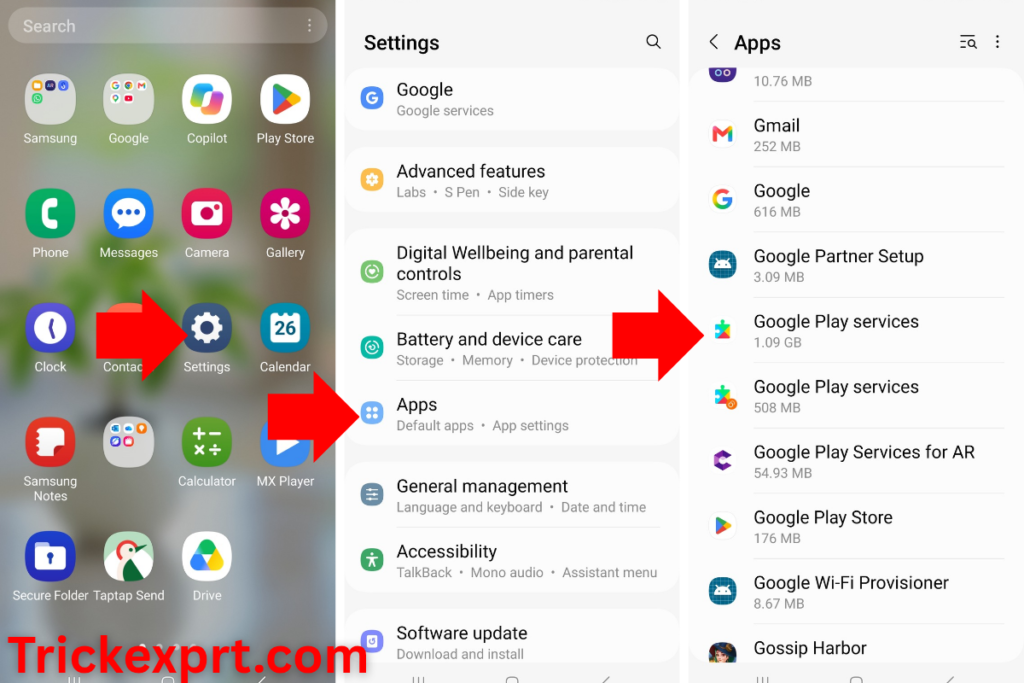
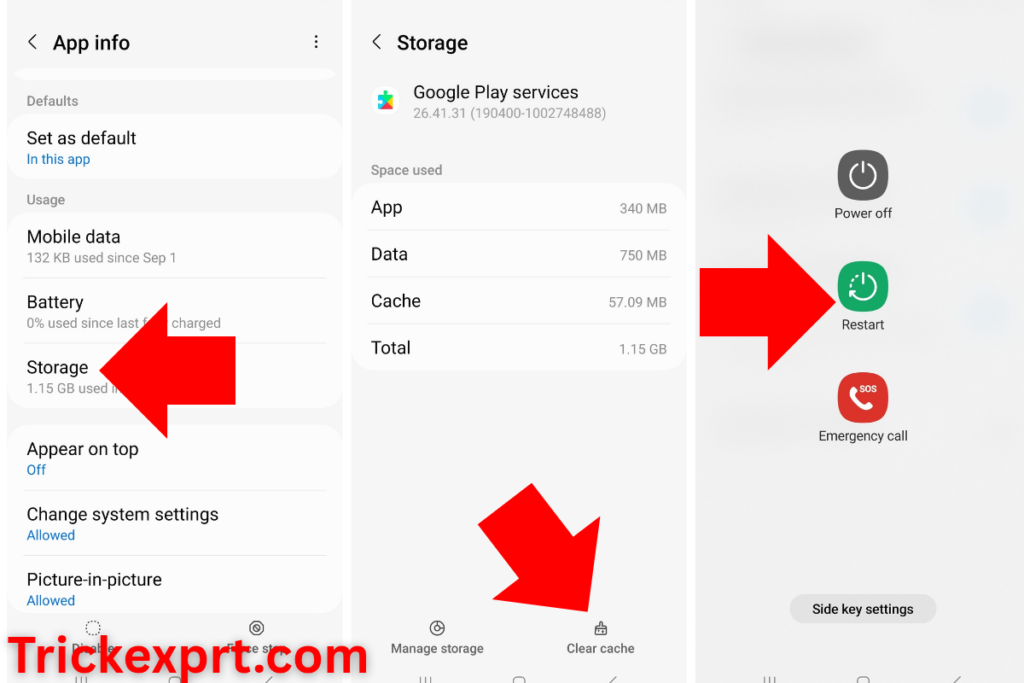
Screenshot from my Samsung Galaxy Note 20 Ultra: Settings > Apps > Google Play services > Storage, where the Clear cache button is located.
3. Update Google Play Services
An outdated version is a common reason for the crash. Connect to Wi-Fi first.
- Open Settings > Apps > Google Play services.
- Scroll to the bottom and tap App details (this opens its Play Store page). You can also search for “Google Play services” in the Play Store.
- If you see an Update button, tap it and wait until it finishes.
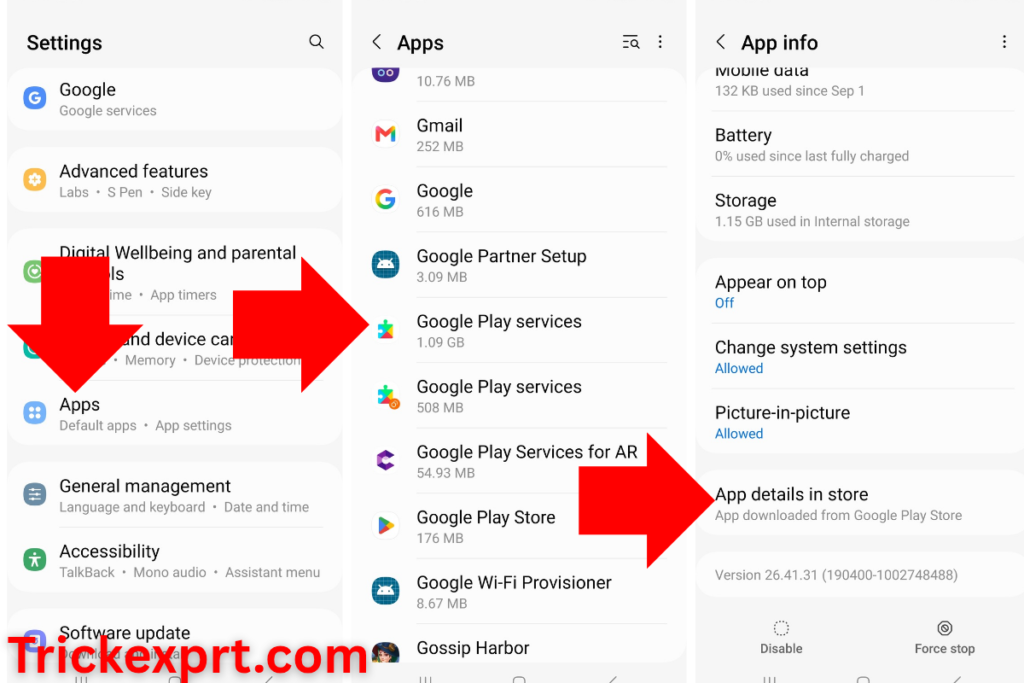
Screenshot from my Samsung Galaxy Note 20 Ultra: the Update button appears on the Google Play services page only when a newer version is available.
On newer Android versions, Google also describes this route: Privacy and security > System services > Google Play services, then tap Update or Install. If there is no Update button, the app is already up to date and you can go to the next fix.
Official source
Keep your device and apps working with Google Play services
Google Help. Google’s own troubleshooting steps for Play services problems and the Android versions it supports.
4. Clear the Google Play Store Cache
The Play Store works closely with Play services, and a damaged Play Store cache can trigger the same error.
- Open Settings > Apps > Google Play Store > Storage.
- Tap Clear cache.
- If the error continues, tap Clear data as well, then restart the phone.
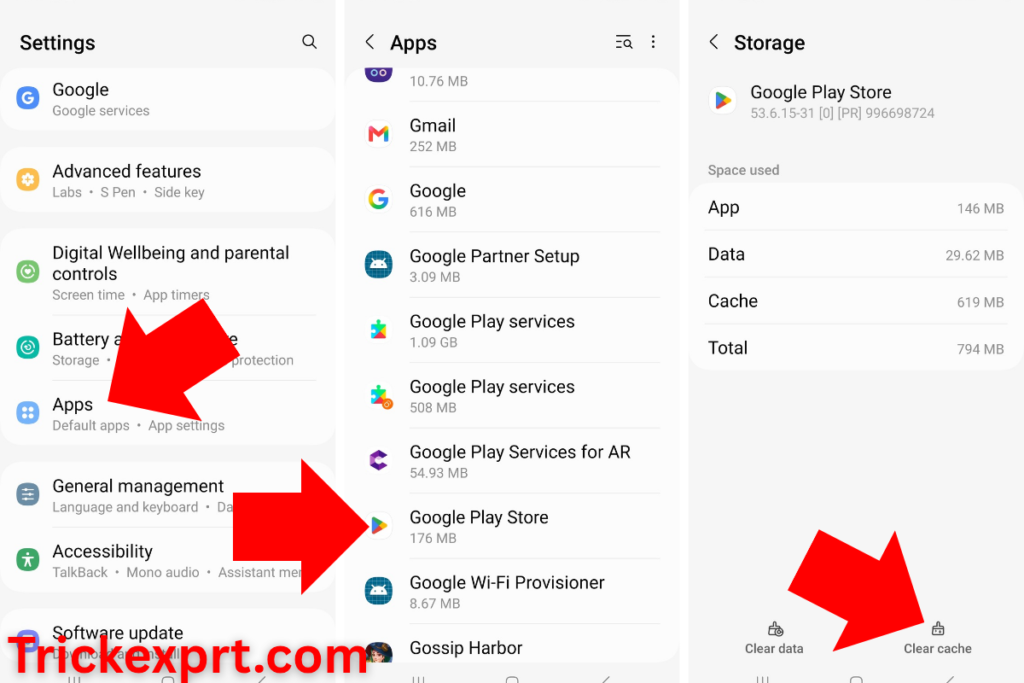
Screenshot from my Samsung Galaxy Note 20 Ultra: Play Store storage screen with Clear cache and Clear data options.
After clearing the data you may need to accept the Play Store terms again. If your downloads get stuck after this step, follow our Play Store download pending fix.
5. Free Up Storage on Your Phone
A phone with very little free space may have trouble downloading or updating apps. Open Settings > Storage and review what is using space. There is no single free-space amount that applies to every Android phone and app, so check the available space on your own device. For more options, read our guide on how to free up Android storage without deleting important files.
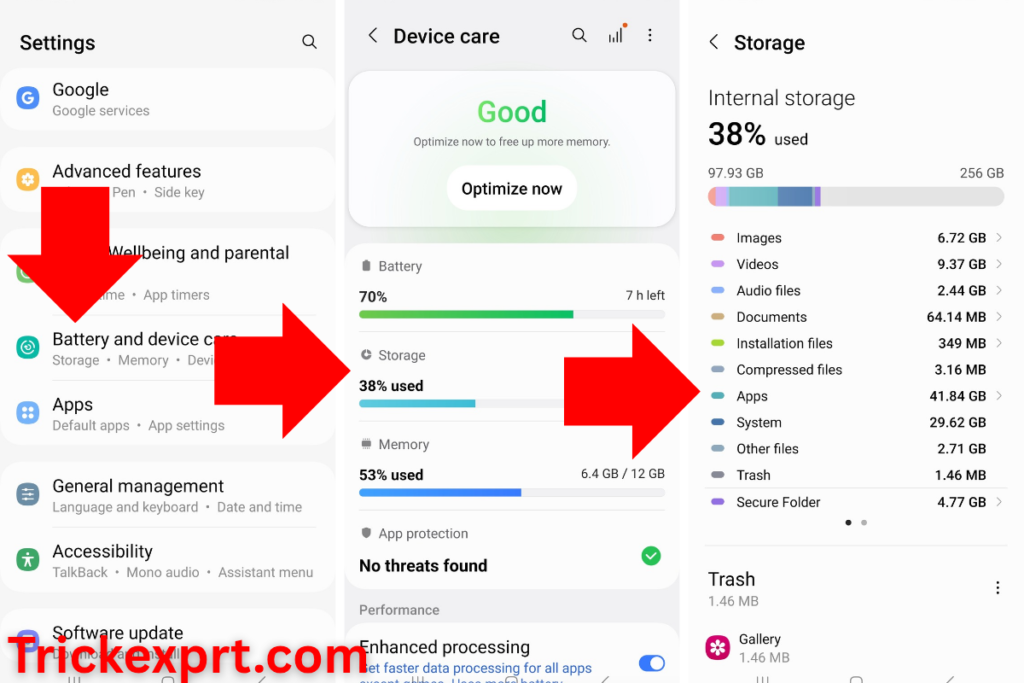
Screenshot from my Samsung Galaxy Note 20 Ultra: the Storage screen showing available space and storage usage.
6. Set Date and Time to Automatic
A wrong clock can stop the phone from connecting properly to Google servers. This can happen after a battery runs completely flat.
- Open Settings > System > Date & time (Samsung: Settings > General management > Date and time).
- Turn on Set time automatically and Set time zone automatically.
- Restart the phone.
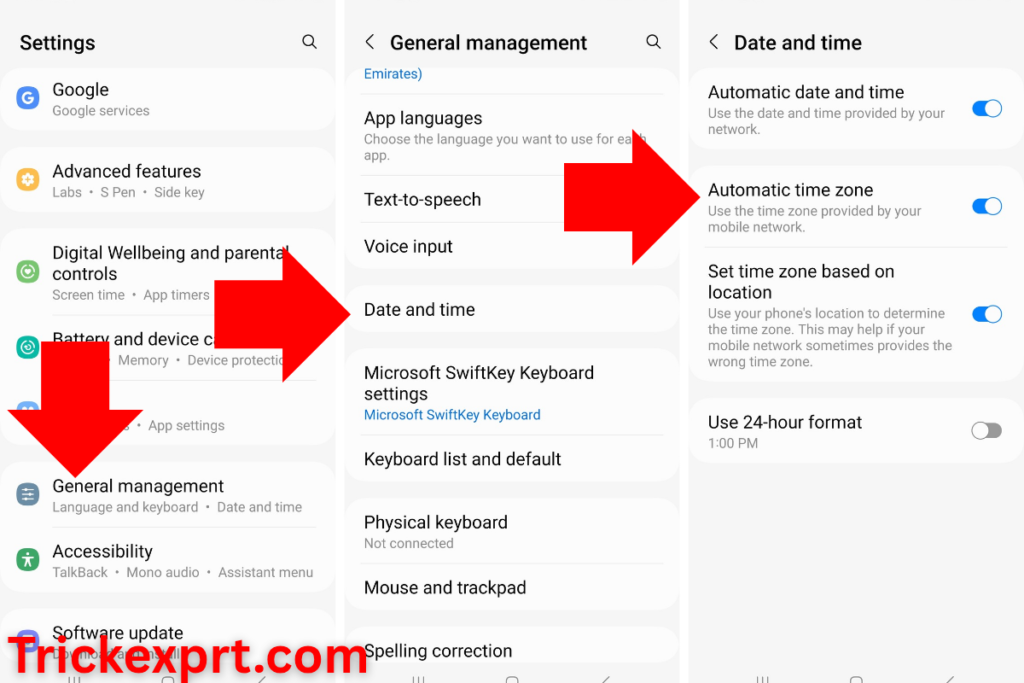
Screenshot from my Samsung Galaxy Note 20 Ultra: Settings > General management > Date and time, with automatic date and time enabled.
7. Uninstall Play Store Updates (Only If the Play Store Also Acts Up)
If the Google Play Store is also not working properly, uninstalling its updates may help. This step is for Play Store problems and is not a rollback of Google Play services.
Steps to follow:
- Find the Google Play Store app on your phone.
- Touch and hold its icon, then tap App info.
- Tap the three-dot menu in the top-right corner, if available.
- Select Uninstall updates and confirm.
- Open the Play Store again.
- Go to your profile picture > Settings > About, then tap Update Play Store if the option is available.
Menu names may vary by device. After completing these steps, check whether the original error still appears.
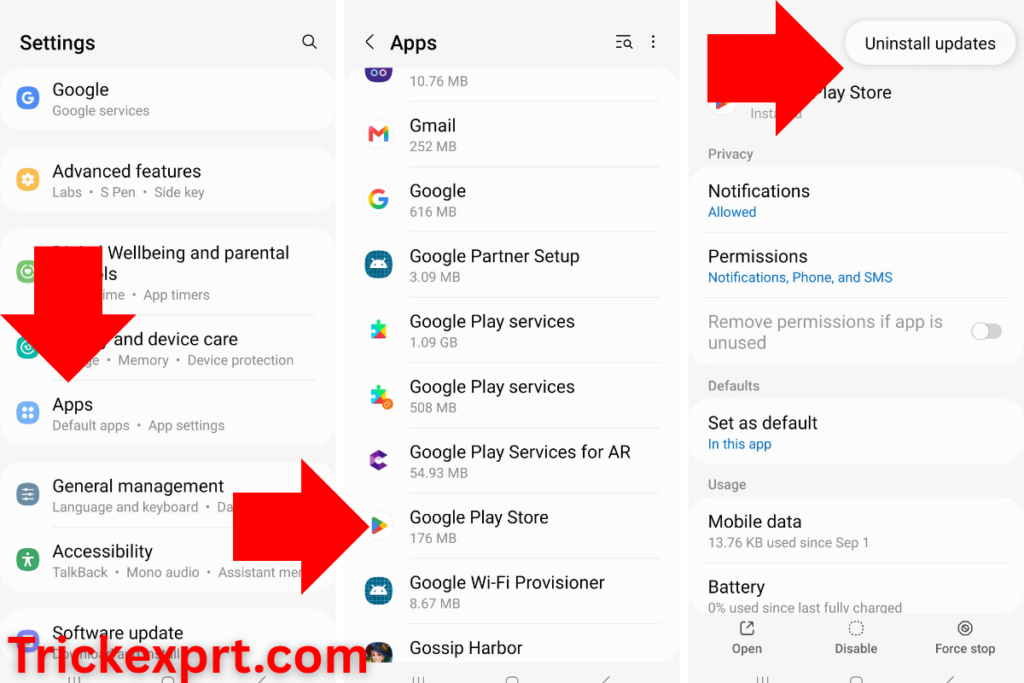
Screenshot from my Samsung Galaxy Note 20 Ultra: the Uninstall updates option in Google Play Store app info.
8. Install the Latest Android System Update
Old software can clash with new Google services, so install any pending system update. Charge the phone to at least 75% and stay on Wi-Fi while it downloads.
- Most Android phones: Settings > System > Software update (some brands call it System update)
- Samsung: Settings > Software update > Download and install
- Redmi and Xiaomi: Settings > About phone > System update
To see which Android version you are on, open Settings > About phone > Android version.
Official source
Check and update your Android version
Google Help. How to find your Android version and install the latest update.
Check for a Google Play System Update
Google Play system updates are separate from the main Android version and can include updates to important system components. If Google Play services keeps crashing, check whether your phone has a pending update. The exact menu varies by Android version and manufacturer.
- Open Settings > Security & privacy or Settings > About phone, depending on your device.
- Look for Updates, Google Play system update or the update status under Android version.
- Install an update if one is offered, restart the phone if prompted, and check whether the error returns.
On some phones, the Google Play system update status appears under Settings > About phone > Android version. If your device says it is up to date, move on to the next step. See Google’s official guide to checking Android and Google Play system updates.
Check the Google Play Services Beta and Android System WebView
If the crashes began after joining a beta program or after a system component update, check these two possibilities. Beta versions can be less stable than public releases, and Google has documented cases where a WebView update caused apps to crash.
Check whether Google Play services is on the beta track: If you intentionally joined the Google system services beta, open the Google services settings on your phone and look under All services > System services for the beta controls. You can also use Google’s official Google system services beta instructions to leave the program. After opting out, wait for the next production release; leaving does not always install the stable version immediately.
Update Android System WebView and Chrome: Open the Play Store, search for Android System WebView and tap Update if available. Repeat for Google Chrome, then restart your phone. Do not uninstall WebView updates manually as a first step. Google’s WebView app-crash guidance explains how an affected WebView update was resolved by updating WebView and Chrome.
9. Remove and Add Your Google Account Again
If the error is linked to an account sync problem, removing the account and signing in again refreshes the connection.
- First make sure your contacts and photos are backed up, and that you remember your Google password.
- Open Settings > Accounts (or Passwords & accounts) and tap Google.
- Select your account and tap Remove account.
- Restart the phone, then go back to the same screen, tap Add account and sign in again.
10. Clear Google Play Services Data (Advanced Fix)
Only try this step if the previous troubleshooting methods have failed. Google advises users to try other options before clearing Google Play Services storage or data.
- Open Settings on your Android phone.
- Go to Apps > Google Play services.
- Tap Storage or Storage & cache.
- Select Clear cache first, if you have not already done so.
- If the problem continues, open Manage space and tap Clear all data. On some Android versions, the option may appear under Clear storage instead.
- Review the warning and confirm only if you understand the consequences.
- Restart your phone and check whether the error returns.
Important: Google warns that clearing Google Play services data may remove saved passwords, transit cards, COVID cards and virtual payment cards stored in Google Pay. You may need to reauthenticate payment methods and sign in to your Google Account again on your devices. This is why data clearing should be a last resort. Google’s official Play services troubleshooting guide lists these possible effects. It does not specifically say that this action resets Wear OS watch pairing, so do not assume your watch will be unpaired; check the watch connection afterward if you use one.
Official source
Back up or restore data on your Android device
Google Help. How to back up your data to your Google Account before clearing data or resetting.
When Should You Factory Reset Your Android Phone?
A factory reset should be your last resort, not a routine fix for Google Play Services errors. It erases data stored on your phone, including installed apps, settings, and personal files that have not been backed up.
Before resetting your device:
- Back up your photos, contacts, messages, and important files.
- Make sure you know your Google Account email and password.
- Check the official reset instructions for your phone model.
After the reset, set up your phone and check whether Google Play Services works normally before reinstalling all your apps. A factory reset is not guaranteed to fix problems caused by unsupported software or faulty firmware.
Official source
Reset your Android device to factory settings
Google Help. What to do before a reset and how it works on most phones.
After the reset, sign in and let the phone update Google Play services before you restore your apps. If the error still returns after a reset, the cause is probably unofficial firmware or a hardware fault, and the phone’s service center is the next step.
How to Fix Google Play Services Keeps Stopping on Tablet
The 10 fixes above work on tablets too, but tablets have a few extra problems of their own. Many run an older Android version, often get fewer updates, and Wi-Fi-only models can lose the correct time. Check these first:
- Date and time. Wi-Fi-only tablets can show the wrong time after the battery dies. Set both date and time to automatic (fix 6).
- Wi-Fi connection. Play services needs a stable connection to update. Reconnect to your router and try updating again (fix 3).
- Play Protect certification. Cheap tablets sold with unofficial firmware may not be certified by Google, and Google says apps and features on non-certified devices may not work correctly. Open the Play Store, tap your profile picture, go to Settings > About > Play Protect certification and check whether it says the device is certified.
- Storage. Tablets with 16 GB or 32 GB fill up quickly with games and videos. Free up space (fix 5).
If the tablet is not certified, clearing the cache may help for a while, but the error can keep returning until you use official firmware or a certified device.
Official source
Check and fix Play Protect certification status
Google Help. How to check whether your device is certified and what to do if it is not.
Google Play Services Keeps Stopping on Samsung Tablet
On a Samsung Galaxy Tab the steps are the same, only some menu names differ:
- Open Settings > Apps and tap Google Play services. If it is missing, tap the filter icon and turn on Show system apps.
- Tap Storage > Clear cache, then restart the tablet.
- Install any update from Settings > Software update > Download and install.
- Set the clock from Settings > General management > Date and time.
If the error returns, clear the Play Store cache (fix 4) and, as a later step, the Play services data (fix 10).
How to Fix Google Play Services Keeps Stopping on Samsung J7 Prime
The Samsung Galaxy J7 Prime is an older Android phone, so the available software updates depend on the device variant and installed firmware. First, check your phone’s Android version under Settings > About device or About phone. Google currently supports Google Play Services on Android 7.0 and newer. If your phone is running Android 6, check whether an official software update is available for your specific model. Do not assume that every J7 Prime has the same Android version or the same available updates.
- Open Settings > Applications > Application manager (on some versions it is just Settings > Apps) and tap Google Play services.
- Tap Storage, then Clear cache, and restart the phone.
- Repeat the same cache clearing for Google Play Store.
- Check for a system update from Settings > Software update (on older software, Settings > About device > Software update).
- Set the clock to automatic from Settings > General management > Date and time.
- Free up storage. The J7 Prime has limited internal space, so delete unused apps and move photos and videos to a microSD card or to Google Photos.
- If the error keeps returning even after a factory reset (see the factory reset section above), the phone’s old software may be the reason.
If Smart Manager is available on your phone, use it to review storage and device performance before restarting. If the error continues after the steps above, check whether your model still receives official software updates.
How to Fix Google Play Services Keeps Stopping on Redmi
Redmi phones run MIUI or HyperOS, which close background apps aggressively to save battery. That can interrupt Google Play services and trigger the error, so Redmi users should also check the battery setting below. Menu names differ slightly between MIUI and HyperOS versions.
- Clear the cache: Open Settings > Apps > Manage apps > Google Play services. Tap Storage or Storage usage, then select Clear cache. Repeat these steps for Google Play Store if needed. Menu names may vary depending on your MIUI or HyperOS version.
- Check battery settings if the error continues: If your phone offers battery restrictions for Google Play Services, review them and follow the device manufacturer’s recommended settings. Changing battery restrictions is an optional troubleshooting step, not a guaranteed fix.
- Check for updates: Open Settings > About phone > System update and install any compatible official update.
- Check date and time: Open the date and time settings and enable automatic date, time, and time zone if available.
- Free up storage: Remove unnecessary files or apps if your phone is running low on space.
- Restart your phone: Restart the device and check whether the error returns.
- If the problem continues, move to the later troubleshooting steps in the main guide. Clear Google Play Services data only after trying the less disruptive options.
If the error still appears, continue with the remaining steps in the main list. Leave the Google Play services data reset until you have tried the less disruptive fixes.
Frequently Asked Questions
Can I uninstall Google Play services?
No. Google says you cannot force stop or uninstall Google Play services, and it comes included with Android. Many apps depend on it, so clear its cache instead of trying to remove it.
Will clearing Google Play services data delete my photos or Google account?
Google warns that clearing Play services data or storage may delete some information saved on your device, so back up your photos, contacts and chats first. Treat it as a later step, not a first fix (see fix 10).
Why does Google Play Services keep stopping after an update?
The error may appear after an update because of a temporary software problem, compatibility issue, corrupted cache, or another underlying cause. The timing alone does not confirm that the update is faulty. Start by restarting your phone, checking for available Google Play Services updates, and clearing the cache. If the problem continues, follow the remaining troubleshooting steps in this guide.
When should I factory reset my phone?
Only after every other fix has failed. Back up your photos, contacts and chats first, because a reset erases everything.
A note from the author: I wrote this guide after going through these screens myself on a Samsung Galaxy Note 20 Ultra running Android 13. If a menu looks different on your phone, tell us your model and Android version in the comments, and I will reply with the exact path for your device.
Final Words
In many cases, clearing the Google Play services cache and updating the app solves the problem within minutes. If it does not, work through the remaining fixes in order, and use the tablet, Samsung J7 Prime or Redmi section if you own one of those devices. Seeing other errors too? Read our guides on Google Play downloads stuck on pending, the app not installed error on Android, and apps that keep crashing on Android. Still stuck? Tell us your phone model and Android version in the comments, and we will help you narrow it down.




2 comments
Pingback: App Not Installed Error on Android: 7 Fixes That Work
Pingback: How to Increase Battery Life on Android: 12 Easy Tips