 TrickExprt Android Apps, Games, Software & Tech Guides
Quick Summary (Fast Fix):
If Google Play Store is stuck on Download Pending, start with these checks in order:
- Check that Wi-Fi or mobile data is working reliably.
- Check whether other app updates or downloads are already in progress.
- Open Settings > Storage and confirm that your phone has enough free space.
- Restart the phone and try the download again.
- If it remains pending, clear the Google Play Store cache before trying more advanced steps.
Introduction
We have all been there: you open the Google Play Store, hit download on an important app or game update, and… nothing happens. The screen just sits there displaying “Download Pending” endlessly.
This is one of the most common and frustrating Android bugs. It happens across Samsung, Xiaomi, Vivo, Realme, and OnePlus devices alike.
This guide follows practical troubleshooting steps, starting with your connection, download queue and available storage before moving to Play Store cache and account-related checks. Google’s official basic troubleshooting guide for stuck downloads recommends checking connectivity and storage first.
1. Check Active Background Downloads & Auto-Updates
One thing to check is whether other app downloads or updates are already in progress. A pending item may be waiting behind another task, but a queue is only one possible reason for a stalled download—not the cause in every case.
Step-by-Step Fix:
- Open the Google Play Store app.
- Tap your profile picture in the top right corner.
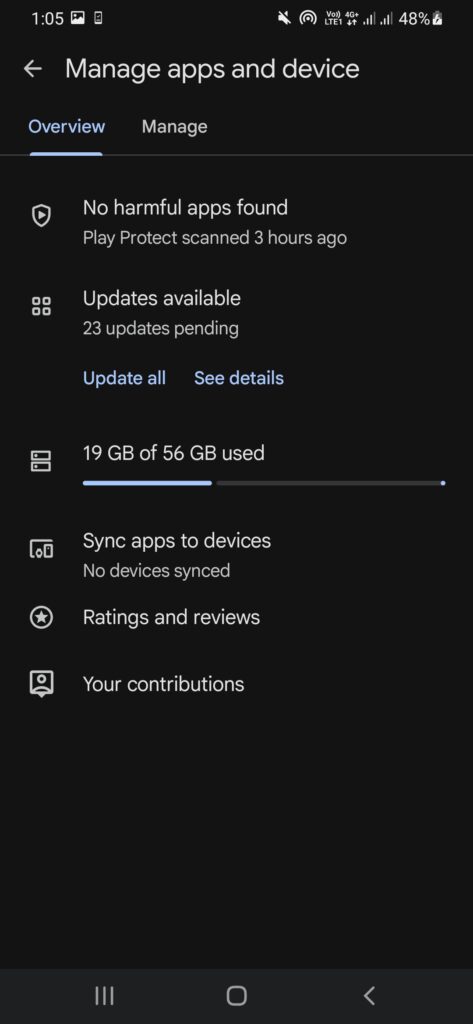
- Select Manage apps & device.
- Tap on Overview or Updates available.
- Check if other apps are downloading or updating.
- Tap the Cancel all button or cancel individual ongoing downloads, then retry your desired app.
2. Clear the Google Play Store Cache First
Google lists clearing the Play Store cache as a common troubleshooting step for download problems. Start with the cache only; clearing app storage or data is a separate, more disruptive action.
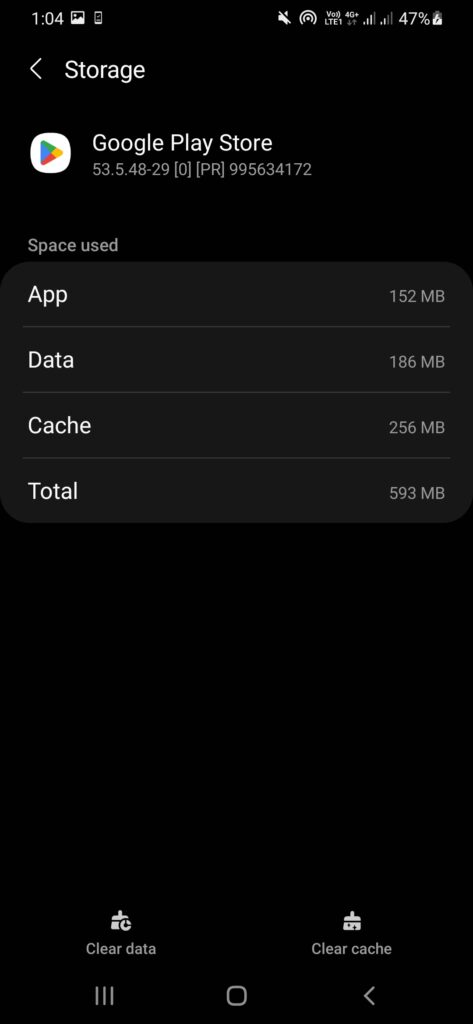
Step-by-Step Fix:
- Open your phone’s Settings app.
- Go to Apps (or App Management).
- Tap See all apps and search for Google Play Store.
- Select Storage & cache.
- Tap Clear Cache first. (Test if download works now).
- If the download still fails, you can consider Clear storage / Clear data for the Play Store. This resets some Play Store settings, including parental controls and password protection, and you may need to accept the Terms of Service again. Re-enable any settings you use afterward.
- Do not routinely clear Google Play Services storage/data. Google says this is not recommended until other troubleshooting options have been tried. It can delete information saved to the device, including passwords and Google Pay cards, and may require you to re-authenticate payment methods or sign in again. See Google’s advanced Google Play services troubleshooting instructions before considering it.
3. Adjust App Download Preferences (Data Saver & Wi-Fi)
If your device is set to download apps only over Wi-Fi, but you are currently on mobile data (or vice versa), the download will remain pending until settings match.
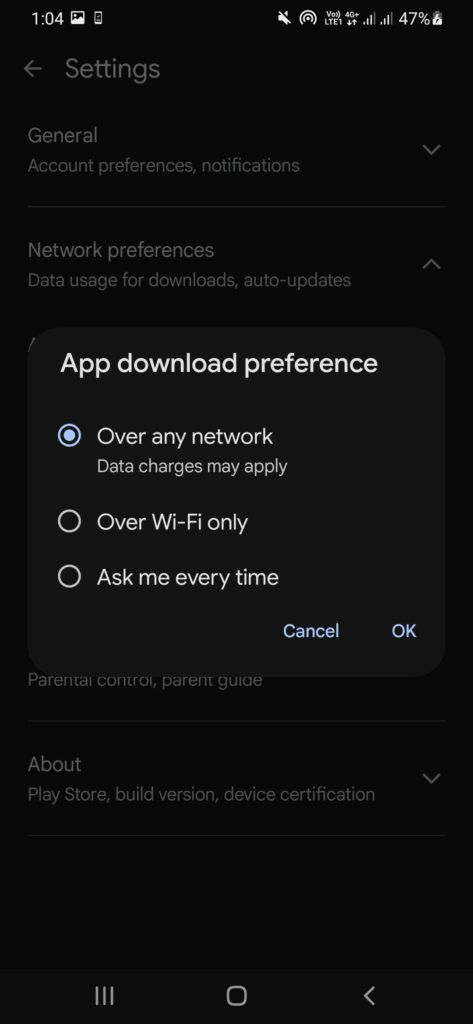
Step-by-Step Fix:
- Open Google Play Store.
- Tap your profile picture > Settings.
- Tap Network preferences.
- Select App download preference.
- Change it to Over any network and tap Done.
4. Check Internal Phone Storage
Low available storage can prevent Google Play from downloading or installing apps. Google does not publish one fixed free-space threshold that applies to every app and Android device, so check your phone’s Storage screen and free up space if the device is nearly full. See Google’s official guide to freeing up Android storage for safe options.
- Go to Settings > Storage.
- Check the available space. If your phone is nearly full, free up storage before retrying the download.
- Remove or move files only after checking that you no longer need them. Our guide explains how to free up Android storage without deleting important files.
5. Remove & Re-Add Your Google Account
If none of the earlier fixes work, removing and re-adding your Google Account is an advanced step. Google warns that some information may be removed from the device, so back up important data and make sure you know your sign-in details before proceeding.
Step-by-Step Fix:
- Go to Settings > Accounts & Sync (or Passkeys & accounts).
- Tap on your main Google Account.
- Tap Remove account.
- Restart your phone.
- Go back to Settings, add your Google account again, and launch Google Play Store.
Update Google Play Store
An outdated or temporarily malfunctioning Play Store may contribute to download problems. Open Google Play Store, tap your profile picture, go to Settings, and open About. If an option to update the Play Store appears, use it. Menu labels can vary by version.
Check Google Play Services Cache
Google Play services supports connections between Android apps and Google services. If basic troubleshooting has not helped, open your phone Settings, find Google Play services under Apps, open Storage or Storage & cache, and clear the cache if that option is available. Restart the phone and test the download again.
Avoid disabling Google Play services or clearing its storage as a routine fix. If the issue continues, check for Android system updates and consult Google’s official troubleshooting guidance.
FAQs (Frequently Asked Questions)
Q1: Will clearing Google Play Store data delete my installed apps?
Clearing Google Play Store data does not uninstall the apps already installed on your phone, but it can reset Play Store settings such as parental controls and password protection. You may also need to accept the Terms of Service again. This is why the guide recommends clearing the cache first.
Q2: Why does download pending happen even on high-speed Wi-Fi?
There is no single cause for every device. Google recommends checking the internet connection and available storage first, then trying Play Store cache and other advanced troubleshooting steps if the problem continues.
Q3: What if the APK still fails to install?
If Play Store continues to fail, verify your device’s date and time settings, test another network, or restart your Wi-Fi router. If the app downloads but Android then displays an “App Not Installed” message, follow our App Not Installed troubleshooting guide.




5 comments
Pingback: How to Fix FC Mobile VN OBB File Extraction Error (2026 Guide)
Pingback: How to Fix Last War Survival Lag on Android (2026 Guide)
Pingback: How to Fix Free Fire MAX Lag and FPS Drops on 2GB/3GB RAM
Pingback: How to Fix PUBG Mobile Lag and Stuttering After New Update (Android Guide)
Pingback: How to Import Custom Kits and Logos in Dream League Soccer (DLS 2026)