 TrickExprt Android Apps, Games, Software & Tech Guides
Quick Fix:
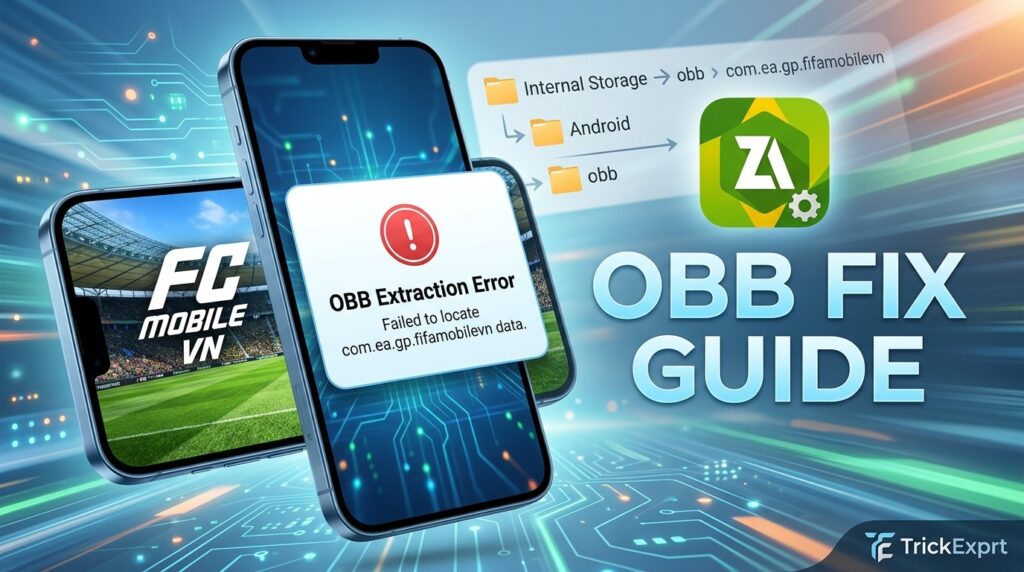
For the safest fix, install or update FC Mobile VN through its official Google Play listing. If you are troubleshooting a separately supplied archive, first confirm that it is a complete, compatible package from a legitimate source. Do not create an OBB folder using an unverified package name.
- Check the official app listing and install the game through Google Play where it is available.
- If an archive extraction fails, check the download, file integrity, available storage, and Android folder-access permissions.
- On newer Android versions, a file manager may not be allowed to write directly to
Android/obb. “All Files Access” does not remove every restriction.
Introduction
FC Mobile VN is the Vietnam edition published by Garena. The official Google Play listing identifies the Android app package as com.garena.game.fcmobilevn. If you see an OBB extraction or XAPK installation error, the cause may be an incomplete download, an incompatible package, low storage, or Android restrictions on the Android/obb folder.
Not every FC Mobile VN installation uses a separate OBB file that needs to be extracted manually. Google Play can install app bundles and their required components for you. Start with the official store installation route; only troubleshoot a separate archive if you have a legitimate reason to use one.
This guide explains how to check the official installation, troubleshoot a failed archive download, and understand Android storage restrictions. Menu names can vary by phone manufacturer and Android version.
Why Does the FC Mobile VN OBB Extraction Error Happen?
Understanding the cause helps in choosing the right solution:
- Corrupted ZIP/XAPK File: The file was interrupted or incomplete during download.
- Outdated folder instructions: Instructions copied from another game edition or an older guide may use the wrong package ID.
- Android Storage Restrictions: Android 11 and later limit how apps can access
Android/obb. A file manager’s “All Files Access” permission does not automatically bypass every restriction. - Insufficient Storage Space: The phone may not have enough free space to download and extract the archive.
Step 1: Check Available Storage
Large archives need enough free space for both the downloaded file and the extracted contents. The exact amount depends on the package and the files already stored on your phone, so there is no universal 4GB or 5GB requirement. Check Settings > Storage and make sure you have comfortably more free space than the archive size before extracting it.
- Go to your phone’s Settings > Storage.
- Make sure there is enough free space for the downloaded archive and its extracted contents. The required amount varies by file size.
- Clear unnecessary videos or cached system files if storage is low, then attempt extraction again.
Step 2: Extract the Downloaded Archive with ZArchiver
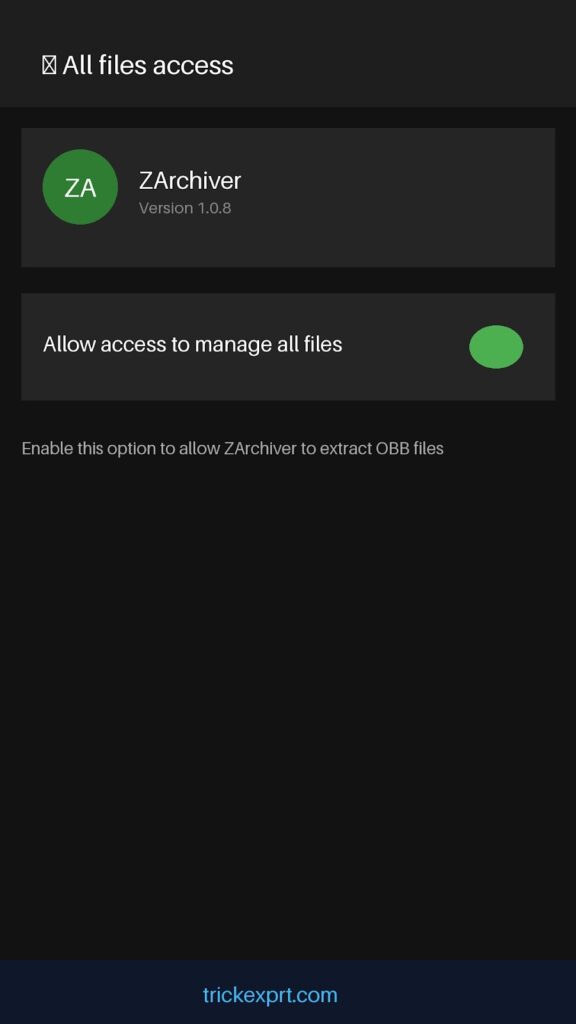
ZArchiver can extract supported archive formats, but installing it and granting “All Files Access” does not guarantee permission to write into Android/obb on every Android version or device. Android applies additional restrictions to these folders.
- If you need an archive utility for files you are authorised to access, install ZArchiver from its Google Play listing.
- Open ZArchiver and grant the file permissions it requests for the folders you need to manage. This permission does not guarantee access to protected Android system folders.
- Navigate to your Download folder where the FC Mobile VN archive file is saved.
- For a normal ZIP archive, tap the file and choose Extract…. Do not assume that renaming or extracting an XAPK manually will install all of its split APK components correctly.
Step 3: Check Whether an OBB Folder Is Required
The official FC Mobile VN Google Play listing identifies the package as com.garena.game.fcmobilevn. The old folder name com.ea.gp.fifamobilevn in this guide was incorrect. However, do not create an OBB folder manually unless the legitimate installation package actually includes a separate OBB file and its instructions require manual placement.
If you installed the game through Google Play and it opens normally, you do not need to create an OBB folder. Follow the instructions supplied for the exact legitimate build rather than copying a folder path from an older guide.
Important: “Allow management of all files” does not guarantee access to every protected subfolder under Android/obb. Android applies additional restrictions to these locations.
Step 4: Reinstall or Update Through the Official Store
If you are trying to install FC Mobile VN, the recommended route is the official Google Play listing or Garena’s official download instructions. The store handles the app’s required installation components, so you should not need to source an OBB file from an unofficial archive site.
- Open the official FC Mobile VN Google Play page.
- Check that the developer is Garena and that the app is available for your device and region.
- Tap Install or Update and let Google Play complete the installation. If the game is not available in your region, check Garena’s official FC Mobile VN website for its supported download guidance.
Frequently Asked Questions (FAQs)
Q1: Does FC Mobile VN always need a separate OBB file?
No. Do not assume that every FC Mobile VN installation requires a separate OBB file. Start with Google Play or Garena’s official installation guidance. Avoid modified, repacked, or unknown APK/OBB files because their contents and compatibility cannot be verified from the filename alone.
Q2: Why is the Android/obb folder hidden or empty on my phone?
Android restricts access to Android/data and Android/obb. A computer using USB file transfer (MTP) can help move an archive into Downloads, but it may not be able to write directly into protected OBB folders. Shizuku can help only when the file manager explicitly supports Shizuku; results vary by Android version and phone. Read the official Shizuku setup guide before trying this advanced option. Shizuku is not needed for a normal Google Play installation.
Q3: Why does FC Mobile VN display a black screen after extraction?
A black screen can have several causes, including a failed update, incompatible installation, network issue, or corrupted game data. First restart the phone and check for an update through Google Play. If the problem continues, use Garena’s official support channel rather than downloading replacement OBB files from an unknown archive site.
If another Android app fails to install, read our guide to fixing the “App Not Installed” error on Android. If Google Play downloads are stuck, see our guide to fixing the Google Play download pending error.
Official resources: FC Mobile VN on Google Play · Garena FC Mobile VN website · Garena FC Mobile VN support · Android storage access documentation · Shizuku setup guide



One comment
Pingback: How to Download and Install FC Mobile VN APK + OBB on Android (2026 Guide)