 TrickExprt Android Apps, Games, Software & Tech Guides
Introduction
You tap the Roblox icon, the logo appears for a second, and then nothing happens — or the app closes straight away. It is one of the most annoying problems for Roblox players in India, Pakistan and the UAE, especially when friends are already waiting in a game.
The good news is that in most cases the problem is on your phone, not your account, and it can be fixed in a few minutes. This guide gives you 7 practical fixes in the right order — start with Fix 1 and work down the list. The first three fixes solve the problem for most people.
Why Roblox Won’t Open on Android
Roblox usually fails to open for a few simple reasons. The most common is a weak internet connection — Roblox needs a steady connection just to load its home screen. The second is a damaged cache or an old app version: after an update, leftover files can stop the app from starting. Low storage is another big cause, and sometimes Roblox’s own servers are down for maintenance.
You do not need to find the exact cause first. The fixes below cover all of them.
Fix 1: Check Your Internet Connection
Roblox cannot open without a stable connection. If your Wi-Fi drops for even a few seconds while the app loads, it can crash back to the home screen.
- Open your browser or YouTube and see if a page or video loads normally.
- If it is slow, turn Wi-Fi off and on again, or switch to mobile data.
- Turn off any VPN — VPNs often slow the connection or block Roblox’s servers.
- Try opening Roblox again.
If other apps also load slowly, the problem is your connection, not Roblox. A stable Wi-Fi signal matters more than raw speed.
Fix 2: Restart the App and Your Phone
A restart clears temporary glitches that build up while your phone runs for days without a break.
- Close Roblox completely. Open your recent apps and swipe Roblox away — do not just press Home, because the app keeps running in the background.
- Wait 10 seconds, then open Roblox again.
- If it still does not open, restart your phone. Hold the power button, tap Restart, and wait for the phone to boot up fully.
- Open Roblox once the phone has settled.
Fix 3: Clear the Roblox Cache
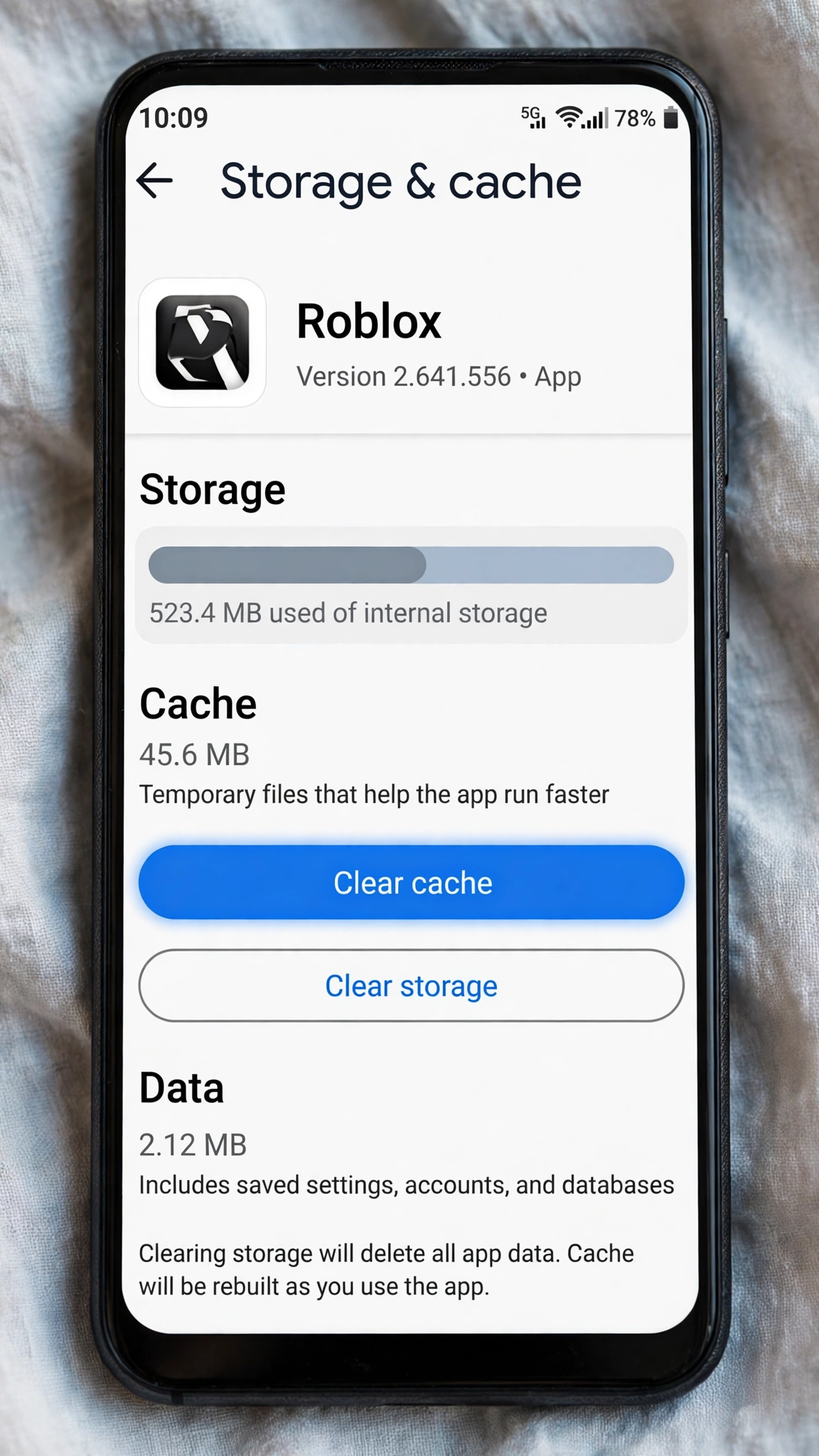
Cache files help Roblox load faster, but when they get damaged — usually after a bad update or a crash — they stop the app from opening at all. Clearing the cache deletes these temporary files without touching your account, your Robux or your games.
- Go to Settings > Apps > Roblox.
- Tap Storage & cache.
- Tap Clear cache. Do NOT tap “Clear data” yet — that logs you out and deletes your login details.
- Go back and open Roblox.
If Roblox opens now, the damaged cache was the problem.
Fix 4: Update Roblox and Android
An old version of Roblox often refuses to open after Roblox updates its servers. The same happens when your Android version is too old for the newest Roblox release.
- Open the Google Play Store and search for Roblox.
- If you see an Update button, tap it and wait for the update to finish.
- Also check for an Android update: go to Settings > System > System update and install any update that is available.
- Restart your phone after updating, then open Roblox.
Only update from the Google Play Store. Files from websites or chats are the main way fake Roblox apps spread, and they can steal your account.
Fix 5: Free Up Storage Space
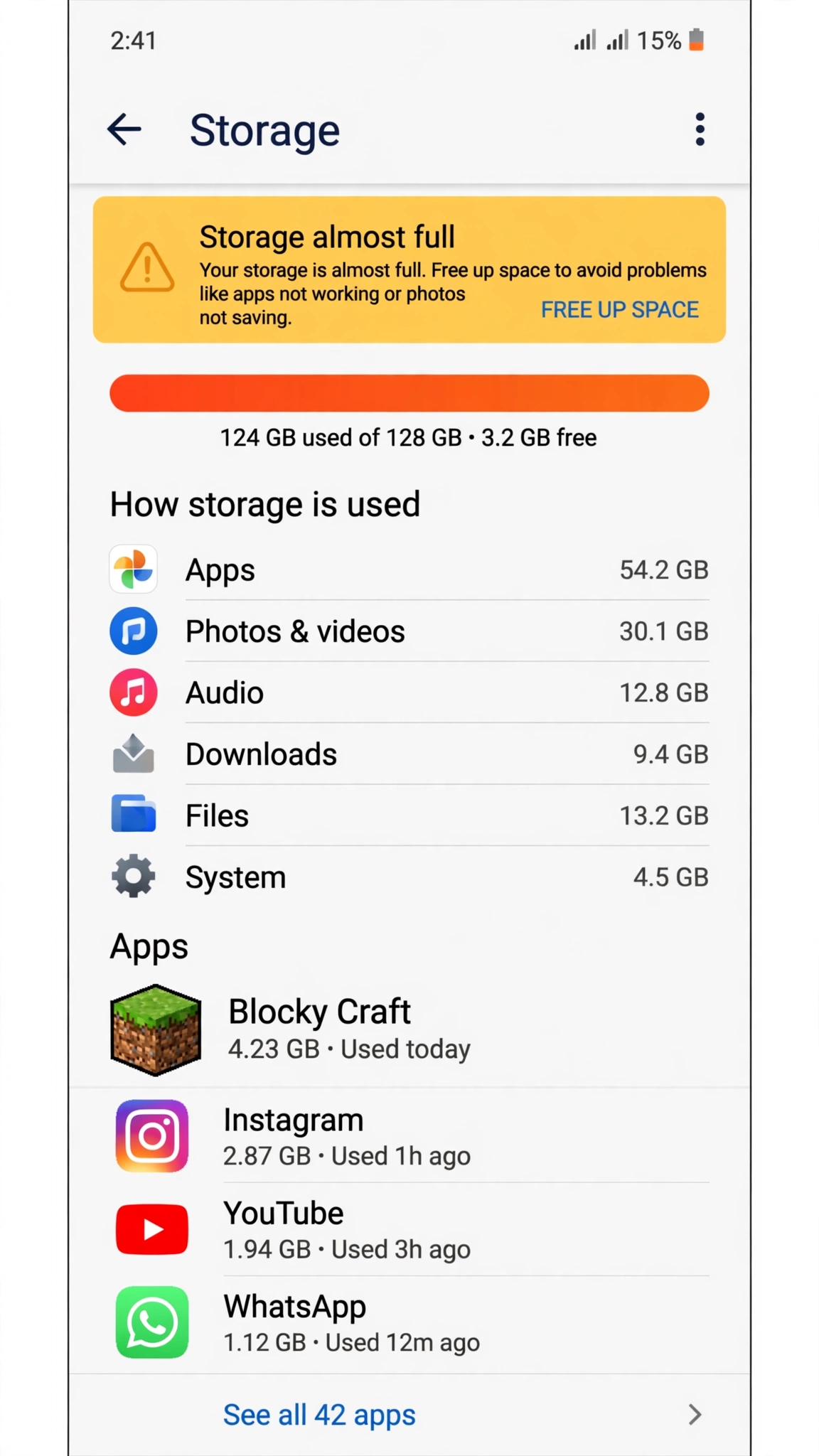
Roblox needs free storage to download game files and updates. When your phone has less than about 1 GB free, apps start crashing on launch — and Roblox is one of the first to fail because it downloads so much data.
- Go to Settings > Storage and check how much free space you have.
- If it is under 1 GB, delete unused apps, old videos and duplicate photos.
- Clear the cache of heavy apps like YouTube, Chrome and WhatsApp.
- Open Roblox again once you have at least 1–2 GB free.
As a rule, keep at least 10% of your phone’s storage free at all times. If you are often short on space, our guide to the best offline AI apps for Android includes light apps that work well on phones with limited storage.
Fix 6: Check If Roblox Is Down
Sometimes the problem is not your phone at all — Roblox’s own servers are down. When that happens, no fix on your side will help, and the app will keep crashing or stuck on the loading screen for everyone.
- Open your browser and visit the official Roblox status page at status.roblox.com.
- If it shows an outage or maintenance, wait — outages usually last from a few minutes to a couple of hours.
- Do not reinstall the app during an outage — it will not help, and you will just have to log in again afterwards.
If the status page is all green, the problem is on your side — move on to Fix 7.
Fix 7: Reinstall Roblox From the Play Store Only
If none of the fixes above worked, a clean reinstall is the last step. It removes every file of the app — including any damaged ones that clearing the cache could not fix — and gives you a fresh copy.
- Go to Settings > Apps > Roblox and tap Uninstall.
- Restart your phone.
- Open the Google Play Store, search for Roblox, and install it again.
- Open the app and log in with your normal Roblox username and password.
Your account, friends, Robux and games are stored on Roblox’s servers, so reinstalling deletes nothing. If Roblox still does not open after a clean reinstall from the Play Store, try the app on another phone or tablet, and contact Roblox Support with your phone model and Android version.
Warning: Avoid Fake Roblox APK and Mod Files
When Roblox will not open, many players search for a “Roblox APK” or “Roblox mod” file. Do not do this. There is no official Roblox APK outside the Play Store, and the files on those sites are one of the most common ways Android users lose their accounts.
Fake Roblox files commonly show endless ads, ask for permissions they do not need, steal your login details, or install other malware on your phone. A “mod” that promises free Robux is always a scam — Robux can only come from Roblox itself. The same warning applies to other games — see our guide on how to play GTA 5 on Android. Always install games from the Google Play Store only.
FAQ
Will I lose my account if I clear the cache or reinstall Roblox?
No. Clearing the cache does not touch your account at all. Reinstalling only removes the app from your phone — your account, friends, Robux and games are saved on Roblox’s servers.
Why does Roblox open but crash when I join a game?
This is usually low storage, a weak connection, or an old phone that cannot handle the game you joined. Try Fix 1 (internet) and Fix 5 (storage) first, then join a smaller, simpler game to test.
Does Roblox work on low-end Android phones?
Yes, Roblox is designed to run on a wide range of phones, including low-end ones. Turn the graphics quality down inside the game settings, close other apps before playing, and use Wi-Fi. If the app will not open on a very old phone, your Android version may no longer be supported.
What should I do if Roblox is down?
Nothing on your phone will fix a server outage. Check the official status page and wait — do not reinstall the app in the meantime. Outages are usually resolved within a few hours. Keep your account safe with the same habits as our Yalla Ludo account guide: strong password, two-step verification, and never sharing your login details.
Conclusion
Roblox not opening on Android is frustrating, but it is almost always fixable: check your internet, restart the app and phone, clear the cache, update the app, free up storage, check the server status, and reinstall from the Play Store as a last step. Most players are back in the game by Fix 3 or Fix 4.
Never fix it with a random APK file — that trades a small problem for a stolen account. Keep the app updated from the Play Store and keep some storage free, and Roblox will open reliably. If the problem keeps coming back on the same phone, the phone itself may be too old for the latest Roblox version — try another device or contact Roblox Support.