 TrickExprt Android Apps, Games, Software & Tech Guides

Quick Answer: Restart your phone, update WhatsApp from the Play Store, and clear only the app’s cache — never “Clear data” without a backup. Still crashing? Update WebView and Chrome, check the date and time, and free up storage.
You tap the WhatsApp icon, the logo flashes, and the app closes — or never opens at all. It is one of the most frustrating Android problems — WhatsApp holds your family, work, and daily conversations. The good news: this is almost always software, not a broken phone. Below are 9 fixes in order, easiest first — tested on my Samsung Galaxy Note 20 Ultra (Android 13).
Why Does WhatsApp Keep Crashing on Android?
- A bad or incomplete update. A new version can ship with a bug, or install halfway over a weak connection.
- Corrupt cache files. WhatsApp stores temporary files to open faster. When they get damaged, the app can crash every time it reads them.
- A faulty WebView update. WebView is a component many apps use to show web content. A bad update has crashed apps across millions of phones.
- Low storage space. A nearly full phone cannot save messages or download media.
- Wrong date and time. WhatsApp checks your phone’s clock when it connects. If it is wrong, the app may refuse to open.
- A conflicting app. A recently installed cleaner, battery saver, or modified WhatsApp version can interfere.
- An old Android version. WhatsApp requires Android 6.0 or newer. Since 8 September 2026, older Android versions have lost WhatsApp support entirely.
Fix 1: Restart Your Phone
A restart clears temporary memory and stuck background processes. Press and hold the power button, tap Restart, wait for the phone to boot fully, then open WhatsApp. If it still crashes, force-stop it: Settings > Apps > WhatsApp > Force stop, then reopen it.
Fix 2: Update WhatsApp from the Play Store
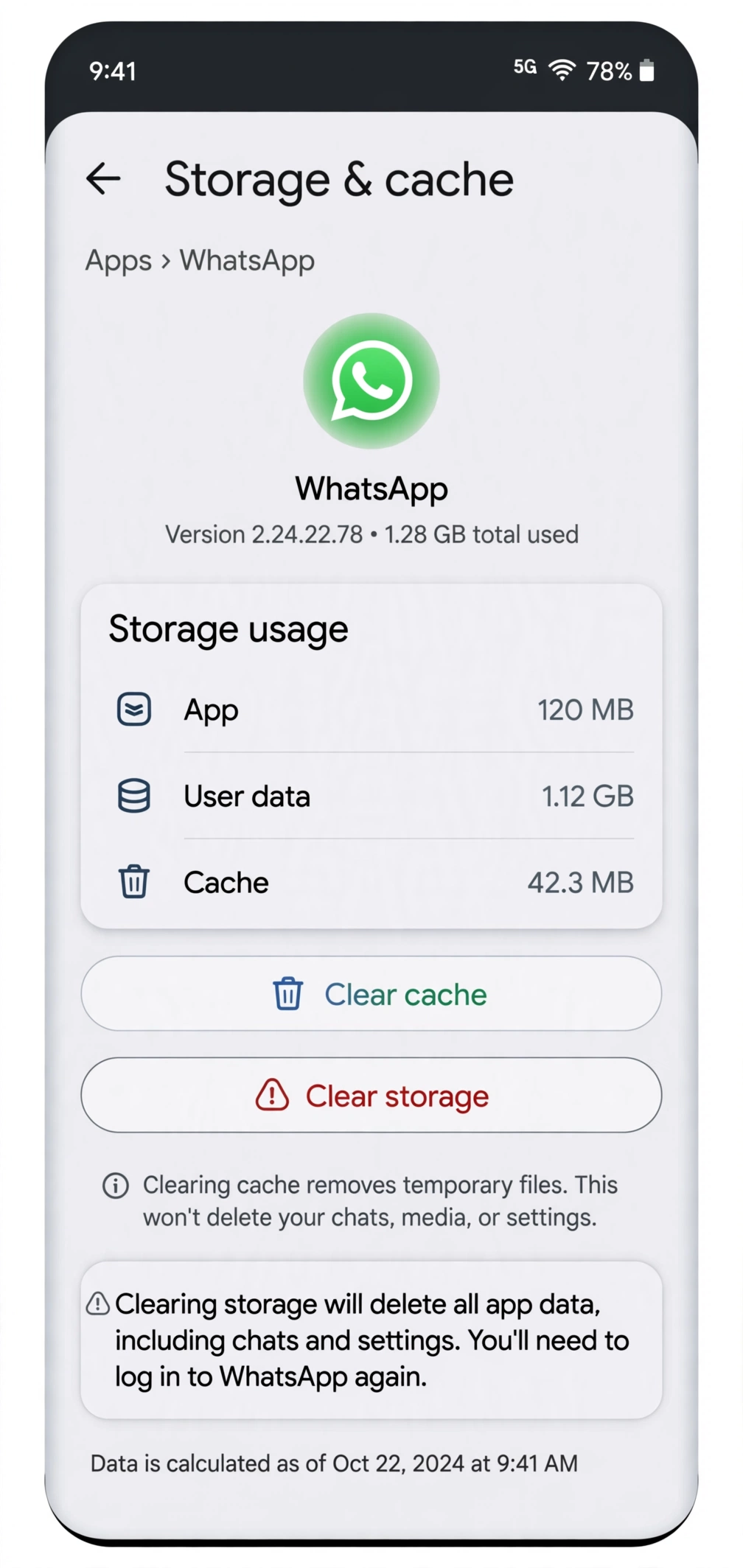
An outdated version can crash on newer Android, and a buggy version is often fixed within days. Always update from the official Google Play Store — never from an APK website. Open the Play Store, search for WhatsApp Messenger, and tap Update if you see the button.
Fix 3: Clear WhatsApp Cache (NOT Data)
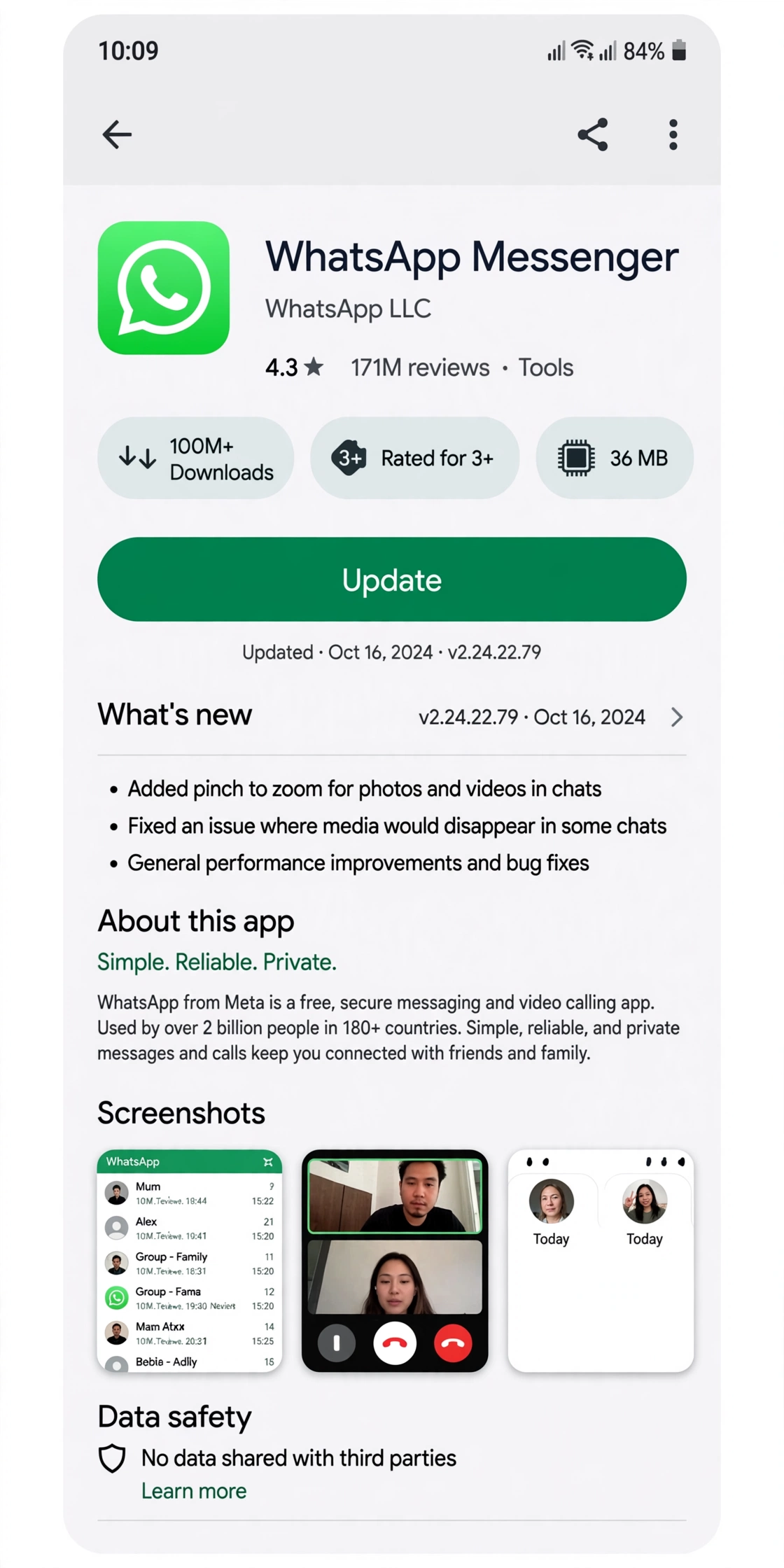
This is the most effective fix — but read the warning first. Cache and data are different. Clearing the cache deletes only temporary files; your chats stay safe. Clearing data (“Clear storage”) logs you out and deletes everything not backed up. Never tap it without a fresh backup.
- Go to Settings > Apps > WhatsApp.
- Tap Storage & cache.
- Tap Clear cache. Do not tap “Clear storage” or “Clear data”.
- Open WhatsApp again.
Back up your chats now: go to WhatsApp > Settings > Chats > Chat backup > Back Up. If the backup itself gets stuck, see our guide on how to fix WhatsApp backup stuck on Android.
Fix 4: Free Up Storage Space
WhatsApp needs free space to run. When storage is nearly full, apps start crashing — and WhatsApp, full of photos, videos, and voice notes, is usually one of the first to fail. Check Settings > Storage — less than 1 GB free is very likely the problem.
Delete old videos and duplicate photos, move files to Google Photos or a computer, and uninstall unused apps. In WhatsApp, go to Settings > Storage and data > Manage storage and delete large files and forwarded media. Aim for at least 2 GB free, then restart and try again. For a deeper clean-up that keeps your files, see our guide on how to free up storage on Android without deleting files.
Fix 5: Check Your Date and Time Settings
WhatsApp connects using your phone’s clock. If the date or time is wrong — even by a few hours — the connection fails and the app can crash or freeze on the loading screen. This often follows travel, a SIM change, or a dead battery.
Go to Settings > General management > Date and time (or Settings > System > Date & time) and turn on Automatic date and time and Automatic time zone. If it was already on, toggle it off and on once to force a fresh time sync, then restart WhatsApp.
Fix 6: Update Android System WebView and Google Chrome
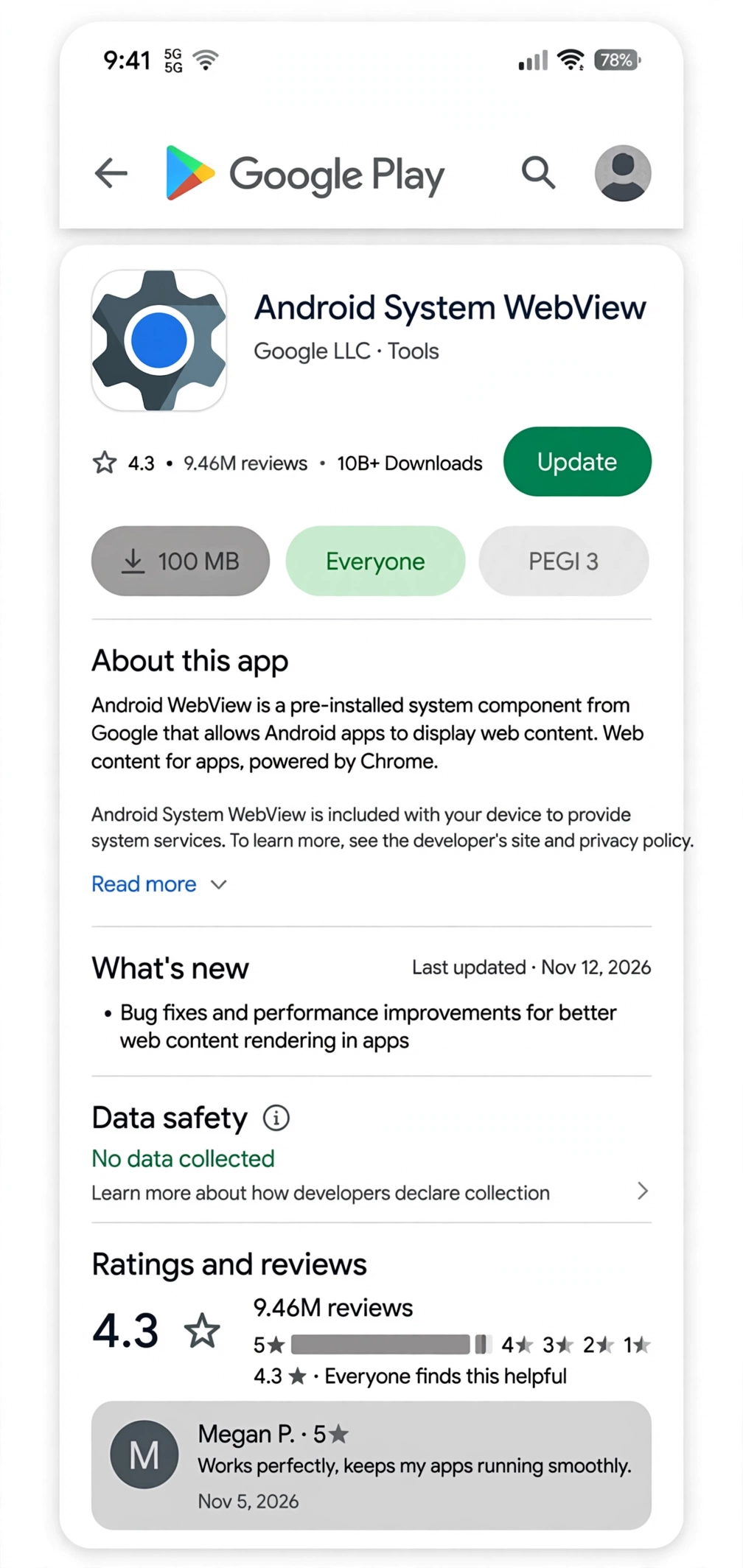
Android System WebView is a built-in component that lets apps display web content. WhatsApp uses it — and so do many other apps. When a WebView update is buggy, every app that depends on it crashes at the same time. That is why Instagram and TikTok sometimes crash with WhatsApp on the same day.
Open the Google Play Store, search for Android System WebView, and tap Update if one is available. Do the same for Google Chrome — the two are linked. Then restart your phone.
Fix 7: Boot Into Safe Mode
If WhatsApp crashes only sometimes — or started crashing after you installed a new app — a third-party app may be interfering. Safe Mode starts your phone with only system apps, so you can test whether the problem is WhatsApp or something else.
Press and hold the power button, then press and hold Power off until you see Reboot to Safe Mode and tap it. (On some brands, hold volume-down while the phone restarts instead.) In Safe Mode, use WhatsApp for a few minutes, then restart to exit.
If WhatsApp works in Safe Mode, a third-party app is the culprit — usually a cleaner, battery saver, VPN, or modified WhatsApp clone. Uninstall recent apps one at a time, testing WhatsApp after each.
Fix 8: Check WhatsApp Permissions
WhatsApp needs storage, contacts, camera, microphone, and notification permissions. If one was denied, or revoked by a battery setting, the app can crash when it tries to use that feature — for example, when opening the camera.
Go to Settings > Apps > WhatsApp > Permissions and set Files and media, Contacts, Camera, and Microphone to Allow. Then set Settings > Apps > WhatsApp > Battery to Unrestricted or Optimized — not “Restricted”.
Fix 9: Back Up Your Chats, Then Reinstall WhatsApp (Last Resort)
If nothing above worked, a clean reinstall is the last software fix. Done correctly, you will not lose a single chat — but only if you back up first.
Step 1 — Back up. In WhatsApp, go to Settings > Chats > Chat backup > Back Up. Wait for it to confirm today’s date and your Google account. If it fails, fix that first — never skip this step.
Step 2 — Uninstall. Long-press the WhatsApp icon and tap Uninstall.
Step 3 — Reinstall from the Play Store only. Search for WhatsApp Messenger and install it. Never install a WhatsApp APK from another website — those files can carry malware.
Step 4 — Restore. Open WhatsApp, verify your number, and tap Restore when it offers your Google Drive backup.
What NOT to Do
- Do not tap “Clear data” or “Clear storage” without a backup. It logs you out and deletes chats stored only on your phone.
- Do not install WhatsApp APKs from random websites. Only the Play Store version is official and safe. APK sites are a common source of malware and fake “WhatsApp Plus” or “GBWhatsApp” clones.
- Do not use modified WhatsApp versions (GBWhatsApp, WhatsApp Plus, YoWhatsApp). They are not made by WhatsApp, can get your number banned, and often cause crashes.
- Do not factory reset as a first step. It erases everything and is only justified when nothing else works — and only after a full backup.
When It Is Not Your Phone
Sometimes the problem is not on your side. WhatsApp’s servers can go down, and when that happens the app crashes or refuses to connect for millions of people at once. If WhatsApp suddenly stops working while other apps are fine, ask friends if they have the same problem, or search for “WhatsApp down”. No fix on your phone will help — you just have to wait.
Also check your Android version. WhatsApp requires Android 6.0 or newer — since 8 September 2026, older versions have lost support. On iPhone, iOS 15.5 or newer is required after 30 November 2026.
If all 9 fixes fail, a factory reset is the last resort: back up everything first, then go to Settings > General management > Reset > Factory data reset. If the crash survives even that, the phone likely has a hardware or deep system fault — get it checked at a service centre. For crashes affecting many apps at once, our general guide on how to fix apps crashing on Android covers the wider problem.
Frequently Asked Questions
Why does WhatsApp keep crashing when I open a specific chat?
A corrupt message, sticker, or media file in that chat. Clear only the cache (Fix 3). If one chat keeps crashing the app, delete its media from Settings > Storage and data > Manage storage.
Will clearing the WhatsApp cache delete my chats?
No. Clearing the cache deletes only temporary files — your chats stay safe. What deletes your chats is “Clear data” or “Clear storage”, a different button on the same screen. Never tap it without a backup.
Why does WhatsApp crash only when I send photos or videos?
This usually means low storage or a denied storage permission. Free up at least 2 GB of space (Fix 4) and make sure WhatsApp has the Files and media permission allowed (Fix 8).
WhatsApp keeps crashing after the latest update. What should I do?
Check the Play Store for another update — WhatsApp often releases a quick fix within days. If there is none, clear the cache (Fix 3) and update WebView and Chrome (Fix 6).
I reinstalled WhatsApp and my chats are gone. Can I get them back?
Only if you had a backup. Reinstall WhatsApp, verify your number, and tap Restore when it offers your Google Drive backup. If no backup existed, chats stored only on your phone are gone.
Conclusion
WhatsApp crashing on Android is annoying but fixable. Start with a restart and an update, clear only the cache, and work through the list — most are fixed by Fix 3 or Fix 6. Remember one rule: back up before you delete anything, and install WhatsApp only from the Google Play Store.
If this guide fixed your WhatsApp, tell us in the comments which fix worked — it helps other readers find the right solution faster. And if your deleted messages are gone, our guide on how to read deleted WhatsApp messages may help.
Last updated: 19 November 2026. Tested on Samsung Galaxy Note 20 Ultra, Android 13. Official sources: WhatsApp Help Center and WhatsApp on Google Play.