 TrickExprt Android Apps, Games, Software & Tech Guides
Last reviewed: November 18, 2026. This guide distinguishes official WhatsApp recovery options from notification-history features that vary by phone and operating-system version.
Quick Answer: Can You Read a Deleted WhatsApp Message?
Sometimes, but there is no universal recovery trick. If you accidentally tapped Delete for Me, WhatsApp gives you about 5 seconds to tap Undo. If someone else used Delete for Everyone, Android Notification History may show an earlier notification preview only if history was enabled beforehand and the alert included message text. To restore the actual chat message, you need a WhatsApp backup that already contained it.
Important: Notification History is not retroactive and is not a copy of your WhatsApp chats. It cannot recreate a notification that was never delivered or show text that was hidden in the original alert.
First: Undo “Delete for Me” Within 5 Seconds
If you accidentally removed a message from your own chat by choosing Delete for Me, look for the temporary Undo prompt at the bottom of WhatsApp and tap it immediately. WhatsApp’s Help Center says this option is available for 5 seconds. Once that window closes, WhatsApp cannot restore the message for you through this undo feature.
This is only for a message you deleted for yourself. It does not undo another person’s Delete for Everyone action and does not recover messages that were deleted from the sender’s side.
Official instructions: WhatsApp Help Center – How to delete messages.
What WhatsApp Officially Says About Deleted Messages
WhatsApp’s Help Center says that a deleted message cannot be recovered unless it was included in a backup. When a sender uses Delete for Everyone, recipients normally see a “This message was deleted” notice in the chat. WhatsApp also notes that a recipient may have seen the message before it was deleted, or deletion may not have succeeded.
Android Notification History is a separate operating-system feature. It may retain a notification that was already delivered, but it does not restore WhatsApp’s deleted chat message or guarantee that the original text preview will remain available. Avoid treating technical guesses about WhatsApp’s internal database or notification services as confirmed recovery methods.
Privacy Risks of Third-Party Recovery Apps
Some third-party tools advertise deleted-message recovery by requesting access to your notifications or device files. Their capabilities and data practices vary, so do not assume that an app can restore a WhatsApp message or that its access is harmless. Review the permissions and privacy policy before installing any utility:
- Notification access is sensitive: Some apps request permission to read notifications. Depending on what your other apps display, that access may expose message previews, verification codes or banking alerts. Do not grant notification access to an app unless you trust its developer and understand its privacy policy.
- Background access and data handling: An app that stores notification text may expose private conversations, verification codes or other sensitive alerts. Check its developer and privacy policy before granting access.
- Unofficial modified clients: Modified WhatsApp clients may breach WhatsApp’s Terms of Service and put your account or data at risk. Use the official app.
How to Check Android Notification History
Smartphone manufacturers tuck the native notification log inside different sub-menus. Follow the direct steps for your specific device brand below:
1. Samsung Galaxy phones
- Open Settings on your Samsung phone.
- Tap Notifications, then select Advanced settings.
- Tap Notification history.
- Turn the toggle ON.
- Review any recent WhatsApp alert that appears in the history. It may show a preview if the notification originally included message text, but the full message, sender details or exact content are not guaranteed.
Samsung limitation: Samsung’s official support guide describes Notification History as a way to review recent missed notifications and notes that alerts older than 24 hours may not be stored (availability can vary by device). This feature should not be treated as a permanent or complete WhatsApp message archive.
2. Google Pixel and supported Android devices
- Open Settings > Notifications.
- Tap Notification history.
- Toggle the slider to Use notification history.
- Review the recent alert list for a WhatsApp notification. If a preview was included when the notification arrived, some text may be visible; this is not a guaranteed message-recovery feature. See Google’s Android notification-history guidance.
3. OnePlus, Oppo and Realme
OxygenOS and ColorOS settings can differ by model and software version. Open Settings and search for Notification history. If your phone does not show this option, the feature may not be exposed on that build. Do not assume that another menu path or a third-party shortcut can recover WhatsApp messages.
4. Xiaomi & Redmi (MIUI & Xiaomi HyperOS)
On Xiaomi, Redmi, OnePlus, Oppo and Realme phones, the menu and availability can vary by model and software version. Open Settings and search for Notification history. If the option is missing, your current software may not provide it. Do not assume a third-party launcher can create a complete WhatsApp message archive.
Can You Recover Deleted WhatsApp Photos or Voice Notes?
There is no guaranteed hidden folder or file-manager trick that restores media deleted for everyone. Check only places where you may already have a separate copy:
- Your phone’s Photos or Gallery app: A photo or video you saved to your device before it was deleted may still be there.
- Your cloud photo library: Check Google Photos, iCloud Photos or another service only if you had previously enabled backup or upload. A gallery thumbnail alone does not prove that the original file is safely backed up.
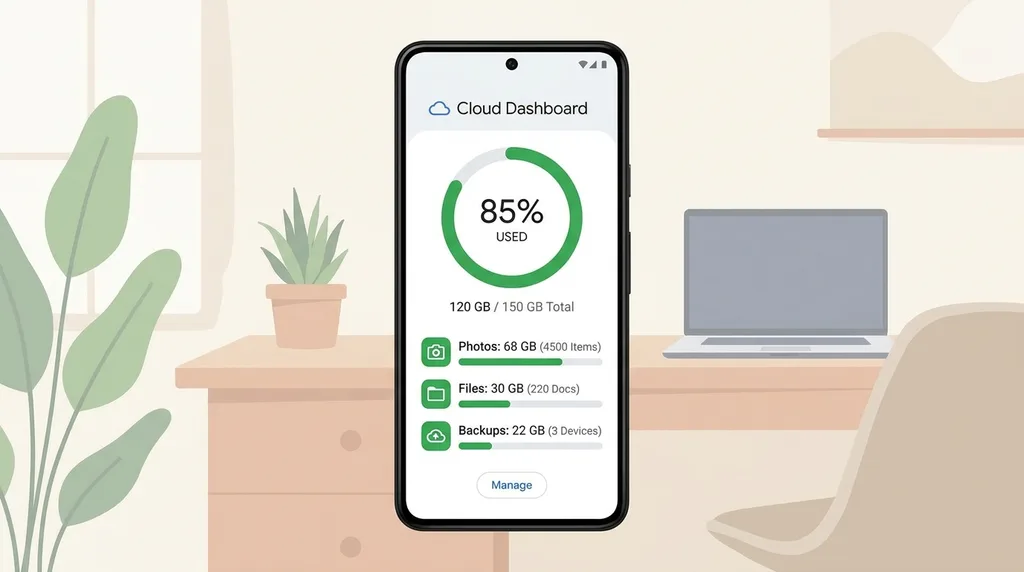
- Your WhatsApp backup: On Android, open WhatsApp > Settings > Chats > Chat backup. On iPhone, open WhatsApp > Settings > Chats > Chat Backup. Check the time of the last successful backup. Only a backup that already contained the message or media can help restore it. WhatsApp backups may be overwritten by a newer backup, and messages received after the backup date may not be restored. If your Android backup is stuck, follow our WhatsApp backup troubleshooting guide. Read the official Android backup instructions and iPhone chat-restore guidance before attempting a restore.
Before You Restore a WhatsApp Backup
First check the date and time of the last successful backup. It must be from before the message was deleted and must already contain that message. Do not create a new backup before checking: a newer backup may replace the older one that contained the chat.
- Confirm the backup is linked to the same phone number and Google Account (Android) or Apple Account/iCloud (iPhone).
- Make sure you know the password or encryption key if you enabled end-to-end encrypted backups.
- Follow WhatsApp’s official restore instructions. On many devices, the restore prompt appears during WhatsApp setup after reinstalling the app.
- Understand that restoring an older backup can replace the chat history currently on your phone. Messages received after that backup may be lost.
WhatsApp Android Backup Screenshots
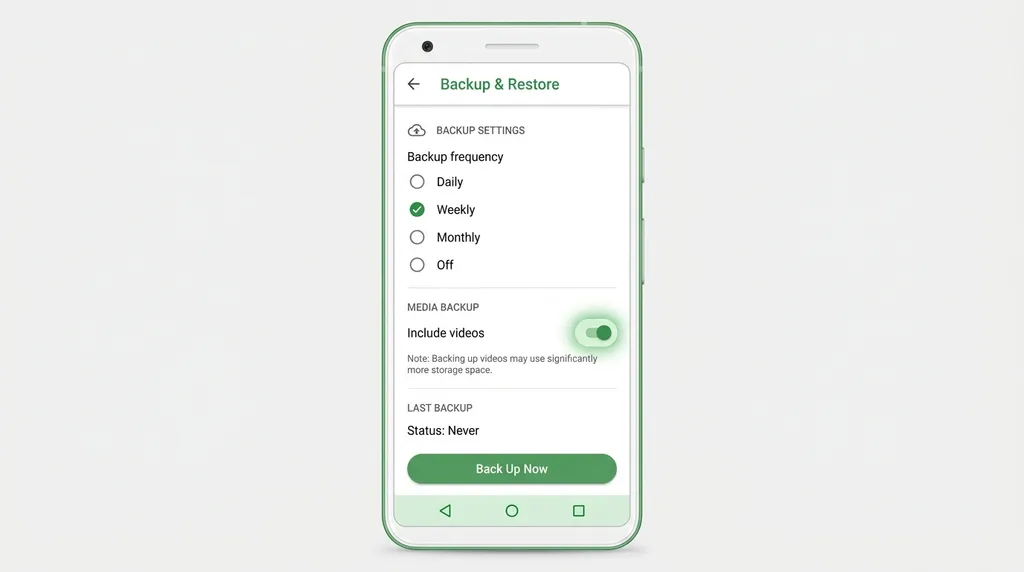
These screenshots illustrate Android backup settings. They do not prove that a deleted message is included in your backup; always check the last successful backup date on your own phone.
Do not install a file manager or recovery app on the assumption that it can access a deleted WhatsApp message or private app database. Avoid granting broad file or notification access to unknown utilities.
Can You See Deleted WhatsApp Notifications on iPhone?
Apple’s Notification Centre keeps recent notifications so you can scroll back through alerts you may have missed. Whether it shows the text of a WhatsApp message depends on the notification that was delivered and your preview settings. Apple documents Notification Centre as a notification-history feature, but it does not describe it as a WhatsApp deleted-message recovery tool.
To review recent alerts, open Notification Centre by swiping up from the Lock Screen or down from the top-left of the screen. To show notification contents on the Lock Screen, check Settings > Notifications > Show Previews. If the original WhatsApp alert is no longer present or its preview was hidden, this will not recreate the deleted chat message.
For WhatsApp itself, the official Help Center says a deleted message can only be recovered if it was included in a backup. Check the date of your iCloud WhatsApp backup before considering a restore. Restoring an older backup can replace the current chat history with the version contained in that backup, so understand the consequences and make sure you have a current copy of important chats first.
Notification History: What It Can and Cannot Show
Use Notification History as a last place to check for an alert—not as a WhatsApp recovery tool. It only stores notifications received after you enabled the feature, and it may not show a message preview if WhatsApp hid the content. Android and Samsung describe the history as recent notifications, generally within the last 24 hours; exact availability and retention depend on the device and software version.
Frequently Asked Questions
Can the sender find out that I read their deleted message?
Reviewing a stored notification preview in Android Settings is not the same as opening the WhatsApp conversation. If you tap through and open the chat, normal WhatsApp read-receipt settings may apply. Do not treat Notification History as a guaranteed private way to read messages without the sender knowing.
Can I read deleted WhatsApp voice notes using this method?
A notification may only say that a voice message arrived; it does not provide a playable copy of the audio. If you saved or downloaded the audio before it was deleted, check your phone’s media library or a backup made before deletion. WhatsApp does not document a guaranteed .opus cache-recovery method.
Does this trick work on WhatsApp Web?
Do not rely on WhatsApp Web or a linked device as a recovery method. WhatsApp says that deletion for everyone syncs across online devices where you are logged in. An offline device may not yet have synced, but that is not a documented or guaranteed way to recover deleted messages.
Final Thoughts
Start with the limits: Android Notification History may show a recent WhatsApp notification preview if the feature was already enabled and the notification included text. On iPhone, Notification Centre shows recent alerts but is not a dedicated WhatsApp recovery feature. For the WhatsApp message itself, the official recovery route is a backup that already contains it. Avoid modified clients and unknown notification-access apps, and never assume that a notification log will preserve every deleted message.
Official Sources and Documentation
The instructions and limitations in this guide are based on the following official support documentation. Settings and availability may vary by device and software version.
- WhatsApp Help Center: How to delete messages and what happens after deletion
- WhatsApp Help Center: Back up your chat history on Android
- WhatsApp Help Center: Restore your chat history on iPhone
- Google Android Help: Notification History
- Google Pixel Help: Find missed or past notifications
- Samsung Gulf Support: Enable Notification History
- Apple Support: Use notifications on iPhone or iPad