 Trick Exprt TrickExprt – Tech Tips,Software Guides
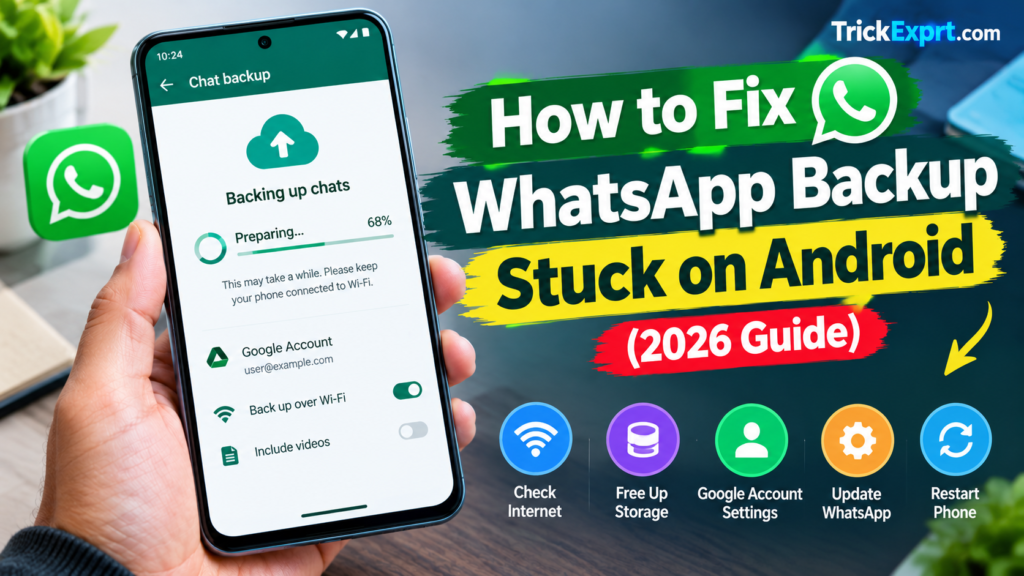
WhatsApp backups help you restore chats, photos, videos, and other conversation data when switching phones or reinstalling the app. However, sometimes a backup remains stuck on “Preparing,” takes too long, or fails to upload to your Google account.
If your WhatsApp backup is not completing on Android, follow the troubleshooting methods below. The correct solution depends on your internet connection, available storage, backup size, and account settings.
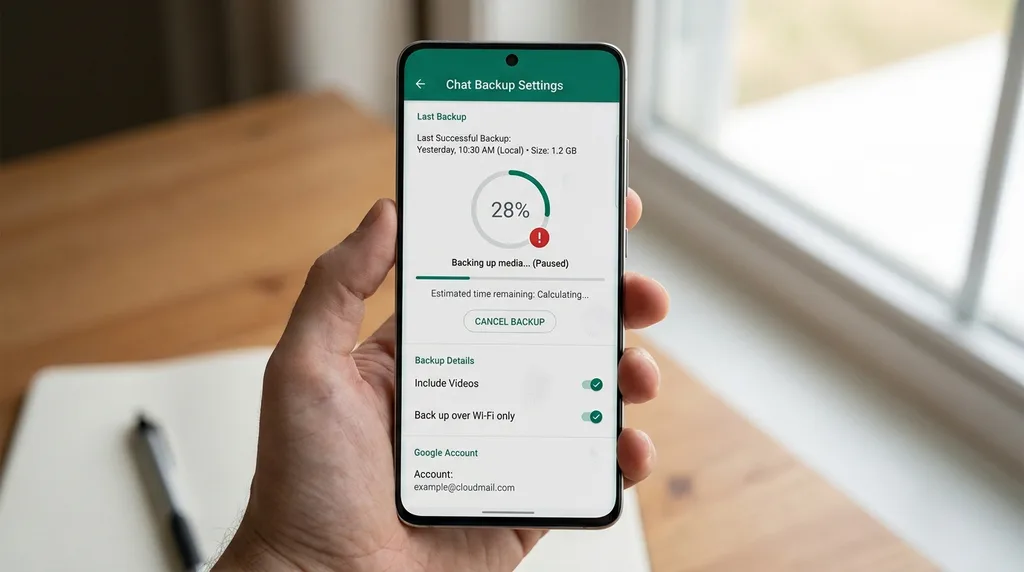
Why Is WhatsApp Backup Stuck?
Several issues can prevent a WhatsApp backup from completing:
- An unstable internet connection.
- Insufficient storage on your phone or Google account.
- A large backup containing many videos.
- An incorrect Google account selected for backup.
- An outdated WhatsApp app or Google Play services.
- Temporary problems with the device or backup process.
1. Check Your Internet Connection
A stable internet connection is important when uploading a large backup.
- Connect your phone to a reliable Wi-Fi network.
- Open a webpage to confirm that the connection works.
- Avoid switching between networks while the backup is running.
- If the connection is unstable, try another trusted network.
- Open WhatsApp and check the backup again.
A slow connection may cause a backup to take longer without necessarily indicating an error.
2. Check Your Phone and Google Account Storage
Your phone needs enough space to process backup data, and your Google account needs enough available storage for the cloud backup.
To check phone storage:
- Open Settings.
- Select Storage.
- Review the available space.
- Remove unnecessary downloads or other files if needed.
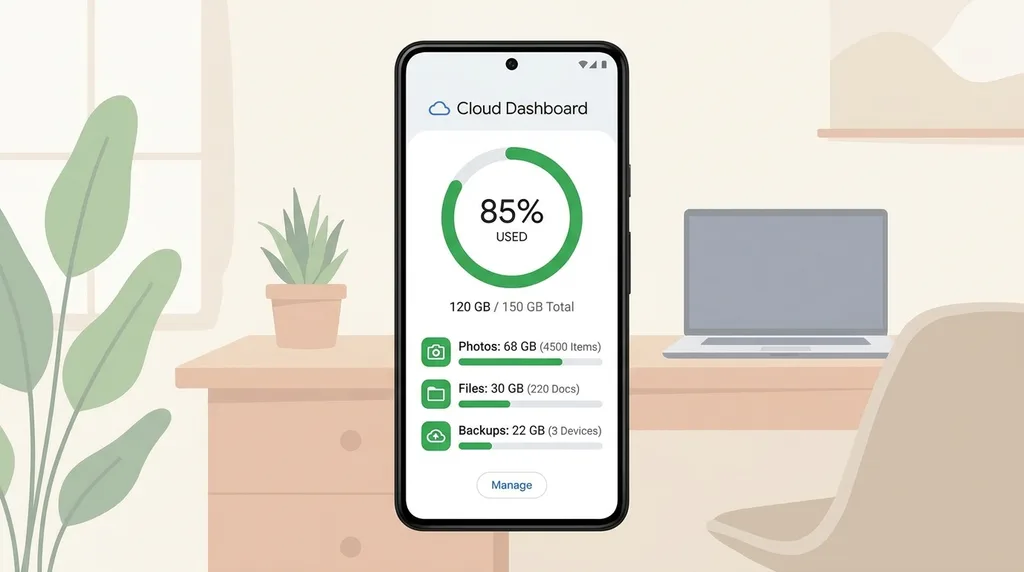
Next, check the storage available to the Google account selected for WhatsApp backup. Free up space safely if the account is full.
Do not delete existing backups as a first troubleshooting step.
3. Confirm the Correct Google Account
WhatsApp backup settings may use a Google account that differs from the one you expected.
- Open WhatsApp.
- Tap Settings.
- Select Chats.
- Open Chat backup.
- Review the Google account associated with the backup.
Make sure you can access the selected account on your phone. If you change accounts, understand that previous backups may be associated with a different account.
4. Reduce the Backup Size
Videos can significantly increase backup size and upload time.
If you do not need videos included in your next cloud backup:
- Open WhatsApp Settings.
- Select Chats.
- Tap Chat backup.
- Turn off Include videos if that option is available.
- Start the backup again.
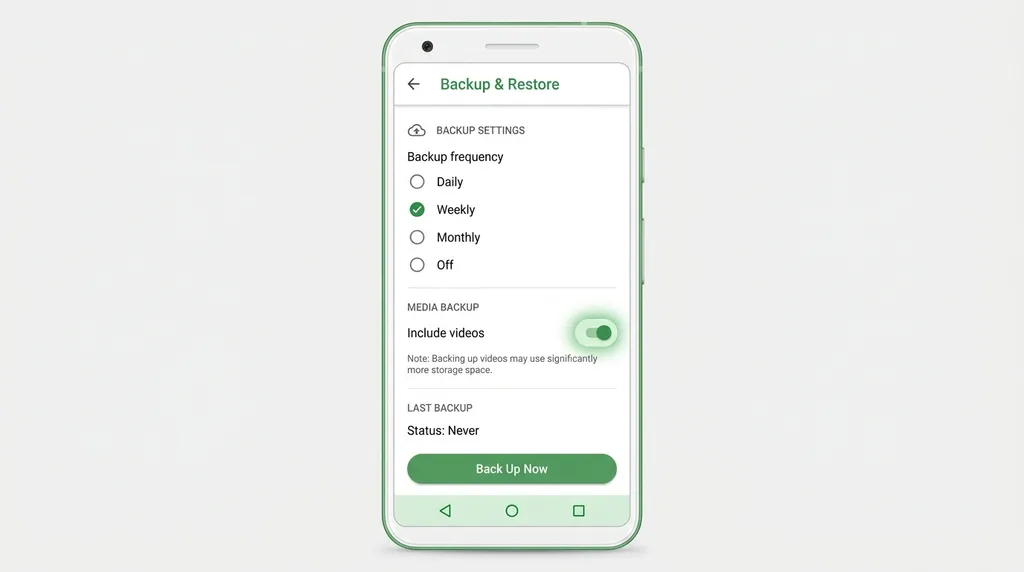
This setting affects what is included in the backup. It does not itself delete videos already stored on your phone.
5. Update WhatsApp and Google Play Services
Outdated software may cause unexpected issues.
- Open Google Play Store.
- Search for WhatsApp.
- Install an available update.
- Check whether Google Play services has an update available.
- Restart your phone and try the backup again.
Use official update sources and avoid modified WhatsApp applications.
6. Restart Your Phone and Retry the Backup
A restart can resolve temporary software problems.
Save any open work, restart your phone, connect to a stable network, and open WhatsApp again. Return to Chat backup and check whether the process can complete.
Keep the phone sufficiently charged while a large backup is running.
7. Avoid Clearing WhatsApp Data
Clearing an app’s storage or uninstalling it can remove locally stored information. If the latest backup has not completed, this could put your chats at risk.
Before reinstalling WhatsApp or clearing its data, confirm whether you have a usable backup and understand how restoration works.
If the issue continues, consult the official WhatsApp Help Center and note your app version, Android version, and the exact error message.
Frequently Asked Questions
Why is my WhatsApp backup taking so long?
A large chat history, videos, slow internet, limited storage, or a temporary backup issue can make the process take longer.
Will turning off videos delete them from my phone?
Turning off Include videos for a future backup does not itself delete the videos stored locally on your phone.
Should I delete my old WhatsApp backup?
No. Do not delete an existing backup just to troubleshoot a stuck upload. First confirm whether you have another safe copy and understand the consequences.
Can I back up WhatsApp using mobile data?
Options vary by WhatsApp version and settings. Check the backup settings available in your app and consider your mobile data allowance before starting a large upload.
Conclusion
A WhatsApp backup stuck on Android may be caused by connectivity, storage, account settings, or a large backup size. Start with the simplest checks and avoid deleting app data until you have confirmed that your important chats are safe.
For more smartphone troubleshooting guides, visit TrickExprt.com.