 Trick Exprt TrickExprt – Tech Tips,Software Guides
Have you ever downloaded an Android app or APK file and received the message “App Not Installed”? This problem can occur when your phone cannot install the app because of compatibility issues, insufficient storage, a damaged installation file, or a conflict with an existing version.
In this guide, you will learn how to fix the App Not Installed error on Android using practical troubleshooting steps. These methods can help you identify the cause without making unnecessary changes to your phone.
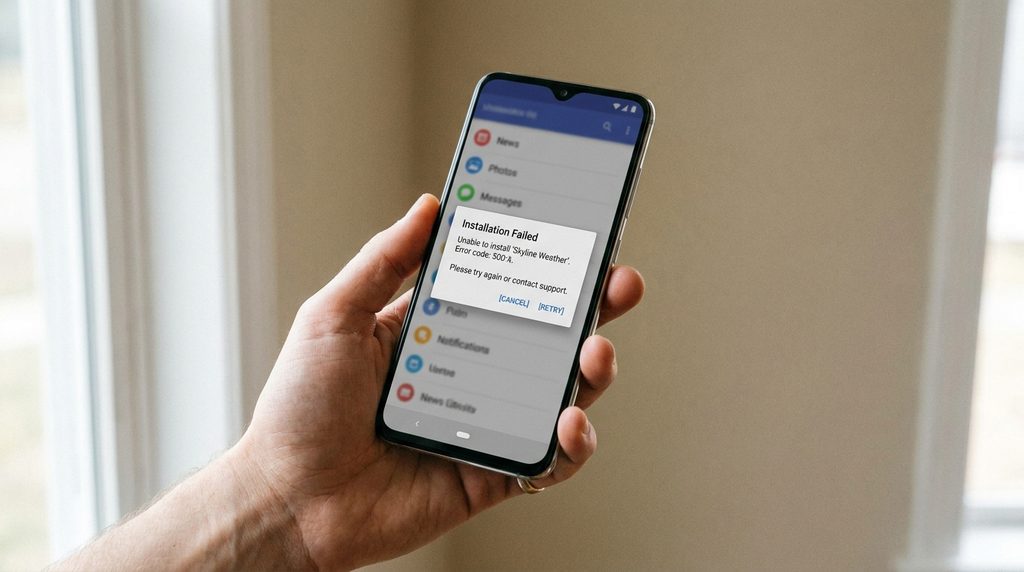
Why Does Android Show the App Not Installed Error?
There is no single cause for every installation failure. Common reasons include:
- The APK file is incomplete or damaged.
- The app does not support your Android version.
- The APK is designed for a different device architecture.
- An existing version of the app conflicts with the new one.
- Your phone does not have enough free storage.
- Android security settings block installation from an untrusted source.
Identifying the likely cause can help you choose the safest solution.
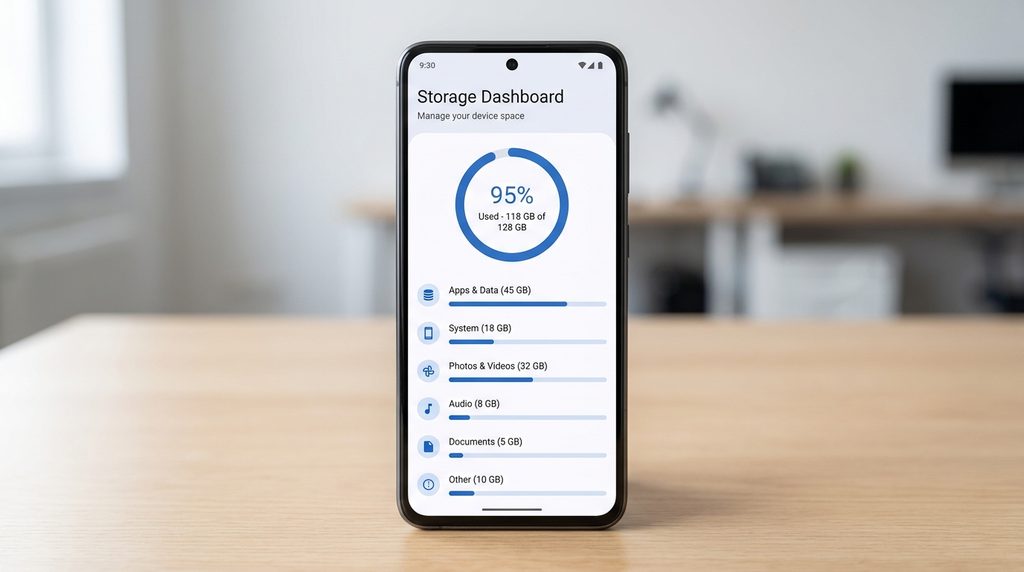
1. Check Your Available Storage
An Android phone needs sufficient free space to download, unpack, and install an app.
Follow these steps:
- Open Settings on your phone.
- Find Storage or Device care.
- Check how much free space is available.
- Remove unnecessary downloads or transfer large personal files if needed.
- Try installing the app again.
Avoid deleting files you do not recognise. Back up important photos and documents before removing them.
2. Check APK Compatibility
An APK file may not work on every Android device. Some apps require a newer Android version or a specific processor architecture.
To troubleshoot this issue:
- Check the app’s minimum Android version.
- Confirm that the app supports your device.
- Download the correct version from the developer’s official website or another trustworthy source.
- If the app is available on Google Play, try installing it from there.
Some apps are distributed as app bundles or split APK packages rather than one standalone APK. A single APK extracted from such a package may not install correctly.
3. Check for an Existing Version of the App
An installation can fail when the APK conflicts with an existing version of the same app.
For example, an app installed from one source may have a different signing key from a version downloaded elsewhere.
First, check whether the app is already installed. If you decide to uninstall it, back up any important data before proceeding because uninstalling may erase locally stored information.
Do not uninstall important apps unless you understand the consequences.
4. Download the APK File Again
A damaged or incomplete file may cause an installation error.
Try the following:
- Delete the incomplete download if you are sure you no longer need it.
- Visit the developer’s official download page.
- Download the correct file again.
- Wait until the download finishes.
- Open the file through your phone’s file manager and try installing it.
Avoid websites offering modified APKs that promise paid features for free. Such files can contain harmful software.
5. Check the Install Unknown Apps Permission
Android may require permission before an app can install packages downloaded outside Google Play.
On many Android phones:
- Open Settings.
- Select Apps.
- Open Special app access, if available.
- Select Install unknown apps.
- Choose the browser or file manager you used.
- Enable permission only if you trust the source and intentionally want to install the file.
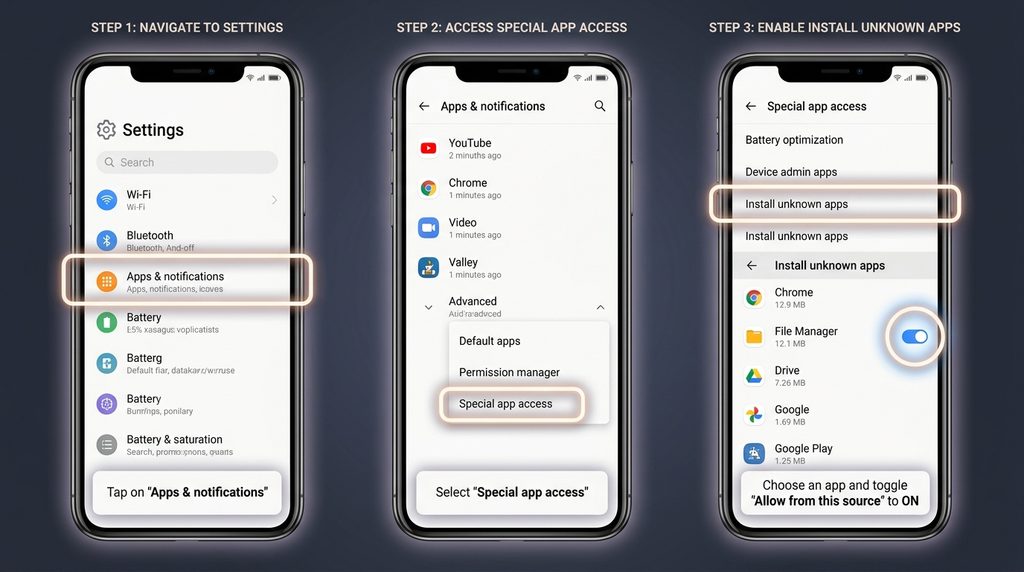
The menu names may differ by manufacturer and Android version. Disable this permission again when you no longer need it.
6. Restart Your Android Phone
A restart can resolve temporary system problems.
- Save any open work.
- Restart your phone.
- Wait for the device to start completely.
- Try installing the app again.
If the error continues, check for available Android system updates and review the app developer’s compatibility requirements.
7. Check the Exact Error Message
Different installation errors can indicate different causes. For example, an incompatible app, a parsing problem, or a package conflict may require different solutions.
Write down the exact message shown on your screen. Search the official support documentation for that error or contact the app developer with your device model and Android version.
Frequently Asked Questions
Why does my phone say App Not Installed?
Possible causes include an incompatible APK, insufficient storage, a damaged download, or a conflict with an existing app version.
Can I fix the error without losing data?
Start by checking storage, compatibility, the installation file, and restarting your phone. Avoid uninstalling the existing app until you have backed up important information.
Is installing APK files safe?
It depends on the source and the app. Prefer Google Play or the developer’s official website, and take Android security warnings seriously.
Why does an APK install on one phone but not another?
The phones may use different Android versions, processor architectures, security settings, or supported app configurations.
Conclusion
The App Not Installed error on Android can often be traced to storage, compatibility, a damaged APK, or a conflict with an existing version. Work through the steps above one at a time and use a trusted installation source.
For more Android tutorials and troubleshooting guides, explore the Android section of TrickExprt.com.