 Trick Exprt TrickExprt – Tech Tips,Software Guides
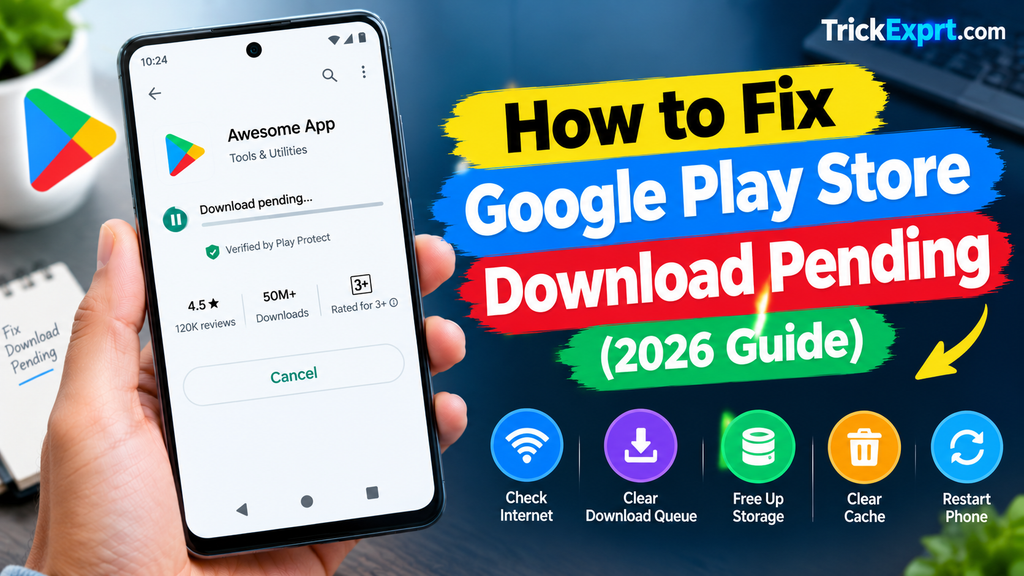
Have you tried downloading an app from Google Play Store, only to see “Pending” for several minutes? This can happen when downloads are queued, the internet connection is unstable, storage is low, or the Play Store needs troubleshooting.
This guide explains practical ways to fix the Google Play Store Download Pending problem on Android.
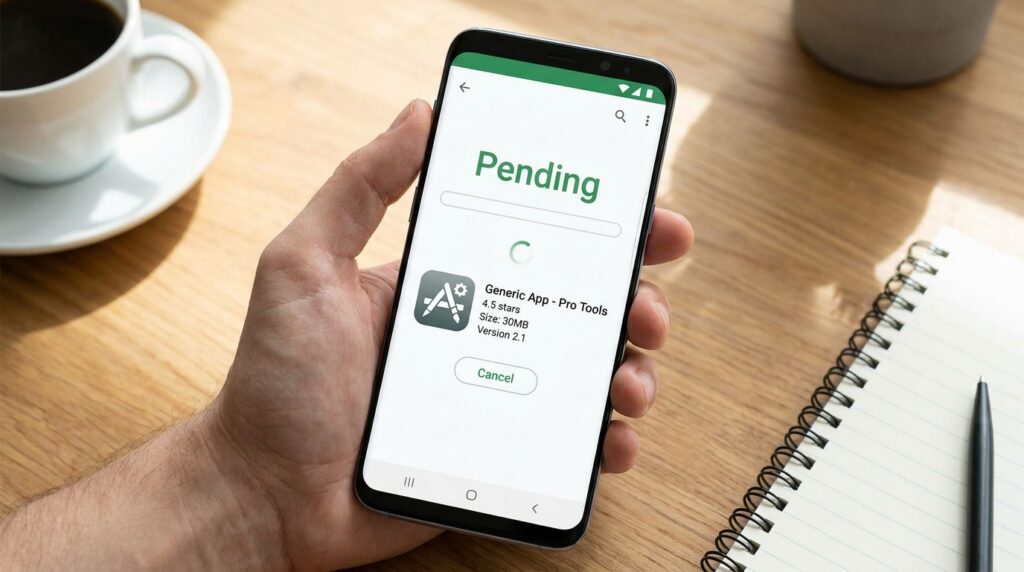
Why Does Google Play Store Show Download Pending?
Common causes include:
- Other app downloads or updates are waiting in the queue.
- The internet connection is weak.
- Your phone has insufficient storage.
- Date and time settings are incorrect.
- Temporary Play Store cache problems are affecting downloads.
- The app is not compatible with your device.
Try each solution in order and test the download before moving to the next step.
1. Check Your Internet Connection
First, confirm that your phone has a working connection.
- Open a browser.
- Visit a website to see whether it loads.
- If you are using Wi-Fi, check the connection or try another trusted network.
- If you are using mobile data, confirm that data is enabled and available.
- Return to Google Play Store and retry the download.
A weak connection may prevent downloads from starting or completing.
2. Check Other App Downloads
Google Play Store may be downloading or updating other apps first.
- Open Google Play Store.
- Tap your profile icon.
- Open the app and device management section.
- Review pending updates or downloads.
- Allow the current tasks to finish, or cancel downloads you do not need.
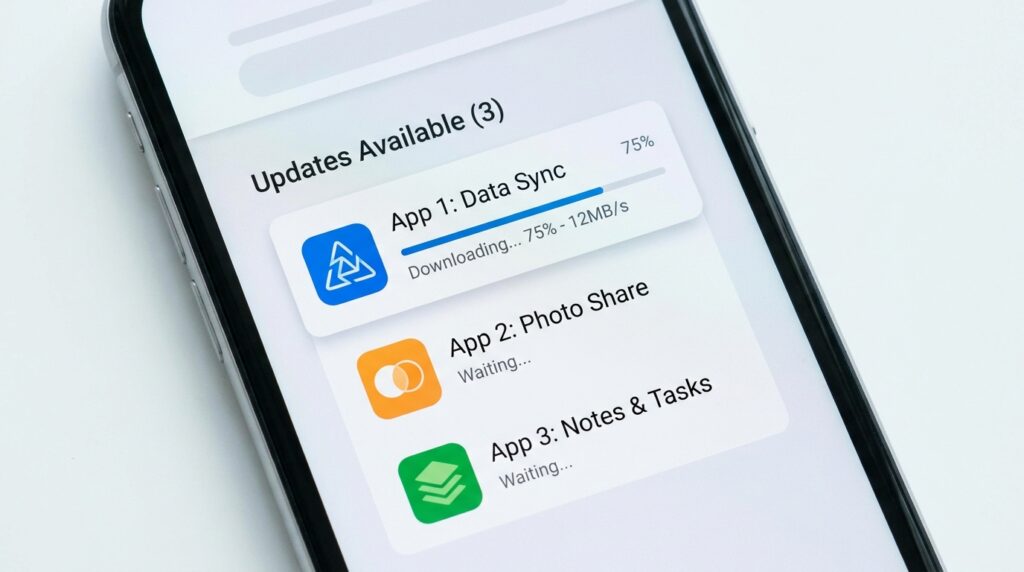
Then try downloading the app you originally wanted.
Menu labels may vary with Play Store versions.
3. Check Available Phone Storage
Apps need free space to download and install.
- Open Settings.
- Select Storage.
- Check how much space remains.
- Review large downloads, videos, and other files.
- Remove only files you no longer need.
If your phone is nearly full, free some space and try again.
4. Restart Your Android Phone
Restarting can resolve temporary system issues.
- Save any open work.
- Restart the phone.
- Wait until the device has fully started.
- Open Play Store.
- Retry the download.
If the problem persists, continue with the following steps.
5. Set Date and Time Automatically
Incorrect date and time settings can interfere with some online services.
- Open Settings.
- Find System or General management.
- Select Date & time.
- Enable automatic date and time if available.
- Enable automatic time zone if appropriate.
- Return to Play Store and retry.
The exact location of these settings depends on your device.
6. Clear Google Play Store Cache
Temporary files may sometimes cause unexpected behaviour.
- Open Settings.
- Select Apps.
- Find Google Play Store.
- Open Storage or Storage & cache.
- Tap Clear cache.
- Reopen Play Store and try again.
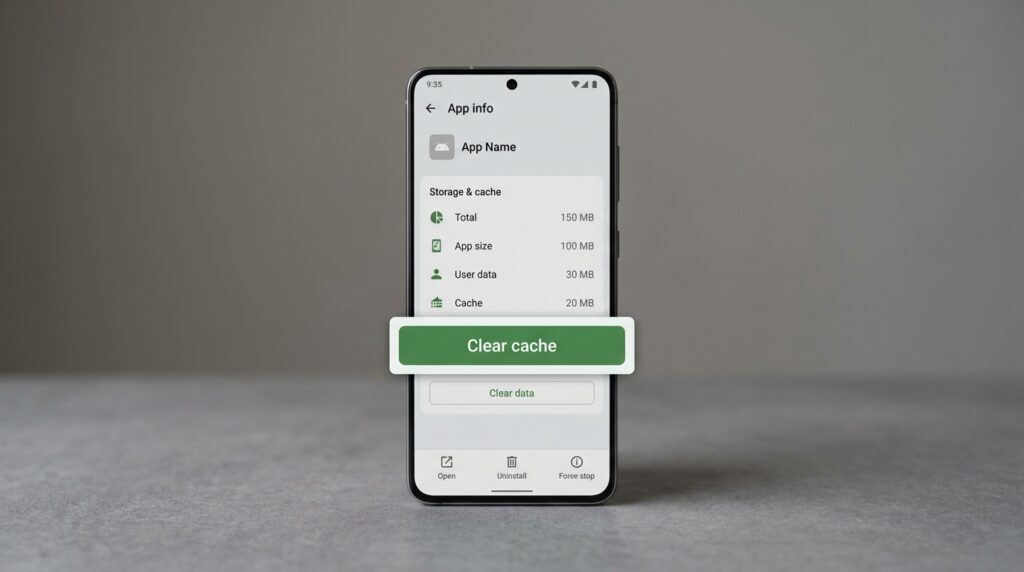
Start with Clear cache rather than Clear storage or Clear data. Clearing cache normally removes temporary files, while clearing app data can reset settings.
7. Check for Android Updates
Outdated system software may contribute to app compatibility or service issues.
Open Settings, find System update or Software update, and check whether an update is available. Install updates only when appropriate for your device, following the manufacturer’s instructions.
Also check whether the affected app is compatible with your Android version.
8. Check Whether Only One App Is Affected
If every app shows Pending, investigate your connection, storage, and Play Store settings.
If only one app is affected, check whether it supports your device and is available in your region. You can also visit the app developer’s official support page.
Frequently Asked Questions
Why does Play Store keep saying Pending?
A queued download, weak internet connection, insufficient storage, or a temporary Play Store issue may prevent the download from starting.
Will clearing Google Play Store cache delete installed apps?
Clearing cache normally removes temporary files rather than uninstalling your apps.
What if all Play Store downloads are stuck?
Check your connection, available storage, pending updates, date and time settings, and Play Store cache. Test the download after each change.
Should I download the APK from another website?
Use Google Play Store or the app developer’s official source whenever possible. Downloading random APKs is not a safe first solution for a Play Store problem.
Conclusion
The Google Play Store Download Pending issue can often be investigated by checking your connection, download queue, available storage, date and time, and Play Store cache.
Make one change at a time so you can identify what resolves the problem. For more Android app tutorials, visit TrickExprt.com.