 TrickExprt Android Apps, Games, Software & Tech Guides
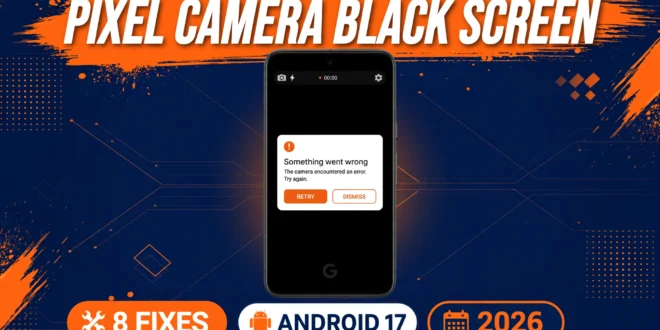
Quick answer: Pixel camera black screen after the November Android 17 (QPR2) update? Power the phone fully off, wait 5 minutes, then turn it back on. A normal restart is not enough. No official Google fix yet (as of 19 Nov 2026) — the fixes below are workarounds until a patch lands.
What Caused the Pixel Camera Black Screen?
Google began rolling out the November 2026 update (Android 17 QPR2 + November Pixel Drop) on 10 November 2026 — and soon after, some owners found their camera broken. Android Police reported on 17 November 2026 that affected phones show a black viewfinder or the error “Something went wrong. Close and open the Camera app again.”
Reports so far centre on the Pixel 10 and Pixel 11 series (including the 11 Pro and 11 Pro XL) — the phones most affected by the Pixel camera black screen — on the November builds CP4A.261105.040.A1 (Pixel 10) and CP4A.261105.040.D1 (Pixel 11). No similar reports have come from older Pixel owners so far.
Two clues show the Pixel camera black screen is a system problem, not a broken app: both cameras fail together, and third-party camera apps go black too.
As of 19 November 2026, Google has not confirmed the cause of the Pixel camera black screen or announced a fix date. The fixes below come from Google Community moderators and experienced users — likely to help, not guaranteed.
Fix 1: Power the Phone Fully Off for 5 Minutes (Not Just a Restart)
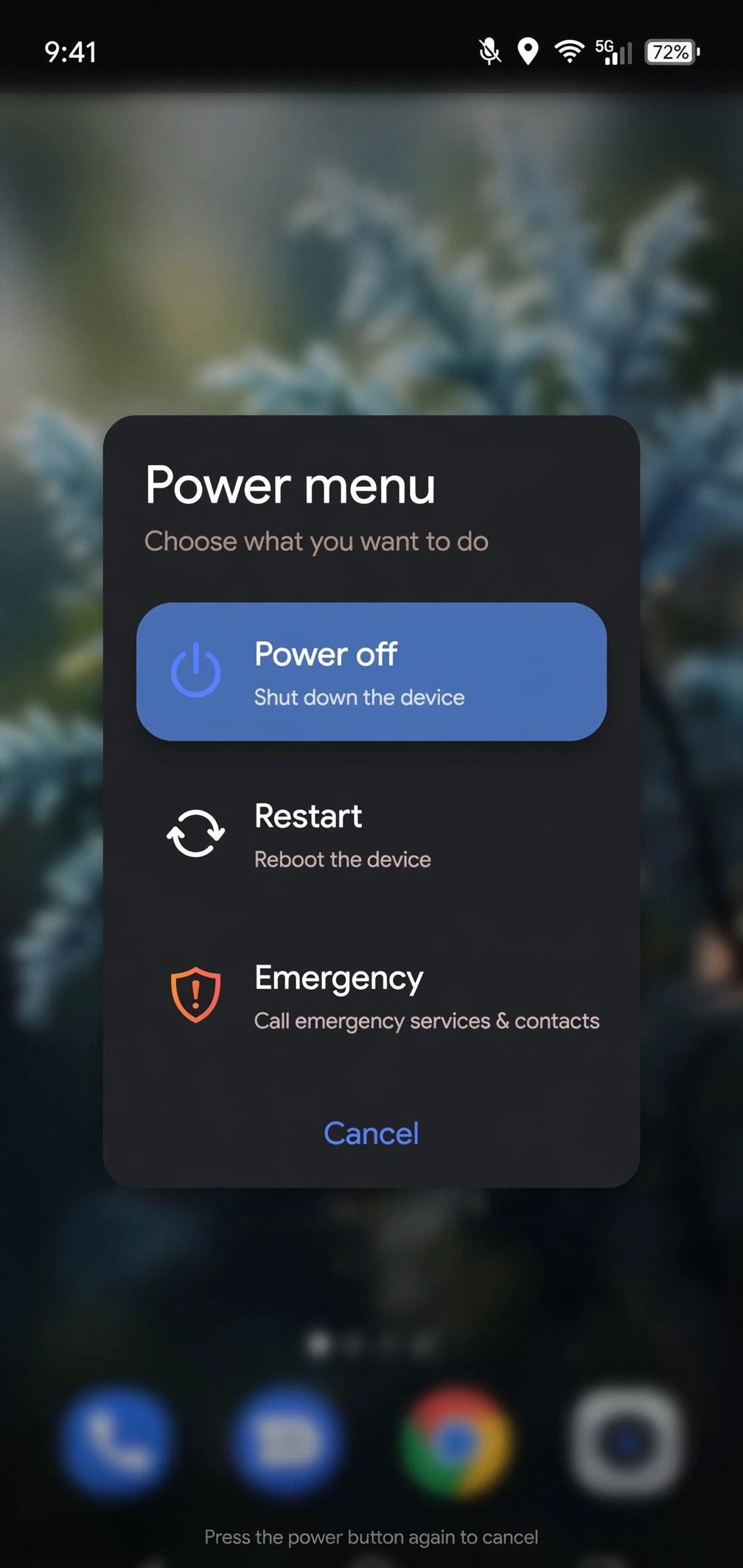
This is the fix helping the most people — and the one most people do wrong by restarting instead of powering off. A normal restart did not fix it. A full shutdown did, according to Google Community moderators and support-forum product experts.
- Hold Power + Volume Up (or swipe down twice and tap the power icon).
- Tap Power off. Do not tap Restart.
- Leave the phone off for about 5 minutes.
- Turn it back on and open the Camera app.
This has restored the camera for several owners. If the Pixel camera black screen is still there, move on to Fix 2.
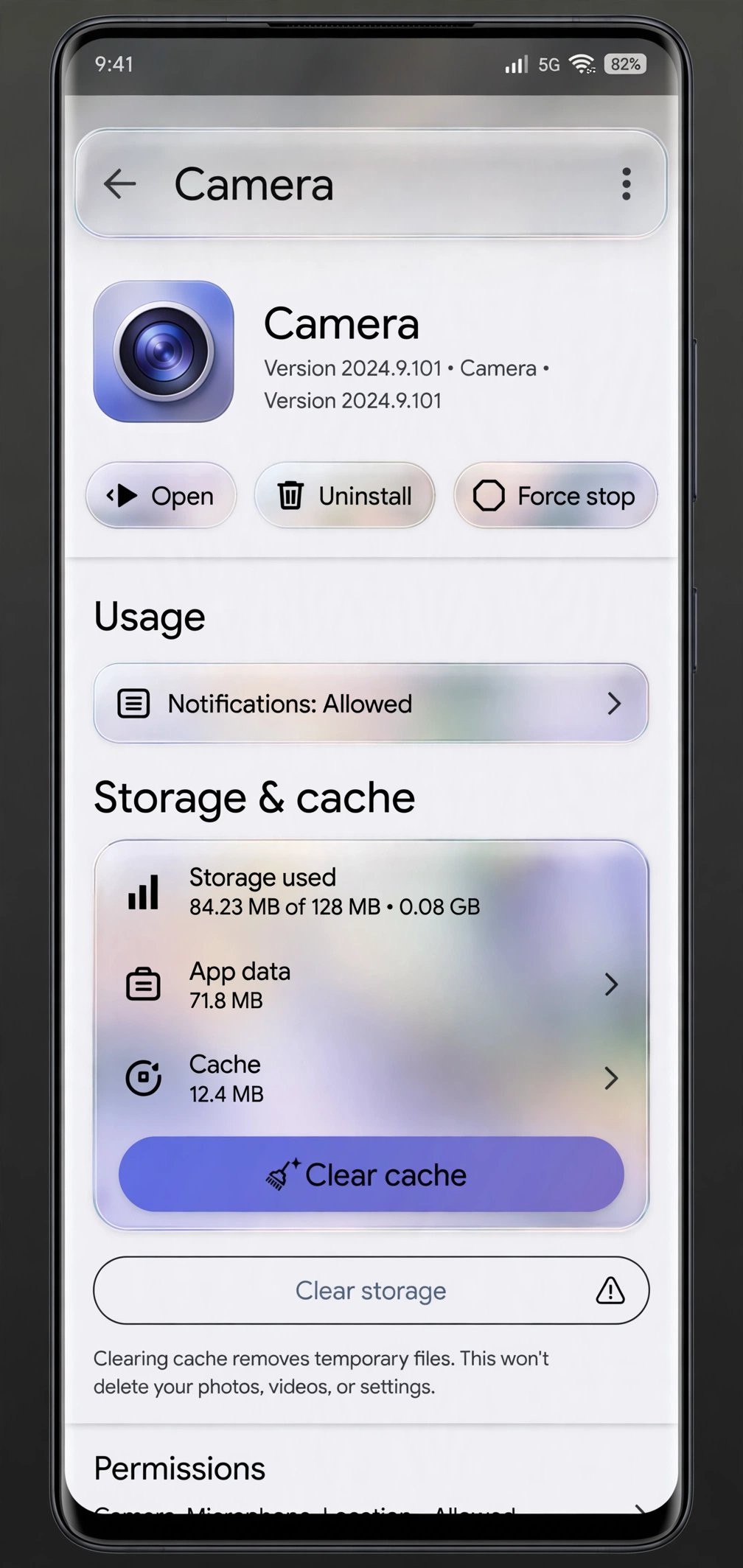
Fix 2: Force Stop the Camera App and Clear Its Cache
A corrupted cache from the update can leave the camera stuck. Clearing it is safe — no photos, videos, or settings are deleted.
- Go to Settings > Apps > See all apps > Camera.
- Tap Force stop, then OK.
- Tap Storage & cache, then Clear cache.
- Open the Camera app again.
If it works now, the cache was the cause of the Pixel camera black screen.
Fix 3: Clear the Camera App Data (Resets Camera Settings)
Clearing data resets the Camera app — your settings go back to defaults. Your photos and videos are safe: they live in your phone’s storage (DCIM folder), not in the app’s data. Only do this after Fix 2.
- Go to Settings > Apps > See all apps > Camera and tap Force stop.
- Tap Storage & cache, then Clear storage (or “Clear data”).
- Open the Camera app and set it up again.
If it works now, the update had left behind bad app data. You’ll need to re-choose your usual settings. The same method fixes other misbehaving apps too — see our guide on how to fix Android apps that keep crashing.
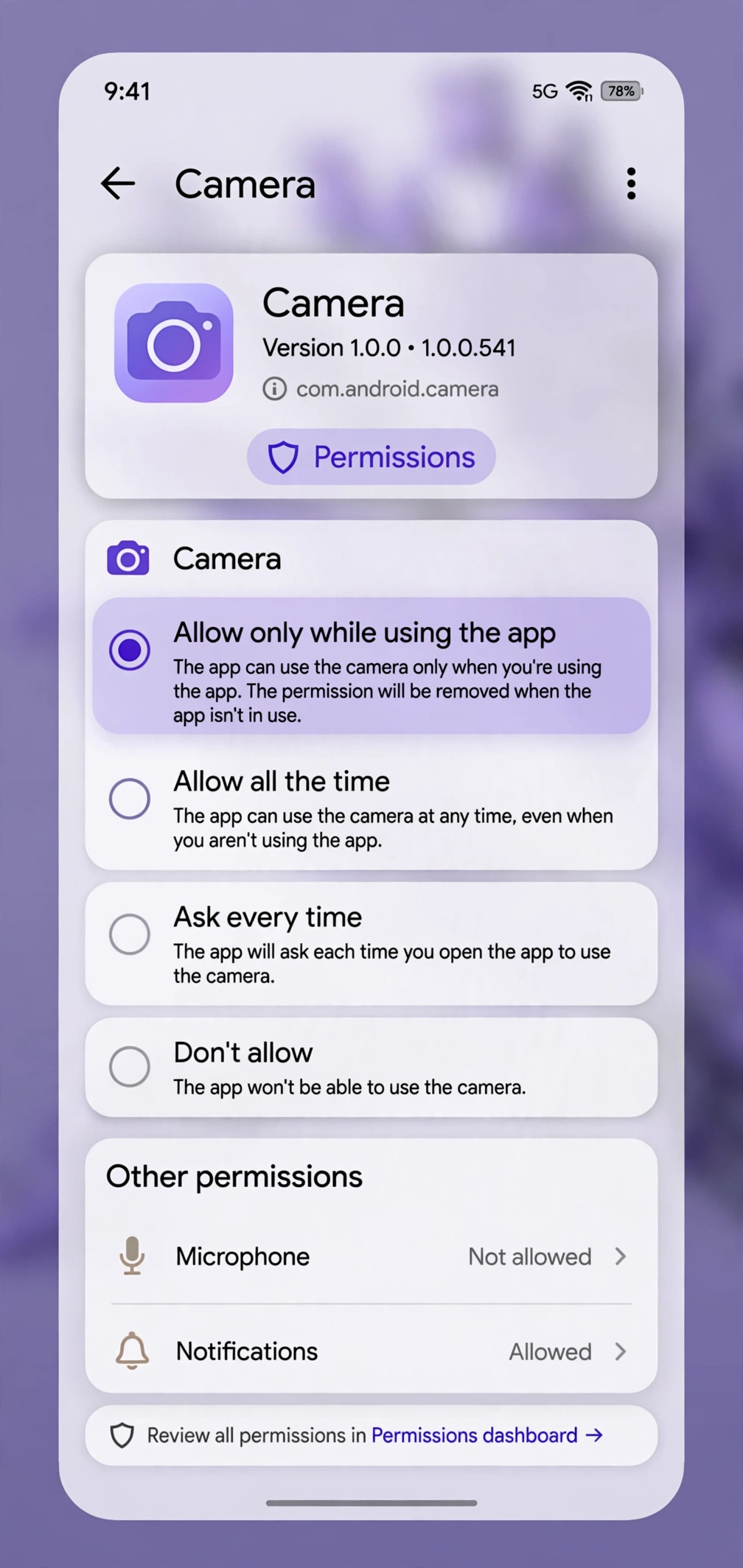
Fix 4: Check the Camera Permission
An update can reset an app permission. If the Camera app lost permission to use the camera, it can open to a black screen.
- Go to Settings > Apps > See all apps > Camera and tap Permissions.
- Tap Camera and set it to “Allow only while using the app”.
- Force stop the Camera app once, then reopen it.
If the permission was “Don’t allow” or “Ask every time”, this should bring the viewfinder back right away.
Fix 5: Uninstall Camera Updates, Then Update the App Again
Pixel Camera updates through the Play Store, separately from the system update. If the two are out of step, rolling the app back and updating it again can clear the conflict.
- Go to Settings > Apps > See all apps > Camera.
- Tap the three-dot menu, then Uninstall updates. Your photos stay untouched.
- Restart your phone.
- Open the Play Store, search Pixel Camera, and install the latest update.
- Open the Camera app and test it.
If the Play Store misbehaves, see our guide on fixing Google Play Services keeps stopping.
Fix 6: Boot Into Safe Mode to Rule Out a Third-Party App
Safe Mode runs only built-in system apps. If the camera works there but not in normal mode, a third-party app is interfering — a filter app, a screen recorder, or an app holding the camera open.
- Hold Power until the power menu appears.
- Long-press Power off, then tap OK on the “Reboot to safe mode” prompt.
- Open the Camera app and test it.
- To leave Safe Mode, restart the phone normally.
Camera works in Safe Mode? A downloaded app is the culprit behind the Pixel camera black screen — uninstall recently updated camera-related apps one by one, testing after each.
Still black in Safe Mode? The problem is in the system itself. The fix will most likely have to come from Google’s patch — continue with Fixes 7 and 8.
Fix 7: Free Up Storage Space
A nearly full phone can break the camera first — it needs free space to save photos. If storage is above 90% full, back up old videos to Google Photos and delete the device copies. Then restart and test.
This alone probably won’t solve the update bug — the black screen hits phones with free space too — but it costs nothing to rule out.
Fix 8: Check for a Pending System Update
Google has not announced a patch yet, but when one arrives it will come as a system update — and Pixels don’t always install updates the moment they’re available. Check manually instead of waiting.
- Go to Settings > System > Software updates and tap Check for update.
- If an update is available, install it over Wi-Fi with the phone charged above 50%.
- After it installs, test the camera before changing anything else.
Also check the Play Store for a Pixel Camera app update.
Pixel Camera Black Screen: Factory Reset as a Last Resort
If all 8 fixes fail, a factory reset is the last option before waiting for Google’s patch or suspecting hardware. It erases the phone completely — do not do this lightly.
- Back up everything first: photos, videos, chats, contacts, files.
- Go to Settings > System > Reset options > Erase all data (factory reset).
- Test the camera before restoring your apps. If it works on a clean phone, one of your restored apps was part of the problem.
- If it’s still black on a clean, fully updated phone, stop — wait for Google’s patch, or contact Google Pixel support about a hardware fault.
What NOT to Do
- Don’t download a “Pixel Camera fix” APK from a random website. Unofficial APKs are a classic malware trap, and a sideloaded app cannot fix a system-level bug. Use the Play Store only.
- Don’t pay for a “camera repair” app. No app can repair this.
- Don’t open the phone or press on the lens. This is a software bug, not a loose camera module. Opening the phone voids your warranty.
- Don’t factory reset first. It’s the most destructive option and probably won’t help. Try Fixes 1–8 first.
- Don’t assume the hardware is dead. Both cameras failing at once, right after an update, is almost always software. Give the patch a chance before paying for a repair.
FAQ
Is the Pixel camera black screen a hardware problem?
Almost certainly not. The Pixel camera black screen appeared right after the November Android 17 QPR2 update, hits both cameras at once, and affects third-party apps too — a software pattern, not hardware. If the camera worked the day before the update, the update is the cause.
Which Pixel phones are affected?
Reports so far centre on the Pixel 10 and 11 series, including the 11 Pro and 11 Pro XL. No similar reports have come from older Pixel owners.
Will Google fix it?
Not yet — Google has not confirmed the bug or announced a fix date as of 19 November 2026. Its Pixel Community team has contacted some affected users. Check Settings > System > Software updates regularly.
Does the black screen affect third-party camera apps too?
Yes — Instagram, Snapchat, and other camera apps show the same black screen. That tells you the fault sits below the app level, in a system component the apps share. It’s why the full power-off (Fix 1) and a system patch are the most promising answers.
Will clearing the Camera app data delete my photos?
No. Photos and videos live in your phone’s storage (DCIM folder), not inside the app’s data. Clearing cache or data only removes temporary files and resets settings — your gallery stays untouched.
Conclusion
The Pixel camera black screen after the Android 17 update is frustrating — an update meant to improve your phone broke its best feature. The good news: the most effective workaround is the simplest. Power the phone fully off for 5 minutes and turn it back on. That has restored the camera for many owners; a plain restart did not.
Work through the fixes in order and skip the traps — no APKs from random sites, no paid “repair” apps, no factory reset as a first step. Remember: there is no official Google fix yet. These workarounds get your camera working today; the permanent fix will be Google’s patch. Check for system updates every day or two.
Did the 5-minute power-off fix your camera? Tell us in the comments.
Sources:
- Android Police, “Android 17’s November update is leaving Pixel cameras completely unusable” (17 Nov 2026): https://www.androidpolice.com/android-17-november-update-leaving-pixel-cameras-completely-unusable/
- Google Pixel support: https://support.google.com/pixelphone/
Related on TrickExprt: