 TrickExprt Android Apps, Games, Software & Tech Guides
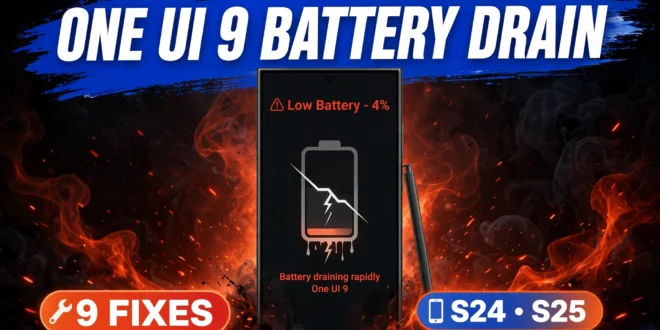
Quick answer: If your Galaxy S24 or S25 battery drains fast after the One UI 9 (Android 17) update, open Settings > Battery and device care > Battery and see which app uses the most power. Usually one misbehaving app, a stuck background process, or post-update optimisation is the cause. Work through the 9 fixes below in order.
Is One UI 9 Really Draining the Battery?
Since the One UI 9 update (Android 17) reached the Galaxy S24 and S25 series, many users report the same problem: a phone that lasted a full day now dies by the afternoon. One user reported a Galaxy S24 Ultra losing around 95% of its battery in roughly 3 hours and 15 minutes of screen time — a user report, not a lab test.
To be clear: Samsung has not officially confirmed a battery bug in One UI 9 as of 19 November 2026. The fixes below are the same steps Samsung’s own support and community moderators recommend — and this kind of drain is almost always a software problem, which means it has a software fix.
Why Does the Battery Drain After the One UI 9 Update?
A big Android update changes a lot under the surface — three things cause most of the drain:
1. The system is still indexing and optimising. After a major update, Android rebuilds app caches and re-optimises every app. This runs in the background for a day or two and uses a lot of power. If your update finished less than 48 hours ago, some extra drain is normal.
2. A background process gets stuck. An update can leave a service or an app running in a loop. The phone feels warm in your pocket and the battery drops while you are not using it.
3. An app misbehaves on the new version. Some apps are not fully optimised for Android 17 yet. They can wake the phone constantly or crash and restart in the background.
Fix 1: Find the Culprit App in Battery Usage
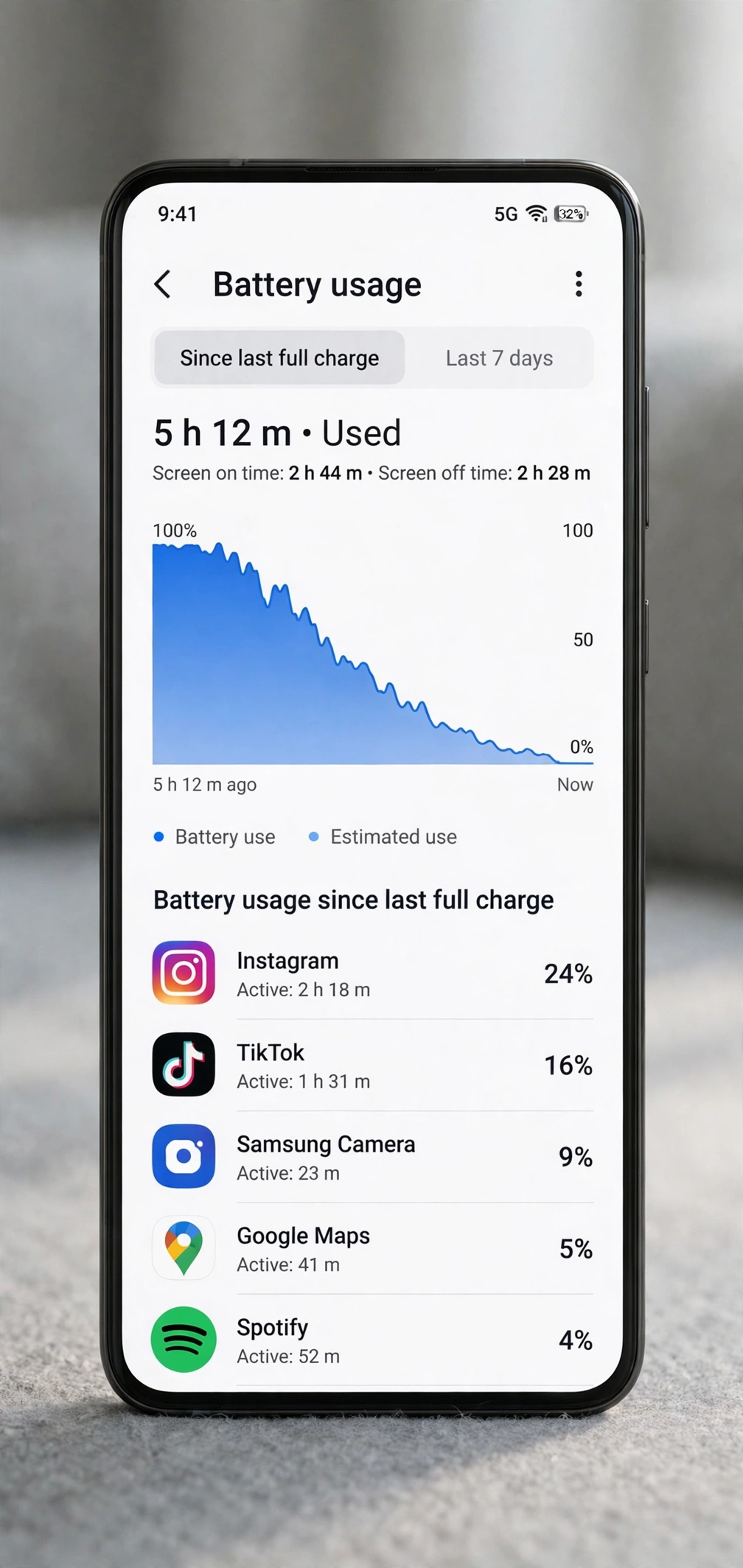
Guessing wastes time; the Battery usage screen tells you exactly where the power goes.
- Open Settings > Battery and device care > Battery.
- Tap the battery graph, then look at Battery usage since last full charge.
- Check the app list. On a healthy phone the top entries are the screen and the apps you actually used.
Look for an app with a high percentage that you barely used. If one stands out, force-stop it and clear its cache (Settings > Apps > [app name] > Storage > Clear cache). Use the phone for a few hours — if the drain stops, you found the problem. If it keeps misbehaving, update it or uninstall it until the developer releases an Android 17 fix.
Fix 2: Restart Your Phone and Update Every App
A restart clears stuck background processes — a common cause of post-update drain. Restart once, then check the battery for a few hours.
Next, update all your apps. An app built for an older Android version can drain battery on Android 17. Open the Google Play Store > profile icon > Manage apps & device > Update all, and do the same in the Galaxy Store. Pay attention to apps updated right when the drain started — a bad app update is a classic cause, and a newer version often fixes it.
Fix 3: Restrict Background Usage for Hungry Apps
Some apps do not need to run in the background at all. A shopping app or a game does not need to wake your phone every few minutes.
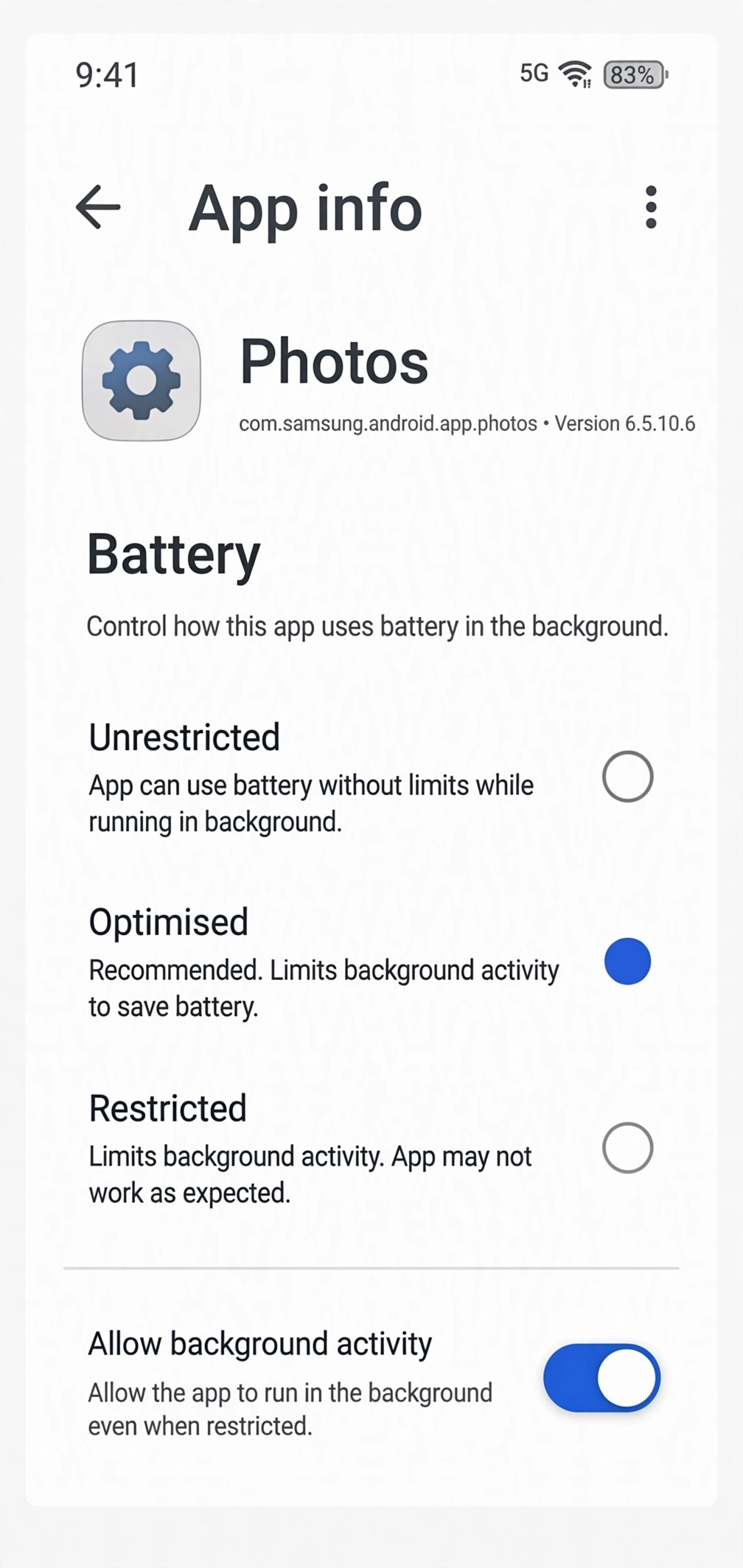
- Go to Settings > Apps and pick the app.
- Tap Battery.
- Choose Restricted for apps you only open yourself, or Optimised for apps you use often. Leave Unrestricted only for messaging apps.
Note: restricting a messaging app like WhatsApp can delay your messages. If notifications already arrive late, these same settings are usually the cause — see our guide on why Google Play Services keeps stopping.
Fix 4: Reset Adaptive Battery So It Can Re-Learn
Adaptive Battery learns how you use your phone and limits power to apps you rarely open. After a major update its learned patterns can be wrong. Resetting it forces a fresh start.
- Go to Settings > Battery and device care > Battery > Background usage limits.
- Turn Adaptive battery off, wait a few seconds, then turn it back on.
- Use your phone normally for two to three days — it needs that time to learn your habits again.
Fix 5: Switch Off 5G When You Don’t Need It
5G is fast, but it uses noticeably more power than 4G — especially where the signal is weak and the phone keeps switching between the two. If you are mostly on Wi-Fi, you will not notice the difference.
- Go to Settings > Connections > Mobile networks > Network mode.
- Choose LTE/3G/2G (auto connect) instead of the 5G option.
You can switch 5G back on any time you need the speed.
Fix 6: Turn Off Always On Display and Lower the Refresh Rate
A 120Hz display with Always On Display on is one of the biggest steady battery drains.
- Always On Display: go to Settings > Lock screen and AOD > Always On Display and turn it off, or set it to Tap to show.
- Refresh rate: go to Settings > Display > Motion smoothness and switch from Adaptive to Standard (60Hz). The screen feels slightly less smooth, but the saving is real — switch back once the drain is fixed.
- Brightness: turn off Adaptive brightness if it misbehaves after the update.
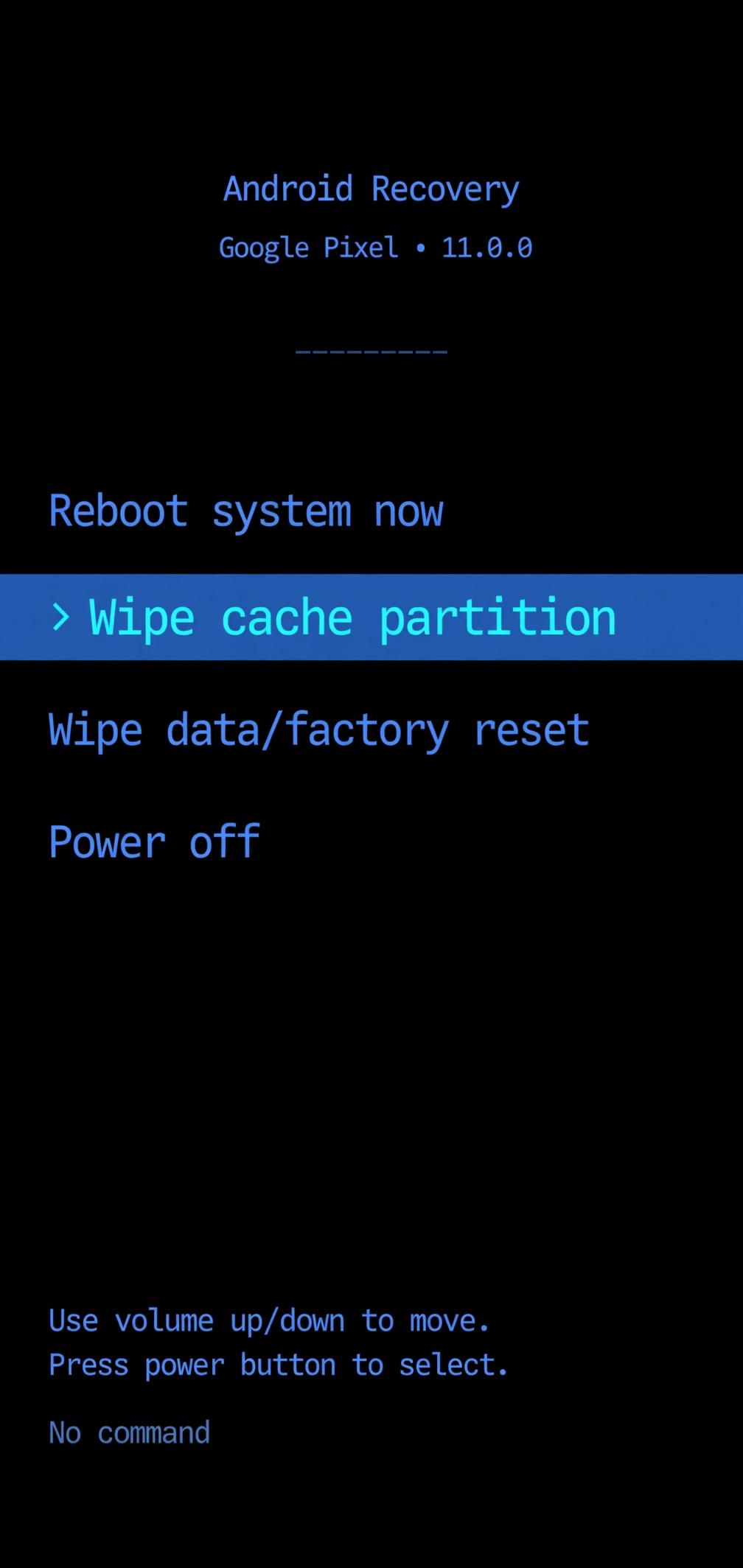
Fix 7: Wipe the Cache Partition from Recovery Mode
This is the classic post-update fix: old cached files can conflict with the new version. Wiping it deletes only temporary files — it does not delete your photos, apps or personal data.
- Turn the phone completely off.
- Press and hold Volume Up + Power until the Samsung logo appears, then release both buttons.
- Use the volume buttons to move to Wipe cache partition and press Power to select it.
- Confirm with Yes, then choose Reboot system now.
The first boot takes a little longer than usual. Give the phone a full day before judging the result.
Fix 8: Test in Safe Mode
Safe Mode proves whether an app is responsible. It starts the phone with only Samsung’s own apps running.
- Press and hold the Power button, then long-press Power off on the screen until Safe Mode appears. Tap it.
- Use the phone for a few hours. If the drain stops, a third-party app is the cause.
- Restart normally to leave Safe Mode, then uninstall your most recently updated apps one by one — starting with the ones from Fix 1 — until the drain stops.
If the drain continues in Safe Mode, the problem is in the system itself, not an app. That points to Fix 9.
Fix 9: Factory Reset (Last Resort Only)
If nothing above works, a factory reset is the final software fix. It wipes the phone completely, removing any corrupted setting or leftover file — but it also deletes everything, so treat it as a last resort.
Back up first: go to Settings > Accounts and backup and confirm your photos, contacts and messages are backed up in Samsung Cloud or Google One. Make sure you know your account passwords — you will need them again.
Then go to Settings > General management > Reset > Factory data reset. After the reset, set the phone up as new and install your apps gradually instead of restoring everything at once. If the drain returns when you restore a backup, the problem was in the backed-up data. If it still drains fast, the problem may be hardware — a Samsung service centre should check the battery health.
What NOT to Do
- Do not install “battery saver” or task-killer apps. They run constantly in the background and fight with Android’s own battery management, usually making drain worse.
- Do not install “battery calibration” apps. They cannot recalibrate a modern lithium battery, and some ask for permissions they do not need.
- Do not downgrade using unofficial firmware. Flashing an older version from a random website can brick your phone and voids your warranty.
- Do not charge to 100% and drain to 0% on purpose. Modern phones do not need calibration cycles. Keeping the battery between 20% and 80% is better for its long-term health. For more general tips, see our 12 practical tips to extend Android battery life.
Frequently Asked Questions
Is One UI 9 battery drain a confirmed bug?
No. As of 19 November 2026, Samsung has not officially confirmed a battery bug in One UI 9. The cause is usually an app, a setting, or post-update optimisation.
How long does battery drain last after the update?
If the cause is post-update indexing, it should settle within 48 hours. If it continues after two or three days, Fix 1 will usually show you what is wrong.
Will wiping the cache partition delete my data?
No. It deletes only temporary system files — your photos, apps and messages stay where they are. Do not confuse it with “Wipe data/factory reset” in the same menu.
Does turning off 5G really help?
Yes, especially in weak-signal areas. 5G uses more power than 4G, and switching between the two drains even faster.
Should I wait for Samsung to fix it?
Do not wait — there is no confirmed date for a Samsung fix. The steps in this guide work now. If storage is part of the problem, see our guide on freeing up storage without deleting files.
Conclusion
One UI 9 battery drain on the Galaxy S24 and S25 is frustrating, but almost always fixable. Find the culprit app in the Battery usage screen, update your apps, restrict background usage, and wipe the cache partition if the drain continues. Those four steps solve the problem for most users — save the factory reset for last.
If this guide fixed your battery, tell us in the comments which fix worked for you.