 Trick Exprt TrickExprt – Tech Tips,Software Guides
7 Free AI Video Generator Apps for Android in 2026
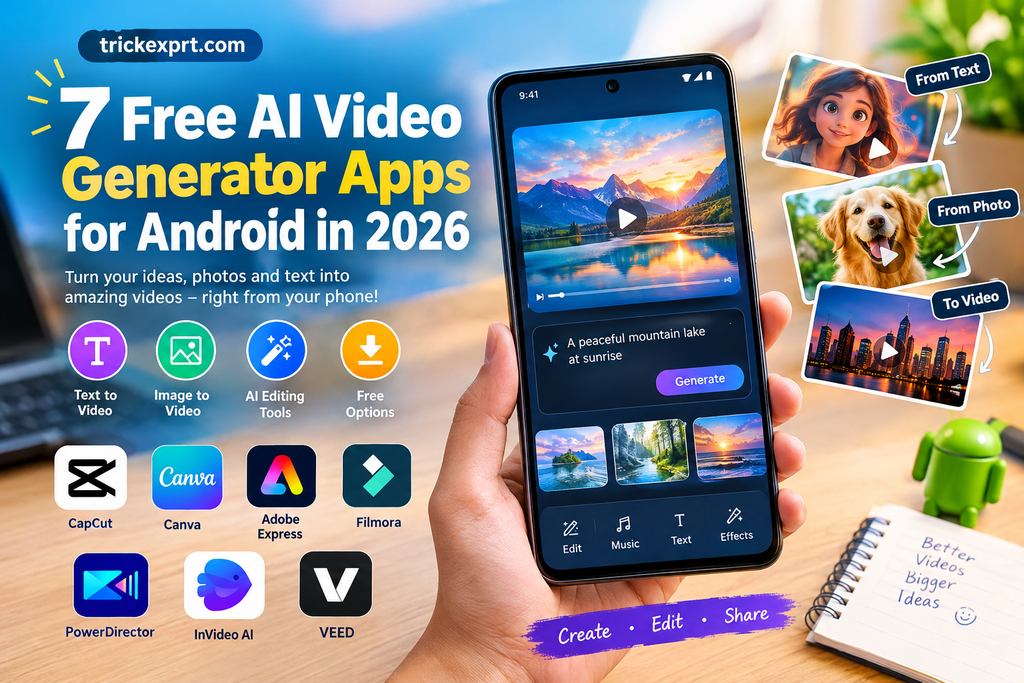
Creating videos no longer requires an expensive computer or professional editing software. With an Android smartphone and the right AI tools, you can turn text prompts, photos, and short clips into engaging videos for YouTube, Instagram Reels, TikTok, and other social platforms.
The challenge is finding an app that offers useful AI features without forcing you to purchase a subscription immediately.
In this guide, we explore seven AI-powered video apps for Android, what each one is best suited for, the limitations to check before using it, and how to choose the right option for your needs.
Whether you want to create animated stories, promotional videos, social media content, or short videos from photographs, this comparison will help you make a more informed decision.
Quick answer: CapCut, Canva, Adobe Express, Filmora, PowerDirector, InVideo AI, and VEED are worth investigating for AI-assisted video creation. However, their Android availability, AI features, free credits, export restrictions, and subscription requirements differ. Not every app generates complete videos from a text prompt on its free plan.
What Is an AI Video Generator App?
An AI video generator app uses artificial intelligence to help create or transform video content. Depending on the app, you may be able to generate video clips from text prompts, animate still images, create subtitles, remove backgrounds, generate voiceovers, or automatically assemble edited videos.
For example, you could write a prompt describing a small village in the countryside and use a compatible text-to-video tool to generate a short scene. Another app might help you animate a photograph, add narration, and combine several clips into a finished video.
It is important to understand the difference between an AI video generator and an AI video editor.
- AI video generator: Creates new video footage from text, images, or other supported inputs.
- AI video editor: Helps edit existing footage using features such as automatic captions, background removal, and smart trimming.
- AI video maker: May combine templates, stock footage, text, voiceovers, and automated editing.
Some apps provide all three types of functionality, while others specialize in only one.
1. CapCut — AI Video Editing and Social Media Content
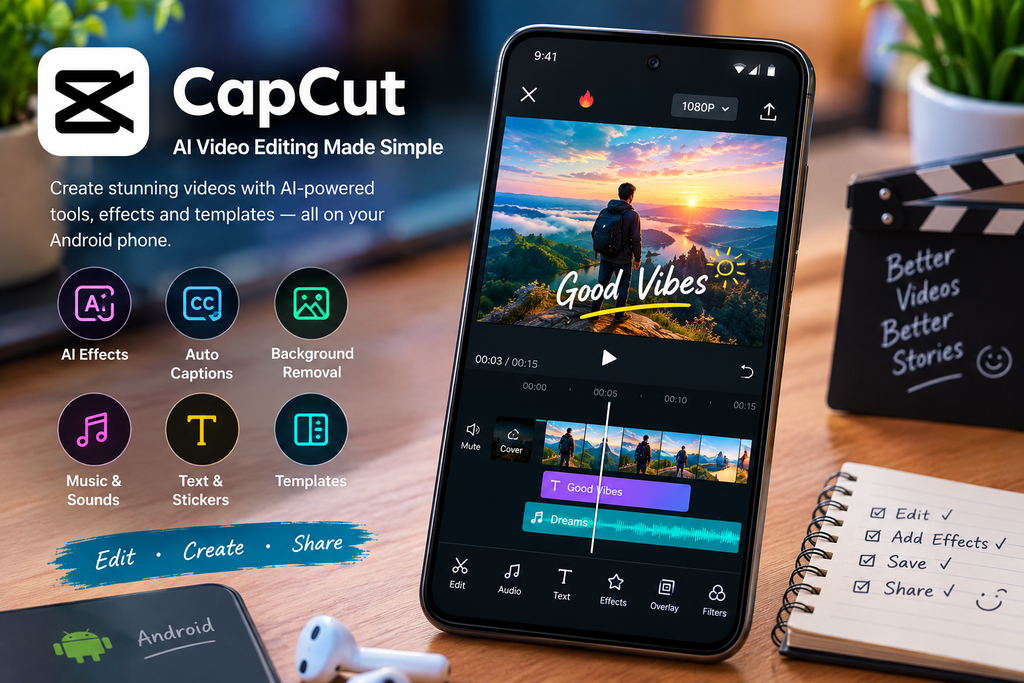
CapCut is a popular option for people who create short-form videos and want editing tools on their Android phones.
It combines a video editor with AI-assisted features that may include automatic captions, background removal, effects, and other automated editing functions. Specific tools and availability can vary by region, app version, and subscription plan.
Key features
- AI-assisted editing and video effects.
- Automatic captioning and text tools.
- Transitions, filters, and audio editing.
- Tools for vertical videos and social media content.
- Templates and other time-saving editing features.
Is CapCut free?
CapCut offers free editing functionality, but some features, effects, assets, and AI tools may require payment. Access to specific features can change, so check the current app listing and the price shown inside the app before starting a project.
Do not assume that every AI generation feature is free or that all exports are watermark-free.
Who should use CapCut?
CapCut is worth considering if you want to edit YouTube Shorts, Instagram Reels, TikTok videos, or other social media content directly on your phone.
Best for: Short-form video editing and AI-assisted effects.
2. Canva — AI Video Creation for Beginners
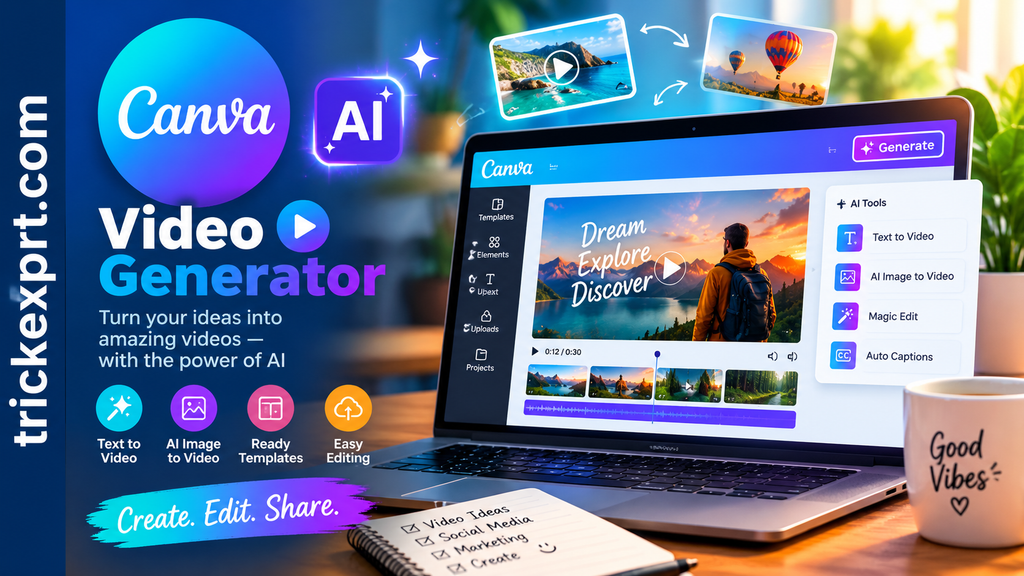
Canva is a design and content-creation platform with an Android app. It is particularly useful for people who want to combine video, text, graphics, photographs, and ready-made layouts.
Its AI capabilities and video tools can help simplify the content-creation process. The availability of prompt-based video generation and other advanced AI functions depends on the current product offering and account plan.
Key features
- Video templates and customizable layouts.
- Text, graphics, photographs, and animations.
- Tools for social media content.
- AI-assisted content creation where supported.
- Branding elements and reusable designs.
Is Canva free?
Canva has a free plan, but premium assets, certain AI features, and some advanced tools may be restricted. AI usage limits can also differ from ordinary editing limits.
Check whether the particular video-generation feature you need is available on your plan before building your workflow around it.
Who should use Canva?
Canva is a practical choice for beginners, small businesses, educators, and content creators who want to create polished promotional videos without learning a complicated editing interface.
Best for: Template-based videos, promotional content, and beginner-friendly design.
3. Adobe Express — Simple Video Creation and Editing
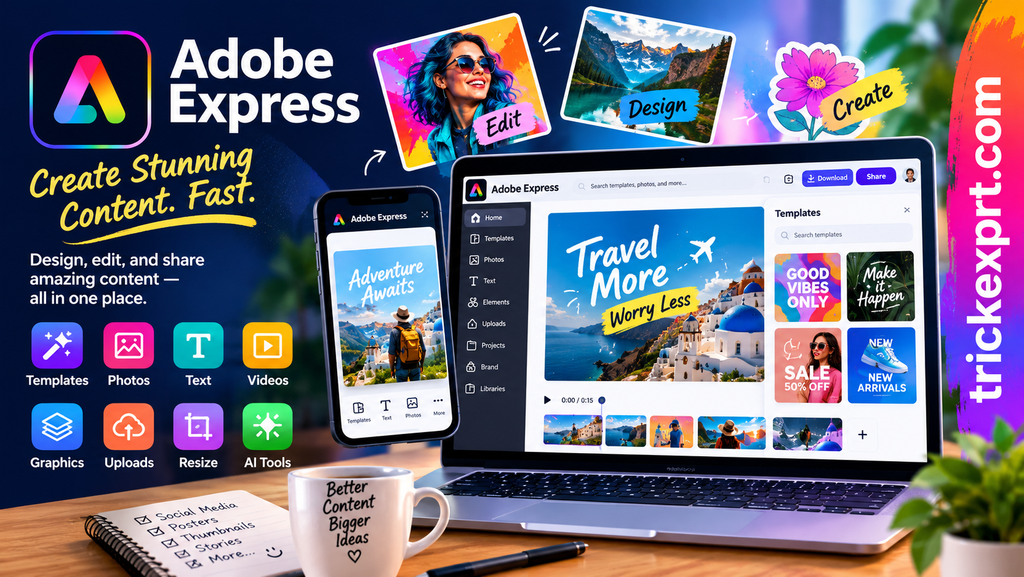
Adobe Express is designed to help users create visual content without needing professional editing skills. Its mobile tools can support short videos, social media graphics, text effects, and other creative projects.
Depending on the current version and plan, AI-assisted features may help with editing, design, or generating creative assets.
Key features
- Video creation and editing tools.
- Text, graphics, and visual effects.
- Social media content templates.
- Adobe ecosystem integration.
- Selected AI-assisted features.
Is Adobe Express free?
Adobe Express provides a free plan, but some premium assets and AI features have restrictions. The availability and limits of individual features may change.
Before using it for a project, check whether your chosen AI function is included in the free plan and whether the final export meets your requirements.
Who should use Adobe Express?
This app is worth considering if you want a straightforward way to create promotional videos, branded content, announcements, or social media posts.
Best for: Simple video projects and branded content.
4. Filmora — AI-Assisted Video Editing
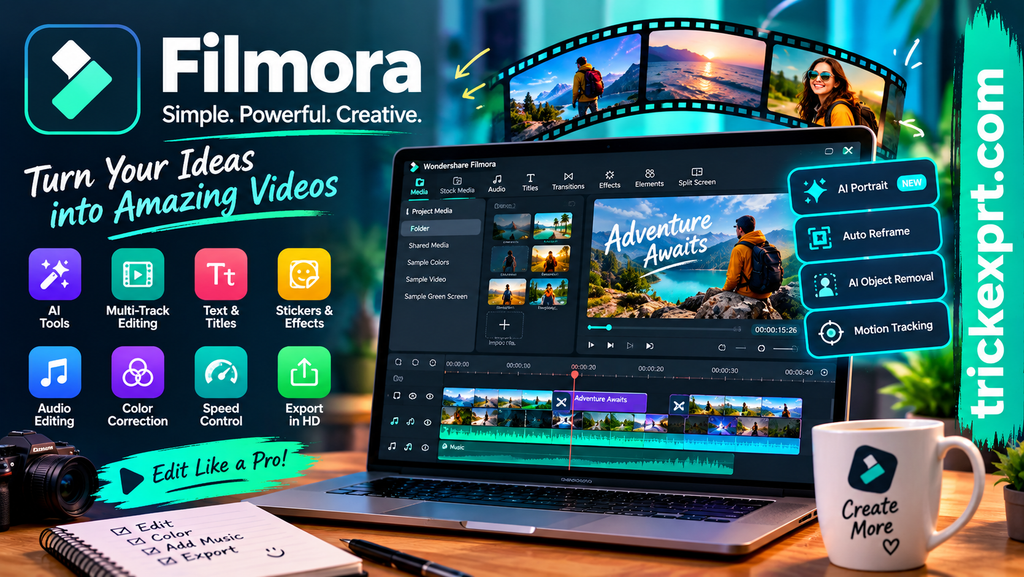
Filmora offers mobile video editing tools and AI-assisted features designed to simplify the editing process.
It may be useful when you already have photographs, recorded footage, or short clips and want to turn them into a more polished video.
Key features
- Video trimming and transitions.
- Text, titles, effects, and music.
- AI-assisted editing tools, depending on the version.
- Features for social media videos.
- Options for combining multiple clips.
Is Filmora free?
Filmora may allow users to start editing without purchasing a subscription, but some functions and export options can be restricted. Watermarks, premium effects, and paid features should be checked before completing a project.
A free download does not necessarily mean every feature is available without payment.
Who should use Filmora?
Filmora is worth exploring if you want more control over the editing process while still benefiting from AI-assisted tools.
Best for: Editing existing footage and assembling polished videos.
5. PowerDirector — More Control Over Video Projects
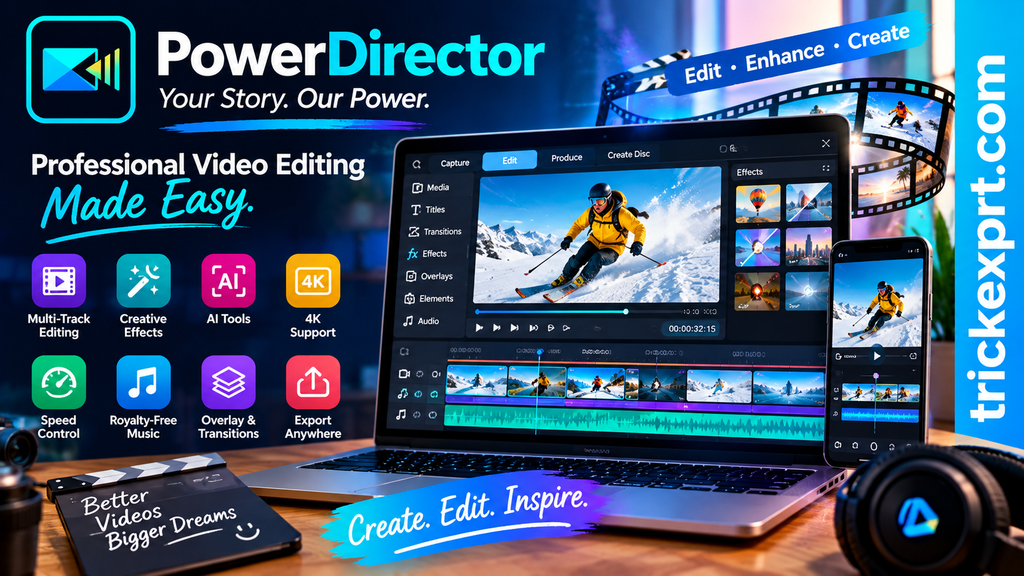
PowerDirector is a mobile video-editing option for users who want a broader set of editing controls alongside AI-assisted functionality.
Rather than relying entirely on automatic video generation, you can use an editing timeline to arrange footage, adjust clips, add titles, and improve the final result.
Key features
- Multitrack video editing.
- Transitions, titles, and visual effects.
- AI-assisted tools available in supported versions.
- Audio and visual adjustments.
- Tools for producing social media videos.
Is PowerDirector free?
Some editing functions may be available without payment, while premium features, effects, AI tools, or export options may require a paid plan.
Check the current Android listing and in-app subscription details for the exact limitations that apply to your device.
Who should use PowerDirector?
PowerDirector is a reasonable option for users who want more editing control than a basic template-based app provides.
Best for: Detailed mobile editing and projects with multiple clips.
6. InVideo AI — Prompt-Based Video Creation
InVideo AI is worth investigating if you want to create videos from written instructions instead of building every scene manually.
Depending on its current product offering and your account, the workflow may help assemble a video using a prompt, script, voiceover, and supported media resources.
Key features
- Prompt-based video workflows.
- Script-assisted content creation.
- Voiceover and narration options.
- Media selection and automated assembly.
- Tools aimed at content creators and marketers.
Is InVideo AI free?
Access to AI video generation may be limited by credits, export restrictions, branding, or plan-specific allowances. The availability of the full service through an Android app may differ from access through a mobile browser.
Before signing up, confirm that the service supports your intended workflow on Android and that its current free allowance is sufficient.
Who should use InVideo AI?
It may suit creators who want to turn an idea or script into a structured video, especially for explainers, promotional content, and narrated videos.
Best for: Script-based and prompt-assisted video creation.
7. VEED — Online AI Video Tools
VEED is an online video creation and editing platform that can be accessed through a compatible mobile browser. Its available tools may include AI-assisted editing, subtitles, transcription, and other video-production features.
It is not necessary to assume that every online feature has a dedicated Android app or works identically on a phone.
Key features
- Browser-based video editing.
- Subtitle and transcription tools.
- AI-assisted content features.
- Text and audio editing.
- Video creation for social platforms.
Is VEED free?
Free access may come with restrictions on exports, video quality, AI usage, or branding. Some features may require an account or paid subscription.
Check the current terms and test the editor on your Android device before committing to a complete project.
Who should use VEED?
VEED may be useful if you prefer a browser-based workflow or need subtitle and editing tools without installing a large editing application.
Best for: Browser-based editing, subtitles, and AI-assisted video workflows.
Comparison of Free AI Video Apps for Android
The following table summarizes the main use cases. It is a feature-selection guide, not a claim that every listed app provides unlimited free AI video generation.
| App | Best use | What to check |
|---|---|---|
| CapCut | Short-form social videos | AI feature access, export restrictions |
| Canva | Templates and branded videos | AI credits, premium assets |
| Adobe Express | Simple promotional videos | Free-plan feature availability |
| Filmora | Editing footage and clips | Watermarks, premium effects |
| PowerDirector | More detailed editing | AI tools and export options |
| InVideo AI | Prompt-based video workflows | Credits, branding, Android access |
| VEED | Browser-based editing | Export limits and mobile compatibility |
Important: Pricing, AI credits, supported features, and watermark policies can change. Verify each item in the official app or service before publishing a recommendation or starting a project.
How to Choose the Best Free AI Video Generator for Android
The best app depends on what you want to create. Before installing an app or registering for a service, consider the following factors.
1. Decide how you want to create videos
If you want to generate new scenes from text prompts, prioritize services that explicitly support text-to-video generation.
If you want to animate photographs, look for image-to-video functionality. If you already have footage, a conventional editor with AI-assisted tools may be more useful.
2. Check the free-plan limits
Look beyond the word “free.” Find out whether the app limits the number of generations, video duration, export resolution, or available AI credits.
Also check whether credits reset, whether a payment method is required, and what happens when the free allowance runs out.
3. Check watermarks and export quality
A watermark may be acceptable for experimentation but unsuitable for professional content.
Before creating a long video, test a short project and inspect the exported file. Check the resolution, audio quality, branding, and any restrictions on commercial use.
4. Consider your phone and internet connection
AI video generation can require considerable processing power or cloud access. Some services process requests online, while others provide local editing functions.
Make sure the app supports your Android version and has enough available storage. A stable internet connection may be necessary for cloud-based generation.
5. Review privacy and usage rights
Read the service’s privacy information before uploading personal photographs, faces, voices, or confidential material.
If you plan to publish or monetize the resulting videos, review the terms governing generated content, stock media, music, and commercial use. Do not assume that every included asset is automatically cleared for every purpose.
How to Make an AI Video on Android
Although the interface differs between apps, most AI video workflows follow a similar process.
Step 1: Choose a suitable tool. Select an app or service that supports your intended output, such as text-to-video, image-to-video, or AI-assisted editing.
Step 2: Prepare your idea. Decide on the subject, setting, video length, aspect ratio, visual style, and intended audience.
Step 3: Write a clear prompt. Describe the scene, subject, movement, lighting, and camera perspective. Avoid including unnecessary details that may confuse the generator.
Step 4: Generate a short test. Use a small project to evaluate visual quality and understand any credit or duration limits before creating a longer video.
Step 5: Edit the result. Correct captions, adjust timing, add narration or music where appropriate, and remove unwanted sections.
Step 6: Export and review. Check the final file for visual errors, audio problems, watermarks, and resolution. Watch the complete video before publishing it.
Example AI video prompt
You can adapt this original prompt for a compatible text-to-video tool:
“Create a short, realistic animated scene of a peaceful countryside village at sunrise. Show small traditional houses, green fields, a narrow village path, and gentle morning mist. A farmer walks along the path while birds fly across the sky. Use natural movement, consistent characters, soft morning light, and detailed environmental textures. Keep the scene visually coherent and suitable for a family-friendly YouTube video.”
The result will depend on the generator, its prompt limits, and its supported features. You may need to generate multiple short clips and combine them in an editor.
Are Free AI Video Generators Good Enough for YouTube?
Free tools can be useful for testing ideas, creating short clips, learning editing skills, and producing some social media content. However, a free plan may not be sufficient for every production workflow.
For YouTube, pay attention to more than video quality. A strong video should have a clear idea, useful or entertaining content, coherent visuals, appropriate audio, and a good opening.
If you create animated stories, keep characters consistent between scenes, check the dialogue, and review each generated clip for errors. You may need separate image-generation, voiceover, and editing tools to complete a longer story.
AI assistance does not automatically make a video original or suitable for monetization. Review the platform’s current monetization rules and make sure your final work adds meaningful creative value.
Frequently Asked Questions
Which is the best free AI video generator app for Android?
There is no single best option for everyone. CapCut may suit social video editing, Canva may be convenient for templates, and prompt-based services such as InVideo AI may be more suitable for script-led workflows. Compare the specific features you need and check the current free-plan restrictions.
Can I generate AI videos on Android for free?
Yes, some apps and online services provide free access to selected AI video tools. However, free access may be limited by credits, video duration, export quality, watermarks, or other restrictions.
Which AI video app makes videos from text prompts?
Some AI video services support text-to-video generation. Confirm that the feature is available in the current version and that your chosen plan includes enough usage for your project. An editor with AI features does not necessarily generate complete videos from text.
Can I create AI videos without a watermark?
Some tools may offer watermark-free exports for selected features or plans. Others restrict watermark removal to paid subscriptions. Test the exact export workflow before relying on an app for watermark-free videos.
Do AI video generators work without an internet connection?
Many cloud-based generators require an internet connection because video generation occurs on remote servers. Some editing functions may work offline, but that does not mean their AI generation tools will also work offline.
Can I monetize AI-generated videos on YouTube?
Potentially, yes. Eligibility depends on YouTube’s current monetization policies and the nature of the content. Your video should provide original value and comply with applicable copyright, licensing, and disclosure requirements. AI-generated content is not automatically eligible or ineligible simply because AI was used.
Are free AI video apps safe?
Use reputable official app listings and review requested permissions, privacy policies, and subscription terms. Be cautious with unofficial downloads and avoid uploading sensitive material unless you understand how the service handles it.
Final Verdict
The right AI video generator for Android depends on whether you want to generate new scenes, animate images, create videos from scripts, or edit existing footage.
Start by identifying your main task, then compare the free features and export restrictions of CapCut, Canva, Adobe Express, Filmora, PowerDirector, InVideo AI, and VEED. Test a short project before investing significant time in a particular platform.
For beginners, a simple editing app may be enough to get started. For creators who want complete scenes generated from prompts, prioritize a service that explicitly supports text-to-video or image-to-video generation.
The most useful choice is not necessarily the app with the most AI features. It is the one that produces the results you need within your budget and fits your Android workflow.
Editorial note: App features, pricing, free credits, and regional availability can change. Verify these details on the official service pages before making a purchase or recommending a specific plan.