 Trick Exprt TrickExprt – Tech Tips,Software Guides
Introduction
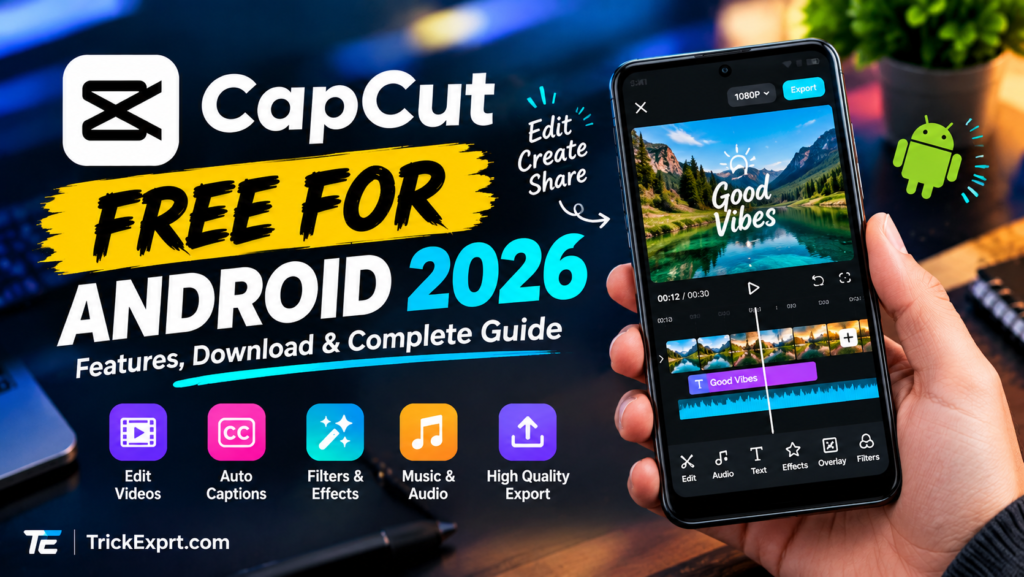
Looking for a simple way to edit videos on your Android phone? CapCut is a popular video editing app that helps users create engaging videos for YouTube, TikTok, Instagram, Facebook, and other social media platforms.
With CapCut, you can trim video clips, add music, apply transitions, create subtitles, adjust playback speed, and enhance your videos with visual effects. Some advanced tools are also available, although access may depend on your region, app version, and subscription plan.
In this guide, we will explain how to download CapCut on Android, explore its main features, edit your first video, understand the difference between free and Pro tools, and export your finished project.
Whether you are a beginner, content creator, student, or social media enthusiast, this tutorial will help you get started.
1. What Is CapCut for Android?
CapCut is a video editing application developed by ByteDance. It provides mobile editing tools that allow users to create and customize videos directly from their smartphones.
Instead of transferring your footage to a computer, you can edit clips, arrange scenes, add text, adjust colors, and combine audio within the Android app.
CapCut is suitable for several types of content, including:
- YouTube videos and Shorts
- Instagram Reels
- TikTok videos
- Facebook videos
- Educational tutorials
- Travel videos and personal memories
- Short promotional videos
The app includes basic editing tools and more advanced features such as keyframe animation, chroma key, video stabilization, automatic captions, and background removal. Availability can vary by device and account.
For beginners, its timeline-based editing interface provides a convenient way to organize clips and build a complete video.
2. Is CapCut Free to Use in 2026?
Yes, CapCut offers a free version, but it also includes paid features and in-app purchases.
The free version can be useful for basic video editing, including cutting clips, arranging footage, adding text, adjusting playback speed, and using selected effects.
However, not every template, effect, AI tool, or export option is necessarily free. Some features may require a Pro subscription or may be unavailable in certain regions.
Before spending money, open the app and check whether the tools you need are included in your current version.
What can you do with the free version?
- Import and edit video clips.
- Trim, split, and combine footage.
- Add text and selected transitions.
- Adjust video speed.
- Add audio and available sound effects.
- Use selected filters and effects.
- Export videos using the available settings.
Important: Do not assume that every feature advertised in a tutorial is free. Pricing and feature access can change over time.
3. Best CapCut Features for Android
CapCut includes several tools that can help improve the quality of mobile videos.
Basic Video Editing
The editing timeline allows you to trim unwanted sections, split clips, rearrange scenes, and combine multiple videos.
This is useful when you want to remove mistakes, shorten an introduction, or create a more engaging video.
Auto Captions
The automatic caption feature can recognize speech and generate subtitles for supported languages.
Captions can make videos easier to follow, especially when people watch without sound. Always review automatically generated subtitles because names, accents, and technical words may be recognized incorrectly.
Filters and Visual Effects
CapCut offers filters and visual effects that can change the appearance of your footage.
You can use them to create a cinematic look, emphasize a particular scene, or make multiple clips appear more consistent.
Use effects carefully so they support the content instead of distracting viewers.
Transitions
Transitions help connect one clip to another.
You can use simple fades, zoom effects, and other available transitions to create smoother scene changes. For most tutorials and informational videos, simple transitions are often sufficient.
Speed Control
Speed controls let you slow down or speed up selected clips.
Slow motion can emphasize an important moment, while faster playback can shorten repetitive footage. Advanced speed controls may vary depending on the version and selected feature.
Keyframe Animation
Keyframes allow you to animate selected properties over time, such as position, scale, or other supported settings.
For example, you can gradually zoom in on a subject or move text across the screen.
Chroma Key
Chroma key can remove a selected color from compatible footage, commonly a green-screen background.
This can help creators combine a person or object with another background, provided the original lighting and footage are suitable.
Background Removal
Selected background-removal tools can isolate a subject from its background. AI-powered features may have usage limits or subscription requirements.
Audio and Music Tools
You can add audio, adjust sound levels, and combine music with recorded footage.
Always check the usage rights of music and sound effects before publishing commercial videos. Music being available inside an editor does not automatically mean it is licensed for every platform or purpose.
High-Resolution Export
CapCut advertises high-resolution export options, including support for up to 4K at 60 frames per second in supported circumstances. Actual options depend on the device, source footage, app version, and selected features.
4. How to Download CapCut on Android
The safest starting point is the official Google Play Store listing.
Official download link: Download CapCut from Google Play
Follow these steps:
- Open Google Play Store on your Android phone.
- Search for CapCut – Video Editor.
- Check that the developer is ByteDance Pte. Ltd.
- Open the official app listing.
- Tap Install, if the app is available for your device and region.
- Wait for the installation to finish.
- Open CapCut from your app drawer.
- Review the requested permissions and allow only those necessary for the features you want to use.
What If CapCut Is Not Available?
If you cannot find CapCut on Google Play, availability may depend on your country, device compatibility, or other restrictions.
Visit the official CapCut website to check the available options for your region.
Avoid unofficial modified APK files that promise every Pro feature for free. Such files may contain harmful software, compromise your privacy, or stop working after an update.
5. How to Edit Videos with CapCut on Android
Follow this beginner-friendly tutorial to create your first edited video.
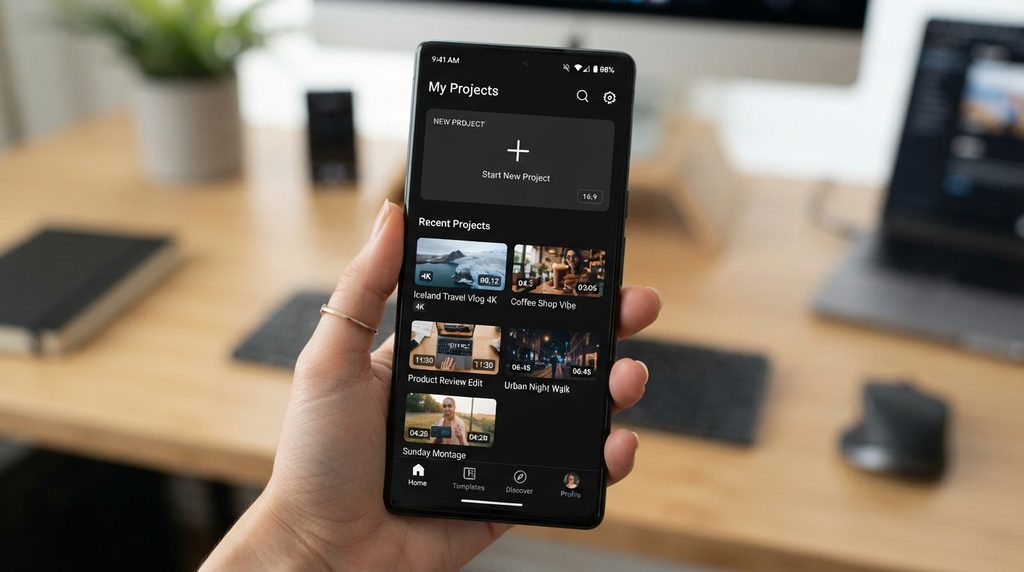
Step 1: Open CapCut and Create a Project
Launch CapCut and select New project, or the equivalent option displayed in your app version.
Choose a video from your phone’s media library and add it to the editing timeline.
If prompted, grant the necessary media permission to access the footage you want to edit.
Screenshot 1 — New Project Screen
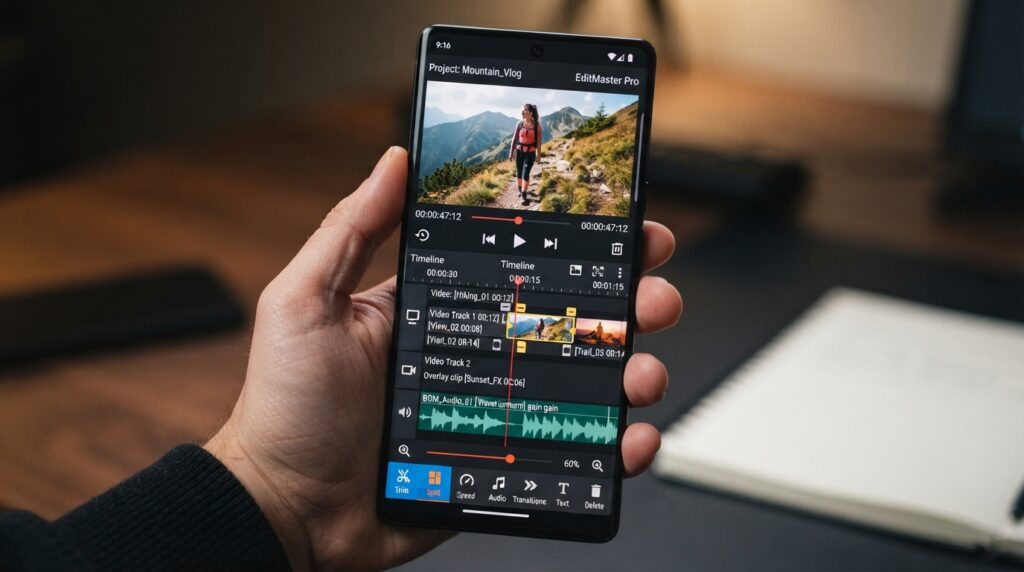
Step 2: Trim and Split Your Video
Tap the video clip in the timeline.
Move the playhead to the point where you want to make a cut. Use the Split tool to divide the footage into separate sections.
Select an unwanted section and remove it. You can also adjust the beginning or end of a clip by dragging its edges.
Review the edited footage to ensure that the cuts look natural.
Screenshot 2 — Video Editing Timeline
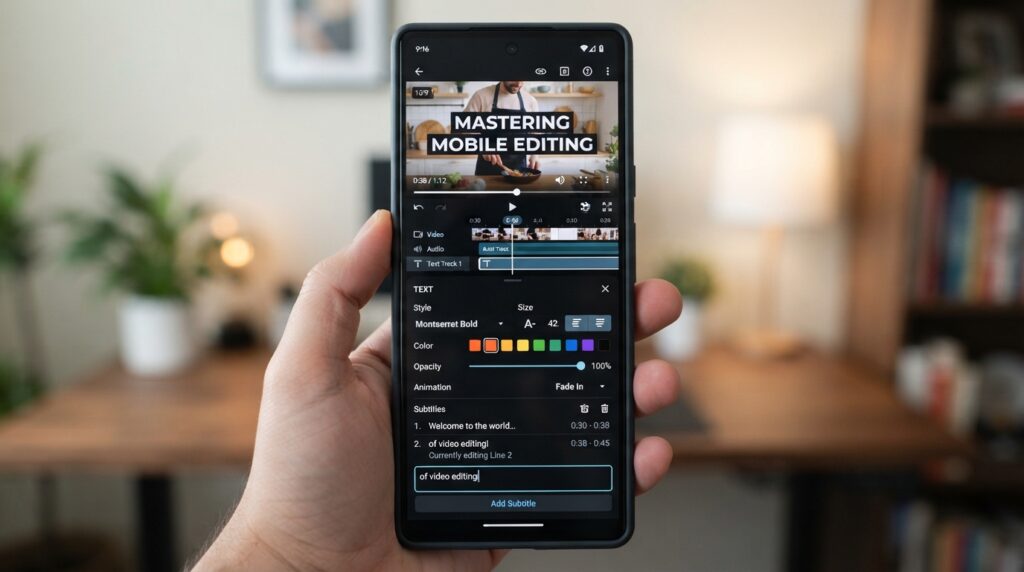
Step 3: Add Text and Titles
Select the Text tool and choose the option to add text.
Enter your title, subtitle, or explanatory message. Adjust the font, size, color, and placement using the available settings.
Keep the text readable on a small screen. Avoid placing important information too close to the edges, especially when creating vertical videos for social media.
Screenshot 3 — Add Text Tool
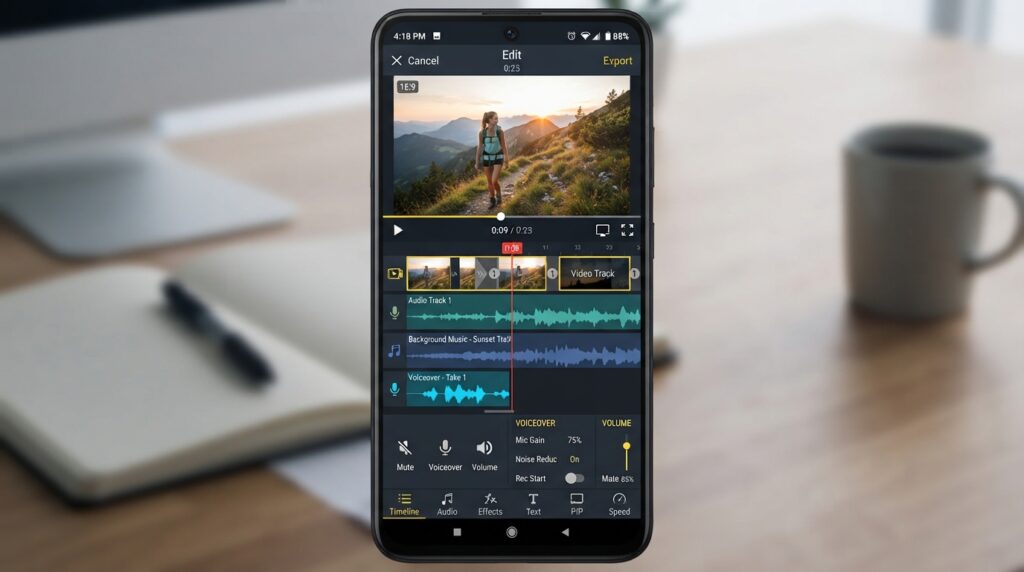
Step 4: Add Music or Voiceover
Open the Audio section to explore the available audio tools.
Depending on your version, you may be able to add music, sound effects, or a voiceover.
Keep background music quieter than spoken dialogue. Preview the video with headphones if possible and make sure that important words remain clear.
Before publishing, confirm that you have permission to use the selected audio.
Screenshot 4 — Audio Editing Screen
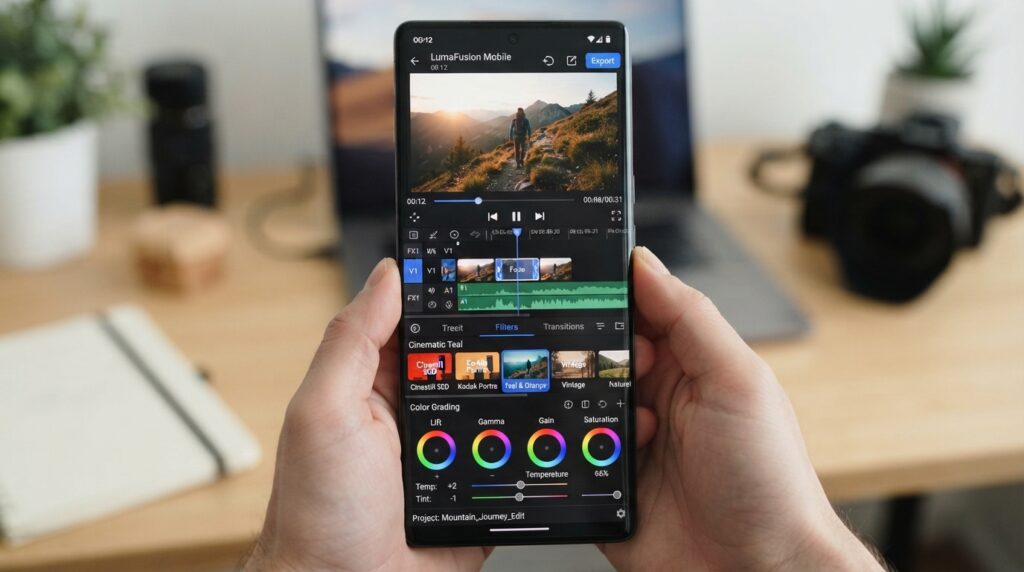
Step 5: Apply Filters and Transitions
Select a clip and open the available filters or effects.
Preview several options before choosing one. For transitions, use the transition control between clips when available.
A consistent visual style usually looks more professional than applying a different effect to every scene.
Some effects may display a Pro label or require payment.
Screenshot 5 — Filters and Effects
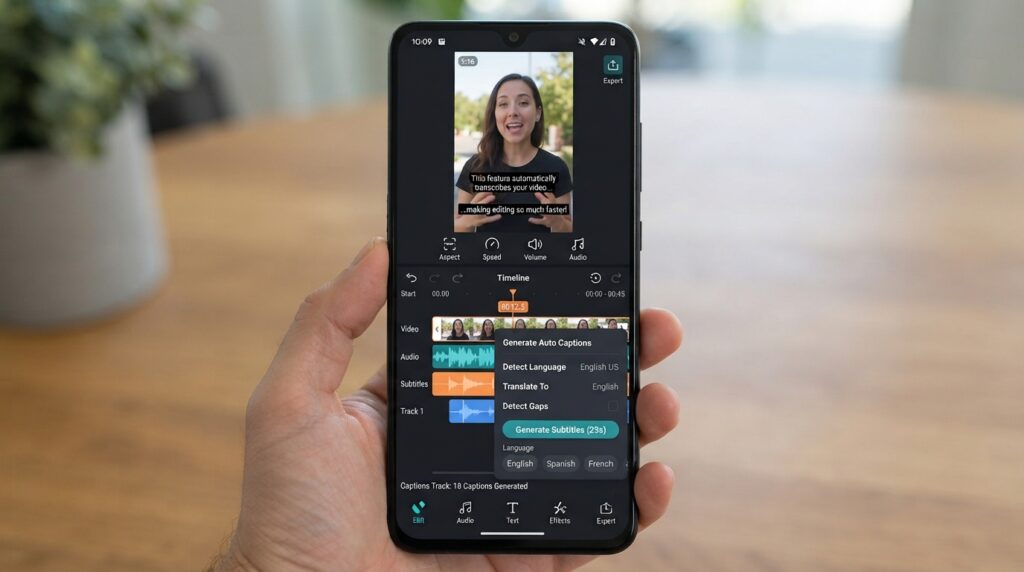
Step 6: Add Captions
If automatic captions are available in your version, open the Text or Captions section and select the automatic caption option.
Choose the appropriate spoken language, then start the caption-generation process.
Once the captions appear, review each line and correct spelling, punctuation, and recognition errors. Adjust their timing and placement if needed.
If automatic captions are unavailable, you can create subtitles manually using the text tool.
Screenshot 6 — Auto Captions
Step 7: Choose the Export Settings
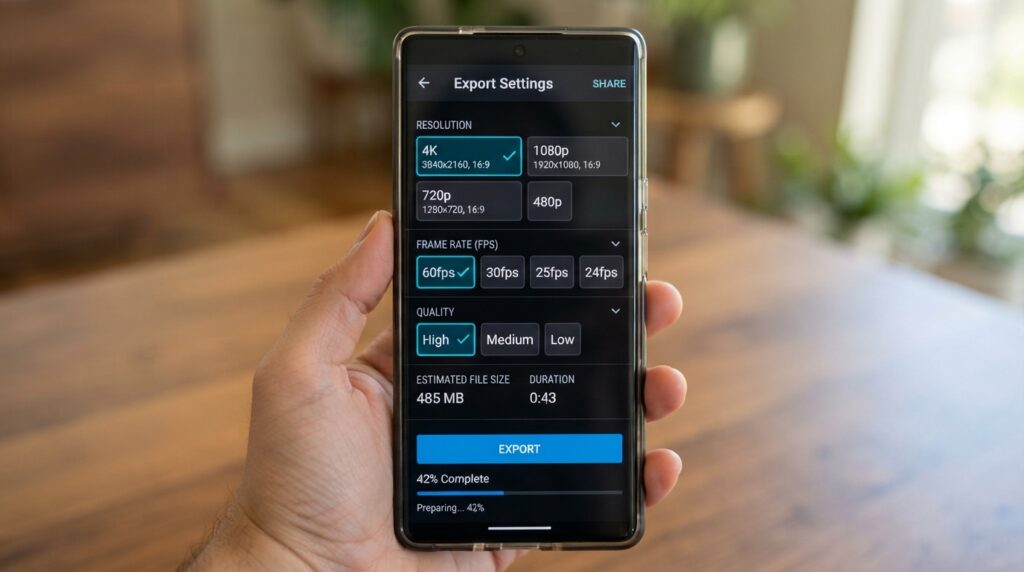
When your video is ready, tap the Export button, usually displayed near the upper-right corner.
Choose a suitable resolution and frame rate from the options available on your device.
For many standard social media videos, 1080p at 30 frames per second is a practical starting point. If you recorded at a higher frame rate or need smoother motion, consider 60 fps when supported.
Higher resolutions and frame rates can increase file size and processing time.
Preview the final video and confirm that the audio, captions, and transitions are correct before exporting.
Screenshot 7 — Export Settings
Step 8: Save and Share Your Video
Wait for the export process to finish. The video should be saved to the destination indicated by the app, commonly your device’s gallery or media library.
Open the exported file and watch it from beginning to end.
Check for unexpected black frames, incorrect subtitles, audio problems, or unwanted ending clips. Once everything looks correct, upload the video to your preferred platform.
6. CapCut Free vs Pro
CapCut offers free editing tools alongside paid features. The exact differences may change, so check the labels inside the current app before starting a project.
| Feature | Free version | Pro version |
|---|---|---|
| Basic trimming and splitting | Available | Available |
| Text and basic editing | Selected tools | Selected tools plus premium options |
| Filters and transitions | Selected options | Additional premium options |
| AI editing tools | Depends on feature | May unlock additional tools |
| Premium templates and assets | Limited selection | Expanded selection |
| Export settings | Available options | May include additional options |
A Pro subscription does not necessarily make every feature available in every region or on every device.
Which Version Should You Choose?
The free version is a reasonable starting point if you mainly want to trim clips, add text, combine scenes, and create simple social media videos.
Consider Pro only if you regularly need specific premium tools and their benefits justify the subscription cost.
Check the current price and renewal terms in the official app before subscribing.
7. Pros and Cons of CapCut
Pros
- Beginner-friendly mobile editing workflow.
- Useful trimming, splitting, and merging tools.
- Text, audio, filters, and transition options.
- Advanced features such as keyframes and chroma key.
- Automatic captions and other AI-assisted tools where available.
- Export options suitable for different social media formats.
Cons
- Some features require a paid subscription.
- Certain tools may not be available in every region.
- Advanced effects can require more processing power.
- High-resolution exports may take longer and use more storage.
- Cloud-based features may require an internet connection.
- Music and other assets may have usage restrictions.
Overall, CapCut can be a useful choice for mobile creators, provided they understand the differences between free and paid features.
8. Best CapCut Alternatives for Android
If CapCut does not meet your requirements, you can compare it with other Android video editors.
Canva
Canva is useful for social media videos, branded content, presentations, and template-based designs.
Official website: https://www.canva.com/
Adobe Express
Adobe Express provides tools for creating social media content, promotional videos, and other visual materials.
Official website: https://www.adobe.com/express/
Filmora
Filmora offers video editing tools and creative effects for users who want to explore a different editing workflow.
Official website: https://filmora.wondershare.com/
PowerDirector
PowerDirector is another option for mobile video editing, with tools for arranging footage and applying effects.
Official website: https://www.cyberlink.com/
Feature availability and pricing vary across these apps. Compare the current Android versions and free plans before choosing an alternative.
9. Frequently Asked Questions
Is CapCut free for Android in 2026?
CapCut offers a free version for Android, alongside paid features and in-app purchases. Some advanced tools may require Pro access.
Where can I download CapCut for Android?
Use the official Google Play Store listing, if available in your region and compatible with your device.
Is CapCut safe to install?
Downloading the official app from a trusted app store is the recommended approach. Avoid modified APK files from unknown websites and review app permissions before use.
Can I use CapCut without an internet connection?
Some editing tasks may work offline after the required media and resources are available locally. Downloading assets, accessing online features, or using certain AI tools may require an internet connection.
Does CapCut support 4K video?
CapCut advertises 4K export at up to 60 fps in supported circumstances. The actual options depend on your device, source footage, app version, and other restrictions.
Can I remove the CapCut watermark for free?
Some projects may include an ending clip that can be removed by selecting and deleting it. Other watermark controls may require Pro access. Check the export screen and current app terms rather than assuming every watermark-removal option is free.
Is CapCut Pro necessary for beginners?
No. Beginners can start with the free tools and consider a subscription later if they need specific premium features.
Can I use CapCut videos on YouTube?
Yes, you can edit videos for YouTube, but you must have the necessary rights to the footage, music, images, and other assets used in your project. Follow the applicable platform and asset licensing rules.
Why is CapCut not available on my phone?
Possible reasons include regional availability, device compatibility, operating system requirements, or app-store restrictions. Check the official app listing and CapCut website for the latest information.
Conclusion
CapCut Free for Android in 2026 is worth considering if you want to edit videos directly on your smartphone. Its combination of basic editing tools, text, audio, effects, and selected advanced features can help beginners create content for social media.
Start with the free tools, learn the editing timeline, and experiment with captions and transitions. Before using premium effects or exporting a large project, check the available options and subscription requirements in your version of the app.
For the safest installation, use the official Google Play Store listing whenever it is available for your device and region.
If you found this guide useful, explore more Android app tutorials on TrickExprt.com.
Disclaimer: This article is an independent informational guide. CapCut is a third-party product, and its name and trademarks belong to their respective owners. Features, pricing, and availability may change. This website is not affiliated with or endorsed by CapCut or ByteDance.