 Trick Exprt TrickExprt – Tech Tips,Software Guides
Introduction
Screen recording has become an essential feature for Android users. Whether you want to record mobile gameplay, create tutorials, demonstrate an application, or share a technical problem with someone, a reliable screen recorder can make the process much easier.
Although many Android smartphones include a built-in screen recording feature, third-party applications offer additional options such as microphone recording, facecam overlays, adjustable video quality, and basic editing tools.
However, choosing the right application can be difficult because different screen recorders offer different features, recording limits, and compatibility options.
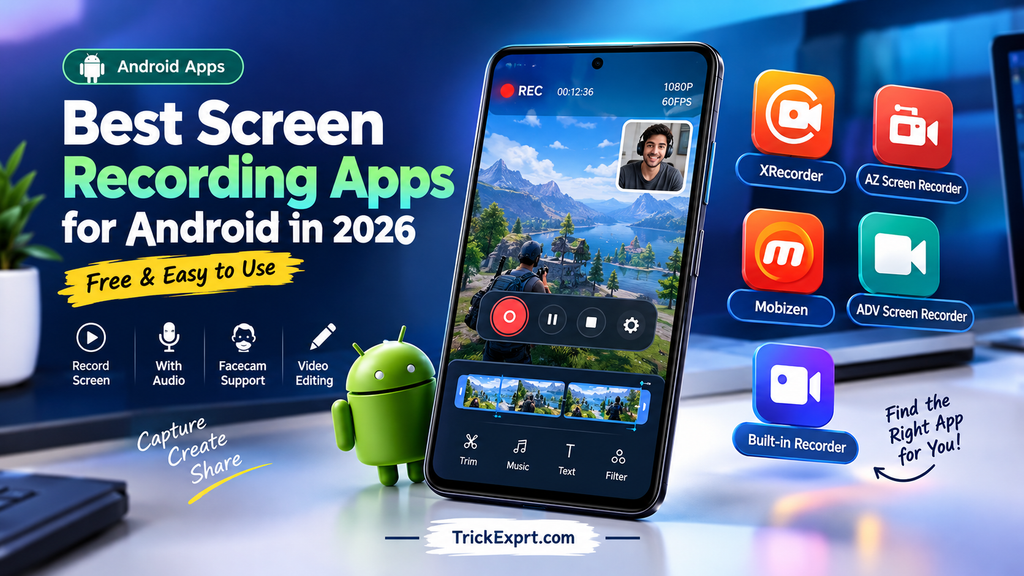
In this guide, we will explore the best screen recording apps for Android in 2026, compare their features, discuss their advantages and disadvantages, and explain how to choose the right screen recorder for your needs.
Whether you are a student, gamer, content creator, or everyday smartphone user, this guide will help you make an informed decision.
What Is a Screen Recording App?
A screen recording app is a tool that captures the activity displayed on your smartphone screen and saves it as a video file. Depending on the application and device, it may also record microphone audio, internal audio, or a camera overlay.
Screen recording apps are commonly used to:
- Record mobile games for YouTube videos.
- Create Android tutorials and educational videos.
- Demonstrate how to use an application.
- Capture software errors for troubleshooting.
- Make reaction videos with a facecam.
- Record presentations and on-screen demonstrations.
Some screen recorders also include basic video editing features, allowing users to trim unnecessary footage before sharing their recordings.
1. XRecorder — Best Screen Recording App for Beginners
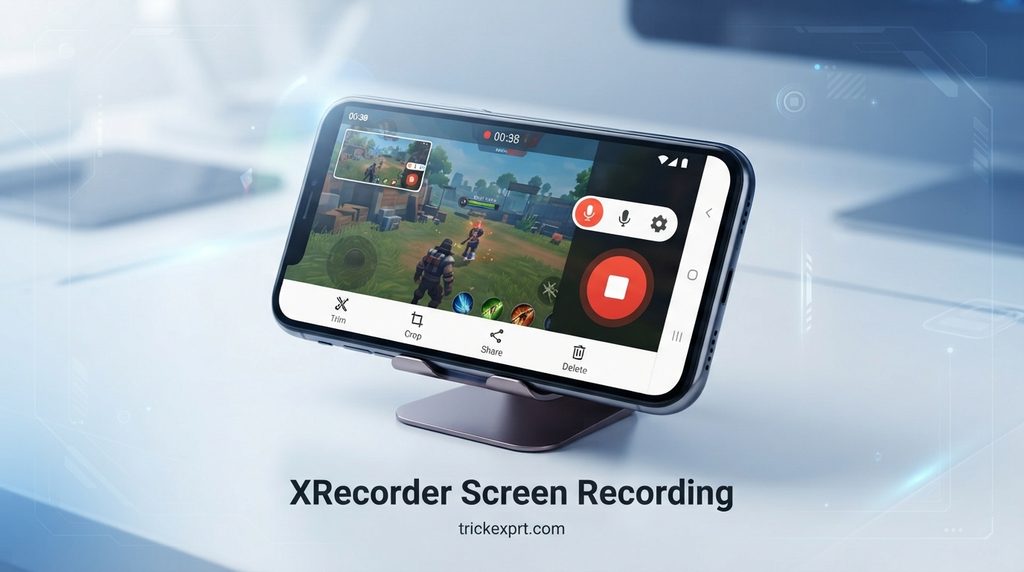
XRecorder is a screen recording application designed for Android users who want a straightforward way to capture their screens. It is suitable for recording mobile gameplay, app demonstrations, tutorials, and everyday smartphone activities.
Its interface and floating recording controls can make it easier to start, pause, and stop recordings without navigating through multiple menus.
Key Features of XRecorder
- Screen recording with configurable video quality.
- Microphone recording options.
- Floating controls for convenient access.
- Facecam support on compatible configurations.
- Basic video trimming and editing features.
- Video management and sharing options.
Pros and Cons of XRecorder
Pros
- Beginner-friendly interface.
- Useful for everyday screen recording.
- Offers basic video editing tools.
- Suitable for recording app tutorials and gameplay.
Cons
- Some features may require payment.
- Advertisements may appear in the free version.
- Recording performance depends on the phone’s hardware and Android version.
Who Should Use XRecorder?
XRecorder is worth considering if you want a simple screen recorder for Android without dealing with complicated recording settings. It may be particularly useful for beginners and casual content creators.
Best for: Beginners, mobile tutorials, and everyday recordings.
Official download: Search for XRecorder by InShot in Google Play and verify the developer before installing.
2. AZ Screen Recorder — Best for Tutorials and Content Creators
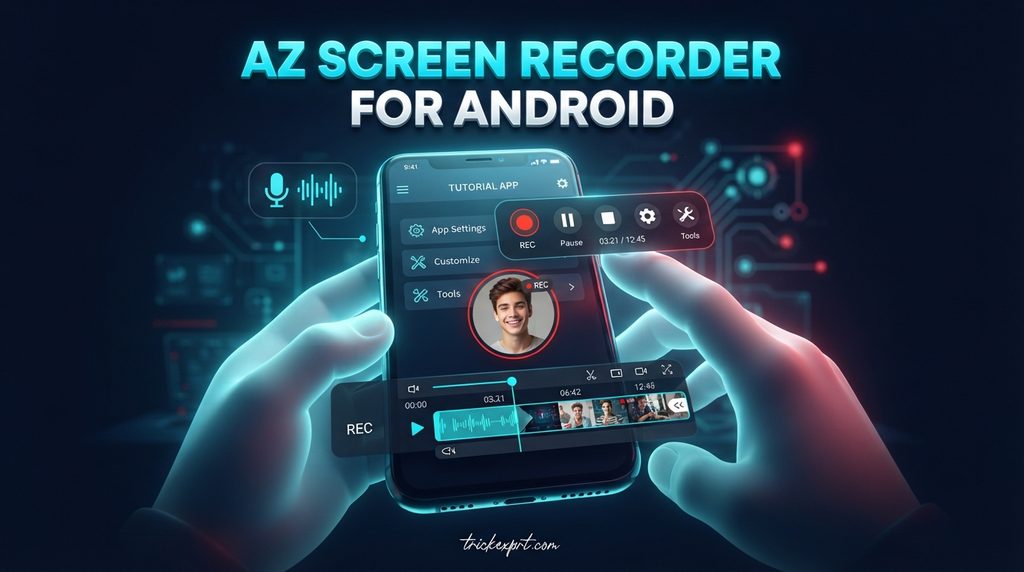
AZ Screen Recorder is another option for Android users who need more control over their screen recordings. It is useful for educational demonstrations, app walkthroughs, gameplay recordings, and other types of video content.
The application offers recording and video management tools, although the availability of specific features can vary by version and device.
Key Features of AZ Screen Recorder
- Adjustable video recording settings.
- Microphone audio recording.
- Facecam overlay on supported devices.
- Video trimming and editing options.
- Recording controls and video management.
- Sharing options for completed recordings.
Pros and Cons of AZ Screen Recorder
Pros
- Useful for creating detailed tutorials.
- Offers multiple recording settings.
- Provides basic editing capabilities.
- Suitable for different types of screen recordings.
Cons
- Some features may be available only through paid options.
- High-quality recording requires more storage.
- Certain capabilities depend on Android compatibility.
Who Should Use AZ Screen Recorder?
AZ Screen Recorder may suit users who regularly create educational content, app tutorials, or demonstrations and want more recording options than a basic built-in recorder provides.
Best for: Tutorial creators, educators, and Android users who need adjustable recording settings.
Official download: Find AZ Screen Recorder through its official Google Play listing.
3. Mobizen Screen Recorder — Best for Mobile Gameplay
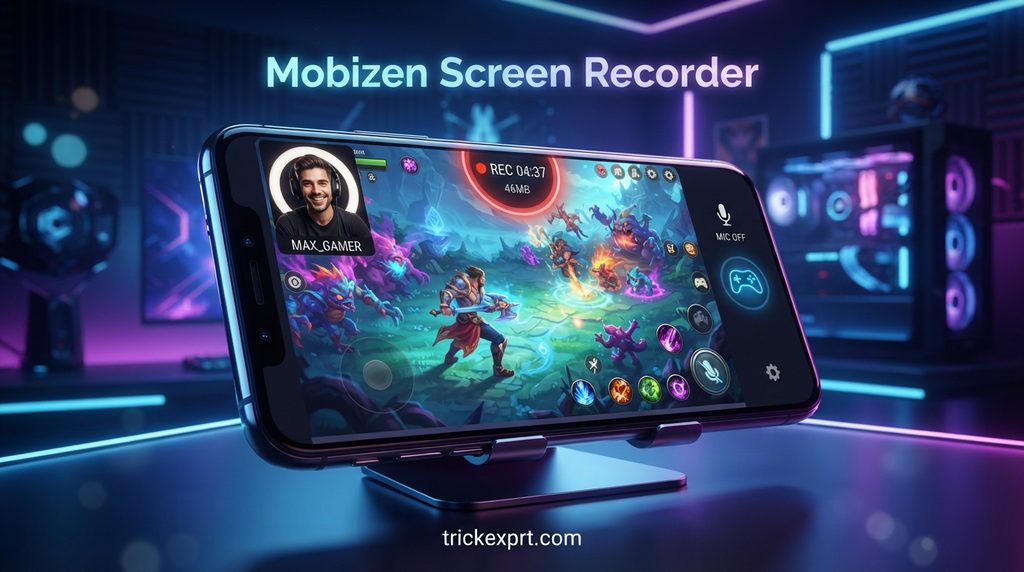
Mobizen Screen Recorder is designed for people who want to capture mobile gameplay, tutorials, and other activities on their smartphone.
Its screen recording and camera overlay options can be useful for creators who want to include their reactions while demonstrating an app or playing a mobile game.
Key Features of Mobizen Screen Recorder
- Screen recording at supported resolutions.
- Facecam options on compatible devices.
- Microphone recording options.
- Video management and editing features.
- Controls designed for mobile recording.
Pros and Cons of Mobizen Screen Recorder
Pros
- Useful for mobile gameplay videos.
- Facecam features can enhance commentary.
- Suitable for recording app demonstrations.
- Provides recording tools in a mobile-friendly interface.
Cons
- Advertisements or paid features may be present.
- Long recordings can consume considerable storage.
- Performance depends on the phone’s capabilities.
Who Should Use Mobizen Screen Recorder?
Mobizen may be worth trying if you create mobile gaming videos, reaction content, or tutorials that benefit from a facecam overlay.
Best for: Mobile gamers, reaction videos, and video creators.
Official download: Check the official Google Play listing for Mobizen Screen Recorder and confirm current compatibility.
4. ADV Screen Recorder — Best for On-Screen Demonstrations
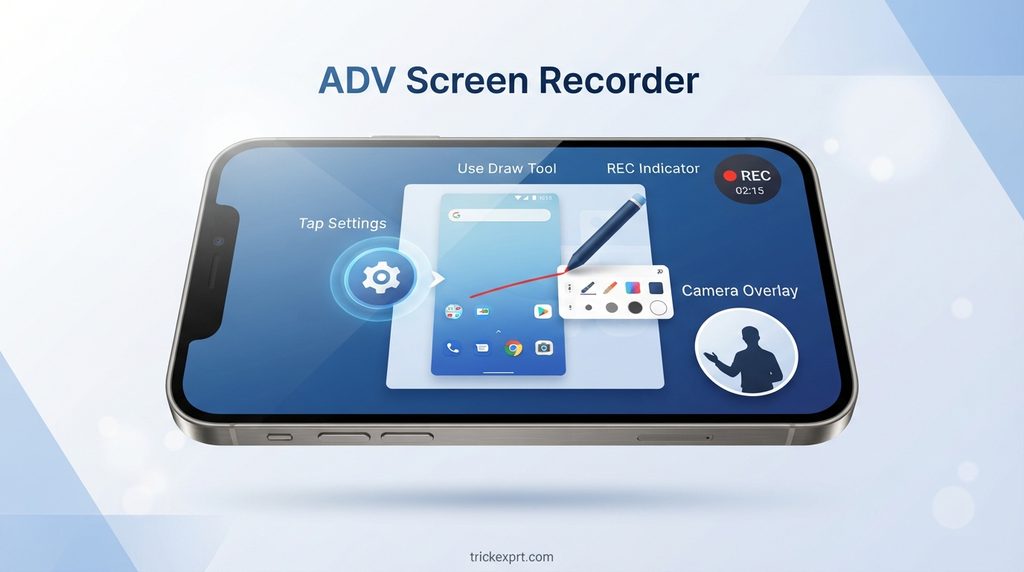
ADV Screen Recorder is an option for users who want to record smartphone activity and explain what is happening on the screen.
Features such as on-screen drawing and camera overlays, where available, can make demonstrations easier to follow. These tools may be particularly helpful when explaining app settings or showing someone how to complete a task.
Key Features of ADV Screen Recorder
- Screen recording controls.
- Camera overlay options on supported devices.
- On-screen drawing or annotation tools in supported versions.
- Microphone recording subject to Android restrictions.
- Controls for recording demonstrations.
Pros and Cons of ADV Screen Recorder
Pros
- Useful for explaining on-screen actions.
- Annotation tools can help highlight important details.
- Suitable for tutorials and demonstrations.
- Offers an alternative to basic screen recording.
Cons
- The interface may feel less modern than newer alternatives.
- Some features may vary by app version.
- Compatibility should be checked before installation.
Who Should Use ADV Screen Recorder?
ADV Screen Recorder may be a suitable choice for people who create instructional videos and want to highlight specific buttons, settings, or other elements on their smartphone screen.
Best for: Educational demonstrations, app walkthroughs, and instructional videos.
Official download: Search for ADV Screen Recorder on Google Play and verify the current developer and app availability.
5. Built-In Android Screen Recorder — Best Free Option
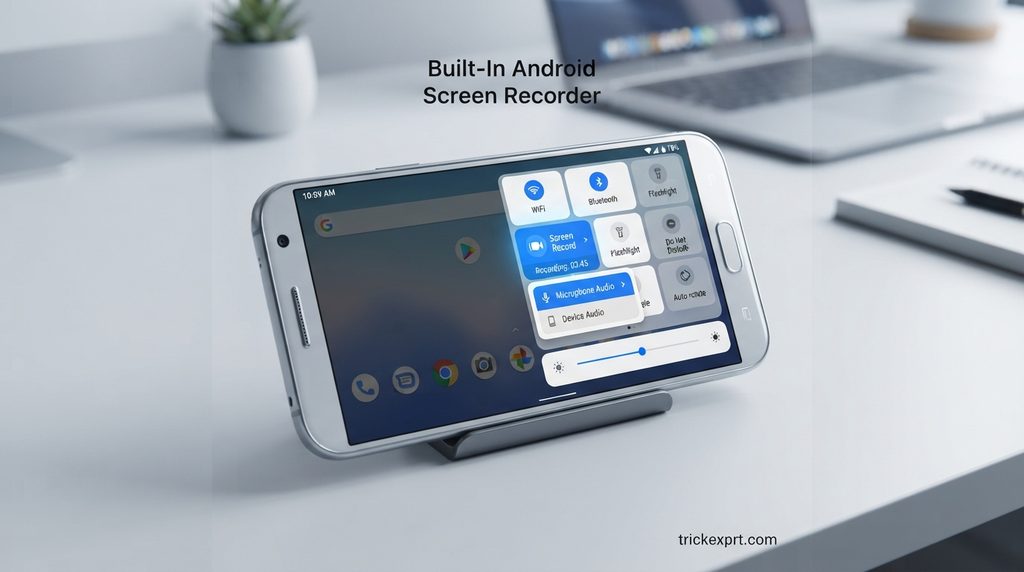
If you do not want to install another application, your phone’s built-in screen recorder may be the easiest option.
Many modern Android devices include screen recording in Quick Settings. Depending on the manufacturer and Android version, you may be able to select audio sources, display screen touches, and adjust other recording options.
One major advantage is convenience: you can usually begin recording without downloading a separate screen recording app.
Key Features of the Built-In Screen Recorder
- Integrated into supported Android phones.
- Quick access through Quick Settings.
- Microphone or internal audio options on supported devices.
- Recorded videos saved to the phone’s media storage.
- No separate screen recorder installation required.
Pros and Cons of the Built-In Screen Recorder
Pros
- Usually available without additional cost.
- Convenient and easy to access.
- No third-party recorder installation needed.
- Often well integrated with the phone’s operating system.
Cons
- Advanced editing features may be unavailable.
- Facecam support varies by manufacturer.
- Audio options differ between devices.
- Protected apps may block screen recording.
How to Record Your Android Screen Without Installing an App
- Swipe down from the top of your screen twice.
- Look for Screen Record or Screen Recorder in Quick Settings.
- If it is not visible, open the tile editor and check whether you can add it.
- Select the available audio or screen-touch options.
- Tap the Start button and wait for the countdown.
- Stop recording using the notification or recording controls.
- Open your Gallery or Photos app to find the saved video.
Best for: Everyday screen recordings, quick tutorials, and users who prefer built-in features.
Best Screen Recording Apps for Android: Comparison Table
The following table summarizes the main use cases for each screen recording option.
| Screen recorder | Best for | Main advantage | Cost |
|---|---|---|---|
| XRecorder | Beginners | Simple controls and editing | Free version available; check current terms |
| AZ Screen Recorder | Tutorials | Additional recording settings | Free and paid features may vary |
| Mobizen | Gameplay | Facecam and gaming recordings | Free and paid features may vary |
| ADV Screen Recorder | Demonstrations | Annotation features where supported | Check current listing |
| Built-in Android recorder | Everyday recording | No separate app required | Usually included with the device |
Note: Pricing, advertisements, features, and app availability may change. Check each app’s official listing before installing it.
How to Choose the Best Screen Recording App for Android
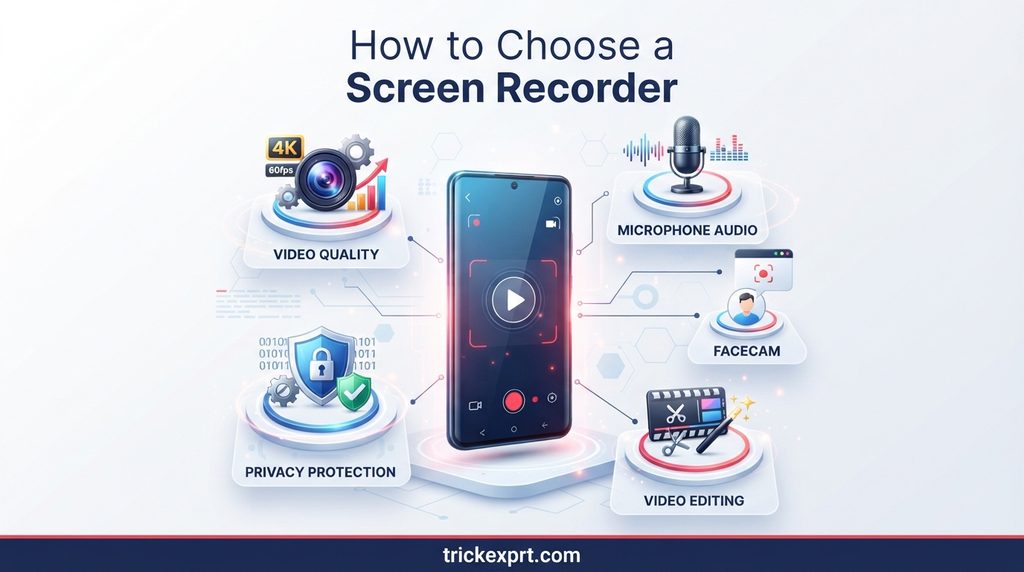
Choosing the best screen recording app depends on what you want to record and how you plan to use the video.
1. Check Video Resolution and Frame Rate
Video resolution determines how much visual detail your recording captures, while frame rate affects motion smoothness.
If you record mobile gameplay, higher frame rates may produce smoother footage when supported by your phone. For basic tutorials, a moderate recording quality may be sufficient.
Remember that higher resolutions and frame rates can increase file size, battery consumption, and device temperature.
2. Look for Internal Audio and Microphone Recording
Audio support is important if you create tutorials, commentary videos, or gameplay recordings.
Before choosing an app, check whether it supports:
- Microphone audio for voice commentary.
- Internal device audio for supported apps.
- Combined microphone and internal audio, where available.
Android restrictions and individual app policies can prevent some audio from being captured.
3. Consider Facecam Support
Facecam recording allows you to display your face while recording the phone screen. This can be useful for gaming commentary, reaction videos, and educational content.
If you need this feature, confirm that the screen recorder supports a camera overlay on your device.
4. Check Editing Features
Some screen recorders include basic editing tools that let you trim unwanted footage or prepare a video for sharing.
If you need advanced effects, transitions, captions, or detailed audio editing, you may prefer to edit the recording in a separate video editing application.
5. Check Watermarks and Pricing
Some screen recording apps may add watermarks or restrict certain features in their free versions.
Before recording an important video, make a short test recording and check the final output. Review the current pricing and terms if you need watermark-free exports.
6. Review Permissions and Privacy
Only install apps from trusted sources and review the permissions they request.
Avoid recording passwords, payment details, private conversations, or other sensitive information. Respect copyright, privacy, and the permissions of anyone whose content you record.
Are Screen Recording Apps Safe to Use?
Screen recording apps can be useful, but it is important to choose them carefully.
Before installing an app, check the developer’s identity, recent reviews, privacy policy, and requested permissions. Download from Google Play or another trusted source rather than unfamiliar websites offering modified APK files.
You should also be aware that some apps restrict recording of protected content. Trying to bypass those protections may violate the relevant service’s rules.
For everyday use, your phone’s built-in screen recorder is a good starting point if it provides the features you need.
Frequently Asked Questions About Android Screen Recording Apps
1. What is the best screen recording app for Android in 2026?
XRecorder and AZ Screen Recorder are worth considering for third-party recording features. The best choice depends on your phone, audio requirements, preferred recording quality, and editing needs.
2. Which screen recorder is free for Android?
Many Android phones include a built-in screen recorder at no additional cost. Several third-party apps also offer free versions, although advertisements or premium features may apply.
3. How can I record my Android screen with internal audio?
Open your screen recorder’s settings and look for an internal audio or device audio option. Availability depends on your Android version, device manufacturer, and the app you want to record.
4. Which Android screen recorder is best for gaming?
XRecorder and Mobizen are options to explore for mobile gameplay. Test recording performance on your device before recording longer gaming sessions.
5. How can I record my screen without a watermark?
Check whether your phone’s built-in screen recorder meets your needs, as it generally does not add a third-party app watermark. For external apps, verify their current export settings and free-version restrictions.
6. Can I record my Android screen and my face simultaneously?
Yes, some screen recording apps support a facecam overlay. You may need to grant camera permission and use a compatible device.
7. Why is my Android screen recording black?
Some protected applications prevent screen capture, which can result in a black recording. Other possible causes include compatibility issues, app restrictions, or recording errors. Test another non-protected screen and restart the recorder to narrow down the problem.
8. Do screen recording apps reduce battery life?
Yes. Screen recording can increase processor usage, battery consumption, and device temperature. Lowering the resolution and frame rate may help reduce the load.
9. Where are Android screen recordings saved?
Recordings are commonly saved in the phone’s Movies, Screen recordings, or similar media folder. You can usually find them in the Gallery or Photos app.
10. Can I record phone calls using a screen recorder?
A screen recorder is not a reliable general-purpose phone call recorder. Android versions, device manufacturers, privacy requirements, and local laws can restrict call recording. Check your device’s supported features and obtain any required consent.
Conclusion
Choosing the best screen recording apps for Android in 2026 depends on your recording needs and smartphone capabilities.
XRecorder is worth considering for everyday use, AZ Screen Recorder offers useful options for tutorials, Mobizen may suit gameplay creators, and ADV Screen Recorder can be useful for demonstrations. If you only need basic screen capture, your Android phone’s built-in recorder may be all you need.
Before installing an application, compare its current features, compatibility, pricing, and privacy permissions. A quick test recording can help you confirm that video quality and audio work as expected.
We hope this guide helps you find the right screen recorder for your Android device.
For more Android apps, mobile tips, and technology guides, keep visiting TrickExprt.com.