 TrickExprt Android Apps, Games, Software & Tech Guides

Easypaisa problems can appear in different ways. The app may not open, a correct PIN may fail, an OTP may not arrive, fingerprint verification may stop working or a transfer may remain pending. These symptoms do not always have the same cause, so use the right check for the error you see.
This guide covers practical troubleshooting for Android and iPhone users in Pakistan. It also explains what to do if your balance decreases but the recipient does not receive the payment. For account-specific issues, use Easypaisa’s official support channels rather than an unofficial social-media helper.
Quick diagnosis: what is not working?
| Problem | First check |
|---|---|
| App does not open | Internet, app update and phone restart |
| Correct PIN is rejected | Registered number, app version and official recovery route |
| OTP is delayed | SIM signal and normal SMS reception |
| Fingerprint does not work | Phone biometric unlock and alternate official verification |
| Payment is pending | Transaction history and reference number |
| Money is deducted but not received | Do not retry; contact official support with transaction details |
10 ways to troubleshoot Easypaisa app problems
1. Test your internet connection
Switch from Wi-Fi to mobile data or the other way around. Open another reliable website to confirm that your connection works. If the network is unstable, reconnect and then open Easypaisa again.
2. Check for a temporary service disruption
Sometimes a problem affects the service rather than one customer’s phone. Check official Easypaisa announcements and try again after a short wait. News reports or user comments may indicate that others are experiencing trouble, but they do not prove that every account is affected.
3. Update Easypaisa from the official app store
Open the official Easypaisa app on Google Play or the Easypaisa app on Apple App Store and check for an update. Both store listings identify Easypaisa Bank Limited as the developer. Do not download a modified APK from a third-party website or install an app sent by a stranger who promises to fix your wallet.
4. Restart your phone
Close the app completely and restart your phone. This can resolve temporary memory or background-process problems. Set the device date and time to automatic if they are incorrect. If other Android apps also close unexpectedly, see our Android app-crash troubleshooting guide. If your phone is low on space, follow our guide to freeing up Android storage safely.
5. Confirm your registered SIM is active
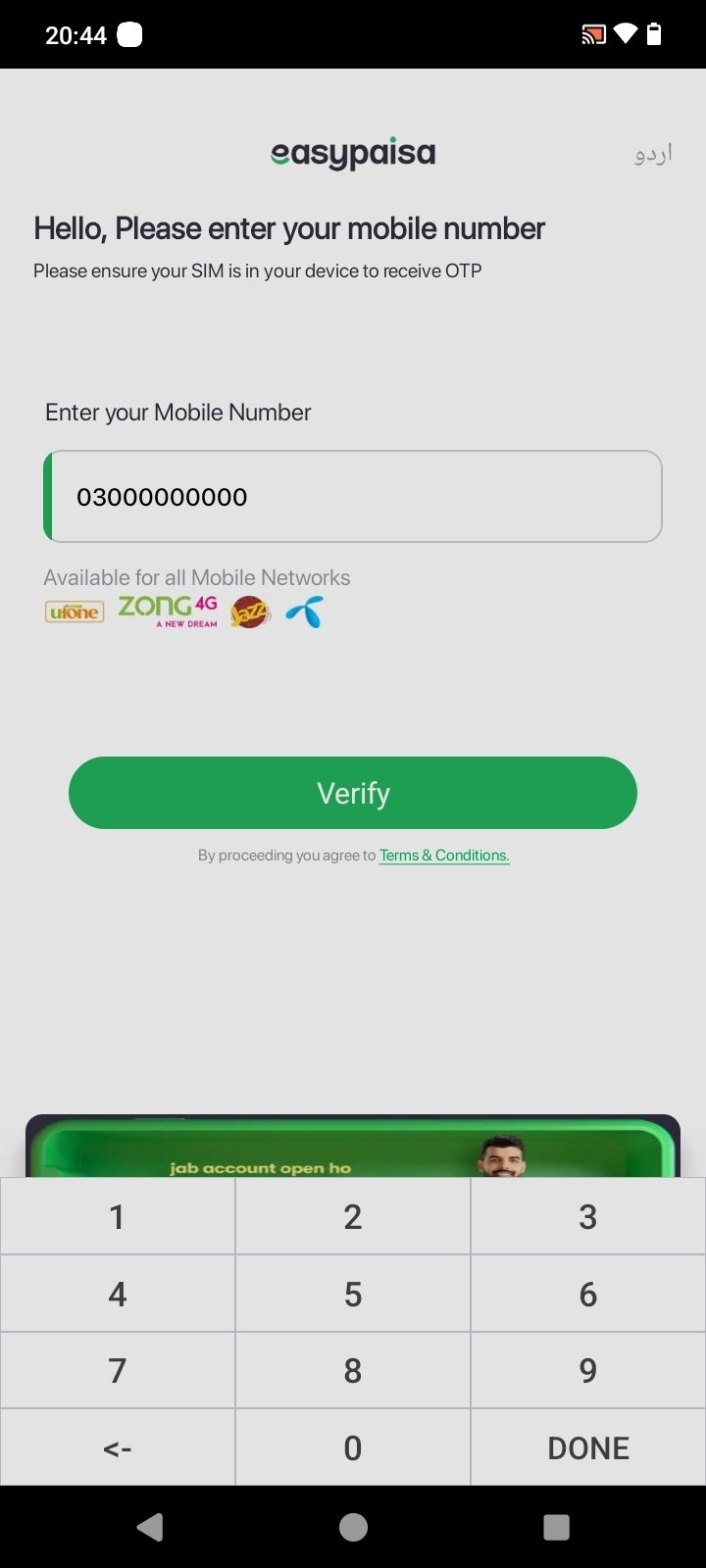
Make sure the mobile number linked to your Easypaisa account is active and can receive ordinary SMS messages. If you use two SIMs, check that the registered SIM is enabled and has network coverage. The OTP is sent to the number registered with your account, so mobile data on the other SIM will not redirect it. If you recently changed your phone or SIM, follow the account verification process shown by Easypaisa. If an app update is stuck in Google Play, see our Google Play Store Download Pending guide.
6. Check SMS and notification access
If OTP verification is not working, confirm that your phone can receive SMS and that message storage is not full. Check blocked-message folders and network coverage. Do not forward an OTP to anyone or read it aloud to an unsolicited caller.
7. Troubleshoot biometric or fingerprint errors
First confirm that fingerprint or face unlock works on the phone itself. Clean the sensor, try again and check whether the phone recently changed its biometric settings. If Easypaisa offers another official verification method on-screen, follow that method. Never share your PIN with someone offering to bypass biometric verification.
8. Clear the app cache on Android
On Android, open Settings > Apps > Easypaisa > Storage and clear the cache if the option is available. Menu names vary by phone. Avoid clearing app data unless you understand the re-login process and can access the registered mobile number.
9. Check the transaction before retrying
If the app shows an error while sending money, do not immediately repeat the payment. Open transaction history when possible and check whether the payment is successful, pending, reversed or failed. Ask the recipient to check their account history as well. Save the transaction reference and screenshots.
10. Reinstall only if other steps fail
If the app still crashes after an update and restart, reinstall it from the official app store. Make sure your registered number is active and you can complete the official login process before removing the app. Reinstalling does not resolve a server-side outage or reverse a transaction.
Easypaisa-specific checks: USSD, security and CNIC verification
Use Easypaisa USSD if the app or internet is unavailable
Easypaisa also provides a USSD menu that can be accessed without mobile data. Dial *786# from a Telenor SIM, or *2262# from a Jazz, Zong or Ufone SIM. Follow the options shown on your phone for supported services such as balance enquiry or money transfer. Menu options and charges can change, so read the on-screen prompts and confirm the recipient and amount before approving a transaction. This is an alternative way to access supported account services; it does not guarantee that a transaction will work during an Easypaisa system outage. See the official Easypaisa FAQs and Easypaisa mobile-wallet terms for account and service conditions.
Check device-security warnings carefully
Do not assume that Developer Options, USB debugging, a VPN or an overlay app is automatically the cause of every Easypaisa crash. If the app itself displays a device-security or debugging warning, turn off USB debugging temporarily, close screen-recording, remote-control or floating-overlay apps, disconnect the VPN for a test, and restart the phone. Then reopen the official app. Do not root your phone, install a modified Easypaisa APK or try to bypass a security check. If the warning remains, contact Easypaisa through its verified support channel.
Check CNIC expiry and biometric verification
A login, account upgrade or transfer restriction may be related to identity verification rather than an app fault. Check whether the CNIC linked to the account is still valid and whether Easypaisa is asking you to complete or update biometric verification. Follow only the steps shown inside the official app or given by verified support. Easypaisa’s terms require valid identity information for account services, and its app listing describes in-app biometric verification. Never send CNIC images, fingerprints, OTPs or your PIN to an unknown WhatsApp number or social-media account.
For a visual overview of the app’s biometric verification flow, see the published Easypaisa biometric-verification guide. The exact screens and requirements may have changed since it was published.
Easypaisa money deducted but recipient did not receive it
Do not send the same amount again until you know what happened to the first transaction. A payment screen can fail even when a transaction is still processing. Follow this sequence:
- Open the app’s transaction history and locate the payment.
- Note the date, time, amount, recipient and transaction reference.
- Ask the recipient to check their account statement or transaction history.
- Take screenshots of the status and error message.
- Contact Easypaisa through its official helpline or complaint channel.
- Keep the complaint reference and follow up until the provider confirms the outcome.
Never share your PIN, OTP or password in a public post or with an unknown person claiming they can reverse a payment.
How to contact Easypaisa support in Pakistan
Easypaisa’s published complaint information and the State Bank of Pakistan’s regulated-institutions directory list these contact routes:
- 3737 — for Telenor users.
- 021-111-003-737, 042-111-003-737 or 051-111-003-737 — other-network contact numbers listed in official complaint information.
- complaints@easypaisa.com.pk — complaints email.
For the latest contact details, use the official Easypaisa website or its official complaint lodgment form. You can also check the State Bank of Pakistan directory and Easypaisa’s complaint guidelines PDF.
What information should you keep for a complaint?
- Registered mobile number (share only through the verified support channel).
- Transaction date and approximate time.
- Amount and transaction reference number.
- Recipient details needed to identify the payment.
- Screenshot of the error or transaction status.
- Any earlier complaint or ticket number.
Do not include your PIN, OTP or password in a complaint message. A legitimate support process should not require you to disclose these security credentials.
How to tell a phone issue from an Easypaisa service issue
If you use JazzCash as well, see our JazzCash app troubleshooting guide for safe steps covering OTP, login and payment errors.
If other apps also fail to connect, your internet or phone may be the cause. If only Easypaisa fails on one device, check the app update, permissions and registered SIM. If several users report the same error at the same time, a temporary service disruption is possible; wait for an official update rather than repeatedly attempting payments.
Frequently asked questions
Why is Easypaisa not opening?
Check your internet connection, update the official app, restart your phone and confirm that your device has enough free storage. A temporary service issue can also prevent access.
Why does Easypaisa reject my correct PIN?
Check that you are using the registered mobile number and the official app. If the error continues, stop repeated attempts and use the official account recovery or support route.
Why am I not receiving an Easypaisa OTP?
Check your SIM signal, SMS reception and blocked-message folder. If the registered number cannot receive SMS, contact your mobile operator or Easypaisa through a verified support channel.
What if Easypaisa deducts money but the transfer is not received?
Do not retry immediately. Check transaction history, record the reference number and contact Easypaisa support to trace the payment.
What is the Easypaisa helpline?
Published complaint information lists 3737 for Telenor users and UAN numbers for other networks. Confirm the latest details on Easypaisa’s official website.
Final advice
Match the error to the relevant check above and use verified Easypaisa support if the issue remains unresolved.
Editorial note: App features and support contacts may change. This guide offers general troubleshooting and cannot inspect or change an individual Easypaisa account.