 Trick Exprt TrickExprt – Tech Tips,Software Guides
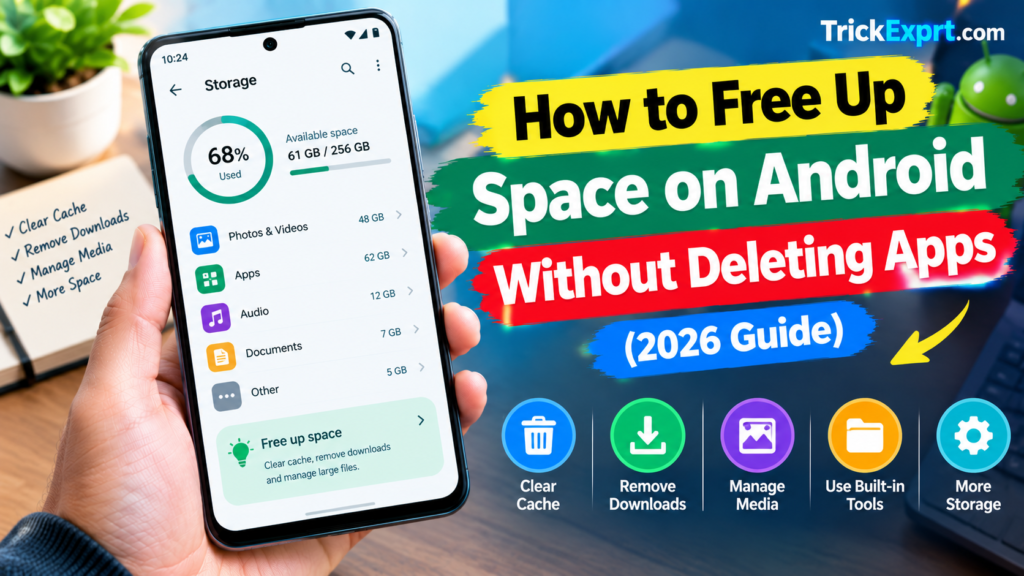
Is your Android phone running out of storage, but you do not want to uninstall your favourite apps? Photos, videos, downloads, offline media, and temporary files can gradually consume your available space.
Fortunately, there are several ways to free up storage without deleting installed apps.
This guide explains how to identify large files, manage downloads, clear temporary cache files, and back up personal media safely.
Why Does Android Storage Fill Up?
Phone storage may become full because of:
- Photos and videos recorded with your camera.
- WhatsApp images, videos, and documents.
- Downloaded music, movies, and podcasts.
- Large files in the Downloads folder.
- Temporary app cache files.
- Offline maps and other saved content.
The exact storage categories vary by Android device.
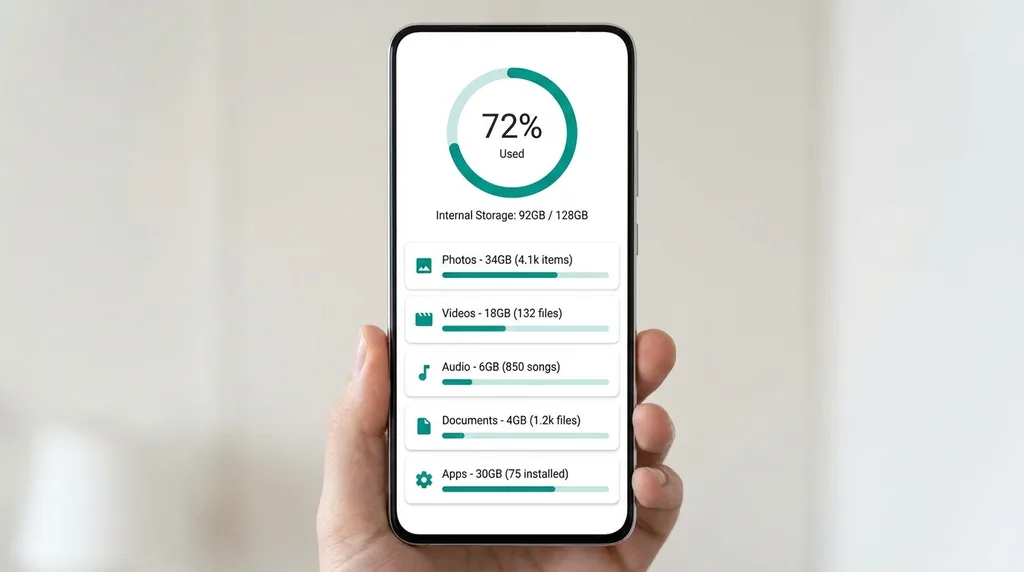
1. Check What Is Using Your Storage
Before deleting anything, identify the largest storage categories.
- Open Settings.
- Select Storage.
- Review the available storage breakdown.
- Check categories such as images, videos, audio, documents, and apps.
- Decide which files you can safely remove or move elsewhere.
Some phones include a built-in cleanup or storage management tool.
2. Remove Unnecessary Downloads
Downloaded files can remain on your phone long after you have finished using them.
- Open your Files or file manager app.
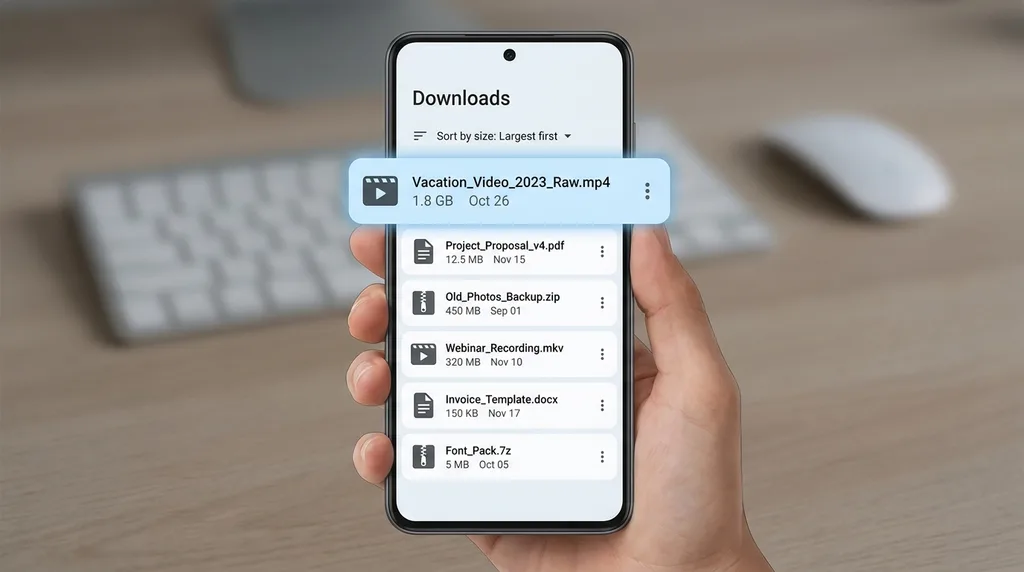
- Open the Downloads folder.
- Sort files by size if that option is available.
- Review large documents, installers, videos, and duplicate files.
- Delete only the files you recognise and no longer need.
Be careful with unknown files. Do not delete system files or documents you may need later.
3. Back Up Photos and Videos Before Removing Them
Videos and high-resolution photos can occupy a significant amount of storage.
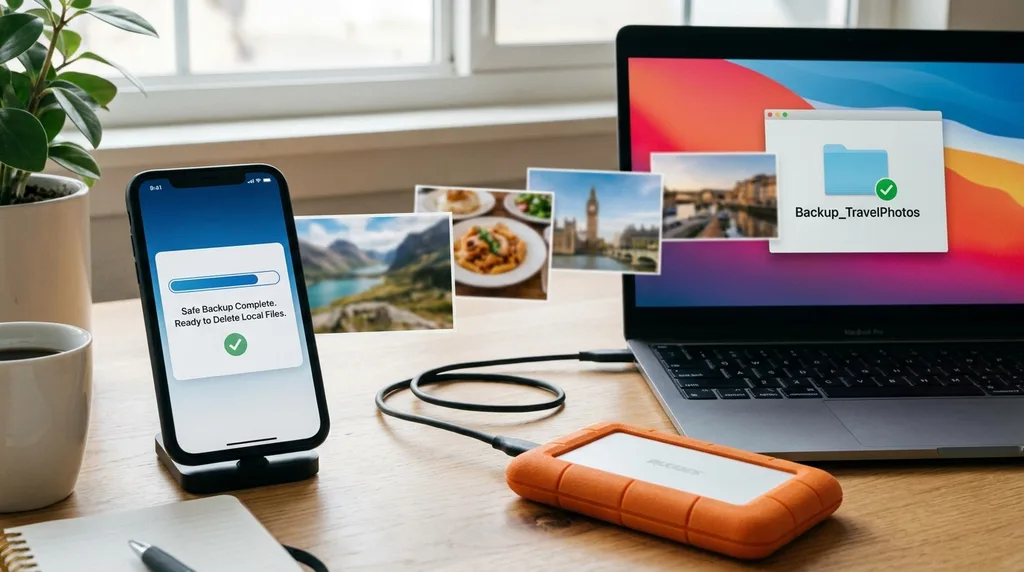
You can transfer them to a computer, an external drive, or a trusted cloud storage service.
Before deleting local copies:
- Complete the backup or transfer.
- Open the destination and confirm that your files are present.
- Check that important photos and videos can be opened.
- Only then remove the local copies you no longer need.
Some photo applications offer a Free up space feature. Read the confirmation carefully so you understand which local files will be removed.
4. Clear App Cache Safely
Apps may store temporary images, website data, and other cached files.
To clear cache on many Android devices:
- Open Settings.
- Select Apps.
- Choose an app that uses a lot of storage.
- Open Storage or Storage & cache.
- Tap Clear cache.
Repeat for other suitable apps if needed.
Clearing cache may free some space, but the amount varies. Cached files can be created again when you use an app.
Avoid selecting Clear storage or Clear data unless you understand that it may remove settings, downloads, or locally saved information.
5. Delete Offline Downloads You No Longer Need
Streaming, navigation, and music apps may store content for offline use.
Open the relevant app and review its downloaded content.
Examples include:
- Downloaded music and podcasts.
- Offline movies and episodes.
- Saved maps.
- Documents stored for offline access.
Remove items you can download again later. If you travel frequently or need offline access, keep the files that are important to you.
6. Review WhatsApp Media
Messaging apps can accumulate many images, videos, voice notes, and documents.
If your WhatsApp version provides storage management:
- Open WhatsApp.
- Go to Settings.
- Select Storage and data.
- Open Manage storage.
- Review large files and forwarded media.
- Delete only items you no longer need.
Review files carefully before deleting them. If an important image or document is not backed up elsewhere, save a copy first.
7. Use Your Phone’s Built-In Cleanup Tools
Some Android phones include storage suggestions, duplicate-file detection, or temporary-file cleanup.
Open the built-in Files app or the phone manufacturer’s storage settings and review the available recommendations.
Always check what will be deleted before confirming. Do not install unfamiliar cleaner apps that request unnecessary permissions or promise unrealistic performance improvements.
8. Restart and Check Storage Again
After completing your cleanup:
- Restart your phone if appropriate.
- Open Settings.
- Select Storage.
- Review the available space again.
- Check whether your phone can now download updates or files normally.
You may need to repeat a few steps if new media or downloads are added frequently.
Frequently Asked Questions
Can I free up Android storage without deleting apps?
Yes. You can review downloads, clear suitable app caches, remove unneeded offline content, manage messaging media, and transfer backed-up photos or videos.
Does clearing cache delete personal photos?
Clearing an individual app’s cache normally removes temporary files, not your camera gallery. However, deleting app data or files through a file manager is different and can remove important information.
Why is my Android storage still full after deleting files?
Check whether files remain in a trash or recently deleted folder. Also review offline downloads, messaging media, and large videos. Some storage views may take time to refresh.
Is it safe to use Android cleaner apps?
Built-in storage tools are a good starting point. Be cautious with unfamiliar cleaner apps, especially those requesting broad access to personal files or claiming to boost performance dramatically.
Conclusion
You do not always need to uninstall apps to free up Android storage. Start by checking which files occupy the most space, review unnecessary downloads, manage offline media, and clear suitable app caches.
Back up important files before deleting them, and confirm that the backup works. For more practical Android guides, visit TrickExprt.com.