 Trick Exprt TrickExprt – Tech Tips,Software Guides
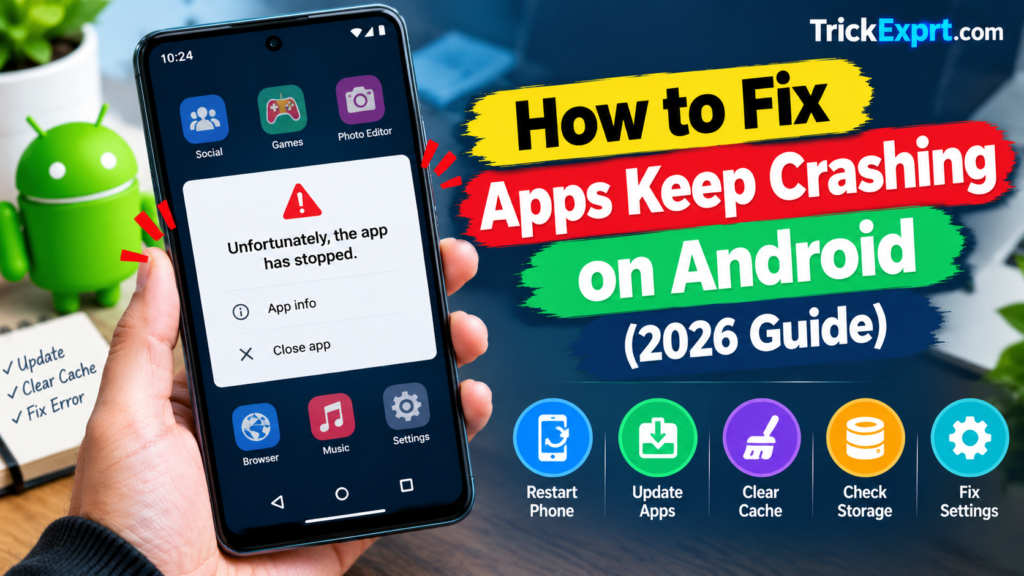
Are your Android apps closing unexpectedly, freezing during use, or showing an error such as “App keeps stopping”? This can happen with social media apps, games, browsers, and other applications.
The problem may be related to outdated software, temporary app files, low storage, or a bug in the app itself.
In this guide, you will learn how to troubleshoot apps that keep crashing on Android without immediately resetting your phone.
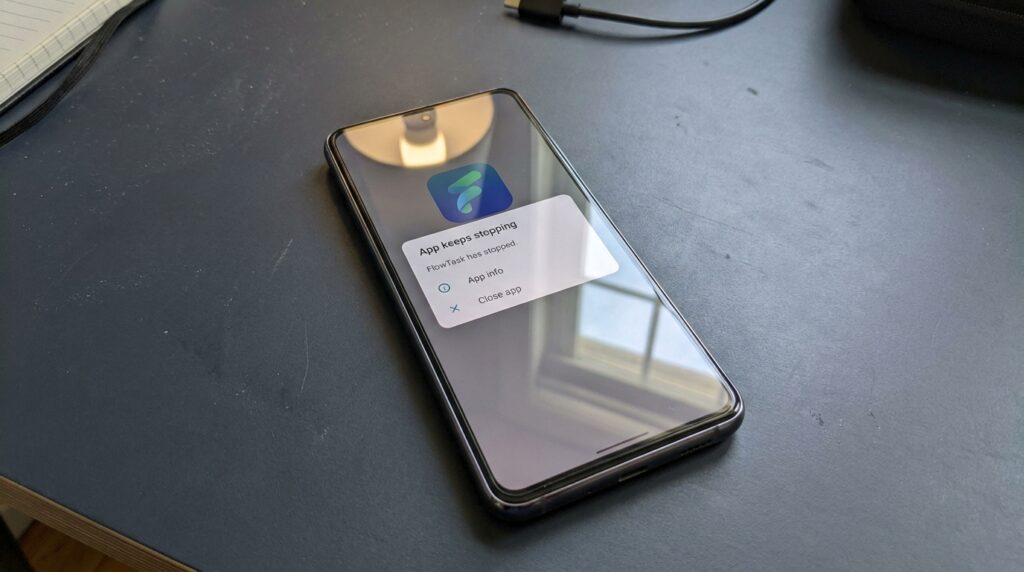
Why Do Android Apps Keep Crashing?
Common causes include:
- An outdated app version.
- Temporary cache problems.
- Insufficient available storage.
- Compatibility issues with your Android version.
- A bug in the app or a recent update.
- Network problems affecting apps that require internet access.
The following solutions start with simple steps and progress to more advanced troubleshooting.
1. Restart Your Android Phone
Restarting is a simple first step when an app repeatedly closes.
- Save any open work.
- Restart your Android phone.
- Wait for the phone to start completely.
- Open the affected app again.
- Check whether the problem continues.
If only one app crashes, move on to the next step.
2. Update the App
An outdated app may contain bugs that have already been fixed in a newer release.
- Open Google Play Store.
- Search for the affected app.
- Open its store listing.
- Tap Update if an update is available.
- Launch the app again after updating.
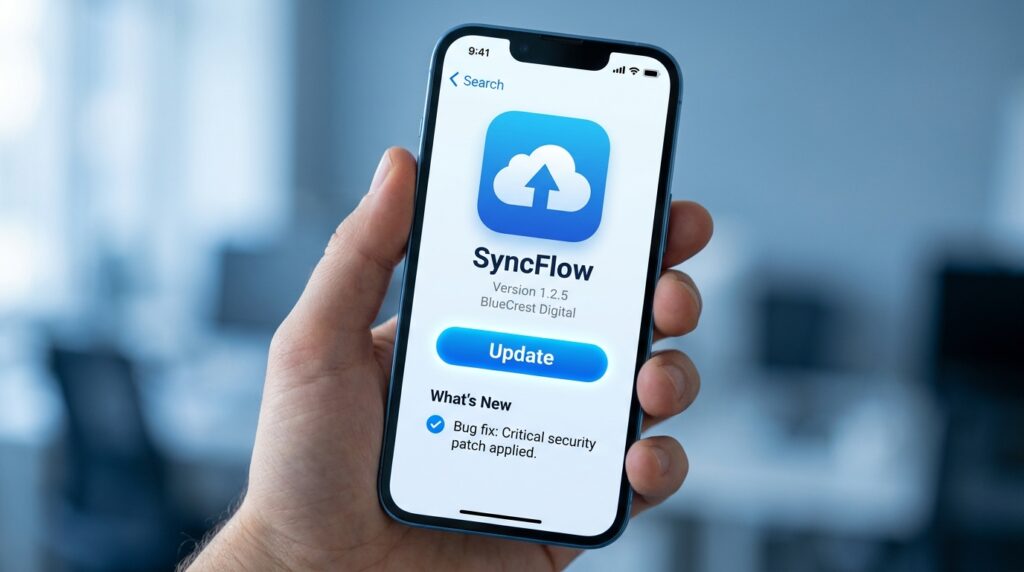
If the crashing began immediately after an update, check the developer’s support information for known issues.
3. Force Stop the App
Force stopping an app can help when its current process becomes unresponsive.
- Open Settings.
- Select Apps.
- Find the affected application.
- Tap Force stop.
- Confirm if prompted.
- Open the app again.
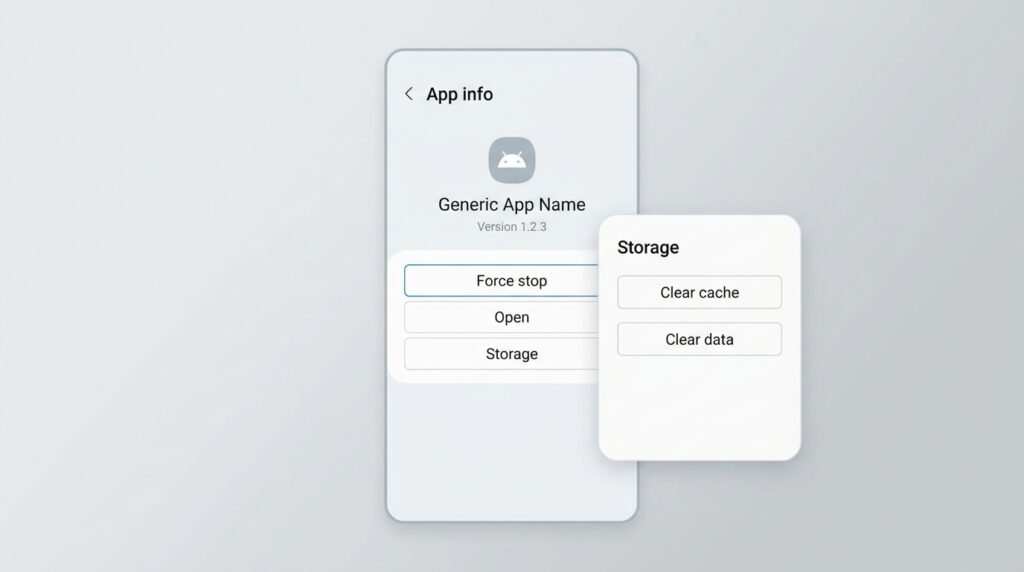
Menu names may vary between Android devices.
4. Clear the App Cache
Apps store temporary files to help content load faster. Sometimes those files can become problematic.
To clear an app’s cache:
- Open Settings.
- Select Apps.
- Choose the affected app.
- Open Storage or Storage & cache.
- Tap Clear cache.
- Restart the app and test it.
Avoid tapping Clear storage or Clear data unless you understand the consequences. These options may remove locally saved information or reset the app.
5. Check Your Phone’s Storage
Low storage can interfere with app operation and updates.
- Open Settings.
- Select Storage.
- Review available space.
- Remove unnecessary downloads or offline media.
- Restart the app.
Back up important files before deleting them.
6. Check Your Internet Connection
If the app crashes or freezes while loading online content, test your connection.
- Open a website in your browser.
- Try a different reliable network if available.
- Check whether the problem affects other online apps.
- Install any available app updates.
An internet issue may cause loading failures even when the app itself is working correctly.
7. Reinstall the App if Necessary
If the previous methods fail, reinstalling may help resolve a damaged installation.
Before proceeding, make sure your important data is synced or backed up.
- Confirm that you know your login details.
- Check whether your app data is backed up.
- Uninstall the affected app.
- Install it again from Google Play, if available.
- Sign in and test the app.
Reinstalling may remove local data, so use this step carefully.
8. Check Android Compatibility
Some apps require a particular Android version or device capability.
Open the app’s official store listing or support page and review its requirements. If the problem began after a system update, check for known compatibility issues or contact the developer.
Do not factory-reset your phone for a single crashing app unless there is a separate, well-understood reason to consider that step.
Frequently Asked Questions
Why do apps keep stopping on my Android phone?
Possible causes include software bugs, outdated apps, temporary cache issues, low storage, or compatibility problems.
Will clearing an app’s cache delete my account?
Clearing cache normally removes temporary files rather than account information. However, app behaviour can vary, so avoid clearing app data unless necessary.
Why does only one app keep crashing?
The problem may be specific to that app, its current version, or its compatibility with your device. Update the app and consult its developer if the issue continues.
Should I factory-reset my phone to fix crashing apps?
A factory reset is usually unnecessary for a single crashing app. Try simpler troubleshooting methods first and back up your data before considering any reset.
Conclusion
Apps that keep crashing on Android can often be troubleshot by restarting your phone, updating the app, clearing its cache, and checking storage and compatibility.
Test each method separately. If one particular app continues to crash, report the problem to its developer with your device model and app version.
Explore more Android troubleshooting tutorials on TrickExprt.com.