 TrickExprt Android Apps, Games, Software & Tech Guides
Last updated: 22 November 2026
Quick answer: Android 17 QPR2 is the stable November 2026 update for Pixel phones, released on 10 November 2026 with the November 2026 Pixel Feature Drop, the November security patch, and 30+ Pixel fixes. The headline changes in Android 17 QPR2 are a system accent colour slider with four theme styles, a new status bar settings page, two new Quick Settings tiles for audio sharing, grouped notification tools, and a new Agents Dashboard — and it is available for the Pixel 6a through the Pixel 11 series, while the Pixel 6 and Pixel 6 Pro do not get it.
If you own a Pixel, this is the update to look for in Settings. It arrived about a month earlier than expected, which is why many Pixel owners were surprised to see it in November rather than December. It is not a whole new version of Android — it is a Quarterly Platform Release, the second quarterly update for Android 17 — but the list of visible changes is longer than most quarterly updates manage. This guide walks through all 12 headline features in Android 17 QPR2, the fixes that come with them, exactly which phones get the update, and how to check for it on your own Pixel.
What Android 17 QPR2 Actually Changes
First, a plain explanation of what this update is. This release is a Quarterly Platform Release — a larger-than-usual quarterly update that sits on top of Android 17. Google ships these QPR updates a few times a year, and they usually bring a mix of new features, design changes and bug fixes rather than a new Android version number. Android 17 QPR2 follows that pattern: the version stays Android 17, but the phone looks and behaves differently in several small, useful ways.
The stable release came out on 10 November 2026, about a month earlier than expected. It arrived together with the November 2026 Pixel Feature Drop, the November security patch, and 30+ Pixel fixes. For most Pixel devices, the build number is CP4A.261105.040.A1. The Pixel 11 series uses CP4A.261105.040.D1 in the US and CP4A.261105.040.B2 in Canada. That build number is worth checking if you want to confirm that your phone really has the update installed, rather than just a security patch with a similar date — Settings shows the build number, and CP4A.261105.040.A1 is the one to look for on most Pixel models.
One honest limit up front: the exact day the update reaches any single phone is not something that can be promised in this article. Google rolls updates out to Pixel phones over time, and the verified facts here are the release date, the build number and the feature list — not a per-device arrival date. If your phone has not received Android 17 QPR2 yet, that does not mean it is ineligible; check the eligibility table later in this guide first, then check for the update manually using the steps at the end.
Two things this article deliberately does not cover in detail. App Lock is already published on this site, so it is mentioned here by name only and not explained again. The QPR3 Beta 4 fixes are covered in a separate draft, so they are mentioned here by name only as well. Everything below is about Android 17 QPR2 itself.
The 12 Best New Features in Android 17 QPR2 at a Glance
Here is the full list before the detail. If you only have a minute, this table tells you what the update adds and where to find each change on your phone.
| # | New feature | Where to find it |
|---|---|---|
| 1 | System accent colour slider | Wallpaper & Style |
| 2 | Four theme styles: Neutral, Soft, Bright, Bold | Wallpaper & Style |
| 3 | Compatible wallpapers switch between light and dark with the system theme | Wallpaper & Style |
| 4 | Redesigned long-press home-screen menu | Home screen (long-press) |
| 5 | New status bar settings page | Settings |
| 6 | Audio Streams Quick Settings tile | Quick Settings |
| 7 | Voice Broadcast Quick Settings tile | Quick Settings |
| 8 | Notification Summaries | Notifications settings |
| 9 | Notification Organizer | Notifications settings |
| 10 | Notification Cooldown | Notifications settings |
| 11 | Agents Dashboard, plus Private Compute Core log inspection | Security & Privacy settings |
| 12 | Expanded HiLight notifications | Pixel 11 Pro series only |
The rest of this guide takes those 12 in order, with the extra changes — foldable and tablet window controls, simpler sideloading, and a new call-forwarding confirmation — covered in their own section afterwards, because they are real changes in Android 17 QPR2 too, even though they are not counted in the headline 12.
1. Android 17 QPR2 Adds a System Accent Colour Slider
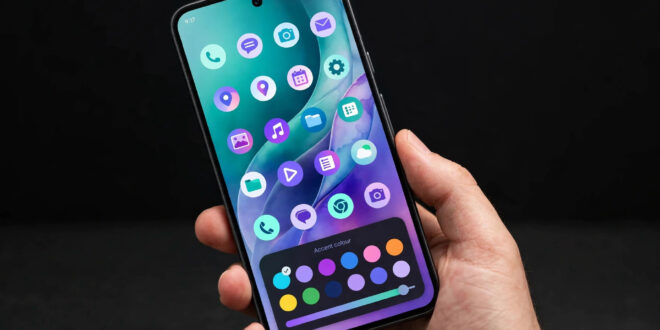
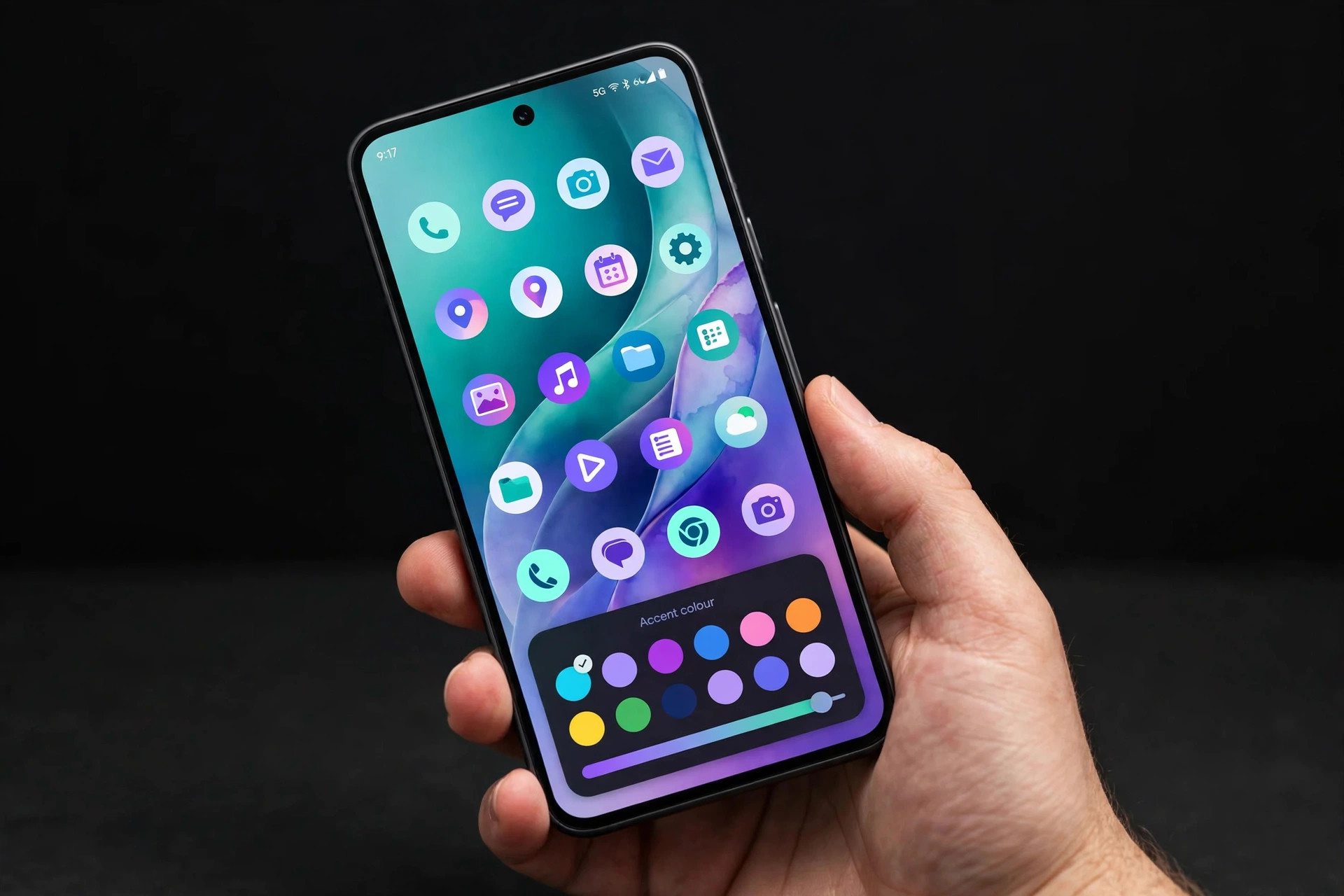
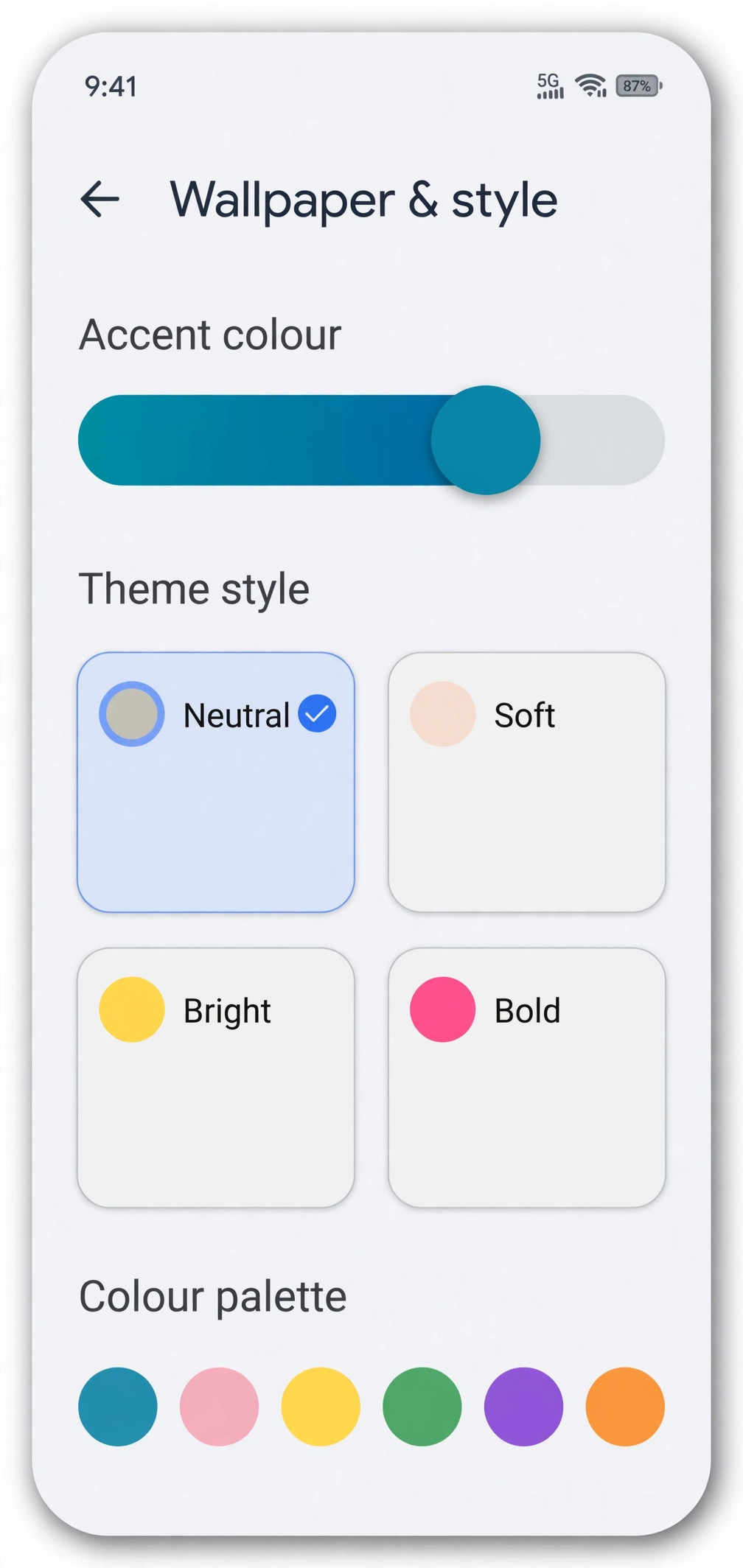
The most visible change in Android 17 QPR2 is also the simplest to explain: you can now pick your phone’s accent colour with a slider. Android has offered colour themes based on your wallpaper for years, but the choice was always a set of preset palettes. Android 17 QPR2 adds a system accent colour slider, so you can slide through colours and settle on the exact shade you want, rather than choosing the closest preset.
That matters more than it sounds. The accent colour here is not just a decoration on one screen — it colours buttons, toggles, sliders and highlights across the system, so a small change to the slider changes the feel of the whole phone. If you like a calm, muted phone, you can slide towards a softer shade. If you want the interface to stand out, you can push it towards something brighter. The slider makes that a one-minute experiment instead of a hunt through preset palettes.
To try it, open Wallpaper & Style from the home screen or from Settings. The accent colour slider is there, and the change applies across the system as soon as you move it. There is no restart and no separate apply step to worry about — move the slider, look at the screen, and keep the colour you like.
2. Four Theme Styles in Android 17 QPR2: Neutral, Soft, Bright, Bold
Alongside the slider, Android 17 QPR2 adds four theme styles: Neutral, Soft, Bright and Bold. These sit in the same Wallpaper & Style area, and they change how strongly the accent colour is applied across the interface.
Think of them as four moods for the same colour. Neutral keeps things restrained, with muted tones that stay out of the way. Soft lightens the look. Bright turns the colour up so the interface feels more vivid. Bold goes furthest, with strong, saturated colour across the system. The same accent colour can look quite different under each style, so it is worth trying your favourite colour under two or three styles before deciding.
This is the kind of change that is easy to dismiss as cosmetic — and in one sense it is cosmetic. But the theme is the thing you look at every time you unlock your phone, so a theme that suits you makes the phone feel like yours in a way a settings page never does. This is the first Android 17 update to give Pixel owners this much direct control over it.
3. Wallpapers That Switch Between Light and Dark
The third personalisation change in this update is quieter, but it solves a real annoyance. Compatible wallpapers now switch between light and dark with the system theme. In other words, when your phone switches to dark theme in the evening — or whenever you have it scheduled — a compatible wallpaper changes to its dark version automatically, and switches back when the phone returns to light theme.
Before this update, a wallpaper was a single image. If you picked a bright wallpaper, it stayed bright at night; if you picked a dark one, it stayed dark in daylight. The new behaviour means the wallpaper follows the same light-and-dark rhythm as the rest of the system, so the home screen and the apps match each other instead of fighting.
Two honest limits here. First, this only applies to compatible wallpapers — not every wallpaper has a light and a dark version, and a wallpaper without a dark version cannot switch. Second, the switch follows the system theme, so it only happens when the theme itself changes. If you keep your phone on light theme all day and all night, nothing will switch, because nothing has told it to. Both of those limits are worth knowing before you go looking for a wallpaper that does not switch.
4. The Redesigned Long-Press Home-Screen Menu
Android 17 QPR2 also redesigns the long-press home-screen menu — the menu that appears when you press and hold an empty part of the home screen, or press and hold an app icon. This is a menu most Pixel owners use regularly, usually to change the wallpaper, open home-screen settings, or reach an app’s shortcuts and widgets.
The redesign does not add a new feature to that menu; it changes how the menu looks and how its options are laid out. The verified fact is simply that the menu is redesigned in this update. The practical advice is the same as for any redesign: if the menu looks different after the update, that is the update working as intended, not a fault — spend a minute looking through it once, and the new layout becomes familiar quickly.
5. A New Status Bar Settings Page in Android 17 QPR2
The status bar — the thin strip at the top of the screen with the time, signal, battery and notification icons — gets its own settings page in Android 17 QPR2, under Settings > System. Before this update, control over what appeared there was scattered or unavailable. Now there is one place to decide what the status bar shows.
The new page offers three choices for notification icons: show all notification icons, show only priority ones, or show none at all. That is a genuine choice, not a minor tweak. Showing all icons is useful if you want to see at a glance which apps are waiting for you. Showing only priority ones keeps the bar quieter while still surfacing the important alerts. Showing none gives you the cleanest possible status bar, with nothing competing with the time and battery.
The same page also lets you hide individual icons, including the battery percentage, the mute icon and the vibrate icon. If you find the battery percentage distracting, you can hide it. If you switch your phone to silent or vibrate often and do not need a permanent reminder of that in the status bar, you can hide those icons too. Each of these is a small change on its own; together, they give you real control over the most-seen strip of pixels on your phone.
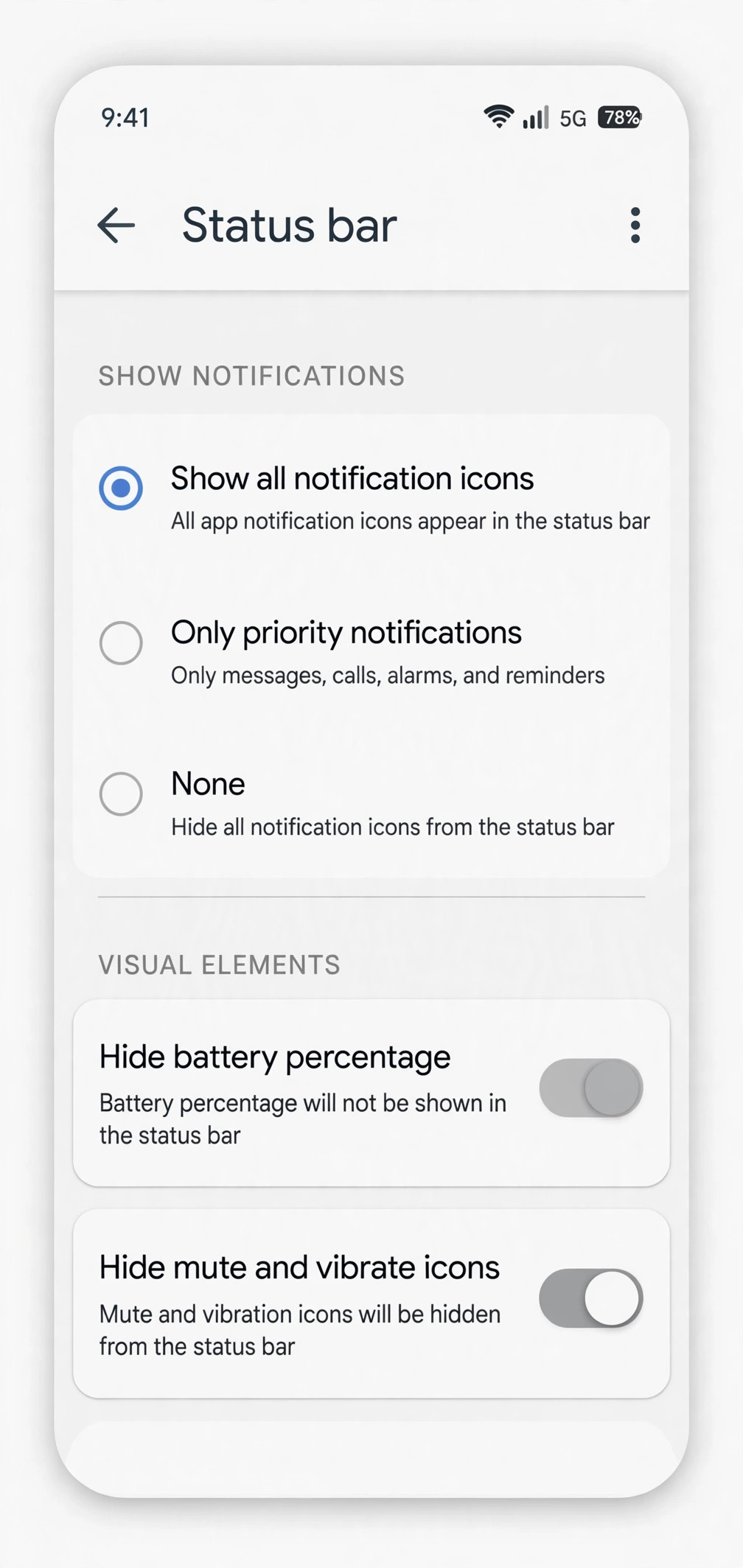
For readers in India, Pakistan and Dubai who use their phones heavily through the day, the priority-only option is the one worth trying first. It keeps the status bar readable without hiding the alerts that matter — messages, calls and reminders — while the apps that send frequent, low-value notifications stay out of the way.
6. Audio Streams: A New Quick Settings Tile in Android 17 QPR2
Android 17 QPR2 adds two new Quick Settings tiles, and the first is Audio Streams. Quick Settings tiles are the buttons you see when you swipe down from the top of the screen — Wi-Fi, Bluetooth, torch, and so on. Audio Streams joins them as a new tile in this update.
The verified fact is that the Audio Streams tile is new in this update. What the tile does, in practical terms, is give you a direct control for audio streaming from Quick Settings, instead of burying that control deeper in Settings. If you use your Pixel with Bluetooth headphones, earbuds or speakers, the tile puts the audio-stream control where you can reach it in one swipe.
7. Voice Broadcast: Share Your Mic Over Auracast
The second new Quick Settings tile is Voice Broadcast, and it is the more interesting of the two. Voice Broadcast streams your microphone over Auracast to nearby Bluetooth LE Audio devices, and broadcasts can optionally be password-protected.
Auracast is the Bluetooth feature that lets one audio source broadcast to many nearby listeners at once — the kind of thing that works in a hall, a classroom, a tour group or any place where several people need to hear the same voice. Voice Broadcast turns your Pixel’s microphone into that source. You speak, and nearby Bluetooth LE Audio devices that join the broadcast hear you.
The password option matters here. An open broadcast can be joined by anyone nearby with a compatible device; a password-protected broadcast can only be joined by people who have the password. If you are using Voice Broadcast in a public place, the password is the difference between a broadcast for your group and a broadcast for the whole room. Set one when the audience is meant to be limited.
One limit to keep in mind: Voice Broadcast needs nearby Bluetooth LE Audio devices to receive it. It is not a general speaker or a phone-call feature — it is an Auracast broadcast to compatible listening devices. If the people around you do not have Bluetooth LE Audio devices, there is nothing for them to listen on.
8, 9 and 10. Notification Tools, Grouped Together in Android 17 QPR2
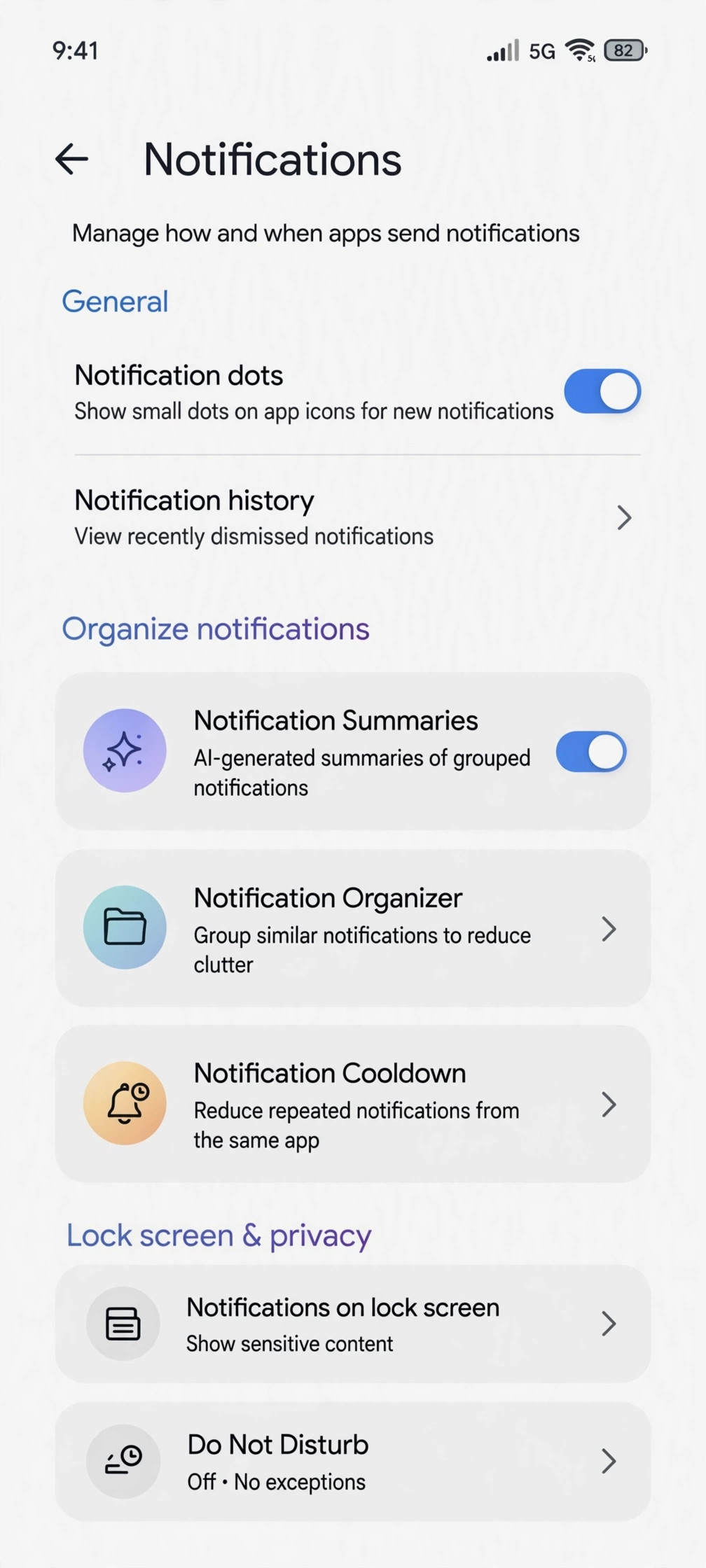
Notifications get one of the most useful reorganisations in Android 17 QPR2. Three notification tools — Notification Summaries, Notification Organizer and Notification Cooldown — are now grouped together in the notification settings, instead of being scattered across different screens.
Grouping sounds minor, but it changes how likely you are to actually use these tools. When notification controls are spread across several menus, most people never find them. When they sit together in one place, you can set up all three in a single visit to Settings.
Here is what each one does, in plain words:
- Notification Summaries summarises your notifications, so a pile of alerts from the same app or conversation becomes a shorter summary instead of a long list.
- Notification Organizer organises notifications, grouping similar ones together so the notification shade is easier to scan.
- Notification Cooldown calms repeated notifications from the same app, so an app that sends several alerts in a row does not buzz your phone every single time.
Together, they attack the same problem from three directions: too many notifications, badly organised notifications, and notifications that repeat too often. If your notification shade is the messiest part of your phone, this grouped section in this update is the first place to look after the update.
11. Agents Dashboard and Private Compute Core Logs
Android 17 QPR2 adds a new Agents Dashboard in Security & Privacy settings, and the ability to inspect Private Compute Core logs. This is the privacy and transparency change in the update, and it is aimed at a question that is only going to get more important: what are the AI agents on your phone doing?
The Agents Dashboard sits in Security & Privacy settings, which is the right place for it — it is a control panel for agents, not a feature buried inside a single app. The verified facts are that the dashboard is new in this update and that you can inspect Private Compute Core logs from it. Private Compute Core is the part of Android that handles on-device AI processing in a private, isolated space; the logs are the record of what it has done.
For most readers, the practical step is simple: after updating to Android 17 QPR2, open Settings, then Security & Privacy, and look at the Agents Dashboard once. You do not need to change anything on that first visit. Just knowing where the dashboard is — and that the logs can be inspected there — means you can check it whenever you want to see what an agent has been doing on your phone.
AI features are also where this site’s other guides connect most naturally. If you use Google’s AI app on your phone, see our guide on the Google Gemini AI app for Android — and if you are weighing the two big AI assistants against each other, our comparison of Gemini AI vs ChatGPT in 2026 lays out the differences. The Agents Dashboard is the system-level control that sits behind those apps, so it is worth knowing about even if you never open it twice.
12. Expanded HiLight Notifications on the Pixel 11 Pro Series
The twelfth headline feature is the most limited in reach, and it is worth saying so plainly. The Pixel 11 Pro series gets expanded HiLight notifications in this update. HiLight notifications are the prominent, highlighted notifications for important alerts — the ones that are meant to stand out from the ordinary flow of notifications.
Expanded HiLight notifications on the Pixel 11 Pro series means the notification light now also works with Google Messages: the light blinks twice when a favourite contact sends you a message, and you can control it in Settings > System > HiLight, with separate toggles for calls and messages. The key limit is the device: this one is for the Pixel 11 Pro series only. If you own a different Pixel, your notifications still benefit from the grouped tools in the previous section, but the expanded HiLight change does not apply to your phone.
More Changes in Android 17 QPR2: Foldables, Sideloading and Call Forwarding
Beyond the 12 headline features, Android 17 QPR2 includes three more changes that are worth knowing about, because each one affects a different kind of Pixel owner.
Foldables and tablets get a window handle. On foldables and tablets, there is now a window handle at the top of apps, which you can use to switch between full screen, split screen and floating windows. Multitasking on a large screen is the whole point of a foldable or a tablet, and a visible handle at the top of each app makes switching layouts a direct action instead of a gesture you have to remember. If you own a Pixel Fold or a Pixel Tablet, try the handle after the update — drag or tap it to move an app between full screen, split screen and a floating window, and see which layout suits the task you are doing.
Sideloading gets a simpler dialog. Android 17 QPR2 simplifies the dialog you see when installing an app from outside the Play Store. You can now grant install permission for one time only, or permanently, from a simpler dialog. The one-time option is the careful choice: it lets a single install through without leaving the permission open afterwards. The permanent option is for the app source you trust and install from regularly. Either way, the choice is clearer than before, and you make it once at the moment of install. That simpler choice does not make sideloading safe on its own — fake installers are still the most common way Android users in our region get malware, as our guide to the GTA 6 Android scam and fake APKs shows.
A confirmation prompt before call-forwarding codes run. Android 17 QPR2 adds a confirmation prompt before call-forwarding codes run. Call-forwarding codes are the special codes that change where your calls are forwarded to; if one runs without you meaning it to, your calls can end up going somewhere you did not intend. The new prompt asks you to confirm before the code runs, so an accidental tap or a misleading link cannot silently change your call forwarding. This is a small security change with a real benefit: it puts you back in control of a setting that should never change without your say-so.
Fixes in Android 17 QPR2: What the Update Repairs
New features get the headlines, but for many Pixel owners the fixes in Android 17 QPR2 are the more important part. The update ships with 30+ Pixel fixes, and the verified list below covers the ones confirmed for this release:
| Fix | What it means in practice |
|---|---|
| Occasional scrolling stutter | Scrolling should feel smoother, without the occasional judder |
| Keyboard sometimes not appearing in search fields | The keyboard should now appear reliably when you tap a search field |
| Media volume rising during voice commands | Volume should stay where you set it while you use voice commands |
| Charging indicator showing with no charger connected | The charging icon should no longer appear when nothing is plugged in |
| Photos occasionally not saving | Photos should save reliably after you take them |
| Background battery drain from sensors on Pixel 11 series | Less battery lost in the background to sensor activity on Pixel 11 phones |
| Notification shade sometimes not opening on swipe down | Swiping down should now open the notification shade reliably |
A few of those fixes deserve a closer look, because they were the kind of bugs that irritate you every day without ever being serious enough to make you reset your phone. A keyboard that sometimes does not appear in a search field is a small failure that happens at exactly the wrong moment — you tap the field, wait, tap again, and only then does the keyboard show up. A notification shade that sometimes does not open on swipe down is the same kind of problem: the gesture you use dozens of times a day fails once in a while, for no reason you can see. And a photo that occasionally does not save is worse than either, because you only discover it later, when the moment is gone.
The Pixel 11 battery fix is the one to watch if you own a Pixel 11. Background battery drain from sensors is the kind of drain that is hard to pin down — the phone feels warm, the battery drops faster than it should, and no single app looks responsible. This update addresses that drain on the Pixel 11 series specifically. If your Pixel 11 battery life improves after the update, this fix is a likely reason; if it does not, the drain may have a different cause, and the update was never going to fix that one.
None of this means this update fixes every Pixel bug. The list above is the verified set for this release. If your phone has a problem that is not on the list, do not assume this update will fix it — check the list, update anyway for the security patch, and judge the phone on its own behaviour afterwards.
Which Pixel Phones Get Android 17 QPR2?
This is the section to read carefully, because it contains the one hard cutoff in this update. The Pixel 6 and Pixel 6 Pro do NOT get QPR2. For those two phones, QPR1 was their last feature update. If you own a Pixel 6 or a Pixel 6 Pro, Android 17 QPR2 will not arrive, and no amount of checking for updates will change that.
Every other recent Pixel does get it. Eligible phones run from the Pixel 6a through the Pixel 11 series. That range covers the Pixel 6a, the Pixel 7 series, the Pixel 8 series, the Pixel 9 series, the Pixel 10 series and the Pixel 11 series, including the Pro models and the foldable and tablet models in those generations where they apply.
| Your Pixel | Android 17 QPR2? |
|---|---|
| Pixel 6, Pixel 6 Pro | No — QPR1 was their last feature update |
| Pixel 6a | Yes |
| Pixel 7 series | Yes |
| Pixel 8 series | Yes |
| Pixel 9 series | Yes |
| Pixel 10 series | Yes |
| Pixel 11 series (including Pixel 11 Pro) | Yes |
If you are unsure which Pixel you own, open Settings, then About phone, and look at the model name. That one line settles the question. If the model is a Pixel 6 or Pixel 6 Pro, the honest answer is that the phone has reached the end of its feature updates, even though it may still receive other kinds of update. If the model is a Pixel 6a or anything newer, Android 17 QPR2 is the update to look for.
How to Check for and Install Android 17 QPR2
If your phone is eligible, here is how to check for the update. These are the standard update steps on a Pixel, and they take a couple of minutes plus the download and install time.
Step 1: Connect to Wi-Fi and make sure the battery is charged, or plug the phone in. A system update is a large download, and you do not want it interrupted halfway.
Step 2: Open Settings, then tap System, then Software updates.
Step 3: Tap Check for update (or the equivalent button on your phone). If the update is available, the phone will offer it, with the November 2026 Pixel Feature Drop and the November security patch included.
Step 4: Tap Download and install, then wait. The phone will download the update, install it, and restart. Do not use the phone while it installs, and do not remove the charger if you plugged it in.
Step 5: After the restart, confirm the update in Settings → About phone, where the build number should read CP4A.261105.040.A1 on most Pixel devices. Then open Wallpaper & Style once — the accent colour slider and the four theme styles are the quickest way to confirm that the update is really running, because they are visible the moment you look.
If the phone says no update is available, first check that you are on Wi-Fi and that the phone has free storage space. Then check the eligibility table above — a Pixel 6 or Pixel 6 Pro will never be offered this update. If your phone is eligible and still shows nothing, check again later; the verified facts here do not include a per-device arrival date, so a short wait is the honest answer rather than a promise of a specific day.
Back up before you update, as a habit, not because this update is risky. A backup costs a few minutes and it is the only copy of your data if anything goes wrong during any update, on any phone. On a Pixel, the backup lives in Settings under System → Backup, and it covers the data Google backs up from your phone.
Should You Install Android 17 QPR2?
For most eligible Pixel owners, the answer is yes — and the reason is not only the new features. Android 17 QPR2 includes the November security patch, and security patches are the part of an update that should not be skipped. The new features are the reason to be pleased about the update; the security patch is the reason not to put it off.
That said, the features themselves are worth the update on their own. The accent colour slider and the four theme styles change the look of the phone immediately. The status bar settings page and the grouped notification tools give you control over the two parts of the phone you see most often. The Agents Dashboard is a privacy control that will matter more as AI agents do more on your phone. And the fixes — the keyboard, the notification shade, the scrolling stutter, the Photos saving problem — remove small daily irritations.
The one group who should not expect the update is Pixel 6 and Pixel 6 Pro owners. For those phones, QPR1 was the last feature update, and Android 17 QPR2 does not change that. If you own one of those phones and were waiting for the accent colour slider or the new status bar settings, the honest answer is that they are not coming to that phone through this update.
After the update, it is worth spending ten minutes setting up the new controls rather than leaving them at their defaults. Pick an accent colour and a theme style in Wallpaper & Style. Decide whether you want all, priority-only or no notification icons in the status bar. Turn on the notification tools that suit you. Those ten minutes are what turn Android 17 QPR2 from a list of features into a phone that feels set up the way you want it.
If you play games on your Pixel, the update is also a good moment to re-check the games you already have. Our guides to how to play GTA 5 on Android and how to fix Roblox not opening on Android are both worth a look after any major update, because an update can change how a game behaves — and if a game misbehaves after Android 17 QPR2, the fix is usually in the game’s own settings or a fresh install, not in the update itself. You can find more guides like these on the TrickExprt homepage.
Frequently Asked Questions About Android 17 QPR2
When was Android 17 QPR2 released?
The stable release came out on 10 November 2026, about a month earlier than expected, with the November 2026 Pixel Feature Drop, the November security patch, and 30+ Pixel fixes.
What is the Android 17 QPR2 build number?
For most Pixel devices, the build is CP4A.261105.040.A1. The Pixel 11 series uses CP4A.261105.040.D1 in the US and CP4A.261105.040.B2 in Canada. You can check it in Settings → About phone after the update.
Which phones get Android 17 QPR2?
Eligible phones run from the Pixel 6a through the Pixel 11 series. The Pixel 6 and Pixel 6 Pro do NOT get QPR2 — QPR1 was their last feature update.
What is the best new feature in Android 17 QPR2?
That depends on what you value, but the most visible change is the system accent colour slider with the four theme styles (Neutral, Soft, Bright, Bold). The most useful change for daily use is probably the new status bar settings page, or the grouped notification tools — Notification Summaries, Notification Organizer and Notification Cooldown.
What is Voice Broadcast in Android 17 QPR2?
Voice Broadcast is a new Quick Settings tile in Android 17 QPR2. It streams your microphone over Auracast to nearby Bluetooth LE Audio devices, and broadcasts can optionally be password-protected.
Does Android 17 QPR2 fix the notification shade not opening?
Yes — one of the verified fixes in this update is that the notification shade sometimes did not open on swipe down. The same release also fixes occasional scrolling stutter, the keyboard sometimes not appearing in search fields, media volume rising during voice commands, a charging indicator showing with no charger connected, Photos occasionally not saving, and background battery drain from sensors on the Pixel 11 series.
Does Android 17 QPR2 include App Lock or the QPR3 Beta 4 fixes?
App Lock is already published on this site and is mentioned here by name only. The QPR3 Beta 4 fixes are covered in a separate draft and are mentioned here by name only. This article covers Android 17 QPR2 only.
Conclusion
Android 17 QPR2 is a quarterly update that earns its place. Released on 10 November 2026, about a month earlier than expected, it brings the November 2026 Pixel Feature Drop, the November security patch and 30+ Pixel fixes to every eligible Pixel from the Pixel 6a through the Pixel 11 series — build CP4A.261105.040.A1 on most devices.
The 12 headline features are worth listing once more, because they are the reason to update: the accent colour slider, the four theme styles (Neutral, Soft, Bright, Bold), wallpapers that switch between light and dark, the redesigned long-press home-screen menu, the new status bar settings page, the Audio Streams and Voice Broadcast Quick Settings tiles, the grouped notification tools (Notification Summaries, Notification Organizer, Notification Cooldown), the Agents Dashboard with Private Compute Core log inspection, and expanded HiLight notifications on the Pixel 11 Pro series. Add the foldable and tablet window handle, the simpler sideloading dialog and the call-forwarding confirmation prompt, plus the seven fixes listed above, and this update is a solid, practical update rather than a cosmetic one.
Check whether your Pixel is eligible, check for the update in Settings → System → Software updates, back up first, and give the new controls ten minutes once the phone restarts. If you own a Pixel 6 or Pixel 6 Pro, QPR1 was your last feature update — and if you own anything from the Pixel 6a onwards, the update is waiting.
Sources
- Google — Android 17 QPR2 release notes (official release notes, including the call-forwarding confirmation prompt)
- 9to5Google — Google rolling out Android 17 QPR2 for Pixel (10 November 2026: stable release, build CP4A.261105.040.A1, Pixel 11 build variants, status bar settings under Settings > System, HiLight for Google Messages, eligible devices including Pixel 10a)
- iGeekPhone — “Android 17 QPR2 Officially Rolls Out: Google Adds Better Notification Controls, Privacy Features, and 33 Pixel Fixes” (release, features and fixes): https://www.igeekphone.com/android-17-qpr2-officially-rolls-out-google-adds-better-notification-controls-privacy-features-and-33-pixel-fixes/
- TechPP — “Android 17 Update: Full Changelog” (Android 17 update tracker): https://techpp.app/update-tracker/android-17-update-full-changelog