 TrickExprt Android Apps, Games, Software & Tech Guides
If UAE PASS face verification fails, first make sure the app can use your camera, your face is clearly visible, and you have a stable internet connection. Follow the on-screen scanning instructions and check that your identity details are correct. If mobile verification still does not work, the official UAE PASS guidance provides an alternative verification route through a service outlet or kiosk for eligible users.
Editorial & Source Disclosure: This guide shares general troubleshooting suggestions and refers to official information from UAE PASS official website and the Federal Authority for Identity, Citizenship, Customs and Port Security (ICP). Follow the instructions shown in the official app for your account.
Quick Answer: Try These Checks First
- Allow camera access for UAE PASS in your phone settings.
- Use even lighting, keep your face visible and follow the app’s on-screen scanning instructions.
- Update UAE PASS and retry on a stable internet connection.
- Check that your identity details match the document used for registration.
- If mobile verification still fails, check the official UAE PASS guidance for a kiosk or service-outlet option that applies to your account.
Why Face Verification May Fail in UAE PASS
UAE PASS uses facial recognition as part of account verification. A scan can fail or stop before completion for several reasons, but the exact cause depends on the error shown in the app. The checks below are practical troubleshooting steps, not a claim that every issue is a confirmed UAE PASS fault.
- Camera permission: UAE PASS may not be able to start the scan if camera access is denied.
- Face visibility: Low light, strong backlighting, glare, or anything covering your face can make a clear scan harder.
- App or connection issue: An outdated app version, temporary app problem, or unstable internet connection may interrupt the process.
- Identity or account details: The selected registration route and the details entered must match the identity document and account type.
- Display settings: Large text or screen zoom may make parts of the app difficult to see on some phones. This is a general display check, not a confirmed UAE PASS face-verification error.
Step 1: Check Lighting, Camera Access and Screen Display

Before starting another scan, make sure the app can use your front camera and that your face is clearly visible. Also check whether large text or screen zoom is cutting off any part of the verification screen.
Next, check the following points before you scan again:
- Reduce Glare: Avoid reflections from glasses or sunglasses. Follow any eyewear instructions displayed in the UAE PASS app.
- Use Even Lighting: Face a window or a soft light source. Avoid strong backlighting and harsh shadows on your face.
- Keep the Phone Steady: Hold your phone at eye level and follow the face-positioning guide shown on the screen.
- Check Camera Permissions: If the camera preview is black or does not open, go to your phone’s app permissions, select UAE PASS, and allow camera access while using the app.
- Check Screen Zoom and Text Size: If the face frame or Continue button is cut off, temporarily return Font Size, Display Size or Screen Zoom to the default setting. On iPhone, check Settings > Display & Brightness > Display Zoom and choose Default. On Android, look under Settings > Display for Font size and Screen zoom. Menu names vary by phone.
Step 2: Check Your Registration Details
Finally, check that you selected the correct registration option and entered your identity details accurately.
- UAE Residents: Check that the personal details you entered match your Emirates ID. If your details have recently changed, follow the guidance provided by UAE PASS or ICP. You can also use our guide to check your Emirates ID status online through ICP.
- Visitors and Tourists: The official UAE digital government guidance says visitors can use other official identity documents, including passports; GCC citizens or residents may use a national ID. Available options can depend on your visitor category, so follow the choices shown in the UAE PASS app and enter details exactly as printed on your document.
- Users Outside the UAE: Follow the registration and verification options shown in the official app. The available steps may depend on your identity document and account status.
Step 3: Use an Official UAE PASS Kiosk
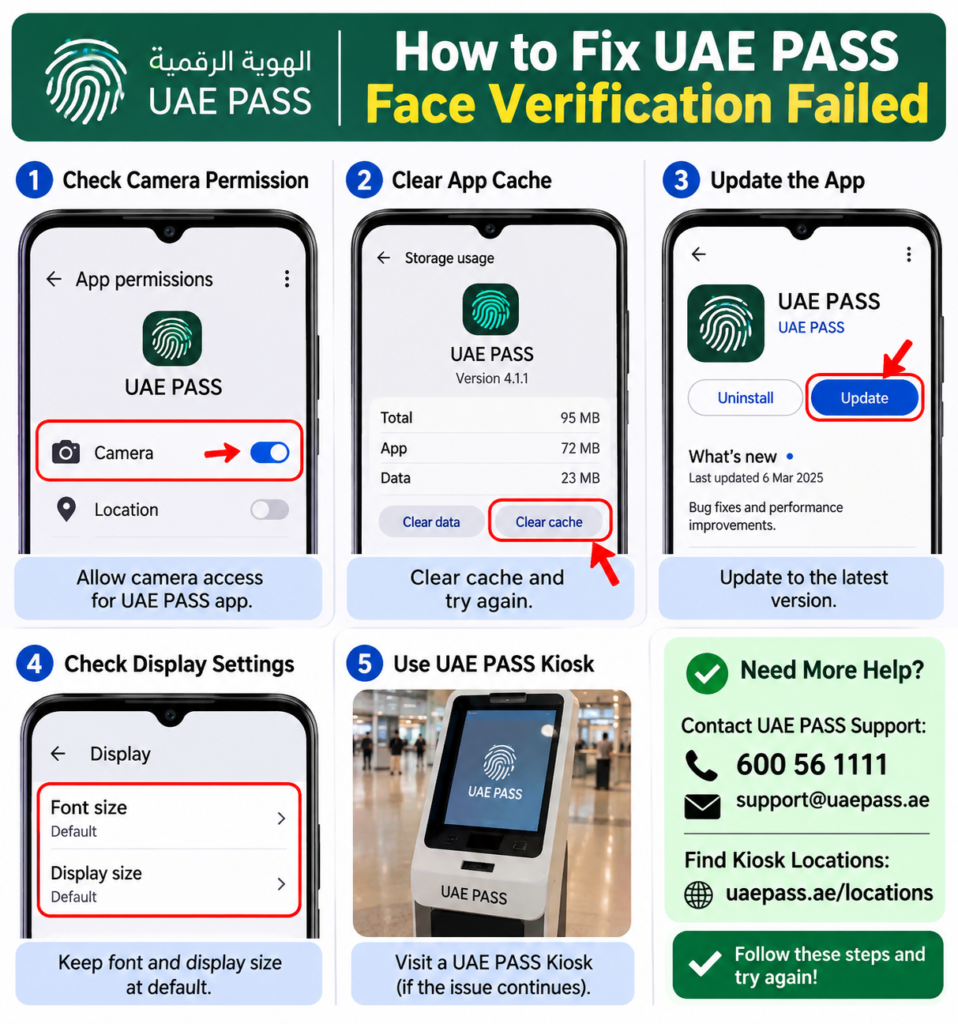
If mobile face verification continues to fail, use the official alternative that applies to your account. UAE government guidance says Emirates ID holders can visit a UAE PASS kiosk or service outlet for verification. Visitor account options may differ, so visitors should check the official app or contact UAE PASS support before travelling to a kiosk.
For Emirates ID-based verification, take your original Emirates ID and follow the instructions at the kiosk. Use the official UAE PASS Kiosk Locations page to find a nearby location and check the details before travelling. For help, call 600 56 1111 or email support@uaepass.ae, the contact details published on the official UAE PASS website.
If You Are Upgrading an Account or Confirming a Login
Account verification and login confirmation are different steps. Face verification is used when an eligible Emirates ID holder is verifying or upgrading an account. A login confirmation is the approval step when you are signing in to a service with an account that is already set up. Check the exact message shown in UAE PASS so you follow the correct process instead of repeatedly starting a new face scan.
If the app says your account is not upgraded or verified, follow its account-verification instructions. UAE government guidance lists face verification in the app or an in-person UAE PASS kiosk as options for Emirates ID holders. If the app says the login request failed, return to the service you were signing in to and start a fresh login request. Never share your UAE PASS PIN, password or one-time password with anyone.
If Your Emirates ID Was Recently Renewed or You Are Outside the UAE
If your Emirates ID has recently been renewed or replaced, or you are trying to verify your account while outside the UAE, check that you are using the current identity details and the options shown in the app. The public UAE PASS guidance does not identify travel or a recently changed ID as a definite cause of every failed face scan. If the app still cannot verify you, contact UAE PASS support before making repeated attempts or travelling to a kiosk.
After the basic checks, install any available UAE PASS update from the official app store, close and reopen the app, and retry once on a stable connection. If the same error appears, note its exact wording and contact support.
Frequently Asked Questions
Why does UAE PASS say face scan was unsuccessful?
The app could not complete the face check. Review camera access and screen display settings, then follow the scan instructions again. If the same message appears, use the official support details rather than repeating the scan many times.
Can I verify UAE PASS without face scanning?
For Emirates ID holders, UAE government guidance lists verification at a UAE PASS kiosk or service outlet as an alternative. The available process may differ for visitors, so check the official app or ask UAE PASS support.
What is the UAE PASS customer support number?
The official UAE PASS website lists 600 56 1111 and support@uaepass.ae for assistance.
Can tourists register for UAE PASS?
Yes. The UAE Digital Government page explains that visitors can use official identity documents such as passports, while GCC citizens or residents may use a national ID. Follow the registration options shown for your visitor category.
Official UAE PASS References
- UAE PASS: Official Kiosk Locations
- UAE Digital Government: UAE PASS registration and visitor guidance
- ICP: UAE PASS registration steps and 24/7 technical support
- UAE PASS technical documentation: face verification error messages
Note: Menu names can vary by phone model and operating-system version. These troubleshooting suggestions are general guidance; for account-specific verification problems, use the official UAE PASS app or support team.